
How to Use Vidnoz AI: The Ultimate Beginner’s Guide in 2025 (Free Plan Strategy)
Learning how to use Vidnoz is the secret weapon for marketers who need to produce video content at scale without a Hollywood budget. As the demand for video skyrockets, manual production is becoming impossible to sustain.
You are likely looking for a smart way to automate this process using a free AI Avatar Generator. Whether you are a creator, freelancer, or business owner, you need tools that save time, not consume it.
In this battle-tested guide, I will walk you through exactly how to use Vidnoz for free, from creating your first avatar video to using the viral “Face Swap” feature.
Table of Contents
What Is Vidnoz AI & Why It’s a “Must-Try” for Creators?
Vidnoz AI is a specialized, free-focused AI Video Generator designed to remove the friction from content creation. It allows you to generate professional videos using digital avatars, eliminating the need for cameras, microphones, or actors.
When I first tested Vidnoz, I was skeptical about “free” tools. However, unlike many competitors that lock everything behind a paywall, Vidnoz offers a genuine “freemium” experience that lets you actually test the workflow.
For marketers under performance pressure, this tool is a lifesaver. It drastically reduces production time by allowing you to turn a simple text script into a polished video presentation in minutes.
It is not just about saving money; it is about speed. You can create tutorials, social media clips, and explainer videos without ever showing your face or recording your voice.
By using Vidnoz, you automate the most tedious parts of video production, freeing you up to focus on strategy and creativity.
Getting Started: Setting Up Your Free Vidnoz Workspace
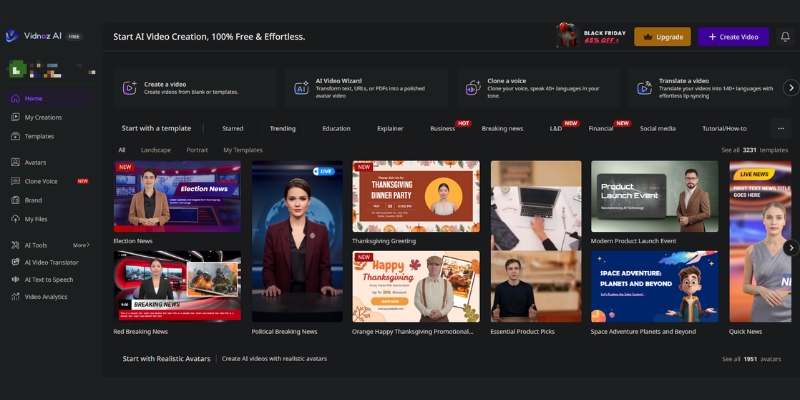
Getting access to the Vidnoz dashboard is incredibly straightforward. The platform has removed the biggest barrier to entry: the credit card requirement.
To begin, simply navigate to the site and sign up using your Google account. This instant login saves time and gets you straight to the workspace.
Once inside, you will see a clean, intuitive interface. The dashboard displays your available templates, avatars, and your remaining credits from your monthly allocation.
The “Free Plan” provides up to 60 minutes of video generation per month, plus an additional 1 free minute that refreshes daily. This structure allows you to experiment with multiple short clips consistently while the platform manages server costs.
I recommend familiarizing yourself with the left-hand menu. This is where you will find the “Avatar” library and “Templates” section, which are the building blocks of your first video.
(Disclosure: If you purchase through links on this page, we may earn a small commission at no extra cost to you. This helps us maintain our “battle-tested” reviews.)
Core Tutorial: How to Create Your First AI Avatar Video
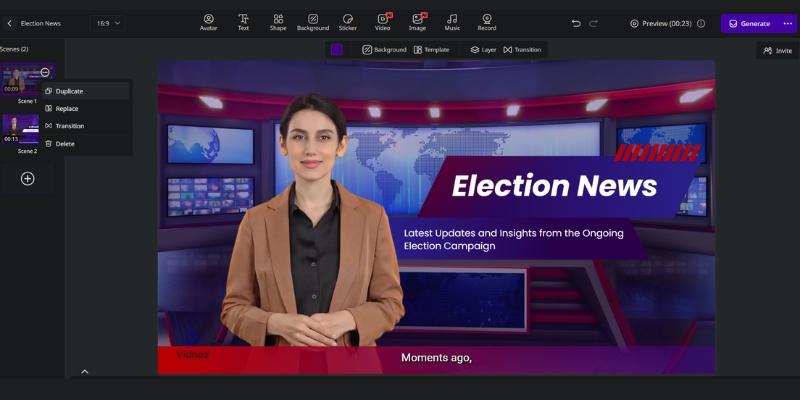
This is the core of how to use Vidnoz effectively. We will turn a blank canvas into a speaking AI avatar video in five simple steps.
Step 1: Select a Template or Canvas
Click on “Create Video” in the top right corner. You must decide between “Landscape” (16:9) for YouTube or “Portrait” (9:16) for TikTok and Reels. Choosing the right ratio now saves editing time later.
Step 2: Choose Your AI Avatar
Browse the avatar library to find a “face” that matches your brand. If you are making a business tutorial, pick a professional avatar in a suit. For lifestyle content, choose a casual avatar.
Step 3: Input Your Script
Paste your text into the script box at the bottom. Vidnoz supports multiple languages. Keep your sentences short to ensure the AI delivers them with natural pacing.
Step 4: Customize Voice & Speed
Click the voice icon above the script. Listen to a few samples and select one that sounds natural. I recommend adjusting the speed to “1.0x” or slightly slower for better clarity.
Step 5: Preview & Generate
Hit the “Generate” button. On the free plan, processing might take a few minutes depending on server load. You will receive an email notification when your video is ready to download.
Viral Content Hack: How to Use Vidnoz Face Swap
The Vidnoz Face Swap feature is a favorite among social media creators. It allows you to place any face onto a video or image, perfect for memes or personalized content.
Creators use this to make viral content quickly. It is a fun, high-engagement tool that works differently from the standard avatar generator.
Upload Source Image/Video
Start by uploading the base video or image you want to alter. Movie clips or popular memes work best here. Ensure the file size is within the free limit.
Upload Target Face
Upload the photo of the face you want to swap in. For the best AI mapping results, use a clear, front-facing photo with good lighting. Avoid blurry selfies.
Download Result
Click “Swap Face Now.” This process is usually faster than generating a full avatar video. Download the result and share it directly to TikTok or Instagram.
Bringing Images to Life: How to Use the Talking Photo Feature
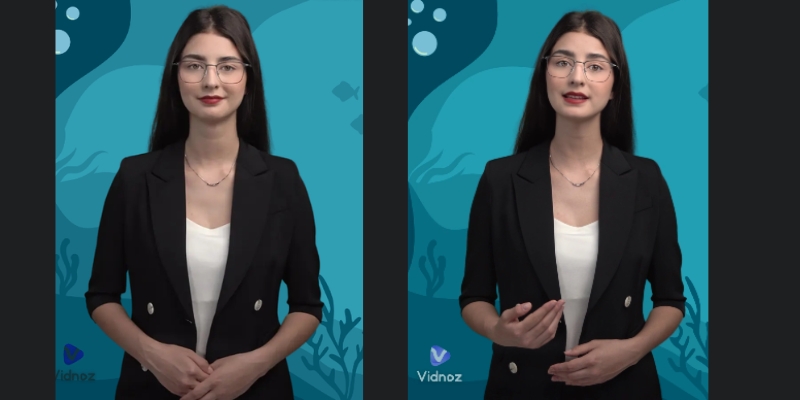
Another powerful tool in your arsenal is the Talking Photo feature. Unlike the standard avatars, this lets you animate any static image, such as a historical figure or a mascot.
This is excellent for educational content or unique brand storytelling where a standard human avatar doesn’t fit the narrative. On the free plan, you can generate up to 3 AI Photo Avatar (Talking Photo) creations per day, with the limit resetting automatically.
Upload Photo
Select “Talking Photo” from the dashboard. Upload a high-resolution headshot. The AI needs to clearly see the eyes and mouth to animate them correctly.
Add Script or Audio
You can type a script or, for better realism, upload a real voice recording. Using your own voice with a static photo often creates a more authentic connection.
Generate
The AI will animate the mouth and head movements to match the audio. While not as smooth as the 3D avatars, it is a fantastic tool for short, engaging clips.
Maximizing the Free Plan: Limitations & Workarounds
To truly master how to use Vidnoz, you must understand the credit structure and constraints of the free plan. Transparency here is key to managing your expectations.
Understanding the Credit System
The free tier provides up to 60 minutes of video creation per month, plus an additional 1 free minute that refreshes daily. Your monthly 60-minute allocation doesn’t disappear—you can use it all at once or spread it throughout the month. The bonus 1 minute per day is perfect for quick tests and experiments without depleting your main allocation.
Dealing with the Watermark
Every video generated on the free plan will have a floating watermark. There is no “magic tool” to remove this for free. I suggest using these videos for internal drafts or proof-of-concept. The good news is that Vidnoz allows commercial use even with the watermark, making it viable for budget content creators.
Resolution & Duration Limits
Free exports are limited to 720p resolution, which is perfectly suitable for social media platforms like TikTok, Instagram Reels, and YouTube Shorts. Each individual video can be up to 60 minutes long, but your total monthly allocation (60 minutes + daily 1-minute bonuses) will determine how many videos you can create.
Credit Management
Don’t waste your credits on testing tiny changes. Use the “Preview” mode as much as possible before hitting “Generate.” The daily 1-minute bonus is ideal for quick experiments without touching your main 60-minute monthly pool.
Pro Tip: Use the free plan to validate your content idea. If a watermarked video gets good engagement on TikTok, that is your signal to upgrade and produce a high-quality version.
Vidnoz vs. HeyGen: Which Free Tool Should You Use?
When discussing free AI video tools, the comparison often comes down to Vidnoz vs. HeyGen. Both are powerful, but they serve slightly different needs for free users.
HeyGen is known for incredible lip-sync quality and more polished avatars, but their free plan is more restrictive with only 3 videos per month (3 minutes each).
Vidnoz, on the other hand, positions itself as the “Best Free Alternative.” It offers more flexibility with 60 minutes monthly plus daily 1-minute bonuses, making it better for volume testing and consistent daily practice.
| Feature | Vidnoz AI (Free) | HeyGen (Free) |
|---|---|---|
| Free Credits | 60 min/mo + 1 min/day | 3 videos/mo (3 min each) |
| Max Video Length | 60 minutes per video | 3 minutes per video |
| Watermark | Yes (Floating) | Yes (Fixed/Floating) |
| Face Swap | Included & Fast | Limited/Not Available |
| Talking Photo Daily Limit | 3 generations per day | Limited on free plan |
| Best For | Beginners & Volume Testing | High-End Enterprise Quality |
| Action | Try Vidnoz Free | Check Pricing |
My Expert Verdict
If you are a beginner with zero budget looking to learn how to use Vidnoz for social media, Vidnoz is the superior starting point. Its generous monthly allocation (60 minutes) plus daily bonuses (1 minute) allow you to learn by doing consistently, whereas HeyGen’s 3-video monthly limit can stop your learning process too early. For high-volume testing and daily practice, Vidnoz wins.
Start Creating for FreeFrequently Asked Questions About Using Vidnoz
Is Vidnoz completely free?
Vidnoz operates on a “Freemium” model. The free plan provides up to 60 minutes per month plus 1 additional minute per day, allowing you to create multiple videos consistently. You can use basic features and generate videos for free forever with watermarks, but advanced features and watermark removal require a paid subscription.
How to remove the Vidnoz watermark?
The only official way to remove the watermark is to upgrade to a Pro plan. Cropping the video is a workaround, but it often ruins the framing of your avatar.
Can I use Vidnoz videos for YouTube monetization?
Yes, Vidnoz allows commercial use even on the free plan, but videos will include a watermark. For professional monetized content without watermarks, a paid commercial license is recommended for better presentation quality.
Is Vidnoz safe to use?
Yes, Vidnoz is a legitimate AI platform. They comply with standard data privacy regulations. However, always be cautious about uploading sensitive personal photos to any AI cloud service.
Read More From AI Avatar Generator
Deep dive into our battle-tested comparisons and reviews to find the perfect tool for your specific needs.
- Best Free AI Video Generators (With No Watermark)
- HeyGen Pricing Explained: Is the Free Plan Enough?
- Best AI Video Generators 2025: The Ultimate Battle-Tested Review
last update : 20/11/2025
