
How to Use Pika 2.5: The Ultimate Guide to AI Video (2025 Update)
Creating professional animations has reached a new milestone with Pika 2.5. In this comprehensive guide on how to use Pika, we show you exactly how to generate ultra-realistic AI videos with the latest model released in November 2025.
As part of the rapidly evolving generative AI tools landscape, Pika 2.5 introduces enhanced physics, improved prompt adherence, and cinema-grade realism. Whether you are animating static images or creating talking avatars, this version represents a significant leap forward.
This article focuses on the battle-tested Pika 2.5 web interface. We will cover everything from your first prompt to mastering Lip Sync, Pikaframes, and the revolutionary Pikadditions feature.
Table of Contents
What is Pika 2.5 & What’s New in November 2025?
Pika 2.5 is the latest evolution of the Generative AI Video Platform, released in November 2025 after significant development. Unlike previous versions, Pika 2.5 specializes in ultra-realistic generations with dramatically improved physics and temporal consistency.
According to the official release, Pika 2.5 delivers three breakthrough improvements: enhanced physics simulation for natural movement, unmatched prompt adherence for complex multi-part prompts, and cinema-grade camera controls that treat direction as a first-class feature.
Its primary strength lies in Image-to-Video capability combined with extended duration support. You can now generate videos up to 25 seconds in crisp 1080p resolution, with seamless keyframe transitions using Pikaframes.
Compared to competitors like Luma Dream Machine and Runway Gen-4, Pika 2.5 offers unique features such as Pikadditions (add objects/characters to existing videos), Pikaswaps (replace elements within videos), and Lip Sync (automated mouth movements).
Getting Started: Pika.art Web Interface Walkthrough
The Pika.art web interface is the official and most powerful way to use Pika 2.5. The platform has evolved significantly from its early Discord-only days, now offering a professional-grade dashboard.
Accessing the Platform: Navigate to pika.art and sign in using your Google or Discord account. The homepage presents a clean interface with your generation history on the left and the creation panel in the center.
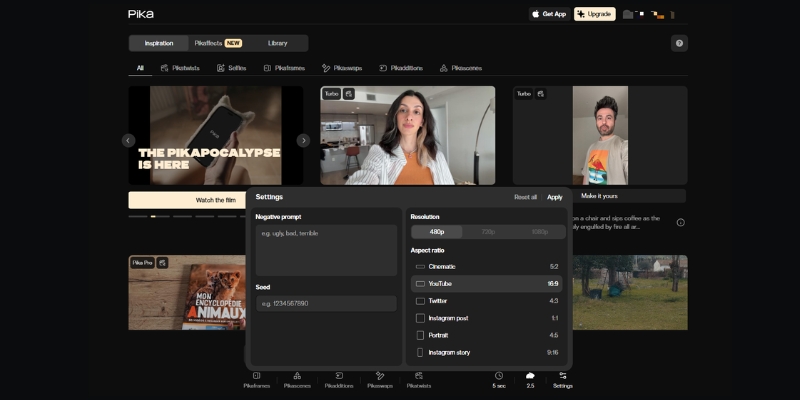
Understanding the Dashboard: The main creation area features a large prompt box, image upload button, and generation settings panel. On the right side, you will find quick access to Pikaframes, Pikadditions, and PikaEffects.
Model Selection: Pika 2.5 is now the default model, but you can still access legacy models (1.5, 2.2) via the settings dropdown. For best results, always use Model 2.5 Pro for 1080p quality.
How to Use Pika 2.5 to Create Your First AI Video (Step-by-Step)
Mastering the Pika 2.5 workflow requires understanding the new parameter structure. Follow these updated steps to generate your first clip with the latest model.
Step 1: Choose Your Generation Mode
Select between Text-to-Video, Image-to-Video, or Pikaframes (keyframe animation). For consistent characters, we strongly recommend Image-to-Video mode. Upload your base image by clicking the attachment icon.
Step 2: Craft an Effective Prompt
Pika 2.5 has dramatically improved prompt adherence. Use the structure: [Subject] + [Action] + [Camera Movement] + [Environment] + [Style]. Example: “Young woman smiling, slow zoom in, golden hour lighting, cinematic depth of field.”
Step 3: Configure Video Parameters
Click the settings gear icon. Set your aspect ratio (16:9 for YouTube, 9:16 for TikTok). Choose video length (5s, 10s, 15s, 20s, or 25s). Select Model 2.5 Pro for 1080p output. Adjust motion intensity slider (2-3 recommended).
Step 4: Generate & Review
Click the “Generate” button. Pika 2.5 typically takes 60-90 seconds to render depending on length. Once complete, review the output in your Library tab. Use the Extend feature to lengthen clips beyond initial duration.
Pro Tip: Leave the prompt empty when using Image-to-Video to let Pika 2.5’s AI decide natural movement, or add simple camera directions like “slow pan right” for subtle control.
Mastering Pika 2.5’s Advanced Features: Pikaframes, Pikadditions & Lip Sync
This is where Pika 2.5 truly dominates. The platform now offers professional-grade post-processing tools that were previously only available in expensive VFX software.
Pikaframes: Keyframe Animation System
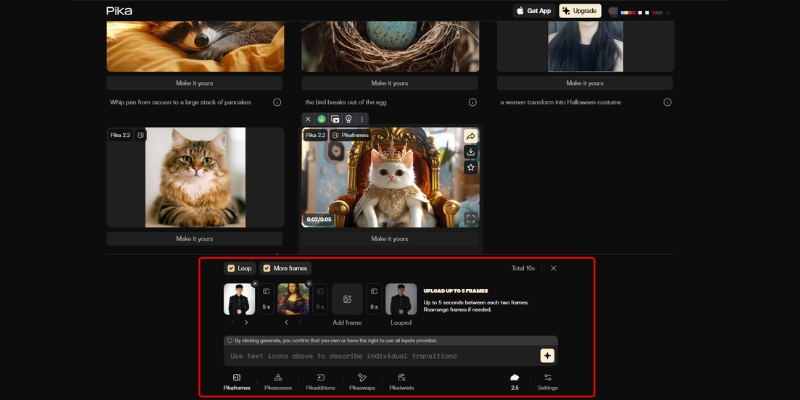
This revolutionary feature lets you define a start frame and end frame, then Pika generates the smooth transition between them. Upload two images, set duration (1-10 seconds), and let the AI create cinematic morphing animations. Perfect for product reveals and character transformations.
Pikadditions: Scene Element Insertion
Add characters, objects, or creatures to existing videos with automatic color and lighting matching. Click “Pikadditions,” upload your video, then upload the element you want to insert. Pika 2.5 seamlessly integrates it with realistic shadows and perspective.
Pikaswaps: Element Replacement
Replace specific elements in your video without regenerating the entire clip. Select the object you want to swap, describe the replacement, and Pika intelligently replaces it while maintaining scene consistency.
Lip Sync: Automated Talking Avatars
Turn any static character into a talking head. Select your generated video, click “Lip Sync,” upload your audio file (or generate speech from text using integrated ElevenLabs voices). Pika automatically matches mouth movements to audio with surprising accuracy.
PikaEffects: Creative Transformations
Apply physics-based effects like Squish, Melt, Inflate, Explode, Crush, or Cake-ify to any image. These effects are now enhanced in 2.5 with more realistic simulations and better integration with the base footage.
Pika 2.5 Prompt Engineering: Writing Prompts That Actually Work
Pika 2.5’s enhanced prompt understanding means your prompting strategy should evolve. The model now handles complex, multi-element prompts with high accuracy.
Use this advanced formula: [Subject Details] + [Primary Action] + [Secondary Actions] + [Camera Movement] + [Lighting] + [Environment] + [Style Reference].
Here are production-ready prompt examples optimized for Pika 2.5:
- Cinematic Realistic: “Professional businesswoman, mid-30s, walking confidently through modern office, slow dolly forward, natural window lighting, depth of field f/2.8, corporate commercial style, 1080p.”
- Anime Style: “Anime girl with blue hair, tears forming in eyes, slight head tilt down, gentle wind effect, sakura petals falling, studio lighting, Studio Ghibli aesthetic, vibrant colors.”
- Product Showcase: “Luxury smartwatch rotating 360 degrees, chrome finish reflecting studio lights, clean white background, slow zoom in on display, Apple commercial style, 4k quality.”
Using Negative Prompts
In the advanced settings, add negative prompts to avoid common AI artifacts: “no morphing, no extra limbs, no blurry faces, no text overlays, no watermarks, no unnatural movements.”
Camera Control Language
Pika 2.5 treats camera as first-class. Use specific cinematography terms: “crane up,” “dutch angle,” “whip pan,” “rack focus,” “orbit shot,” “steadicam follow.” The model understands and executes these professional camera movements.
Pika 2.5 Pricing & Plans: Complete Credit Breakdown
Pika has restructured its pricing for the 2.5 release. Understanding the credit cost per video length is essential for budget planning.
Free Plan ($0/month): 80 credits monthly. Videos include watermarks. No commercial use rights. Ideal for testing and personal experimentation only.
Standard Plan ($10/month): 700 credits monthly. Access to all models including 2.5 Pro. Faster generation queue. Note: Still includes watermarks and NO commercial rights. Best for hobbyists.
Pro Plan ($35/month): 2,300 credits monthly. Watermark-free downloads. Full commercial use rights. Priority generation. This is the minimum for professional work.
Fancy Plan ($95/month): 6,000 credits monthly. Fastest generation speeds. All Pro benefits plus rollover credits option. For high-volume content creators.
Credit Costs (Model 2.5 Pro 1080p):
- 5 seconds: 40 credits
- 10 seconds: 80 credits
- 15 seconds: 120 credits
- 20 seconds: 160 credits
- 25 seconds: 200 credits
| Feature | Free | Standard ($10) | Pro ($35) | Fancy ($95) |
|---|---|---|---|---|
| Monthly Credits | 80 | 700 | 2,300 | 6,000 |
| Watermark | Yes | Yes | No | No |
| Commercial Use | No | No | Yes | Yes |
| Model Access | 1.5 + Turbo | All Models | All Models | All Models |
| Action | — | Try Standard | Get Pro | Get Fancy |
(Disclosure: If you purchase through links on this page, we may earn a small commission at no extra cost to you. This helps us maintain our “battle-tested” reviews.)
Our Recommendation: If you need commercial rights for client work, go directly to Pro ($35/month). The Standard plan’s lack of commercial licensing makes it unsuitable for freelancers or agencies.
Our Pika 2.5 Verdict
Pika 2.5 represents a significant evolution in AI video generation. The enhanced physics and prompt adherence bring it much closer to competing with tools like Veo 3 and Runway Gen-4. While cinematic realism still lags behind Luma Dream Machine in some scenarios, the unique features like Pikadditions and Pikaframes make it an essential tool for professional creators.
Try Pika 2.5 for FreeFrequently Asked Questions About Pika 2.5
Can I use Pika 2.5 videos for commercial purposes?
Yes, but only if you subscribe to the Pro plan ($35/month) or higher. The Free and Standard plans explicitly do not grant commercial use rights.
How long can Pika 2.5 videos be?
The base generation supports 5, 10, 15, 20, or 25 seconds. You can use the Extend feature to add additional segments, though temporal consistency may decrease after 30-40 seconds total.
Is Pika 2.5 better than previous versions?
Significantly. The physics simulation, prompt adherence, and motion quality are vastly improved over Pika 2.2. However, some users report that cinematic realism still needs work compared to competitors.
Does Pika 2.5 support Lip Sync?
Yes. Lip Sync remains one of Pika’s signature features. Upload any video and audio file, and Pika automatically syncs mouth movements. It works best with front-facing subjects.
What happened to Modify Region?
The feature has been evolved into Pikaswaps and Pikadditions, which offer more precise control for element replacement and insertion rather than general inpainting.
Read More From AI Generative Video
Expand your knowledge on AI video creation with our related guides and comparisons. These articles dive deeper into the competitive landscape of AI video generation.
- How to Write Effective Prompts for AI Video (Prompt Engineering)
- Pika vs Luma Dream Machine: The New Text-to-Video King?
- Pika Review: (Pika 2.5) Complete 2025 Analysis
last update : 03/12/2025
