
How to Use DomoAI: The Complete Discord Tutorial for Creators (2025)
Mastering how to use domoai is currently the fastest workflow to transform static images into viral anime-style videos. As creators, we constantly seek tools that balance speed with aesthetic quality.
In this guide, I will break down the specific Discord commands and settings you need to master. We move beyond basic prompts to explore the AI Generative Video workflows that professionals use.
Whether you are a marketer animating a logo or a freelancer creating content, this tutorial covers everything from the /animate command to advanced pricing strategies. Let’s dive into the details.
Table of Contents
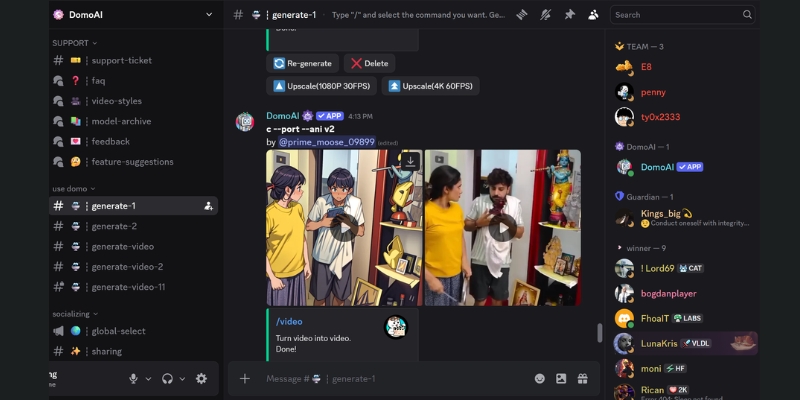
What Is DomoAI & How Does It Transform Video Creation?
DomoAI is a specialized AI video generator hosted on Discord that focuses on high-quality stylization. It primarily converts static images and text prompts into fluid animations, excelling in Anime and 3D cartoon aesthetics.
Marketers often struggle with the time-intensive process of traditional animation. DomoAI solves this pain point by automating the “motion” layer, allowing you to produce 3-5 seconds of high-frame-rate video in under two minutes.
The tool’s core entity is its Image-to-Video feature. Unlike generalist tools that hallucinate wild details, DomoAI maintains the structural integrity of your source image while applying a consistent “Real-to-Anime” filter.
I have tested dozens of generative tools, and DomoAI operates exclusively via Discord. This platform-based approach allows for community learning but can be a barrier if you are unfamiliar with server navigation.
After using this tool for several campaigns, I found it stands out for its style consistency. If you need a reliable AI Video Generator for social media content, this is a top-tier contender.
Getting Started: How to Join and Navigate the DomoAI Discord
The Discord interface can feel chaotic to non-gamers, but don’t let that stop you. The workflow is actually linear once you know where to click. Here is the streamlined process to get access.
Join the Server
Navigate to the official DomoAI website and click “Join our Discord”. You must have a verified Discord account. Accept the invite to enter their server environment.
Locate the Workspace
On the left sidebar, scroll down to find the “GENERATE VIDEO” section. You will see channels like generate-video, generate-1, or generate-2. Click any of these. Do not type commands in the “general” chat.
Understanding the UI
DomoAI relies on “slash commands”. This means you initiate every action by typing a forward slash (/) in the message bar. A menu will pop up showing available tools like /animate or /video.
How to Use DomoAI Image-to-Video (The /animate Command)
This is the most popular feature for marketers. It takes an existing image—like a product shot or a selfie—and adds movement. Here is the battle-tested workflow for the best results.
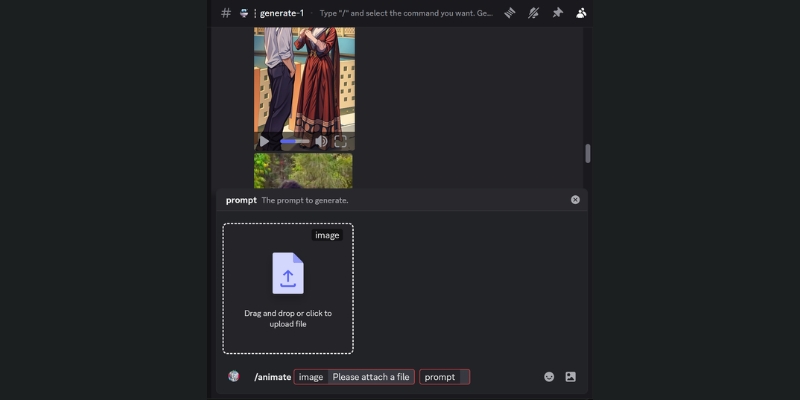
Step 1: Type the Command
Go to a “generate” channel. Click the message bar, type /animate, and press Enter. A specific box will appear requesting an “image” and a “prompt”.
Step 2: Upload Your Image
Click the “image” field and select your file (JPG or PNG). I recommend high-resolution images for the best clarity. This image serves as the visual anchor for the video.
Step 3: Enter the Prompt
The prompt here guides the *motion*, not the content. Type simple instructions like “A man blinking and smiling” or “Wind blowing through hair”. Keep it short and focused.
Step 4: Configure Settings (Crucial)
After hitting Enter, a settings menu pops up. Select your Motion Intensity (Low for portraits, High for action). Choose your Duration (3s, 5s, or 10s) and Aspect Ratio (9:16 for Reels, 16:9 for YouTube).
Step 5: Generate
Click “Start”. The bot will take 1-3 minutes to render depending on server load. Since the chat moves fast, check the “Mentions” tab (the @ symbol) in Discord to find your finished video quickly.
How to Use DomoAI Text-to-Video (The /video Command)
Use the Text-to-Video feature when you do not have a source image. The AI creates the visual and the motion purely from your text description and imagination.
The Command
Type /video in the message bar and hit Enter. This opens the prompt input field specifically for generation from scratch without a reference image.
Prompt Engineering
Since there is no reference image, your prompt must be highly descriptive. Include details about lighting, camera angle, and character appearance (e.g., “Cinematic shot of a cybernetic samurai walking through neon rain, dramatic lighting, 4k anime style”).
Style Selection
A dropdown menu will allow you to pick the visual style. Options usually include Anime, Realism, or 3D Cartoon. Selecting the right style is critical for the final “look and feel” matching your creative vision.
Comparison
Be aware that Text-to-Video offers less control over specific character features than Image-to-Video. It is great for abstract concepts and exploratory work but less reliable for consistent branding across multiple videos.
Mastering DomoAI Prompts & Parameters for Better Results
To move from “average” to “professional” output, you need to master prompt engineering parameters. Small tweaks in your text can drastically change the quality of the anime style transformation.
Style Keywords
Add specific semantic keywords to trigger distinct looks. Use terms like “Ghibli style” for soft, painterly visuals, “Cyberpunk” for neon edges and high contrast, or “Watercolor” for artistic, fluid flair.
Negative Prompts
Use the –no parameter to exclude unwanted elements. For example, adding “–no blur, –no distortion, –no extra fingers, –no watermark” cleans up the final video significantly and prevents common AI artifacts.
Consistency Tips
To keep a character looking the same across multiple generations, always use the same base “seed” or reference image. Describe the character’s clothing and distinctive features clearly in every prompt (e.g., “red jacket, blue eyes, scar on left cheek”).
Example Prompts
Try this structure: “[Subject] doing [Action], [Environment], [Style], [Lighting]”. Example: “A magical cat creating glowing spells with its paws, enchanted forest background, Studio Ghibli anime style, soft volumetric lighting, golden hour”.
For more advanced techniques on controlling video output quality, check our comprehensive guide on prompt engineering for AI video.
DomoAI Pricing & Plans: Is It Worth the Investment?
DomoAI operates on a credit-based subscription model. Understanding the ROI is vital for freelancers and agencies deciding whether to upgrade from the free trial for professional work.
Free Trial
New users receive a small amount of one-time credits (typically around 50-100) upon joining. This is enough for roughly 3-5 short generations to test the capabilities and interface before financial commitment.
Subscription Plans
Paid plans reset credits monthly. The Basic Plan usually starts around $9.99/month, offering approximately 500 credits. The Standard Plan (~$19.99) provides around 1,000 credits, while the Pro Plan offers 3,000+ credits with faster generation speeds.
Commercial Rights
This is critical: you generally own the commercial rights to videos created only while you maintain an active paid subscription. Verify this in their latest Terms of Service if you plan to sell or license the content to clients.
Private Mode
Pro users often get access to “Stealth mode” or private generation channels. This allows you to generate videos in a private bot chat, keeping your client work and creative experiments hidden from the public server—essential for agencies.
| Plan | Credits / Month | Ideal For | Action |
|---|---|---|---|
| Basic | ~500 Credits | Hobbyists & Beginners | Check Price |
| Standard | ~1,000 Credits | Content Creators | Get Started |
| Pro | ~3,000 Credits | Agencies & Power Users | Go Pro |
Verdict
If you are a casual user creating occasional content, stick to the Basic plan. However, for serious DomoAI usage involving client work or high-volume production, the Private Mode and increased credits in the Pro plan are mandatory for professional workflows.
(Disclosure: If you purchase through links on this page, we may earn a small commission at no extra cost to you. This helps us maintain our “battle-tested” reviews.)
Frequently Asked Questions About Using DomoAI
Is DomoAI free to use?
It offers free starting credits (typically 50-100) for new accounts, but it is not permanently free. Once you deplete your initial credits, you must subscribe to a monthly plan to continue generating videos.
Can I use DomoAI without Discord?
Currently, DomoAI is primarily Discord-based. While they may develop a standalone web application in the future, the full feature set and community support currently reside entirely within the Discord ecosystem.
How do I delete my video from the server?
You can usually delete your generation by reacting to the bot’s message with the “X” emoji (if available) or by right-clicking the message and selecting “Delete Message”. Note that this only removes it from public view—the bot may retain data server-side.
Why is my generation failing?
Failures often occur due to overly sensitive “NSFW” content filters triggering falsely, server overload during peak hours, or problematic prompt keywords. Try simplifying your prompt, removing potentially sensitive keywords, or waiting a few minutes before retrying.
Read More From AI Generative Video
Expand your knowledge with our latest comparisons and tutorials in the AI video space. These guides are designed to help you choose the right tool for your specific creative workflow.
- Pika vs DomoAI: Realistic Generalist vs. Style Specialist
- Kaiber Review (2025): The Best AI Video Generator for Music?
- Pika vs Kaiber (2025 Comparison): Realism or Rhythm?
last update : 29/11/2025
