
How To Use Synthesia: A Step-by-Step Guide For Marketers (2025)
If you are figuring out how to use Synthesia, you are likely feeling the pressure to produce more video content in less time. Marketers and freelancers today are constantly battling the bottleneck of traditional video production.
Synthesia is an AI Video Generator that solves this by replacing cameras and actors with code. By mastering this tool, you can scale your AI Avatar Generator workflows and reduce production costs significantly.
In this guide, I will walk you through exactly how to use Synthesia from your first login to exporting a professional video, focusing on practical steps that save you hours of work.
Table of Contents
Understanding the Tool: What Is Synthesia & How Does It Work?
Before we dive into the tutorial, it is crucial to understand that Synthesia is an AI Video Generator platform. It does not require you to film anything. It converts text into professional video content.
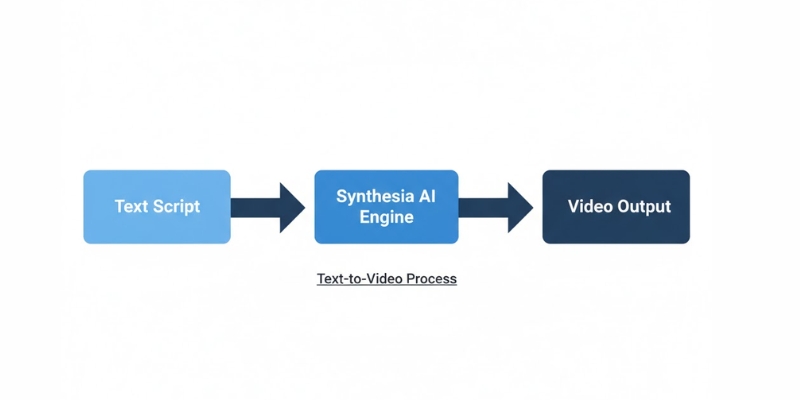
The core technology relies on Text-to-Speech and deep learning algorithms. When you type a script, the AI engine analyzes the phonemes and animates the AI Avatar to sync its lips and facial expressions perfectly.
For us marketers, this means we can bypass the expensive “Video Production” phase entirely. You don’t need a studio, lighting gear, or a microphone. The input is a simple script, and the output is a high-definition video.
I use this tool because it validates the shift from manual labor to automation. The speed is unmatched; what used to take me three days of filming and editing now takes 15 minutes on my laptop.
Getting Started: Navigating the Synthesia Studio Dashboard
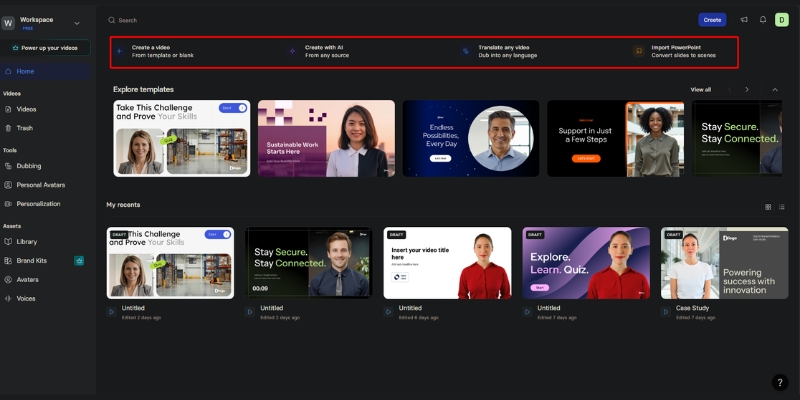
When you first log in to the platform, you land on the Studio Dashboard. As a beginner, the interface is clean and intuitive, designed to get you to the “Create Video” stage immediately.
I noticed that the layout is very similar to presentation tools like PowerPoint. This familiarity lowers the learning curve significantly. You don’t need to be a video editor to understand where things are.
The Dashboard Home:
Here you will see your recent videos. At the top right, the most important button is Create Video. This is where your workflow begins.
The Sidebar:
On the left, you have tabs for Templates, Avatars, and your specific Brand Kit. I recommend exploring the Templates tab first to see what is possible.
The Canvas:
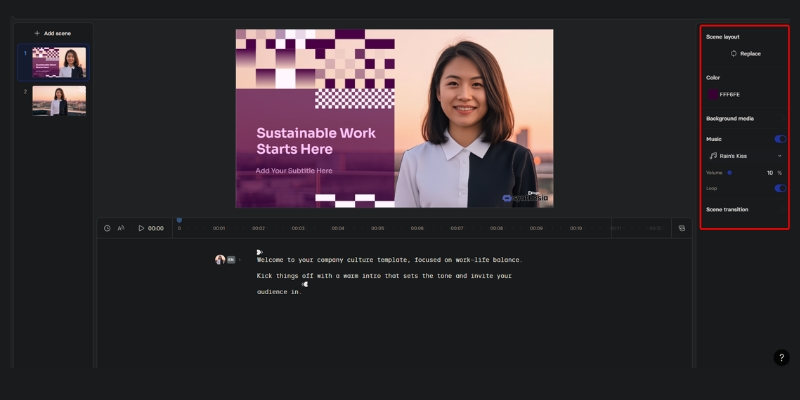
Once you start a project, the center screen is your visual canvas. Below it is the script box where you will type your content. It is a drag-and-drop environment that feels very responsive.
The Core Workflow: How to Use Synthesia to Create a Video in 5 Steps
This is the meat of the process. I have used this exact workflow to generate hundreds of videos for clients. Follow these steps to ensure you get a high-quality result every time.
Step 1: Choose a Professional Template
Never start from scratch if you are new. Click on “Templates” and select a category like “Corporate Training” or “Sales Pitch”. These templates have pre-designed layouts that look professional instantly.
Step 2: Select Your AI Avatar
Click on the avatar in the canvas to swap it. Choose a Stock Avatar that fits your brand’s tone. I usually pick an avatar with “Business Casual” attire for B2B content to build trust.
Step 3: Input Your Script & Select Language
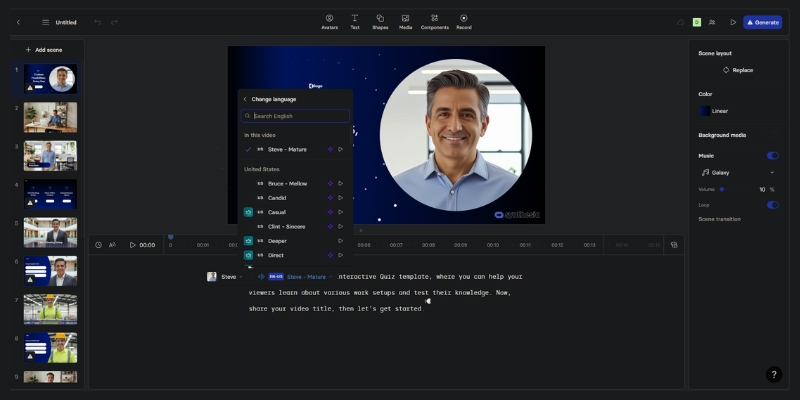
Type or paste your text into the script box at the bottom. Synthesia supports 140+ languages and accents. If you are targeting a global audience, this is where you switch from English to Spanish or French instantly.
Step 4: Customize Voice & Add Media
Next to the script, select a Voiceover. You can filter by accent and style (e.g., “Calm” or “Energetic”). I always listen to the voice preview to ensure it matches the avatar’s face.
Step 5: Generate & Export Video
Once you are happy with the scenes, click “Generate”. The AI will render the lip-syncing. After a few minutes, you can Export the video as an MP4 or share a link directly.
Pro Tip: I recommend creating a Short AI Video (under 30 seconds) for your first attempt to understand the rendering speed without using too many credits.
Start Creating Videos Free(Disclosure: If you purchase through links on this page, we may earn a small commission at no extra cost to you. This helps us maintain our “battle-tested” reviews.)
Mastering the Script: How to Write for AI Avatars
An AI video is only as good as the Script you feed it. If your text is robotic, the avatar will sound robotic. I have learned that writing for the ear is different from writing for reading.
Control the Pacing:
Use punctuation strategically. Commas create short pauses, and periods create longer stops. If the avatar speaks too fast, I add more commas to slow down the delivery.
Use Phonetic Spelling:
Sometimes the AI mispronounces brand names or acronyms. In these cases, I use phonetic spelling. For example, I might type “Syn-thee-zia” instead of “Synthesia” to get the pronunciation perfect.
Add Gestures:
You can command the avatar to move. In the script editor, you can insert “Gestures” like head nods or eyebrow raises. I use these to emphasize key points in the message.
Beyond the Basics: Using Personal & Studio Custom Avatars
If you are investigating Synthesia for a large brand or personal use, you might want more than stock options. This is where the Custom Avatar features shine, offering two distinct options for different needs.
Creating a Personal Avatar (Quick & Easy):
You can create a Personal Avatar with just 2-3 minutes of webcam footage. No green screen required. Simply record yourself speaking naturally, and the AI will generate your digital twin. This is perfect for individuals and small teams wanting a personalized touch without professional filming equipment.
Studio Avatar (Enterprise-Grade):
For brands requiring the highest quality, Studio Avatars offer professional-grade results. This involves filming with professional equipment and lighting. Studio Avatars cost an additional $1,000 per year and take up to 10 days to process, but deliver unmatched realism and polish for corporate communications.
Voice Cloning Technology (Enterprise Feature):
Paired with custom avatars, Voice Cloning allows the AI to speak with your actual voice in 32 supported languages. This Enterprise-only feature is powerful for maintaining brand consistency across thousands of videos without you recording a single word. The AI can generate new scripts in your voice, perfect for scaling CEO messages or personal brand content globally.
For more details on the costs involved, check out our breakdown of Synthesia Pricing Explained.
Real-World Applications: When Should You Use Synthesia?
Synthesia is not just a cool toy; it is a business tool. I primarily see Marketers and Freelancers achieving high ROI in three specific areas where traditional video fails.
Corporate Training & Onboarding:
Replace boring PDF manuals with engaging videos. Employees retain information better from video. You can update the script and re-generate the video whenever policies change.
Explainer Videos:
For SaaS companies, creating product demos is tedious. Synthesia allows you to screen record your software and overlay an avatar to explain the features clearly and consistently.
Personalized Sales Outreach:
Sales teams use this to send unique videos to leads. Mentioning a prospect’s name and company in a video dramatically increases response rates compared to cold emails.
Expert Tips: Making Your AI Video Look Less “Robotic”
A common fear is that AI videos look fake. While the tech isn’t 100% human yet, there are expert tricks I use to make the Natural Flow much more convincing.
Add Background Music:
Silence highlights the artificial nature of the voice. Always add a low-volume background track. It fills the “dead air” and adds emotion to the video.
Break Up Long Scenes:
Don’t let the avatar talk for 2 minutes straight in one shot. I use Scene Editing to switch between the avatar and full-screen images or text slides. This keeps the viewer’s eye moving.
Match Voice to Avatar:
Ensure the voice fits the face. A deep, authoritative voice on a young, casual avatar feels jarring. I spend time auditioning voices to find the perfect “Realistic” match.
Frequently Asked Questions About Using Synthesia
Is Synthesia hard to learn for beginners?
No, it is designed for non-technical users. If you can use PowerPoint or Canva, you can use Synthesia. The drag-and-drop interface is very forgiving.
Can I use my own voice in Synthesia?
Yes. You can either upload a pre-recorded audio file (and the avatar will lip-sync to it) or use the Voice Cloning feature (Enterprise-only) to generate new audio from text using your voice replica in 32 languages.
How long does it take to render a video?
It depends on your plan and video length. Enterprise users typically see renders under 5 minutes, Creator plans average 8-12 minutes, and Free plans use background processing with no guaranteed timeframe.
Does Synthesia integrate with PowerPoint?
Yes, there is a direct import feature. You can upload a PowerPoint file, and Synthesia will convert the slides into video scenes, placing the avatar automatically.
Is there a free trial?
Yes, Synthesia offers a free plan with 36 minutes per year (3 minutes per month), giving you access to 9 avatars, 140+ languages, and professional templates to fully test the platform. Check our Synthesia Review for the latest details.
Final Verdict
Synthesia is the most robust tool for scaling video production without a camera. It’s perfect for training, explainers, and personalized sales.
Try Synthesia NowRead More From AI Avatar Generator
If you found this guide helpful, explore our other deep dives into the world of AI avatars and video generation to stay ahead of the curve.
- What Is an AI Avatar? (And How Do They Work?)
- Synthesia vs HeyGen: Which AI Avatar Tool Wins?
- How to Create AI Videos (Tutorials & Best Practices)
last update : 20/11/2025
