
How To Use Descript: The Ultimate Text-Based Video Editing Guide (2025)
Learning how to use Descript is the single most effective way to speed up your video production workflow if you are a podcaster or marketer. When I first switched from Premiere Pro to Descript, I realized this was not just another editor; it was a fundamental shift in how we create content.
Instead of battling complex timelines, you edit video by editing text, leveraging Text-based editing and the new Underlord AI co-editor to automate tedious work. This approach allows Creators and Freelancers to produce professional content in a fraction of the time, cutting editing time by up to 70%.
In this AI Video Editing guide, we will walk through the entire process step-by-step. You will learn everything from Text-based Editing and Studio Sound to Overdub voice cloning and Exporting your final project.
Table of Contents
What Is Descript & How Does The Text-Based Editing Workflow Work?
If you are used to traditional non-linear editors (NLEs) like Final Cut or Premiere, Descript will feel like magic. It is an all-in-one audio and video editor used by over 6 million creators that operates almost exactly like editing a Google Doc.
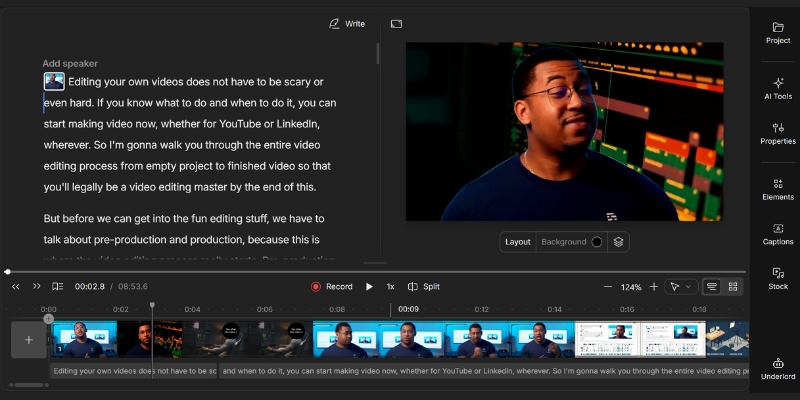
The core concept is simple but revolutionary: editing the transcript edits the underlying media automatically. When you delete a sentence in the text editor, Descript automatically cuts that corresponding segment out of the video and audio tracks instantly.
This “Text-based editing” workflow eliminates the need to manually hunt for “ums” and mistakes on a waveform. It is designed specifically for Podcasters and Marketers who need speed and narrative control over complex technical editing skills.
Timeline Editing (Traditional):
You must listen, pause, find the exact frame, use a razor tool to cut, delete the clip, and drag the remaining clips together manually. It is slow and technical, requiring significant experience to master.
Text-Based Editing (Descript):
You read the transcript, highlight the sentence you do not want, and press “Delete” on your keyboard. The video updates instantly without touching the timeline. It is fast, intuitive, and requires no prior editing experience.
Setting Up Your First Project: Import, Transcribe, and Interface Overview
Getting started with Descript is straightforward even for complete beginners. Unlike heavy software that takes hours to configure, I found the setup process to be incredibly streamlined for new users who just want to start editing.
Downloading and Installing Descript:
Go to the official website and download the desktop app for your operating system. While there is a web version available, I strongly recommend the desktop app for better performance and reliable offline access.
Creating a New Project & Importing Media:
Click “New Project” in the Drive view to begin creating. You can drag and drop your video or audio files directly into the window. Descript supports multicam sequences if you are recording with multiple camera angles simultaneously.
Navigating the Script and Canvas View:
Once your media uploads, Descript will ask to transcribe it using AI. Select the number of speakers for accurate Speaker Detection across 25 supported languages. Your screen is split into three parts: the Script Editor (center), the Canvas (video preview), and the Timeline (bottom).
The transcription is surprisingly accurate, typically hitting 95%+ accuracy right out of the gate for clear recordings. This AI-generated transcript becomes your primary editing interface for the entire project.
How to Use Descript for Basic Editing: The Cut, Copy, and Paste Workflow
This is where the real production work happens. Mastering the Text-based editing workflow is the key to cutting your production time in half or more. Treat your video exactly like a word document you are editing.
Deleting Text to Remove Footage:
Highlight any text you want to remove and press “Backspace” or “Delete” on your keyboard. This is non-destructive editing, meaning you can always recover the footage by dragging the clip edge in the timeline if you change your mind.
Ignoring Text vs. Deleting Text:
Sometimes you want to keep the text visible in the transcript but skip it during playback. Highlight the text and use “Strikethrough” to apply the effect. The text remains visible for reference but is completely ignored during export.
Correcting Transcription Errors:
If the AI misheard a word, do not just delete it because that cuts the audio too. Instead, hold “E” or right-click and select “Correct” from the menu. This changes the text without altering the underlying media file.
Using the Blade Tool (for manual timeline cuts):
For precise cuts that do not align with word boundaries (like silence or breaths), switch to the Timeline view at the bottom. Press “B” for the Blade tool to make manual cuts just like in Premiere Pro.
This workflow is infinitely faster than scrubbing through waveforms looking for mistakes manually. You can visually see the flow of your conversation and edit for content quality, not just technical continuity.
Cleaning Up Audio Instantly: Using Studio Sound and Filler Word Removal
Bad audio kills video retention faster than almost any other factor. Descript’s Studio Sound and Filler Word Removal are the two features that justify the subscription cost alone for most creators.
Applying Studio Sound (One-Click Enhancement):
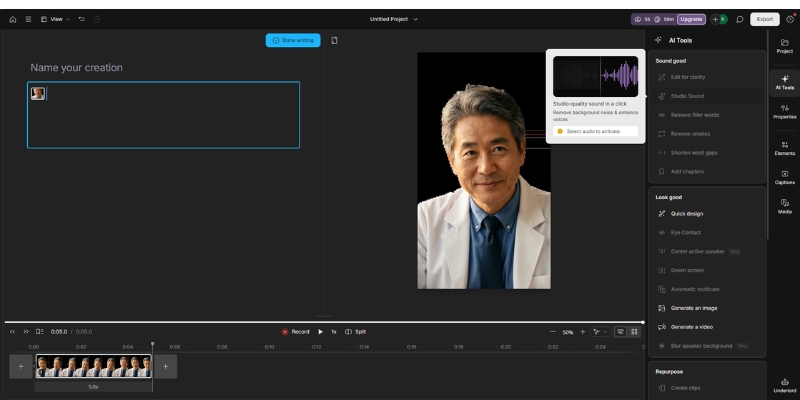
Select your audio clip (or the entire track) in the timeline. In the properties panel on the right, toggle on “Studio Sound” to activate. This AI feature isolates voices and removes echo and background noise instantly with one click.
Pro Tip: I rarely keep Studio Sound at 100% intensity because it can sound synthetic at maximum. Dial it down to 70-80% to keep some natural room tone while removing the distracting noise.
Automated Filler Word Removal:
Go to the “Actions” bar (the sparkle icon) and search for “Remove Filler Words” in the menu. Descript will find every “um,” “ah,” “like,” and repeated word automatically. You can choose to “Delete” them (closing the gap) or replace them with a “Gap Clip” (silence) to keep natural pacing.
Remove Silence (New 2025 Feature):
Descript 3.7 introduced automatic silence detection and removal in one step. Long, awkward silences might be great for dramatic effect, but if you want a snappy final cut, this feature detects, shortens, or replaces those silent stretches instantly.
Advanced AI Features: How to Use Overdub to Fix Voice Mistakes
Imagine recording a 30-minute podcast and realizing you said the wrong date or company name. In the past, you had to completely re-record. With Overdub, you can fix it simply by typing the correction.
Creating Your AI Voice Profile:
Before using Overdub, you must train the AI on your voice. Go to the “Voices” tab and read the consent script. In 2025, you can now create an Overdub Voice using existing audio without spending 10-30 minutes reading the full script—just read a brief Voice ID statement and upload your audio.
Using Overdub to Replace Audio:
Once trained, simply highlight the wrong word in your script and type the correct word. Descript’s Text-to-Speech engine will generate the new audio in your voice seamlessly using Generative Adversarial Networks (GANs) technology.
This feature is a lifesaver for correcting minor slips without setting up your microphone and room environment again. It blends surprisingly well with the original audio when used correctly.
Underlord AI Co-Editor (New 2025):
Descript introduced Underlord, an AI-powered co-editor that makes polished edits and helps create videos with just a prompt. It can automatically remove filler words, cut silence, pick best takes, select layouts, center active speakers, and even create viral-worthy clips.
Adding Visual Flair: B-Roll, Captions, and Transitions
Descript is not just for audio editing; it is a fully capable video editor. You can create engaging social media clips by adding B-roll footage and dynamic captions directly to your script timeline.
Inserting B-Roll and Images:
To cover a cut or illustrate a point visually, drag an image or video file onto a specific word in the script. This creates a track layer on top of your main video, effectively acting as professional B-roll coverage.
Adding Dynamic Captions (Karaoke Style):
Select a section of text, click the “T” (Title) icon, and choose “Captions” from the menu. You can customize the font, colors, and animation style (like the popular word-by-word karaoke effect) in the properties panel.
Applying Transitions and Zoom Effects:
Click the transition square between clips on the timeline to add “Cross Dissolves” or swipe effects. You can also use the “Cue” feature to add automatic zooms that emphasize key moments in your content.
I find this “Scenes” workflow (using slashes de>/ in the text to create new scenes) much easier for managing complex visuals than a traditional multi-layer timeline found in other editing software.
Exporting Your Project: Publishing to YouTube and Social Media
Once your edit is polished and ready for your audience, it is time to share it. Descript offers flexible export options depending on whether you are publishing a podcast, a YouTube video, or a Reel.
Video Export Settings:
Click “Publish” in the top right corner of the interface. For video, select “Export” then “Video” from the menu. Choose the MP4 format and ensure your resolution matches your source (1080p for Hobbyist plan, 4K for Creator/Business).
Audio and Transcript Export:
For podcasters, select the “Audio” tab to export a broadcast-quality WAV or MP3 file. You can also export the “Transcript” as a docx, srt, or vtt file for SEO optimization and accessibility requirements.
Batch Export (New 2025 Feature):
Descript 3.7 introduced batch export, allowing you to export audio into discrete chunks divided by line breaks or markers. You can even export every composition in a project in one go, which is perfect for podcast episodes.
Publishing Directly from Descript:
You can publish directly to YouTube, Wistia, or podcast hosting platforms like Buzzsprout without leaving the app. Alternatively, use the web link feature to send a review copy to your team before the final export.
Verdict: Is Descript The Right Tool For You?
After using Descript extensively for Descript Review projects, I can confidently say it is the best tool for “talking head” content. It transforms the tedious technical process of editing into a creative writing process.
Expert Verdict
If you are a Podcaster, Marketer, or Course Creator, Descript is a non-negotiable asset for your workflow. The Text-based editing combined with Underlord AI, Studio Sound, and Overdub will save you hundreds of hours annually. However, if you need complex VFX or cinematic color grading, stick to Premiere Pro.
Best For: Narrative content, Interviews, Podcasts, Social Media Clips.
Try Descript For Free(Disclosure: If you purchase through links on this page, we may earn a small commission at no extra cost to you. This helps us maintain our “battle-tested” reviews.)
Frequently Asked Questions About Using Descript
Is Descript good for beginners?
Yes, it is significantly easier to learn than Premiere Pro or DaVinci Resolve. The interface resembles a word processor, which everyone already knows how to use. You can start editing within minutes.
Can I use Descript for free?
Yes, the free plan allows you to record, edit, and export content. However, it includes watermarks on video exports and limits media hours and AI credits. See our Descript Pricing Explained guide for details.
Does Descript replace Premiere Pro?
For dialogue-heavy content like podcasts and tutorials, yes it can replace Premiere completely. For music videos, action films, or complex VFX work, no. Many creators start in Descript and finish in Premiere.
How accurate is the transcription?
In my tests, Descript’s transcription achieves over 95% accuracy for clear audio recordings. It handles accents and technical jargon better than most competitors. The White Glove service can achieve up to 99% accuracy.
Can I edit multiple camera angles?
Yes, Descript supports Multicam editing natively. It automatically syncs audio across cameras and lets you switch angles by clicking on the scene in your timeline.
What languages does Descript support?
Descript supports transcription in 25 languages, caption translation in 61 languages, and audio dubbing in 30 languages. Native-sounding AI voices are available in 14 major languages.
Read More From AI Video Editing
Explore more comparisons and tutorials to find the perfect tools for your creative workflow and production needs.
- VEED.io vs Descript: Best AI Editor for Creators?
- Descript vs Murf AI: Podcast Editing vs. Voice Studio
- Descript Review: Is Text-Based Video Editing Worth It?
last update : 05/12/2025
