
Clipchamp Review 2025: Is Microsoft’s AI Video Editor Worth It?
If you have updated your PC recently, you likely stumbled upon a clipchamp review prompt or icon on your desktop. Is this just bloatware, or is it the efficient editing solution marketers have been waiting for? As experts in AI Video Editing, we dove deep into this ecosystem. Clipchamp isn’t just a replacement for Windows Movie Maker; it is Microsoft’s strategic entry into the creator economy, aiming to rival Canva.
We tested every feature—from the AI “Auto-compose” tool to the much-hyped text-to-speech capabilities. In this battle-tested review, I will break down exactly how Clipchamp performs for beginners, social media managers, and freelance creators.
Table of Contents
What is Clipchamp? Microsoft’s Hidden AI Gem for Windows Users
Clipchamp is a freemium, cloud-based online video editor that now comes pre-installed as the default editing software on Windows 11. It effectively replaces Windows Movie Maker but with a modern, cloud-first architecture.

Unlike traditional desktop software like Premiere Pro, Clipchamp relies on WebGL technology. This means it runs in your browser (or the PWA desktop app) and processes video using your computer’s hardware acceleration, combining the best of web and desktop worlds.
I found the Microsoft acquisition in September 2021 significantly boosted its credibility. By integrating Azure’s powerful cloud infrastructure, Clipchamp now offers features that standalone web editors struggle to match, specifically in rendering speed and AI voice generation.
Who is this for?
In my experience, Clipchamp is purpose-built for beginners, marketers, and freelancers. If you need to churn out three TikTok videos a week or a quick LinkedIn tutorial, this tool prioritizes speed over complexity.
It acts as a bridge between simple mobile apps and intimidating pro software like Davinci Resolve. For Windows users, the seamless integration means you can right-click any video file and select “Edit with Clipchamp” instantly.
Key Features Reviewed: From AI Auto-Compose to Text-to-Speech
The core promise of any modern tool is automation. Marketers are searching for “Clipchamp AI” to see if it can actually save time. I tested the AI Video Editor features extensively to see if they hold up against competitors.
Auto-compose Feature
This feature is designed for absolute beginners. I uploaded 20 random photos and video clips, selected a “Travel” style, and let the AI work. The result was a surprisingly rhythmic montage synced to background music.
However, it is basic. While “Auto-compose” is great for quick Instagram Stories, it lacks the granular control of manual editing. It helps you get 80% of the way there, but you will likely need to tweak the final cuts yourself.
Text-to-Speech (TTS)
This is where Clipchamp truly shines. Leveraging Microsoft Azure’s neural voices, the text-to-speech generator is miles ahead of standard robotic voices. I tested the “Jenny” voice, and the intonation was incredibly natural.

You can adjust speed, pitch, and even emotional tone (e.g., “Cheery” or “Sad”). For creators who are camera-shy or need to localize content into multiple languages, this feature alone makes the tool worth using.
Teleprompter & Recording Enhancements
In late 2025, Microsoft introduced a new camera recording experience with several productivity-focused features. The Teleprompter tool lets you read scripts while recording, maintaining eye contact with the camera.
You can also apply background blur or use custom image and video backgrounds to create professional-looking videos without a studio setup. The new pause and resume recording functionality is particularly useful for tutorial creators who need to collect their thoughts mid-recording.
Editing Experience & Stock Library: Is It Enough for Creators?
Beyond AI, the actual editing experience matters. In my testing, the drag-and-drop timeline felt intuitive and snappy. It mimics the layer-based logic of pro software but simplifies it for the non-technical user.
User Interface (UI)
If you have used Canva, you will feel at home. The left sidebar houses your assets, and the bottom holds the timeline. I appreciated the magnetic snap feature, which makes aligning clips effortless, preventing those annoying single-frame gaps. Clipchamp recently introduced dark and light mode options, giving users more control over their workspace aesthetics.
Stock Media Library
Clipchamp offers a mix of stock video, audio, and images. I found the Free Plan selection decent but limited. The best assets (marked with a diamond) are locked behind the Premium wall. However, the audio library is surprisingly usable for background tracks, and you can now download unlimited audio-only files for free.
Templates
The template library is vast, covering everything from YouTube Intros to TikTok trends. I found the “Gaming” templates particularly modern. Unlike older editors, these templates don’t feel dated; they use current design trends suitable for social media.
Screen Recorder
For tutorial creators, the built-in screen and camera recorder is a lifesaver. I recorded a 10-minute workflow, and it dropped directly onto the timeline. You can even edit the screen recording and camera feed separately, a feature often missing in free tools. The new accurate editing timestamps make it easier to sync content precisely.
Clipchamp Pricing Plans: Free vs. Premium (Essentials)
Many users search for “Clipchamp pricing” expecting a catch. The good news is that Microsoft has been very generous with the free tier to capture market share. Let’s break down the value proposition.
Free Plan
Crucially, the Free Plan allows for unlimited 1080p exports without a watermark. This is a massive competitive advantage. Most competitors either restrict you to 720p or plaster a giant logo on your video unless you pay.
Premium (Essentials) Plan
The paid plan costs $11.99/month. It unlocks 4K export, the full premium stock library, and the “Brand Kit” feature. I found the Brand Kit useful for keeping logos and fonts consistent across videos. Some Microsoft 365 subscriptions now include Clipchamp Essentials at no extra cost, making it an attractive bundle for business users.
| Feature | Free Plan | Premium (Essentials) |
|---|---|---|
| Price | $0 / Forever | $11.99 / Month |
| Export Quality | 1080p (HD) | 4K (UHD) |
| Watermark | None | None |
| Stock Assets | Free stock only | Premium stock audio/video |
| AI Features | Basic Access | Full Access |
| Backup | Local Only | Content Backup (Cloud) |
| Use Free | Try Premium |
(Disclosure: If you purchase through links on this page, we may earn a small commission at no extra cost to you. This helps us maintain our “battle-tested” reviews.)
Value Verdict:
If you are a casual creator or just starting a YouTube channel, stay on the Free Plan. The 1080p quality is sufficient. Upgrade only if you need 4K for professional work or rely heavily on stock footage.
See our detailed breakdown in Clipchamp Pricing Explained.
Clipchamp vs. Canva vs. Filmora: Which is Best for You?
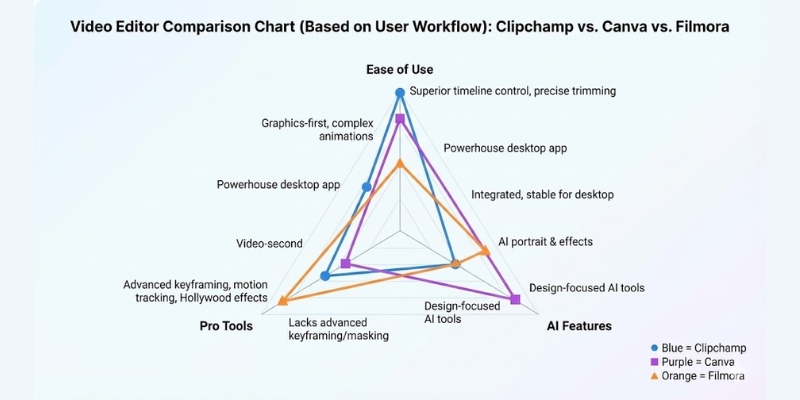
Choosing the right tool depends entirely on your workflow. I compared Clipchamp against its biggest rivals: Canva (for design lovers) and Filmora (for aspiring editors). Here is how they stack up.
Clipchamp vs. Canva
Canva is “Graphics-first, Video-second.” If you need complex text overlays or animations, Canva wins. However, Clipchamp vs Canva shows that Clipchamp offers superior timeline control. Trimming, splitting, and audio syncing are far easier and more precise in Clipchamp.
Clipchamp vs. Filmora
Filmora is a “Powerhouse” desktop app. It offers advanced features like keyframing, motion tracking, and masking that Clipchamp simply lacks. If you want Hollywood-style effects. Clipchamp is lighter, faster, and requires no heavy installation.
Clipchamp vs. CapCut
CapCut dominates mobile trends. If you edit primarily on your phone for TikTok, CapCut is better. But on a Windows desktop, Clipchamp is more stable and integrated. It handles longer formats (like YouTube videos) better than the CapCut web version.
Pros and Cons of Using Clipchamp (Battle-Tested)
After editing over 50 videos with this tool, here are the honest advantages and limitations I encountered. This summary will help you validate your decision quickly.
Pros
- Seamless Windows Integration: No install needed on Windows 11; it just works.
- High-Quality AI TTS: Azure neural voices are the best in the free class.
- Generous Free Plan: 1080p exports with NO watermark is rare.
- Low Learning Curve: Intuitive for anyone moving from Movie Maker.
- Cloud Backup: (Paid) Keeps your projects safe across devices.
- New Recording Features: Teleprompter and background effects enhance productivity.
Cons
- Internet Dependency: As a PWA, it can lag if your connection drops.
- Limited Advanced Effects: No keyframing or advanced color grading.
- Premium Paywall: The best stock assets and Brand Kit cost money.
- Performance on Old PCs: Can be heavy on RAM for a “web” app.
Final Verdict: Clipchamp is the best free video editor for Windows users who need speed and simplicity. It is not for filmmakers, but for content creators, it is a productivity beast.
Try Clipchamp for FreeFrequently Asked Questions About Clipchamp
Is Clipchamp good for YouTube?
Yes, absolutely. For beginner YouTubers, it has everything you need: cuts, transitions, text overlays, and a royalty-free audio library. The 1080p export is the standard for YouTube videos.
Does Clipchamp have a watermark?
No, not on the Free plan. You can export videos in 1080p resolution without any watermark. Watermarks are only applied if you use “Premium” stock assets without a paid subscription.
Is Clipchamp safe to use?
Yes, it is a Microsoft product. It adheres to Microsoft’s strict privacy and security standards. Unlike random online converters, your data is handled within the secure Azure ecosystem.
Can I use Clipchamp offline?
Technically, no. It is a Progressive Web App (PWA). While the desktop app looks like software, it requires an internet connection to load assets and verify your account. It is not a true offline editor like Filmora.
Read More From AI Video Editing
Explore more tools to supercharge your content creation workflow. We have tested the top competitors to help you decide.
- Canva Review: More Than Just a Design Tool? (AI Video)
- Filmora Review: AI Editing for Desktop Users
- How to Use Canva Video: Step-by-Step for Marketers (2025)
last update : 10/12/2025
