
How to Use X-Pilot AI Video Maker: 2025 Tutorial & Best Practices

Creating professional educational videos no longer requires expensive software or technical editing skills. X-Pilot AI transforms your documents and ideas into animated explainer videos in minutes, making quality video production accessible to educators, trainers, and content creators. This step-by-step tutorial shows you exactly how to use X-Pilot’s Free plan to create your first AI-generated video, with insights into premium features available on paid tiers.
[ez-toc]
What is X-Pilot AI Video Maker?
X-Pilot is an AI-powered video creation platform that automatically converts documents, scripts, and ideas into fully-animated educational videos with professional voiceover and captions. The platform uses intelligent AI agents to analyze your content, generate engaging narration, create complementary visuals, and assemble everything into a cohesive educational video—all without manual editing.
For a comprehensive analysis of X-Pilot’s features, pricing, and competitive positioning, explore our [complete X-Pilot AI review] covering performance testing and user feedback.
Who Should Use This Tutorial?
This guide is perfect for teachers creating online course content, corporate trainers developing employee training materials, instructional designers producing educational videos, content creators building tutorial libraries, and marketing professionals creating explainer videos.
Getting Started with X-Pilot AI (Free Plan)
Creating Your Account
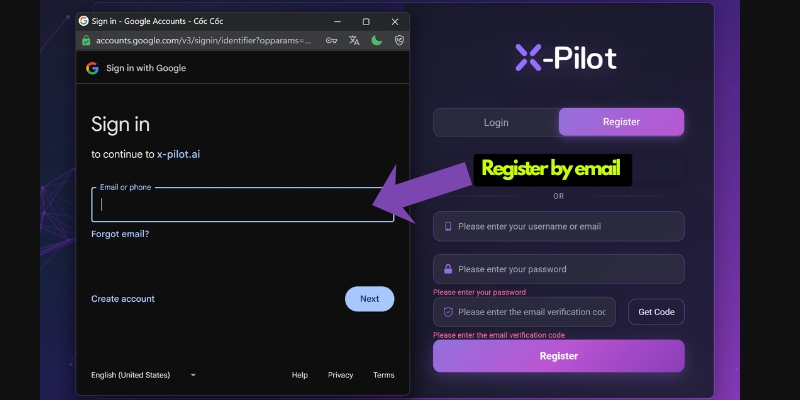
- Visit the official X-Pilot website
- Click “Try Free” or “Get Started”
- Enter your email address and create a password
- Verify your email to activate your account
- You’re automatically enrolled in the Free plan
Free Plan Includes:
- 3 minutes of video generation per month
- 720p resolution video output
- Standard AI voice narration
- Basic editing capabilities
- X-Pilot watermark on exports
Understanding X-Pilot Plans
| Plan | Monthly Price | Video Minutes | Resolution | Watermark |
|---|---|---|---|---|
| Free | $0 | 3 minutes | 720p | Yes |
| Creator | $9 | 25 minutes | 1080p | No |
| Pro | $29 | 100 minutes | 4K | No |
| Enterprise | Custom | Unlimited | 4K | No |
The Free plan is perfect for testing the platform and creating short demo videos, while Creator and Pro plans provide professional output suitable for public distribution. Understanding how X-Pilot’s pricing compares to competing AI video platforms helps determine when upgrading makes sense for your production volume.
Navigating Your Dashboard
After logging in, you’ll see the X-Pilot dashboard with three main areas:
Projects Section displays all your created videos with thumbnails and quick access buttons to edit, duplicate, or delete projects.
Create New Project Button prominently positioned to start generating new videos from your content.
Account Settings accessible from the top menu where you can manage your subscription, check remaining monthly minutes, and adjust platform preferences.
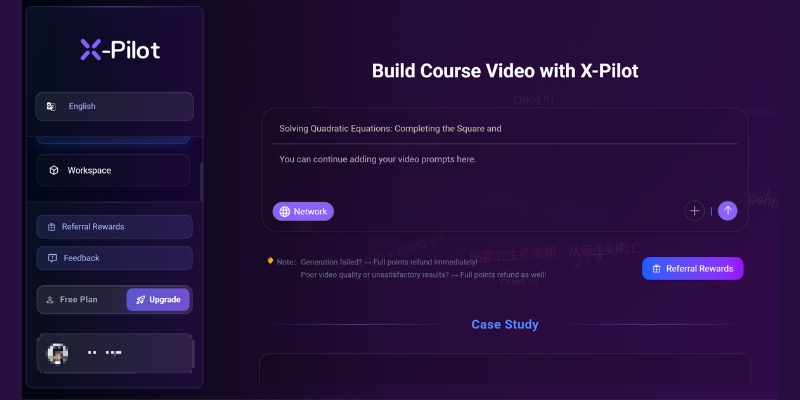
Step 1: Uploading Your Content
Preparing Your Content for Upload
X-Pilot accepts two primary input methods on the Free plan:
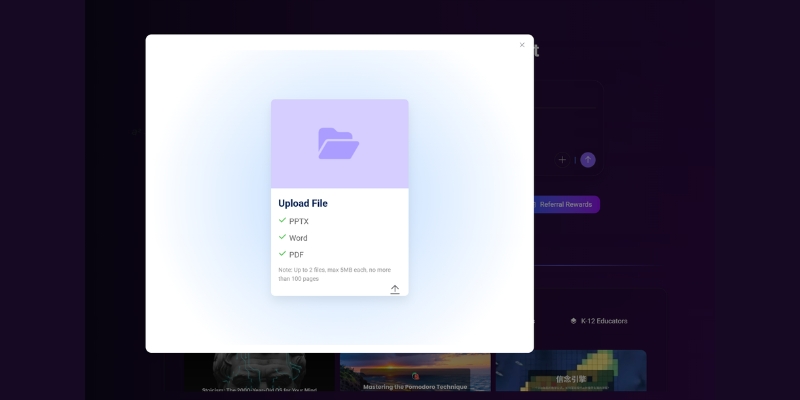
Document Upload supports Word documents (DOCX), PowerPoint presentations (PPTX), PDFs, and plain text files (TXT). This works best when you have existing educational materials, lecture notes, or written scripts ready to convert into video format.
Direct Text Input allows you to type or paste content directly into X-Pilot’s input field. This approach works well for creating videos from brief outlines, letting X-Pilot’s AI expand your ideas into full educational narratives.
Best Content for AI Video Generation
For optimal results on your first project, prepare content that:
- Explains a clear concept or process (300-500 words for 2-3 minute videos)
- Uses simple, straightforward language
- Includes 3-5 main points or steps
- Avoids complex formatting, tables, or embedded images
- Focuses on educational or explanatory topics
Example Topic Ideas:
- “How Photosynthesis Works: A Simple Explanation”
- “5 Email Marketing Best Practices”
- “Introduction to Cloud Computing”
- “Basic First Aid Steps Everyone Should Know”
- “Time Management Tips for Students”
Uploading Your First Project
- Click the “Create New Project” or “New Video” button on your dashboard
- Choose your input method:
- “Upload Document” – Select a file from your computer
- “Enter Text” or “Start with Idea” – Type or paste content directly
- If uploading a document, click “Choose File” or drag-and-drop it onto the upload area
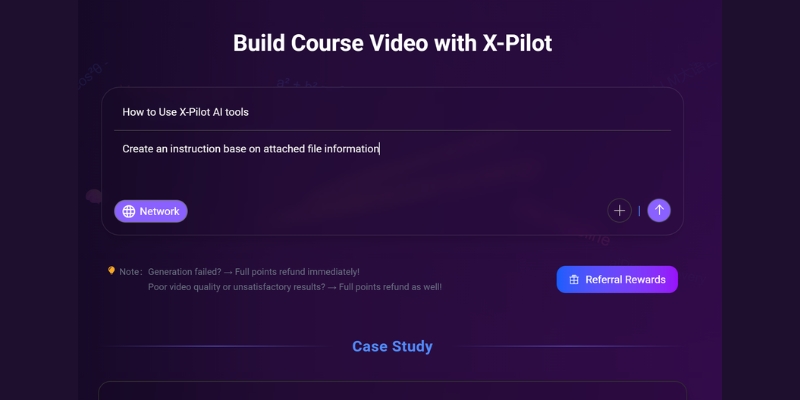
- If using text input, paste your prepared content (300-500 words) or type a simple topic description
- Wait 5-10 seconds for upload confirmation and initial content analysis
Troubleshooting Upload Issues
File too large: The Free plan accepts documents up to 2GB. Compress large files or simplify documents with excessive images.
Upload fails: Try a different browser (Chrome works best), check your internet connection, or convert your document to plain text or PDF format.
Content not recognized: Ensure your document contains actual text content (not just images) and uses standard formatting without complex tables or special characters.
Step 2: Configuring Your Video Settings
Essential Project Settings
After uploading your content, configure these basic settings:
Language Selection determines both the narration language and caption text. The Free plan supports multiple languages including English, Spanish, French, German, and others. Select the language your target audience speaks.
Aspect Ratio controls video dimensions for different platforms:
- 16:9 (Horizontal) – Best for YouTube, course platforms, and desktop viewing
- 9:16 (Vertical) – Optimized for TikTok, Instagram Reels, and mobile viewing
- 1:1 (Square) – Ideal for Instagram feeds and LinkedIn posts
Voice Selection lets you choose from available standard AI voices. Listen to voice previews if available and select one that matches your content’s tone (professional, friendly, energetic, or calm).
Free Plan Limitations
On the Free plan, you’ll work with:
- 720p resolution (suitable for web viewing but not large displays)
- Standard AI voices (professional quality, though not as natural as premium options)
- Basic customization options (limited animation and style controls)
These settings provide everything needed to evaluate X-Pilot’s AI capabilities and create functional educational videos for testing purposes.
Step 3: Generating Your AI Video
Understanding the AI Processing Workflow
After clicking “Generate Video” or “Create”, X-Pilot’s AI begins a multi-stage process:
Stage 1: Content Analysis (15-30 seconds)
The AI reads your entire document or text, identifies key topics, extracts main concepts, and determines optimal information structure for video presentation.
Stage 2: Script Development (30-60 seconds)
X-Pilot’s AI converts your content into natural narration script, adding transitional phrases, explanatory language, and conversational flow suitable for spoken delivery.
Stage 3: Scene Creation (1-2 minutes)
The AI divides content into logical scenes, generates visual elements for each segment, creates text overlays, and selects background animations that reinforce your message.
Stage 4: Voice Synthesis (30-45 seconds)
Your selected AI voice generates professional narration matching the script with appropriate pacing, emphasis, and natural speech patterns.
Stage 5: Final Assembly (15-30 seconds)
All elements combine into a cohesive video with synchronized narration, captions, animations, and transitions.
Total Processing Time: 3-5 minutes for typical 2-3 minute educational videos.
What to Expect During Processing
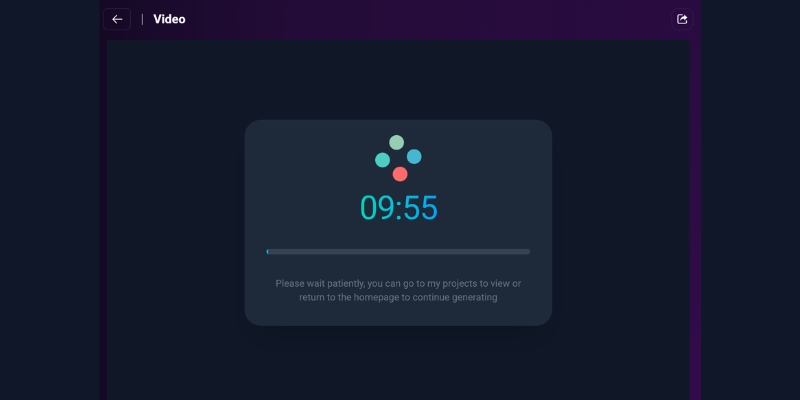
While X-Pilot generates your video, you’ll see progress indicators showing which stage is currently processing. The platform works entirely in the cloud, so you can close the browser tab and return later—X-Pilot will send an email notification when your video is ready for review.
Step 4: Reviewing & Editing Your Video
The Video Preview Interface
Once processing completes, X-Pilot displays your generated video in the preview interface where you can:
Watch the complete video from start to finish to evaluate AI-generated narration, visual selection, animation quality, and overall flow.
Review individual scenes by clicking through scene thumbnails or using timeline controls to jump to specific segments.
Check caption accuracy ensuring the auto-generated subtitles match the narration correctly without spelling errors or timing issues.
Assess visual elements confirming that backgrounds, text overlays, and animations support rather than distract from your educational message.
Basic Editing on Free Plan
With the Free plan, you can preview your AI-processed videos but won’t be able to make any edits
Upgrading for Advanced Editing
Paid plans (Creator and Pro) unlock additional editing features:
Custom Branding (Creator+) removes the X-Pilot watermark and adds your logo, brand colors, and custom intro/outro sequences for professional-quality output matching your organizational identity.
Animation Controls (Pro) provide detailed adjustments to timing, transition styles, and visual effects for each scene, giving you precise control over pacing and engagement.
Voice Cloning (Pro) replicates your personal voice for authentic narration that maintains consistent brand identity across all your educational content.
Collaboration Tools (Pro) enable team members to review, comment on, and edit projects together with version control and approval workflows.
Step 5: Exporting & Sharing Your Video
Preview Before Export
Before finalizing your video, use the preview function to:
- Watch the complete video at full quality
- Verify all text appears correctly and remains readable
- Confirm narration sounds natural and matches visual pacing
- Check that animations enhance rather than overwhelm the content
- Ensure the video length fits your target platform requirements
Exporting Your Video (Free Plan)
On the Free plan, follow these steps to export:
- Click “Export” or “Download” button in the top toolbar
- Confirm export settings (720p resolution, MP4 format)
- Wait 30-60 seconds for export processing
- Download the completed video file to your computer
Free Plan Export Includes:
- MP4 video format (universally compatible)
- 720p resolution (suitable for web and mobile viewing)
- X-Pilot watermark in corner (visible throughout video)
- Embedded captions (depending on settings)
Demo video for free plans:
Looking to see more real-world applications and success stories? Our comprehensive case study library showcases detailed examples of how businesses and creators are leveraging this tool to achieve their goals
Premium Export Options
Upgrading unlocks professional distribution features:
Creator Plan ($9/mo) removes watermarks and provides 1080p exports suitable for professional course platforms, client deliverables, and public YouTube channels. This represents the minimum tier for commercial use or professional content distribution.
Pro Plan ($29/mo) adds 4K resolution exports for large-screen displays, premium quality presentations, and broadcast-quality output. The Pro tier also includes direct export to PowerPoint (PPT) and PDF formats—a unique X-Pilot feature enabling seamless content repurposing across video, presentation, and print materials.
Enterprise Plan (Custom) provides dedicated rendering resources for priority export processing, bulk export tools, and direct integration with learning management systems for automated content publishing.
Sharing Your Video
After downloading, you can:
- Upload to YouTube, Vimeo, or course platforms for student access
- Embed in websites or blogs to enhance written content
- Share via email or messaging apps for quick preview and feedback
- Import to presentation software for hybrid live/recorded presentations
- Upload to social media (though watermark may impact professional credibility)
Maximizing Your Free Plan Experience
Getting the Most from 3 Monthly Minutes
Since the Free plan provides only 3 minutes of generation per month, use your allocation strategically:
Test with simple topics first to understand how X-Pilot interprets your content style and generates videos before committing your entire monthly allowance to complex projects.
Create concise, focused videos covering single concepts rather than comprehensive overviews. A 2-3 minute video explaining one specific skill provides more value than a rushed overview of multiple topics.
Evaluate if X-Pilot fits your workflow by testing the complete process from upload through export, assessing AI quality, editing capabilities, and output suitability for your actual use cases.
Plan your upgrade timing by determining whether Creator plan (25 min/$9) or Pro plan (100 min/$29) better matches your projected monthly production volume before investing in paid subscriptions.
When to Upgrade from Free Plan
Consider upgrading to Creator plan when:
- You need watermark-free output for professional distribution
- 1080p resolution is required for quality course content
- You’re producing 2-4 short videos monthly (25 minutes allocation)
- Students or clients need polished, branded content
Consider upgrading to Pro plan when:
- You’re creating 8-12 videos monthly (100 minutes allocation)
- Team collaboration features are essential for your workflow
- 4K output quality is required for large-screen displays
- Voice cloning would streamline your narration process
- PowerPoint and PDF exports would enhance content repurposing\
Common Questions & Troubleshooting
Why did my video generation fail?
Solution: Check that your content contains at least 200-300 words of text. Very short inputs may not provide enough material for AI processing. Also ensure stable internet connection and try refreshing the page if processing stalls.
The AI narration mispronounced technical terms
Solution: In the editing interface, modify the text spelling to phonetic pronunciation (e.g., “AWS” becomes “A W S” or “sequel” becomes “S Q L”). X-Pilot regenerates voice narration matching your text changes.
My video is shorter/longer than expected
Solution: X-Pilot’s AI determines video length based on content complexity and narration pacing. To adjust length, edit the narration text directly—adding more explanation lengthens videos while condensing text shortens them.
Can I remove the watermark on Free plan?
Solution: No, watermark removal requires upgrading to Creator plan ($9/mo) minimum. The Free plan watermark appears throughout the video and cannot be cropped or edited out.
How do I check remaining monthly minutes?
Solution: Check your account dashboard or settings menu for current usage statistics showing minutes consumed and minutes remaining in your billing cycle.
The video quality looks pixelated
Solution: Free plan output is limited to 720p resolution. For higher quality, upgrade to Creator (1080p) or Pro (4K) plans. Also ensure you’re viewing the exported video at appropriate screen size—720p looks acceptable on mobile and laptop screens but may appear lower quality on large monitors.
Tips for Better X-Pilot Videos
Content Preparation Best Practices
Write clear, simple explanations using straightforward language free from jargon. X-Pilot’s AI performs best with educational content structured for general audiences.
Organize content logically with clear introduction, main body sections, and conclusion. Well-structured input produces better AI scene division and more coherent video flow.
Include specific examples and practical applications rather than only abstract concepts. Concrete examples help X-Pilot’s AI select more relevant visual elements.
Keep paragraphs short (3-5 sentences) to create natural scene breaks. Long, dense paragraphs may result in visually monotonous or overly long individual scenes.
Platform-Specific Optimization
For YouTube tutorials (16:9 horizontal): Use 300-500 words for 2-3 minute videos, structure content with clear steps or sections, and include actionable takeaways viewers can implement immediately.
For social media shorts (9:16 vertical): Focus on single concepts under 250 words, start with an attention-grabbing opening statement, and end with clear call-to-action or key message.
For course platforms (16:9 horizontal): Create module-specific videos (400-600 words), maintain consistent format across series, and reference related lessons for comprehensive learning paths.
What’s Next: Scaling Your Video Production
Building a Content Library with Paid Plans
Once you’ve tested X-Pilot’s Free plan and confirmed it fits your workflow, upgrading enables sustainable content production:
Creator Plan Strategy works well for individual educators producing 2-4 videos weekly. The 25 monthly minutes supports consistent course content creation, YouTube tutorial series, or regular training module updates.
Pro Plan Strategy suits small teams or high-volume solo creators producing daily content. The 100 monthly minutes, collaboration features, and 4K output support professional instructional design operations and multi-creator educational channels.
Enterprise Strategy serves large organizations with dedicated L&D departments, educational institutions producing campus-wide training, or agencies managing multiple client accounts requiring centralized brand control and unlimited production capacity.
Start Creating with X-Pilot AI
Ready to transform your educational content into engaging videos? Begin with X-Pilot’s free tier to experience AI-powered automation firsthand. Follow this tutorial step-by-step to create your first video, then reference our comprehensive X-Pilot AI review for detailed feature analysis, pricing comparisons, and user testimonials from educators and corporate trainers.
The future of educational video production is automated, accessible, and remarkably efficient—and X-Pilot makes that future available today, starting with a free account requiring no credit card.
