A photo of Jun Pham, AI Tools Strategist at Aibrainjet

About the Author

Jun Pham

Jun Pham is an AI tools strategist, a video creator and tech writer passionate about the future of AI in editing video. As the face of a dedicated team of creators and researchers, Jamie leads hands-on testing of the latest AI video tools. Together, they share honest reviews, workflow insights, and practical tips to help creators turn ideas into cinematic videos with minimal effort.

Latest Posts

Onepage Website Builder Review: Features, Pros, Cons, and Use Cases

Onepage Website Builder Review: Features, Pros, Cons, and Use Cases
Jun Pham

SendShort AI Review (2025): The Best AI Clipper for Agencies?

Our SendShort AI review tests its white-label features for agencies. Discover how it automates viral shorts, enhances client perception. Try now!
Jun Pham

Zebracat Review (2025): Is This Hybrid AI Ad Generator Worth It?

Our Zebracat review (2025) assesses this hybrid AI video tool for marketers. Is it worth it for generating ads & repurposing content fast? See it now!
Jun Pham

Vizard Review (2025): Is This Hybrid AI Clipper & Editor Better Than OpusClip?

Our expert vizard review reveals if this AI video clipper & editor beats OpusClip for control. Get superior editing & branding for viral shorts. Try now!
Jun Pham

Klap Review (2025): The Best 4K AI Clipper for High-Quality Shorts?

Klap Review (2025): The Best AI Clipper for High-Quality Shorts? Klap Review (2025): The Best 4K AI Clipper for High-Quality Shorts? I have spent ...
Jun Pham

Submagic Review (2025): Is It The Best AI Tool For Hormozi Captions?

This Submagic review (2025) reveals if it's the ultimate AI tool for "Hormozi-style" viral video captions & B-roll. We battle-tested its features, speed, and ROI!
Jun Pham

6 Best Generative Video Tools Tested & Ranked (2025)

6 Best Generative Video Tools Tested & Ranked (2025)

7 Best Generative Video Tools Tested & Ranked (2025)

I have tested dozens of applications, but finding the best generative video tools that actually deliver usable footage is a challenge. Most tools on the market promise Hollywood quality but deliver distorted, unusable mess.

For Marketers and Creators, the goal isn’t just novelty; it’s about automating production workflows and reducing costs. In this AI Generative Video guide, we move past the hype.

We will break down the top contenders like Kling AI, Runway, and Pika based on realism, physics, and commercial viability. You need to know which tool justifies the subscription cost.

Table of Contents

What Are Generative Video Tools & How Do They Work?

Text-to-Video models represent a massive leap in artificial intelligence. Unlike traditional video editors that manipulate existing footage, these tools generate completely novel frames from scratch based on your text prompts.

They utilize Diffusion Models, similar to image generators like Midjourney. The AI predicts and removes noise from a chaotic starting point, gradually refining pixels until they form a coherent video sequence that matches your semantic request.

We judge these tools based on specific technical metrics. Temporal Coherence is vital; it ensures objects don’t morph randomly over time. We also test for Physics Simulation, ensuring gravity and light behave realistically.

The “Generative” difference lies in the Latent Space. You aren’t searching a stock library; you are hallucinating a new reality. This allows for infinite creative possibilities, from hyper-realistic marketing clips to stylized anime.

Diagram explaining how text-to-video diffusion models work.
Generative AI predicts pixels frame-by-frame to build video from noise.

Quick Verdict: Which AI Video Generator Should You Choose?

If you are short on time, here are my top recommendations based on specific use cases after 20+ hours of testing this month:

Best Overall (Realism): Kling AI
Currently the closest rival to Sora. It offers the best skin textures and movement physics available to the public.

Best for Control & Filmmakers: Runway Gen-3 Alpha
Unmatched for specific camera paths (zoom, tilt, pan) and high-resolution output.

Best for Physics & Speed: Luma Dream Machine
Incredible understanding of 3D space. Perfect for dynamic motion and rapid prototyping.

Best for Sound & Lip Sync: Pika Art
The only tool that seamlessly integrates sound effects and lip synchronization in one workflow.

Best for Stylized/Anime: DomoAI
If realism isn’t your goal, these tools excel at specific artistic styles like flat anime.

Try Kling AI for Free

(Disclosure: If you purchase through links on this page, we may earn a small commission at no extra cost to you. This helps us maintain our “battle-tested” reviews.)

Runway Gen-3 Alpha: The Professional Standard for Control

Runway ML has long been the market leader, and Gen-3 Alpha cements that position for professional filmmakers. While other tools focus purely on random generation, Runway focuses on granular control.

The standout feature here is Advanced Camera Controls. You can precisely dictate if the camera should zoom in, truck left, or pan right. This is crucial for maintaining continuity in narrative storytelling.

I also rely heavily on their ecosystem. While Gen-3 is the flagship, the legacy features like Motion Brush (available in Gen-2) allowed us to paint specific areas to animate. Gen-3 brings that precision to prompts.

However, high quality comes with a cost. The “Turbo” mode is faster, but for the best photorealism, render times can be slow. It burns through credits quickly, so you must master your prompt engineering first.

Pros

  • Best-in-class camera controls (Zoom, Pan, Tilt).
  • High fidelity textures and lighting.
  • Established ecosystem for video-to-video.

Cons

  • Expensive credit system for heavy users.
  • Steep learning curve for advanced controls.
  • Strict moderation filters.

Read our full Runway ML Review for a deeper dive into camera settings.

Runway Gen-3 Alpha camera control interface.
Runway gives you director-level control over camera movement.

Kling AI: The “Sora-Level” Realism Available Now

When OpenAI announced Sora, the industry froze. Kling AI is the answer that unthawed it. In my testing, Kling consistently produces the most photorealistic human movement of any publicly available tool.

The killer feature is Video Duration. While most tools struggle past 5 seconds, Kling can generate clips up to 2 minutes long (in standard mode). This completely changes the game for storytelling.

I found its Image-to-Video capabilities specifically useful for marketing assets. You can take a static product shot and have Kling animate water droplets or smoke naturally without warping the product logo.

It is accessible via a web interface, unlike the invite-only Sora. However, be prepared for server wait times. High demand means you might wait minutes for a generation during peak hours.

Pros

  • Incredible photorealism (Sora benchmark).
  • Generates up to 2 minutes of video.
  • Excellent prompt adherence for complex scenes.

Cons

  • Long server wait times on free/lower tiers.
  • Interface can be complex for beginners.

Check out our detailed Kling AI Review to see more generated examples.

Luma Dream Machine: Best for Physics & Rapid Prototyping

Luma Dream Machine feels different because it understands the world. It doesn’t just morph pixels; it simulates a 3D environment. If you ask for a car drifting, the physics of the tires and smoke feel correct.

My favorite feature for workflow is Keyframes (Start & End Frames). You can upload an image for the start and another for the end, and Luma will morph between them. This is perfect for creating seamless loops.

Speed is another major factor. Luma generates previews significantly faster than Runway. For Marketing Prototypes where you need to iterate concepts quickly, this speed is invaluable.

The downside is hallucination. Occasionally, objects will appear or disappear randomly. It lacks the texture fidelity of Gen-3, but for dynamic action shots, it is currently unbeatable.

Pros

  • Excellent physics simulation for action.
  • Fast generation speed.
  • Start/End frame control for transitions.

Cons

  • Lower texture fidelity than Gen-3.
  • Occasional object hallucinations.

See how it compares in our Luma Dream Machine Review.

Pika Art: Best for Sound Effects & Lip Sync

Pika Art positions itself as an all-in-one creation platform. While its raw video realism might slightly trail Kling, it makes up for it with features that complete the video.

The Lip Sync Feature is a massive time-saver. You can upload audio, and Pika will animate the character’s mouth to match. For creators making AI avatars or narrative shorts, this eliminates the need for external tools.

I was also impressed by the Sound Effects (SFX) generation. If you prompt “bacon sizzling,” Pika generates the audio track automatically. It saves hours of hunting through stock audio libraries.

The new “Pika Effects” (like Melt, Explode, Squish) are viral gold. They allow you to take an object and apply a physics transformation instantly, which is perfect for scroll-stopping TikTok ads.

Pros

  • Built-in Lip Sync and Audio generation.
  • Fun “Pika Effects” for social media.
  • Very easy-to-use web and Discord interface.

Cons

  • Video realism is lower than Kling/Runway.
  • Clips are generally shorter (3-4 seconds).

Is Pika right for you? Read the Pika Review.

Honorable Mentions: DomoAI & Sora

DomoAI
If you want the “Anime Dance” look, DomoAI is the industry standard. It excels at Video-to-Video style transfer, turning live-action footage into convincing 2D animation.

OpenAI Sora
Sora remains the “Benchmark.” It is currently limited access, but its ability to maintain temporal coherence over long durations forces every other tool on this list to innovate faster.

Feature Comparison: Realism, Control, and Pricing

To help you make a final decision, I have compiled this comparison based on our internal testing data.

Tool Realism (1-10) Key Feature Best For Pricing Model
Kling AI 9.5 5s-2m Duration High-End Realism Free Trial
Runway Gen-3 9.0 Camera Control Filmmakers Subscription
Luma Dream 8.5 Physics/Loops Prototyping Freemium
Pika Art 8.0 Lip Sync/SFX Social Media Credits

How to Write Effective Prompts for AI Video

The best tool is useless without a good prompt. Unlike ChatGPT, video models need visual descriptions, not conversational requests. I use a strict formula for consistent results.

Subject + Action + Context + Camera + Style

Subject: Be specific. Instead of “a man,” use “a weary detective in a trench coat.”

Action: Describe the movement. “Walking slowly towards the camera,” or “running aggressively.” Static prompts yield static videos.

Camera Movement: This is crucial. Use terms like “Drone shot,” “Low angle,” “Slow pan right,” or “Close up” to direct the AI’s focus.

Negative Prompting: Always tell the AI what you don’t want. I always include: “distorted faces, morphing, extra limbs, blurry, watermark, text.”

Battle-Tested Tip: Less is often more. Over-describing every pixel can confuse the Diffusion model. Focus on the key lighting (“Cinematic lighting”, “Golden hour”) and let the AI handle the rest.

For more examples, check our guide on How to Write Effective Prompts for AI Video.

Frequently Asked Questions About AI Video Generators

Is there a completely free AI video generator?
Most tools operate on a “Freemium” model. Luma, Kling, and Pika offer daily free credits, but they reset. Truly unlimited free tools do not exist due to high GPU costs.

Can I use AI-generated video for commercial work?
Generally, yes, if you are on a paid plan. Free plans often come with watermarks and non-commercial licenses. Always check the specific Terms of Service for each platform.

How do I fix distorted faces in AI video?
Distortion happens when the subject is too far away. Use “Close up” or “Medium shot” in your prompt. Alternatively, use high-resolution source images with Image-to-Video mode.

Which tool is best for deepfakes or avatars?
Generative video tools create novel scenes. For talking head avatars, you want specific tools like HeyGen or Synthesia. Pika is a bridge, offering lip sync for generated characters.

What is the difference between Gen-2 and Gen-3?
Runway Gen-3 offers significantly better temporal coherence (consistency over time) and realism compared to Gen-2. Gen-2 is faster but looks more “AI-generated.”

Read More From AI Generative Video

Deepen your understanding of the generative video landscape with these detailed guides and comparisons.

Last updated: November 21, 2025
A photo of Jun Pham, AI Tools Strategist at Aibrainjet

About the Author

Jun Pham

Jun Pham is an AI tools strategist, a video creator and tech writer passionate about the future of AI in editing video. As the face of a dedicated team of creators and researchers, Jamie leads hands-on testing of the latest AI video tools. Together, they share honest reviews, workflow insights, and practical tips to help creators turn ideas into cinematic videos with minimal effort.

Latest Posts

Onepage Website Builder Review: Features, Pros, Cons, and Use Cases

Onepage Website Builder Review: Features, Pros, Cons, and Use Cases
Jun Pham

SendShort AI Review (2025): The Best AI Clipper for Agencies?

Our SendShort AI review tests its white-label features for agencies. Discover how it automates viral shorts, enhances client perception. Try now!
Jun Pham

Zebracat Review (2025): Is This Hybrid AI Ad Generator Worth It?

Our Zebracat review (2025) assesses this hybrid AI video tool for marketers. Is it worth it for generating ads & repurposing content fast? See it now!
Jun Pham

Vizard Review (2025): Is This Hybrid AI Clipper & Editor Better Than OpusClip?

Our expert vizard review reveals if this AI video clipper & editor beats OpusClip for control. Get superior editing & branding for viral shorts. Try now!
Jun Pham

Klap Review (2025): The Best 4K AI Clipper for High-Quality Shorts?

Klap Review (2025): The Best AI Clipper for High-Quality Shorts? Klap Review (2025): The Best 4K AI Clipper for High-Quality Shorts? I have spent ...
Jun Pham

Submagic Review (2025): Is It The Best AI Tool For Hormozi Captions?

This Submagic review (2025) reveals if it's the ultimate AI tool for "Hormozi-style" viral video captions & B-roll. We battle-tested its features, speed, and ROI!
Jun Pham

How to Use D-ID (2025): The Ultimate Guide to AI Video Generation (Studio & API)

How to Use D-ID (2025) The Ultimate Guide to AI Video Generation (Studio & API)

How to Use D-ID: The Ultimate Guide to AI Video Generation (Studio & API)

In the high-stakes world of digital marketing, speed is everything. Learning how to use D-ID isn’t just a technical skill; it’s a survival tactic for creators facing immense performance pressure to produce video content at scale.

We aren’t just talking about another video editor. D-ID allows you to automate facial animation, turning static text or audio into professional presenters in minutes.

In this AI Avatar Generator guide, we will break down the exact workflows for both the Creative Reality Studio (for creators) and the API (for developers). By the end, you will know exactly how to transform a single photo into a speaking avatar.

Table of Contents

Getting Started: What Is D-ID and Who Is It For?

D-ID is an AI video generator platform that specializes in deep learning facial animation. Unlike Synthesia which focuses on corporate avatars, D-ID excels at Photo Animation, bringing still images to life.

Our testing confirms that D-ID primarily serves three groups: Marketers needing quick social content, Creators making character-driven videos, and Developers automating workflows via API.

You can access the platform through two main gateways: the Creative Reality Studio (a visual dashboard) and the API (for code-based generation). Both share the same underlying credit system.

Before we dive into the tutorial, here are the key use cases where D-ID shines:

Social Media Content: Create speaking influencers or mascots.
E-learning Modules: Turn text courseware into engaging video lessons.
Personalized Marketing: Send video emails addressing clients by name.

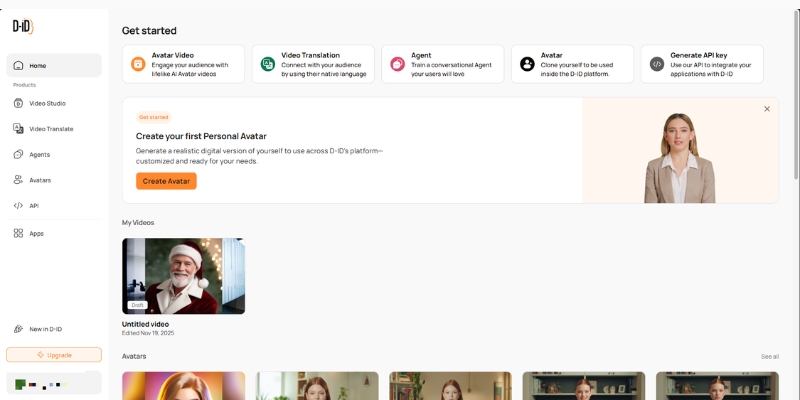
 D-ID Creative Reality Studio dashboard interface
The D-ID dashboard acts as your central hub for creating videos and managing credits.

Step-by-Step Guide: Using D-ID Creative Reality Studio

This section is your battle-tested walkthrough for the Creative Reality Studio. We have stripped away the fluff to focus on the actual logic of the dashboard.

Step 1: Account Setup & Dashboard Navigation
First, head to the D-ID website and sign up for a free trial. Once logged in, locate the purple “Create Video” button on the left sidebar. This initializes the studio interface.

Step 2: Choosing Your Presenter
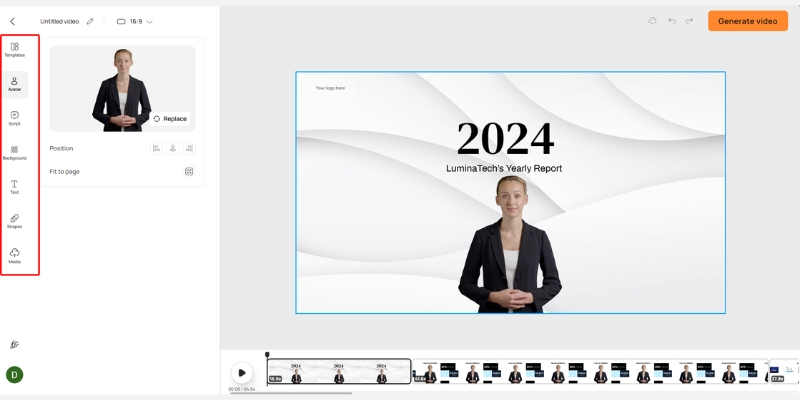
You have three options here. You can select a standard HQ Avatar (high fidelity), generate a new AI face using a text prompt, or click “Add” to upload your own photo. We recommend starting with a standard avatar to test the waters.

Step 3: Inputting the Script or Audio
On the right panel, you will see the script box. You can type your text directly or use the built-in GPT integration to write it for you. For better lip-sync, we strongly suggest uploading a real human voice recording using the “Audio” tab.

Step 4: Selecting Voice and Language
If you use text-to-speech, browse the voice library. You can filter by language, accent, and style (e.g., “Assistant” or “Cheerful”). Listen to previews to ensure the voice matches the avatar’s appearance.

Step 5: Generation and Export
Click “Generate Video” in the top right. A popup will show the credit cost (usually 1 credit per 15 seconds). Confirm the action, wait for the rendering to finish, and then download your MP4 file.

D-ID video editor interface showing script and avatar selection
The editor layout allows you to pair scripts with avatars seamlessly.

How to Use D-ID to Animate Static Photos (Custom Avatar)

The most unique feature of D-ID is Photo Animation. This allows you to upload a photo of an ancestor, a historical figure, or a custom mascot and make them speak.

Preparing Your Image
The AI works best with a front-facing photo. Ensure the subject has their mouth closed and eyes open. Avoid images where hands or objects cover parts of the face, as this confuses the animation algorithm.

Uploading to the Studio
In the “Choose a Presenter” section, click the circular “Add” button. Select your prepared JPEG or PNG file. The system will process the face and add it to your library.

Fine-Tuning the Animation
Once uploaded, select your custom face. Note that the head movement range is limited compared to 3D avatars. It works best for “talking head” videos where the focus is on the message, not complex body language.

D-ID API Tutorial: A Workflow for Developers

For developers building apps, the D-ID API offers a robust way to integrate video generation programmatically. Here is the logical flow you need to implement.

Authentication
First, get your API Key from the “Settings” > “API Key” section of your account. You will use Basic Authentication (combining your API key with your password/secret) for all requests.

Creating a Talk (POST Request)
Send a POST request to the /talks endpoint. You must provide a `source_url` (link to your avatar image) and the `script` (text or audio URL). This initiates the render process.

Retrieving the Result (GET Request)
Video generation is asynchronous. The initial response gives you an ID. You must poll the /talks/{id} endpoint until the status returns “done”. The response will then contain the `result_url` (your video).

Stream API
For real-time applications like AI chatbots, investigate the “Streams” endpoint. This establishes a WebRTC connection, allowing for low-latency video streaming ideal for conversational interfaces.

Integrating D-ID with Canva for Social Media Content

If you design in Canva, you don’t need to switch tabs. D-ID has a native app integration that streamlines the workflow for creators.

Installing the D-ID App in Canva
Open any Canva design and click “Apps” on the left sidebar. Search for “D-ID AI Presenters” and click to install it. You will see the familiar D-ID interface load inside Canva.

Connecting Your Account
You will need to log in to your D-ID account within the Canva window. This links your existing credits to the Canva session.

Generating Inside the Design
Select an avatar, type your text, and click generate. The finished video will appear automatically in your “Uploads” folder in Canva, ready to be dragged onto your Instagram Story or presentation slide.

Battle-Tested Tips for Better D-ID Results

After generating hundreds of videos, we have discovered nuances that separate robotic outputs from professional content. Here is our expert advice.

Optimize Audio Quality
The built-in Text-to-Speech is decent, but uploading a pre-recorded voiceover (using ElevenLabs or your own voice) yields significantly better lip-sync results. Clear audio input drives better animation.

Image Selection Strategy
For custom photos, use a “Mid-shot” (shoulders and up). Close-ups can look distorted when the head moves, while full-body shots often lack facial detail. A passport-style framing is ideal.

Script Pacing
If you must use TTS, add punctuation heavily. Commas and periods create natural pauses. You can also use “break” tags (if supported by the specific voice engine) to control the rhythm of the speech.

The Verdict

D-ID is currently the market leader for animating static photos. While HeyGen might offer slightly better 3D avatars, D-ID’s API flexibility and creative “Photo Animation” feature make it indispensable for unique campaigns.

Try D-ID For Free

(Disclosure: If you purchase through links on this page, we may earn a small commission at no extra cost to you. This helps us maintain our “battle-tested” reviews.)

D-ID Pricing and Credit System Explained

Understanding the cost is crucial. D-ID operates on a “credit” model, where 1 credit typically equals up to 15 seconds of video generation.

Free Trial: You get a small number of credits (usually 20) to test the tool. However, videos will have a watermark and cannot be used for commercial purposes.

Lite Plan: This entry-level paid plan removes the watermark. It is best for hobbyists who need clean video but don’t require massive volume.

Pro & Advanced Plans: These tiers unlock commercial rights, higher credit limits, and access to premium voices. If you are an agency, you need the commercial license included here.

Plan Best For Key Feature Action
Trial Testing 5 mins video (Watermarked) Try Free
Lite Hobbyists No Watermark View Plan
Pro Creators Commercial Rights View Plan

Frequently Asked Questions About Using D-ID

Is D-ID free to use?
It offers a free trial with limited credits (usually 5 minutes of video). However, these videos are watermarked. To remove the watermark and gain commercial rights, you must upgrade to a paid plan.

Can I use D-ID videos for YouTube monetization?
Yes, but only if you are on the “Pro” plan or higher. The Lite plan is generally for personal use, and the Trial plan definitely does not convey commercial rights.

How does D-ID compare to HeyGen?
D-ID is superior for animating static images (bringing photos to life). HeyGen is generally considered better for realistic, high-fidelity AI avatars that look like real humans.

Does D-ID support multiple languages?
Yes, the platform supports over 100 languages. The lip-sync technology automatically adjusts the mouth movements to match the phonemes of the selected language.

Read More From AI Avatar Generator

Deepen your knowledge about AI video creation with these related guides and comparisons from our expert hub.

last update : 21/11/2025

A photo of Jun Pham, AI Tools Strategist at Aibrainjet

About the Author

Jun Pham

Jun Pham is an AI tools strategist, a video creator and tech writer passionate about the future of AI in editing video. As the face of a dedicated team of creators and researchers, Jamie leads hands-on testing of the latest AI video tools. Together, they share honest reviews, workflow insights, and practical tips to help creators turn ideas into cinematic videos with minimal effort.

Latest Posts

Onepage Website Builder Review: Features, Pros, Cons, and Use Cases

Onepage Website Builder Review: Features, Pros, Cons, and Use Cases
Jun Pham

SendShort AI Review (2025): The Best AI Clipper for Agencies?

Our SendShort AI review tests its white-label features for agencies. Discover how it automates viral shorts, enhances client perception. Try now!
Jun Pham

Zebracat Review (2025): Is This Hybrid AI Ad Generator Worth It?

Our Zebracat review (2025) assesses this hybrid AI video tool for marketers. Is it worth it for generating ads & repurposing content fast? See it now!
Jun Pham

Vizard Review (2025): Is This Hybrid AI Clipper & Editor Better Than OpusClip?

Our expert vizard review reveals if this AI video clipper & editor beats OpusClip for control. Get superior editing & branding for viral shorts. Try now!
Jun Pham

Klap Review (2025): The Best 4K AI Clipper for High-Quality Shorts?

Klap Review (2025): The Best AI Clipper for High-Quality Shorts? Klap Review (2025): The Best 4K AI Clipper for High-Quality Shorts? I have spent ...
Jun Pham

Submagic Review (2025): Is It The Best AI Tool For Hormozi Captions?

This Submagic review (2025) reveals if it's the ultimate AI tool for "Hormozi-style" viral video captions & B-roll. We battle-tested its features, speed, and ROI!
Jun Pham

Murf AI Pricing Plans Explained: Is It Worth the Investment in 2025?

Murf AI Pricing Plans Explained: Cost, Limits & Hidden Fees (2025)

Murf AI Pricing Plans Explained : Is It Worth the Investment in 2025?

Murf AI pricing is the first thing most creators check when looking for a professional text-to-speech solution, and for good reason. As an integral part of the modern AI Avatar Generator workflow, selecting the right voice plan can make or break your production budget.

In my 10 years of testing content tools, I have found that Murf’s “time-based” model confuses many users who are used to character limits. It works differently from competitors like ElevenLabs, and understanding this distinction is crucial for your ROI.

This battle-tested guide dives deep into the Free vs Pro plans, calculates the real value of Voice Generation Time, and exposes hidden limitations. By the end, you will know exactly which tier fits your budget.

Table of Contents

Murf AI Pricing at a Glance: Is It Worth the Investment?

If you are in a rush, here is the direct answer: Murf AI operates on a subscription model based on Voice Generation Time (hours). Unlike other tools that count every single letter or character, Murf bills you for the final length of the audio you produce.

Is it expensive? Compared to hiring a human voiceover artist on Fiverr, it is incredibly cheap. However, for a pure AI software subscription, it sits at a mid-to-premium price point, justified by its studio-quality output and “E-learning friendly” features.

Below is a quick comparison of the four main tiers currently available:

Plan Tier Price (Yearly) Voice Gen Time Key Limitation/Feature
Free $0 10 Mins (Lifetime) No Downloads allowed
Creator ~$19/mo 24 Hours/Year Commercial Rights included
Business ~$66/mo 96 Hours/Year Includes Voice Changer
Enterprise Custom Unlimited SSO & Account Manager

The “Hidden” Value: While the upfront monthly cost might look higher than some budget tools, the “Time-based” model is a massive advantage for long-form content.

If you create 20-minute training modules, Murf allows you to add unlimited pauses and silence without burning through your quota. Character-based pricing models would charge you for the text length regardless of pacing.

My “Best For” Recommendation:

Hobbyists: Stick to the Free Plan strictly for testing voice quality.

Solopreneurs: The Creator Plan is your baseline for YouTube and social media.

Agencies: You need the Business Plan for the collaboration features and higher time limits.

Understanding the “Voice Generation Time” Pricing Model

To master Murf AI cost efficiency, you must understand its currency. Voice Generation Time is simply the duration of the rendered audio file.

If you type a script that takes 5 minutes to read at a normal pace, generating that audio consumes 5 minutes of your quota. Speeding up the voice does not save credits based on the original text; it consumes time based on the final output duration.

The “Re-generation” Cost:

This is a critical pain point I need to warn you about. Every time you click “Generate” or “Play” on a modified block of text, it deducts from your total quota.

If you change one word in a paragraph and regenerate the audio, Murf treats it as a new generation. Efficient editing is key to saving money here.

Time vs. Word Count Conversion:

Marketers often ask me to translate hours into words. Here is a practical rule of thumb for budgeting:

1 hour of audio ≈ 9,000 – 10,000 words (at an average speaking pace).

So, the Creator Plan (24 hours/year) allows you to process roughly 216,000 to 240,000 words annually. This context is vital for deciding if the plan covers your script volume.

Important: unused voice generation time usually does NOT roll over to the next cycle on monthly plans, but yearly plans give you the bulk upfront. Always check the current policy before assuming your credits will accumulate.

Murf AI Free Plan: What You Can (And Can’t) Do

Many users sign up for the Murf AI free plan expecting to make a quick YouTube video for free. I am here to stop you from wasting that time.

The “No Download” Trap:

The most significant limitation is that the Free Plan does not allow downloads. You can create the project, select voices, and listen to the result in the dashboard, but you cannot export the file to MP3 or WAV.

Usage Limits:

You get a 10-minute total limit of voice generation time. Note that this is a lifetime limit for the free account, not a monthly renewing allowance.

Watermark & Commercial Rights:

If you share the project via a public link, it may contain visual watermarks (if using video features), and you have absolutely no commercial rights. You cannot use free-tier audio for monetized YouTube channels or client work.

Who is this for?

This plan is strictly for users validating the tool. Use it to verify if the AI voices sound human enough for your brand before opening your wallet.

 Murf AI Free Plan features showing no downloads and 10 minutes generation time.
The Free Plan is strictly a sandbox for testing, as downloads are disabled.

Creator Plan: The Best Starting Point for Solopreneurs

If you are ready to publish, the Creator Plan is the entry-level standard. It typically costs around $19/month (when billed yearly).

Pricing & Allocation:

This tier grants you 24 hours of voice generation per year. For most solo YouTubers doing one 10-minute video a week, this is generally sufficient.

Commercial Rights:

The biggest unlock here is Commercial Rights. This legal coverage allows you to monetize your content on platforms like YouTube, Spotify, and TikTok without fear of copyright strikes.

Unlimited Downloads:

The “No Download” restriction is removed. You can export as many audio files as you want, provided you stay within your generation time limit.

Key Limitations:

However, you are missing the Voice Changer feature (which converts your own recording into an AI voice). You also lack team collaboration tools.

Ideal User:

This plan is perfect for a freelancer or YouTuber producing consistent but moderate volumes of content. If you run a daily news channel, the 24-hour cap might be too tight.

Business Plan: The “Sweet Spot” for Agencies & Teams

For power users, the Business Plan is where the real value lies. The price jumps to approximately $66/month (billed yearly), but the value scales disproportionately.

Pricing & Allocation:

You get a massive jump to 96 hours of voice generation per year. That is 4x the time for roughly 3x the price, making the “cost per hour” significantly lower than the Creator plan.

The “Voice Changer” Feature:

This is an exclusive feature for this tier. It allows you to record “messy” audio on your phone—stammers and all—and convert it into a polished, professional AI studio voice while keeping the original intonation.

Collaboration:

The plan includes Team features (usually 3 users). A central billing account manages the time pool, allowing you to add an editor or virtual assistant to your workspace without sharing passwords.

High-Volume Production:

If you are creating E-learning modules or audiobooks where a single project can exceed 2 hours, this plan is non-negotiable. The Creator plan would run dry too quickly.

Enterprise Plan: For Security & Unlimited Scale

When “96 hours” isn’t enough, the Enterprise Plan offers custom solutions. This is designed for corporate environments and large-scale media houses.

Unlimited Generation:

For heavy users like 24/7 news outlets, the Enterprise plan typically removes the hard time cap, allowing for unlimited voice generation time.

Security & Compliance:

Corporate IT departments require features like SSO (Single Sign-On) and MSA (Master Services Agreements). Murf provides security assessments and dedicated support at this level to ensure compliance.

Account Management:

You also get a dedicated account manager to help onboard huge teams, ensuring your entire workforce knows how to use the tool effectively.

Murf AI vs. ElevenLabs Pricing: The “Time vs. Character” Battle

Choosing between ElevenLabs vs Murf AI often comes down to how they charge you. It is a battle of Time vs. Characters.

The Core Difference:

Murf AI: Bills by Time (Hours/Minutes of audio).
ElevenLabs: Bills by Characters (Letters and spaces typed).

Cost Efficiency Scenarios:

Scenario A (Short & Emotional): If you are making 30-second TikTok ads that require extreme emotional range, ElevenLabs is often cheaper and more expressive for short bursts.

Scenario B (Long & Educational): Murf AI is often significantly cheaper for long-form content like a 30-minute training module. In Murf, 30 minutes of audio allows for unlimited pauses and pacing adjustments without extra cost. In a character-based model, a long script costs a fortune regardless of how fast it is read.

Verdict:

Choose Murf for long-form, instructional, and corporate video content. Choose ElevenLabs for short-form, character-driven entertainment.

Hidden Costs & Extra Features to Consider

Before you buy, be aware of potential extra costs that might not be obvious on the main pricing page.

Voice Cloning Add-on:

Creating a custom AI Clone of your own voice is usually a separate one-time fee or requires the Enterprise tier. It is not standard in the basic Creator subscription.

Stock Media Library:

One hidden value is the included royalty-free music library. This can save you $15-$30/month that you would otherwise spend on Epidemic Sound or Artlist, effectively lowering the “real” cost of Murf.

Canva & Google Slides Integrations:

These integrations are included in paid plans. While not a direct monetary cost, they save massive amounts of time for businesses, which indirectly saves money on operational hours.

 Murf AI studio interface showing stock music library.
The included stock media library adds value by reducing the need for external subscriptions.

Final Verdict: Which Plan Should You Buy?

After analyzing the numbers, here is my final decision matrix to help you choose the right plan:

  • Buy Creator if: You are a solo YouTuber making less than 2 hours of finished content per month.
  • Buy Business if: You need the Voice Changer, have a team of 2-3 people, or produce heavy E-learning content.
  • Buy Enterprise if: You need SSO security or unlimited generation for a large organization.

💡 Expert Advice

Start with the Free Trial to test the voices, but remember the “No Download” limit. Do not waste time creating a full project you can’t export. Once validated, the Creator Plan is the safest entry point for most users.

Try Murf AI for Free

(Disclosure: If you purchase through links on this page, we may earn a small commission at no extra cost to you. This helps us maintain our “battle-tested” reviews.)

Frequently Asked Questions About Murf AI Pricing

Can I cancel my subscription anytime?

Yes, you can cancel at any time. However, annual plans are paid upfront, so you will likely retain access until the billing cycle ends rather than getting a pro-rated refund.

Does unused voice generation time roll over?

Generally, Murf operates on a “use it or lose it” policy for its cycles. Unused time typically does not roll over to the next month or year, so plan your production schedule accordingly.

What happens if I run out of hours?

If you hit your limit, you will usually need to upgrade to the next tier or contact support for a top-up pack. You cannot simply “pay per minute” as an add-on easily without upgrading.

Is the Voice Changer included in the Creator plan?

No. The Voice Changer is a premium feature reserved for the Business Plan and above.

Do I own the rights to the audio after I cancel?

Yes. You retain perpetual commercial rights for any content created and downloaded during your active subscription. You do not lose rights to your old videos just because you stopped paying.

Read More From AI Avatar Generator

Explore more battle-tested reviews and comparisons to find the perfect tools for your video production stack.

last update : 21/11/2025

A photo of Jun Pham, AI Tools Strategist at Aibrainjet

About the Author

Jun Pham

Jun Pham is an AI tools strategist, a video creator and tech writer passionate about the future of AI in editing video. As the face of a dedicated team of creators and researchers, Jamie leads hands-on testing of the latest AI video tools. Together, they share honest reviews, workflow insights, and practical tips to help creators turn ideas into cinematic videos with minimal effort.

Latest Posts

Onepage Website Builder Review: Features, Pros, Cons, and Use Cases

Onepage Website Builder Review: Features, Pros, Cons, and Use Cases
Jun Pham

SendShort AI Review (2025): The Best AI Clipper for Agencies?

Our SendShort AI review tests its white-label features for agencies. Discover how it automates viral shorts, enhances client perception. Try now!
Jun Pham

Zebracat Review (2025): Is This Hybrid AI Ad Generator Worth It?

Our Zebracat review (2025) assesses this hybrid AI video tool for marketers. Is it worth it for generating ads & repurposing content fast? See it now!
Jun Pham

Vizard Review (2025): Is This Hybrid AI Clipper & Editor Better Than OpusClip?

Our expert vizard review reveals if this AI video clipper & editor beats OpusClip for control. Get superior editing & branding for viral shorts. Try now!
Jun Pham

Klap Review (2025): The Best 4K AI Clipper for High-Quality Shorts?

Klap Review (2025): The Best AI Clipper for High-Quality Shorts? Klap Review (2025): The Best 4K AI Clipper for High-Quality Shorts? I have spent ...
Jun Pham

Submagic Review (2025): Is It The Best AI Tool For Hormozi Captions?

This Submagic review (2025) reveals if it's the ultimate AI tool for "Hormozi-style" viral video captions & B-roll. We battle-tested its features, speed, and ROI!
Jun Pham

How to Use Murf AI: A Step-by-Step Guide for Professionals (2025)

How to Use Murf AI: A Step-by-Step Guide for Professionals (2025)

How to Use Murf AI: A Step-by-Step Guide for Professionals (2025)

Learning how to use Murf AI effectively is the fastest way to scale your audio production without a recording studio. Whether you are creating voiceovers for e-learning modules or narrations for YouTube, mastering this tool connects you directly to a professional Text-to-Speech (TTS) workflow.

As a key player in the AI Avatar Generator and voice synthesis space, Murf offers more than just robotic reading. It provides a complete audio engineering suite in your browser.

In this battle-tested guide, I will walk you through the exact process we use to produce broadcast-ready audio. You will learn to navigate the Murf Studio, master the Voice Changer, and export high-quality content ready for your audience.

Table of Contents

Getting Started with Murf Studio: Interface & Workflow Overview

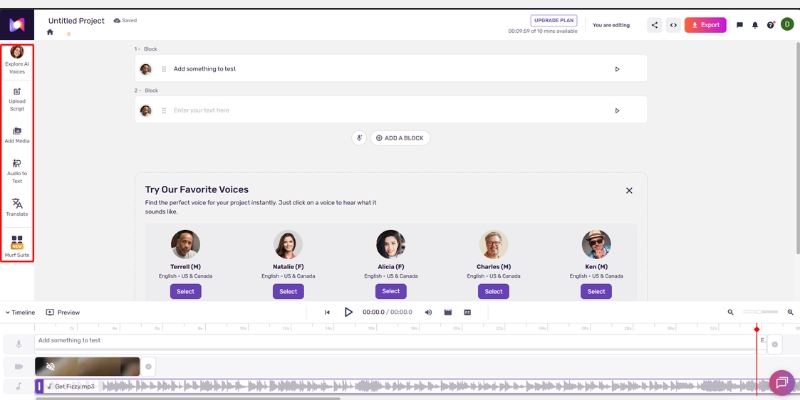
When I first logged into the Murf Studio, I was relieved to see how clean the layout was compared to traditional audio software. It avoids the clutter of complex DAWs, focusing instead on a drag-and-drop experience tailored for marketers and creators.

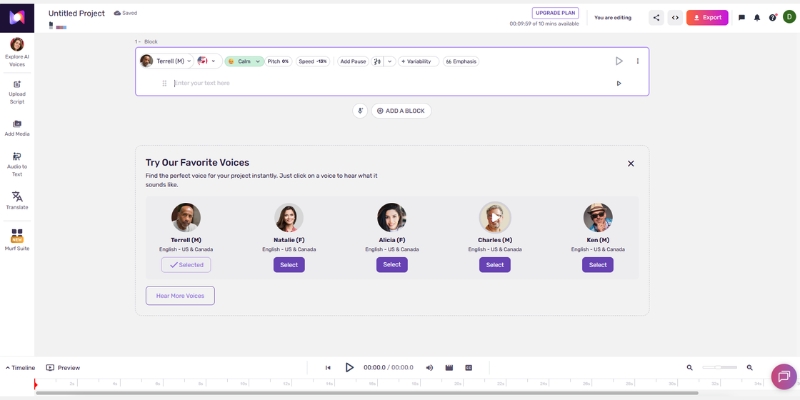
The Studio Interface is divided into three logical zones. On the Left Sidebar, you find your asset menu, including the Voice Changer, Stock Media, and Uploads. This is your resource bank.

In the Center Canvas, you interact with your script. Murf treats text as individual “Blocks,” allowing you to manipulate specific paragraphs without affecting the whole project. This is where 90% of your work happens.

At the Bottom Timeline, you will see the audio waveform synced with any video or images you add. It resembles a simplified video editor, making it intuitive for anyone who has used tools like Canva or Premiere Rush.

To begin, you simply click the “Create Project” button in the Dashboard. This launches the studio and prompts you to choose your output format.

Murf Studio interface overview showing the script editor and timeline
The Murf Studio layout is designed for speed, separating assets, script, and timeline into three distinct zones.

Step-by-Step Guide to Creating Your First Voiceover Project

Creating a professional voiceover involves more than just pasting text. We have refined a workflow that ensures consistency and quality every time. Here is the exact path to go from a blank screen to a finished audio file.

Step 1: Start a New Project
From the dashboard, click “Create Project.” You will be asked to name your file and choose a use case. Select “Audio” for podcasts or “Video” if you plan to sync visuals.

Step 2: Enter Your Script
Click on the first Text Block in the center canvas. You can type directly or paste your script. For longer content like e-books, use the “Import Script” feature to upload a Word or .txt file, which Murf automatically splits into manageable blocks.

Step 3: Select a Voice from the Library
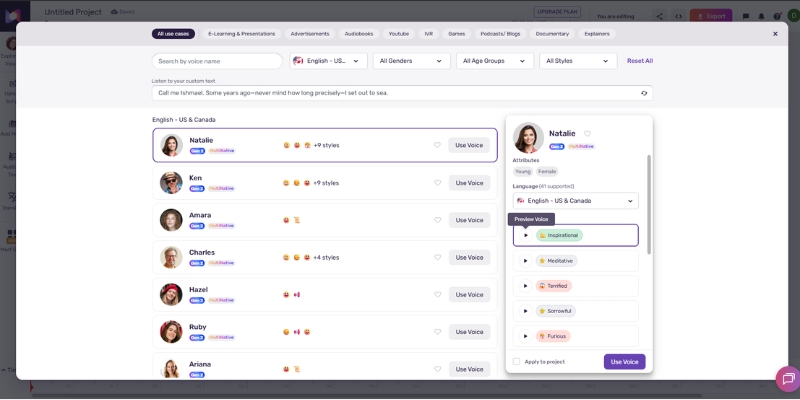
Click the circular avatar icon next to your text block. This opens the Voice Library. We recommend using the filters to narrow down by “Language,” “Gender,” and “Use Case” (e.g., Narration vs. Promo) to find the perfect match.

Step 4: Render the Audio
Unlike some tools that stream instantly, Murf requires you to “Build” the audio. Click the small “Play” triangle next to the text block. This triggers the Generate Audio process, converting your text into the selected AI voice.

Step 5: Preview and Build the Timeline
Once rendered, listen to the block. If it sounds good, move to the next paragraph. As you generate each block, they populate the bottom timeline, creating a seamless audio track.

Selecting an AI voice from the Murf AI Voice Library
The Voice Library allows you to filter over 120 voices by specific use cases to find the right tone for your project.

Mastering Advanced Editing: Pitch, Speed, and Pauses

Raw AI audio can sometimes sound flat or rushed. To create a truly Natural Sounding voiceover, you need to use Murf’s advanced editing controls. This is where you transform a robotic reading into a human-like performance.

Adjusting Pitch and Speed
Each text block has a “Settings” tab. We often increase the Speed slightly for punchy social media ads, or slow it down for complex training modules. The Pitch slider helps fine-tune the voice to sound younger (higher) or more authoritative (lower).

Adding Strategic Pauses
Don’t rely on commas alone. Use the “Add Pause” button to insert silence between sentences. We prefer the preset durations (Weak, Medium, Strong) because they feel more organic than manually entering 0.5s or 1.0s durations.

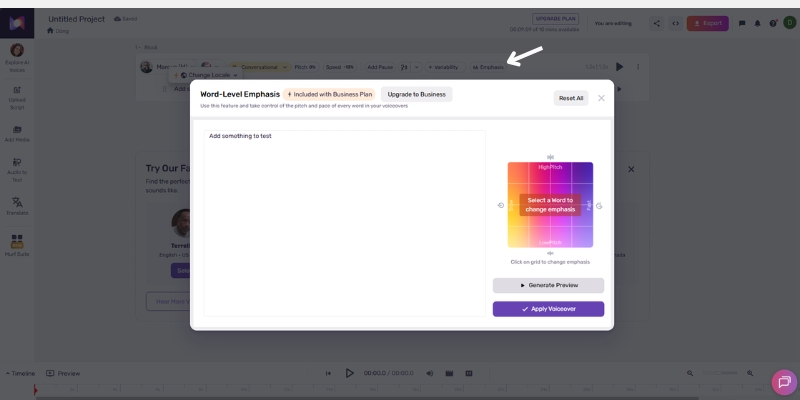
Using the Emphasis Feature
To make a specific point land, highlight the word in your script and click the “Emphasis” graph. You can increase the node to make the AI stress that word, mimicking how a real actor would deliver a key message.

Fixing Pronunciation
If the AI mispronounces a brand name, double-click the word and select “Pronunciation.” You can type the phonetic spelling (e.g., “Murph” instead of “Murf”) to force the correct sound.

Adjusting word emphasis in Murf Studio to humanize AI voice
The Emphasis feature lets you control the intonation of specific words, breaking the monotonic pattern of standard TTS.

How to Use Murf AI Voice Changer for Custom Content

The Voice Changer is one of Murf’s most powerful yet underused features. It allows you to record a rough draft on your phone and convert it into a studio-quality AI voice, preserving your original timing and emotion.

Step 1: Upload Your Audio
Navigate to the “Voice Changer” tab on the left sidebar. Click “Upload Audio” and select your Home Recording file (MP3 or WAV). This is ideal if you want to direct the pacing yourself.

Step 2: Transcribe the Audio
Murf will automatically analyze your file. Click “Transcribe” to convert your speech into editable text blocks. The system separates the audio into sentences, ready for the AI Voice swap.

Step 3: Select Target Voice
Choose the professional AI voice you want to “wear.” For example, swap your own voice for a professional “Promo” voice actor. The AI will map the new voice onto your original timeline.

Step 4: Sync and Download
The generated audio will match the length of your original clip. This is crucial for video dubbing, as it ensures the new voiceover stays in sync with any existing visuals.

Integrating Media: Syncing Voiceovers with Video and Images

Murf Studio is not just for audio; it functions as a lightweight Video Editor. This integration is perfect for creating explainer videos or social media clips without leaving the platform.

Step 1: Add Visual Assets
Go to the “Media” tab. You can upload your own footage or browse the built-in Stock Media library powered by Pexels. Drag your chosen video or image onto the timeline.

Step 2: Timeline Management
On the bottom timeline, you will see your audio track and video track stacked. Drag the edges of your image blocks to extend their duration so they align perfectly with the corresponding voiceover segment.

Step 3: Preview the Mix
Click the main “Play” button to watch the video with the voiceover. Check for sync issues—does the visual change exactly when the new topic starts? Adjust the block positions if needed.

Step 4: Add Background Music
Open the “Music” tab to find royalty-free tracks. When you add music, Murf automatically applies “Ducking,” which lowers the music volume whenever the voiceover is speaking, ensuring clarity.

Syncing audio with video in Murf Studio timeline
You can build complete video projects by stacking voice, video, and background music tracks directly in the timeline.

Exporting High-Quality Audio and Team Collaboration

Once your project is polished, the final step is getting it out of the studio. Murf provides flexible Export Format options suitable for any platform, from Spotify to YouTube.

Export Options
Click the blue “Export” button in the top right. For audio-only projects, select MP3 or WAV (choose WAV for the highest quality). For video projects, select MP4. You can also choose the quality setting; we always recommend “High.”

Splitting Files
If you need each paragraph as a separate file (e.g., for an IVR system), check the “Split by Block” option. Otherwise, leave it as “Single File” to download the complete merged track.

Team Collaboration Features
For agencies, the Team Workspace is a lifesaver. You can create a project and click “Share” to send a link to a colleague. They can enter the studio, edit the script, or change the voice, streamlining the review process.

Expert Verdict

After using Murf for dozens of client projects, I consider it the most “editor-friendly” AI voice tool on the market. While it may not have the extreme voice cloning depth of some competitors, its workflow efficiency is unmatched. It allows you to build a full narrative, sync it with video, and export a finished product in minutes, not hours.

Try Murf AI for Free

(Disclosure: If you purchase through links on this page, we may earn a small commission at no extra cost to you. This helps us maintain our “battle-tested” reviews.)

Frequently Asked Questions About Using Murf AI

Does Murf AI grant commercial rights?
Yes, but only on paid plans. If you are on the Free Trial, you cannot use the audio for commercial projects like YouTube monetization or ads. You must upgrade to the Starter plan or higher for full rights.

Can I use Murf AI directly in Canva?
Yes, Murf has a dedicated app integration within Canva. You can connect your account and generate voiceovers directly into your Canva video designs without switching tabs.

Is Murf AI hard for beginners?
No, the interface is designed to be intuitive. If you can use a word processor, you can use Murf. The drag-and-drop timeline simplifies the complex parts of audio editing.

How many languages does Murf support?
Murf currently supports over 20 languages, including French, German, Spanish, and Japanese. Each language comes with multiple accents and voice styles to suit different regional markets.

Read More From AI Avatar Generator

Deepen your understanding of AI video tools with our related guides and comparisons. These articles will help you choose the right stack for your content creation needs.

last update : 21/11/2025

A photo of Jun Pham, AI Tools Strategist at Aibrainjet

About the Author

Jun Pham

Jun Pham is an AI tools strategist, a video creator and tech writer passionate about the future of AI in editing video. As the face of a dedicated team of creators and researchers, Jamie leads hands-on testing of the latest AI video tools. Together, they share honest reviews, workflow insights, and practical tips to help creators turn ideas into cinematic videos with minimal effort.

Latest Posts

Onepage Website Builder Review: Features, Pros, Cons, and Use Cases

Onepage Website Builder Review: Features, Pros, Cons, and Use Cases
Jun Pham

SendShort AI Review (2025): The Best AI Clipper for Agencies?

Our SendShort AI review tests its white-label features for agencies. Discover how it automates viral shorts, enhances client perception. Try now!
Jun Pham

Zebracat Review (2025): Is This Hybrid AI Ad Generator Worth It?

Our Zebracat review (2025) assesses this hybrid AI video tool for marketers. Is it worth it for generating ads & repurposing content fast? See it now!
Jun Pham

Vizard Review (2025): Is This Hybrid AI Clipper & Editor Better Than OpusClip?

Our expert vizard review reveals if this AI video clipper & editor beats OpusClip for control. Get superior editing & branding for viral shorts. Try now!
Jun Pham

Klap Review (2025): The Best 4K AI Clipper for High-Quality Shorts?

Klap Review (2025): The Best AI Clipper for High-Quality Shorts? Klap Review (2025): The Best 4K AI Clipper for High-Quality Shorts? I have spent ...
Jun Pham

Submagic Review (2025): Is It The Best AI Tool For Hormozi Captions?

This Submagic review (2025) reveals if it's the ultimate AI tool for "Hormozi-style" viral video captions & B-roll. We battle-tested its features, speed, and ROI!
Jun Pham

ElevenLabs Pricing Explained: Plans, Costs & Hidden Limits (2025)

ElevenLabs Pricing Explained: Plans, Costs & Hidden Limits (2025)

ElevenLabs Pricing Explained: Plans, Costs & Hidden Limits (2025)

ElevenLabs pricing is often misunderstood because it operates on a unique “character-based” credit system rather than the traditional minutes used by other tools in the AI Avatar Generator category.

As a creator who has spent over $500 testing voice synthesis tools, I know that choosing the wrong tier can drain your budget before you even finish one video. Many users sign up for the cheap plan only to realize they lack the commercial rights or the cloning fidelity they need.

In this guide, I will break down the ElevenLabs cost structure, expose the hidden limits of the Free vs. Creator plans, and calculate exactly how much audio you get for your money.

Table of Contents

ElevenLabs Pricing Overview 2025: How Much Does It Really Cost?

I have analyzed the latest ElevenLabs subscription plans and can confirm they use a “freemium” model starting at $0. The platform essentially sells you a monthly quota of text characters which you trade for generated audio.

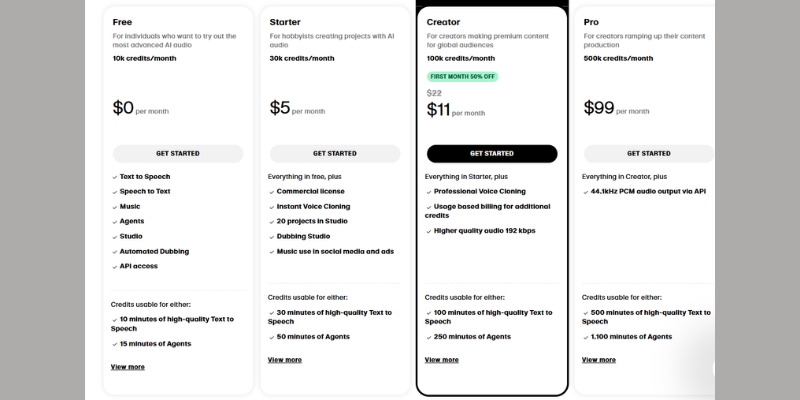
Below is a summary table of the current pricing tiers to give you an immediate answer for your budget:

Plan Name Price / Month Character Limit Key Feature Action
Free $0 10,000 Non-Commercial Use Try Free
Starter ~$5 30,000 Instant Cloning View Plan
Creator ~$22 100,000 Professional Cloning Best Value
Pro ~$99 500,000 High Volume For Teams

Important Warning: A crucial detail many beginners miss is that your unused character credits do not roll over to the next month. This “use it or lose it” policy means you must plan your content production schedule carefully to maximize your ROI.

If you are a developer or agency needing massive scale, the Enterprise plans offer custom pricing, but for 99% of users, the battle is between the Starter and Creator tiers.

ElevenLabs pricing plans showing Free, Starter, Creator, and Pro tiers with character limits.
The four main subscription tiers for ElevenLabs users in 2025

Understanding the Character-Based Model: What Do You Actually Get?

Most video creators are used to thinking in “minutes of video,” but ElevenLabs charges by text characters. This creates a disconnect that often leads to budgeting errors for those switching from other tools.

To help you budget, I have calculated the average conversion rate based on standard speaking speeds. This formula is battle-tested across dozens of my own YouTube scripts.

The Math (Conversion):
On average, 1,000 characters ≈ 1.5 to 2 minutes of audio. This varies slightly depending on the voice’s speaking pace and your use of pauses.

Real-World Context:
If you are writing a standard 10-minute YouTube video script, you will consume approximately 6,000 to 8,000 characters. This means a Starter Plan (30k limit) allows for roughly 3 to 4 videos per month.

It is vital to note that every single regeneration costs money. If you generate a sentence, don’t like the intonation, and hit “Generate” again, you are charged for those characters a second time.

Numbers, symbols, and punctuation also count toward your quota. Writing “100” costs 3 characters, while “one hundred” costs 11, yet they sound the same. Smart formatting can save you pennies that add up over time.

Detailed Breakdown of ElevenLabs Subscription Plans

Choosing the right tier is not just about the character limit; it is about the license and cloning features attached to that tier. Let’s dive deep into what each plan actually delivers.

The Free Plan: Good for Testing, Bad for Business
The Free Plan gives you 10,000 characters per month (approx. 10-15 minutes of audio). While the quality is identical to paid plans, it has a massive limitation: No Commercial Rights. You strictly cannot use this audio for monetized YouTube channels, paid ads, or client work.

Furthermore, you are required to provide attribution to ElevenLabs in your description. This plan is excellent for hobbyists or verifying if the ElevenLabs voice quality fits your needs, but it is a trap for serious creators.

Starter Plan: The Entry Level for Creators
Priced around $5/month (often $1 for the first month), the Starter Plan boosts your limit to 30,000 characters. Crucially, this unlocks the Commercial License, allowing you to monetize your content without legal worries.

This tier introduces Instant Voice Cloning (IVC). You can clone your own voice using just a 1-minute sample. It is fast and decent, perfect for TikTok creators or faceless channels needing a consistent narrator.

Creator Plan: The Sweet Spot for Professionals
This is the most popular tier for a reason. For ~$22/month, you get 100,000 characters (about 2+ hours of audio). However, the real value proposition here is Professional Voice Cloning (PVC).

Unlike the instant version, PVC requires heavily training the AI model with at least 30 minutes of data. The result is hyper-realistic. If you are producing audiobooks or high-end marketing videos, this feature alone justifies the price jump.

Pro & Scale Plans: For Agencies and Developers
The Pro plan offers 500,000 characters for ~$99/month. These higher tiers are designed for heavy users who need priority rendering and higher audio quality (up to 192kbps). They also unlock usage-based billing, ensuring your service doesn’t stop if you hit the limit.

The Cost of Voice Cloning: Instant vs. Professional

A major confusion point for new users is the difference between “Instant” and “Professional” cloning. They are priced differently because they use completely different technologies under the hood.

Instant Voice Cloning (Included in Starter+)
This feature comes at no extra cost beyond your subscription. It takes a minute to set up and uses your monthly character quota. It captures the “tone” of a voice but often misses subtle emotional nuances.

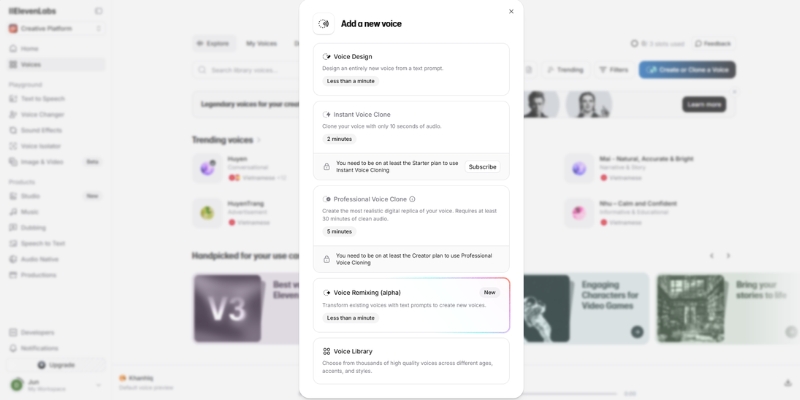
Professional Voice Cloning (Creator Plan Required)
You must subscribe to the Creator Plan ($22/mo) or higher to access this. It consumes a significant amount of characters to train the voice initially, but the output is indistinguishable from reality.

Reality Check: In my experience, if you are cloning a voice for a long-form narration or an audiobook, do not use the Starter plan. The “Instant” clone can sound robotic over long periods. The Professional Voice Cloning available in the Creator plan is mandatory for long-form listening comfort.

Comparison of Instant vs Professional Voice Cloning in ElevenLabs VoiceLab.
Professional Voice Cloning is locked behind the Creator Plan but offers superior realism.

ElevenLabs vs. Murf AI: Pricing Model Comparison

When discussing ElevenLabs vs Murf AI, the pricing model is the biggest differentiator. Murf uses a time-based model (minutes per month), while ElevenLabs uses the character-based model we discussed.

Pricing Model Conflict:
ElevenLabs penalizes you for retries. If you regenerate a line 10 times to get it perfect, you pay 10 times. Murf AI, however, generally allows unlimited retries within your project time limit. This makes Murf more “budget-safe” for perfectionists.

Voice Quality vs. Cost:
However, ElevenLabs offers significantly higher value in terms of pure realism. You pay a premium for the “human-like” breath pauses and intonation that Murf sometimes struggles to match.

The Verdict: If your priority is the absolute best AI voice on the market, ElevenLabs wins on the quality-to-price ratio. If you need a predictable budget for corporate Learning & Development (L&D) modules where quality is secondary to consistency, Murf is the safer bet.

Which Plan Should You Choose? (Battle-Tested Advice)

After using these tools for dozens of client projects, I have identified specific “personas” that fit each plan. Don’t overspend on a tier you don’t need.

For Short-Form Creators (TikTok/Shorts):
Recommend the Starter Plan. The 30,000 character limit covers roughly 30-40 shorts per month (assuming ~150 words per short). The Instant Cloning is sufficient for this format.

For Faceless YouTube Channels:
Recommend the Creator Plan. You need the 100,000 limit to produce 8-12 minute videos consistently. More importantly, the “Professional” cloning quality is needed to retain viewer retention on long videos.

For Developers/App Builders:
Recommend Pro/Scale Plans. You need API stability and volume discounts. The lower tiers will throttle your requests too quickly for a live application.

For Audiobook Narrators:
Warning: Calculate the total word count of your book before subscribing. An average audiobook is 300,000+ characters. You will likely need the Pro plan or a carefully managed Creator plan spread over months.

Final Recommendation

For 90% of the readers here, the Creator Plan is the correct choice. It bridges the gap between affordability and professional quality features.

Start for Free

(Disclosure: If you purchase through links on this page, we may earn a small commission at no extra cost to you. This helps us maintain our “battle-tested” reviews.)

Frequently Asked Questions About ElevenLabs Cost

Do my unused credits roll over to the next month?
No, they do not. ElevenLabs operates on a strict “use it or lose it” policy. Your character quota resets on your billing date, and any leftovers from the previous month are wiped out.

Can I upgrade or downgrade my plan at any time?
Yes. If you upgrade mid-month, you will be charged a pro-rated amount and given immediate access to the higher character limit. Downgrades take effect at the end of your current billing cycle.

Is the Commercial License valid after I cancel?
Yes. Any content you created and published during your active paid subscription retains its commercial license forever. You do not need to stay subscribed to keep your old videos monetized.

Does punctuation count as characters?
Yes, spaces, punctuation, and numbers all count toward your billable character limit. Efficient script formatting can save you a small amount of credit.

Is there a Pay-As-You-Go option?
Yes, but typically only for the Creator plan and higher. Once you exceed your monthly quota, you can opt-in to usage-based billing to keep generating audio without upgrading to the massive Pro tier.

Read More From AI Avatar Generator

Explore more comparisons and tutorials to help you choose the right tools for your video production stack.

last update : 21/11/2025

A photo of Jun Pham, AI Tools Strategist at Aibrainjet

About the Author

Jun Pham

Jun Pham is an AI tools strategist, a video creator and tech writer passionate about the future of AI in editing video. As the face of a dedicated team of creators and researchers, Jamie leads hands-on testing of the latest AI video tools. Together, they share honest reviews, workflow insights, and practical tips to help creators turn ideas into cinematic videos with minimal effort.

Latest Posts

Onepage Website Builder Review: Features, Pros, Cons, and Use Cases

Onepage Website Builder Review: Features, Pros, Cons, and Use Cases
Jun Pham

SendShort AI Review (2025): The Best AI Clipper for Agencies?

Our SendShort AI review tests its white-label features for agencies. Discover how it automates viral shorts, enhances client perception. Try now!
Jun Pham

Zebracat Review (2025): Is This Hybrid AI Ad Generator Worth It?

Our Zebracat review (2025) assesses this hybrid AI video tool for marketers. Is it worth it for generating ads & repurposing content fast? See it now!
Jun Pham

Vizard Review (2025): Is This Hybrid AI Clipper & Editor Better Than OpusClip?

Our expert vizard review reveals if this AI video clipper & editor beats OpusClip for control. Get superior editing & branding for viral shorts. Try now!
Jun Pham

Klap Review (2025): The Best 4K AI Clipper for High-Quality Shorts?

Klap Review (2025): The Best AI Clipper for High-Quality Shorts? Klap Review (2025): The Best 4K AI Clipper for High-Quality Shorts? I have spent ...
Jun Pham

Submagic Review (2025): Is It The Best AI Tool For Hormozi Captions?

This Submagic review (2025) reveals if it's the ultimate AI tool for "Hormozi-style" viral video captions & B-roll. We battle-tested its features, speed, and ROI!
Jun Pham

How to Use HeyGen: The Ultimate Step-by-Step Guide for Marketers (2025)

How to Use HeyGen: The Ultimate Step-by-Step Guide for Marketers (2025)

How to Use HeyGen: The Ultimate Step-by-Step Guide for Marketers (2025)

Learning how to use HeyGen is the single most effective skill you can acquire to automate your video production workflow in 2025. In the current content landscape, speed is everything, and this tool allows you to generate professional results without ever touching a camera.

As an AI Avatar Generator expert, I know that relying on traditional filming crews is no longer sustainable for daily social media content. The industry pressure to perform is real, and you need tools that deliver high ROI immediately.

This article acts as a practical, battle-tested guide for marketers and creators. We will cover everything from creating your first video to mastering the Instant Avatar feature and maximizing your credits.

Table of Contents

Getting Started: What Is HeyGen and Why Use It?

HeyGen creates videos from text. Put simply, it is an AI video generator platform that allows you to produce studio-quality videos using AI avatars and synthetic voiceovers. It eliminates the need for cameras, lighting equipment, and actors.

For marketers and freelancers, this tool addresses a critical pain point: the lack of time and resources. In our experience, traditional video production is slow and expensive. HeyGen serves as a scalable alternative for creating training videos, marketing clips, and social content.

The key benefit here is Marketing Content Creation efficiency. You can update a script and regenerate a video in minutes, keeping your content fresh. This is vital for maintaining a consistent presence on social media platforms.

While there are other tools on the market, HeyGen stands out for its ease of use and realistic output. It is not just a tool; it is a complete production studio in your browser.

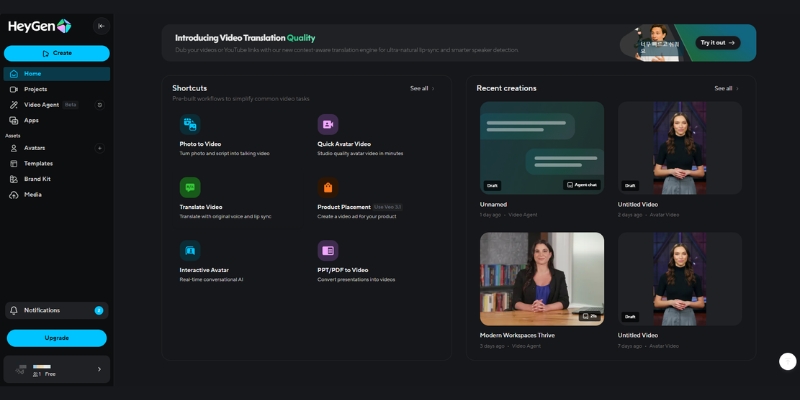
HeyGen dashboard interface showing AI video generator tools and templates.
The HeyGen dashboard is designed for speed, offering quick access to templates and avatars.

Master the Workflow: How to Use HeyGen to Create Videos (Step-by-Step)

Creating a video with the HeyGen tutorial workflow is straightforward. We have broken down the process into four actionable steps that will take you from a blank canvas to a finished video in under 10 minutes.

Step 1: Select Your Avatar
Navigate to the “Avatar” tab. Here you can choose a Stock Avatar (professional actors), an Instant Avatar (your digital twin), or a Photo Avatar. For generic marketing videos, stock avatars work best. For personal branding, use your own custom avatar.

Step 2: Input Your Script
Once your avatar is placed on the canvas, paste your script into the text box. You can type it manually or use the built-in ChatGPT integration to generate ideas. Alternatively, upload an audio file if you already have a real voiceover recording.

Step 3: Choose a Voice
Click on the voice settings to browse the library. You can filter by language, accent, and gender. In our tests, the Text-to-Speech engine is highly accurate, but we recommend previewing a few options to find one that matches your brand’s tone.

Step 4: Customize and Generate
Add text overlays, change the background color, or insert images to support your message. When satisfied, click “Submit” to generate video. This action will consume your credits, so double-check your work before finalizing.

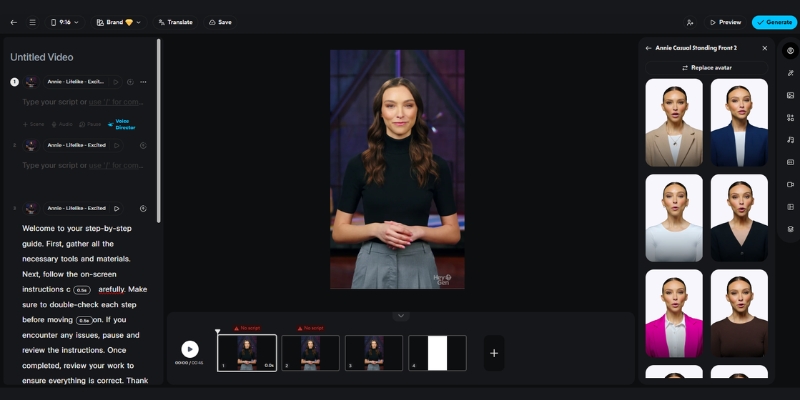
HeyGen video editing interface showing script input and avatar selection.
The intuitive editor allows you to sync scripts with avatars seamlessly.

Customization Guide: How to Create a HeyGen Instant Avatar & Photo Avatar

The real power of this platform lies in its custom avatar capabilities. Knowing how to use HeyGen Instant Avatar can transform your workflow by allowing you to “film” videos without actually being on camera every time.

Creating an Instant Avatar (Webcam)
This feature creates a high-quality digital twin. To start, click “Instant Avatar” and follow the instructions to record a 2-minute footage of yourself via webcam or upload a file. Ensure you have good lighting and look directly at the camera lens.

Using the Photo Avatar (Talking Photo)
This is perfect for animating static images, such as historical figures or mascots. Upload a portrait photo, type your script, and the AI will animate the mouth and facial expressions. It is a fun feature for engagement but less professional than the Instant Avatar.

Practical Use Cases
We recommend using Instant Avatars for daily social media updates or personalized sales outreach. It builds trust because it looks like you. Use Photo Avatar for explainer videos where a mascot or character fits the narrative better.

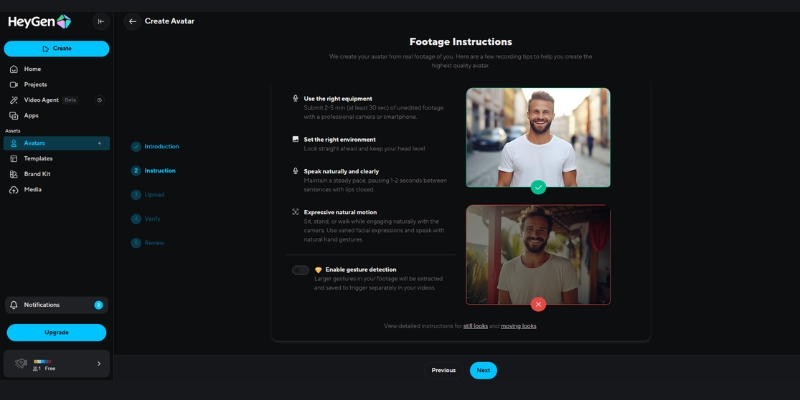
Instructions for creating a HeyGen Instant Avatar using a webcam.
Creating an Instant Avatar requires just 2 minutes of footage to clone your digital self.

Going Global: How to Use HeyGen Video Translate Feature

One of the most impressive features we have tested is the Video Translate tool. It allows you to localize your content for international markets without re-recording a single frame. This is a game-changer for global marketing teams.

The Power of Translation
HeyGen does not just dub the audio; it uses AI to adjust the lip movements of the avatar (lip-sync) to match the new language. This results in a natural-looking video that feels native to the viewer.

How to Execute Video Translate
First, upload your source video file to the “Video Translate” lab. Next, select your target language from the list of over 40 supported languages (e.g., Spanish, French, Japanese). Finally, click to process the translation.

Benefit for Marketers
We found that using this feature can instantly multiply your content’s reach. Instead of creating one video for one market, you can repurpose a single asset into ten different languages, maximizing your content ROI significantly.

Expert Tips: How to Make Your HeyGen Videos Look Natural & Professional

While the AI is powerful, a few human touches can make the difference between a robotic clip and a professional production. Here are our expert tips on how to create AI videos that feel authentic.

Script Optimization
Don’t just copy-paste a block of text. Add commas, periods, and line breaks to force the AI voice to pause naturally. This mimics human breathing patterns and makes the delivery less monotonous.

Background Choice
Avoid cluttered backgrounds. We recommend using clean, solid colors or professional office environments provided in the library. This keeps the viewer’s focus strictly on the avatar and your message.

Editing and B-roll
For the best results, treat the generated video as “raw footage.” Export it and use a tool like CapCut or Premiere Pro to add B-roll, dynamic text, and background music. This significantly elevates the production value.

Avatar Selection Strategy
Match the avatar’s outfit and style to your platform. Use casual avatars for TikTok or Instagram Reels, and switch to formal, suit-wearing avatars for LinkedIn or corporate training videos.

The Investment: HeyGen Pricing, Credits, and Free Trial Explained

Before committing, it is crucial to understand the cost structure. The HeyGen pricing model is credit-based, which can be confusing for new users. Here is the breakdown of what you are actually paying for.

Understanding the Credit System
Typically, 1 credit equals 1 minute of generated video. If you generate a 30-second clip, it uses 0.5 credits. This means you need to plan your scripts carefully to avoid wasting paid credits on draft versions.

Free Trial vs. Paid Plans
The free trial usually offers 1 free credit with a watermark. This is enough to test the Instant Avatar feature and render time. Paid plans remove the watermark, unlock 4K resolution, and provide API access.

ROI Analysis
While the monthly fee might seem high compared to basic apps, compare it to the cost of a studio day. For $29-$59/month, you get a “studio” available 24/7. For high-volume creators, the time saved justifies the expense immediately.

Plan Best For Key Feature Action
Free Beginners / Testing 1 Credit, Watermarked Try For Free
Creator Freelancers 15 Credits/mo, No Watermark View Plan
Team Agencies 30 Credits/mo, 4K Resolution View Plan

(Disclosure: If you purchase through links on this page, we may earn a small commission at no extra cost to you. This helps us maintain our “battle-tested” reviews.)

Expert Verdict

If you are a marketer looking to scale video production, HeyGen is currently the best-in-class tool for realistic AI avatars. The learning curve is minimal, and the Instant Avatar feature is a genuine innovation that saves hours of filming time.

Start Your Free Trial Now

Frequently Asked Questions About Using HeyGen

Is HeyGen free to use?
HeyGen offers a free trial that includes 1 credit to test the platform. However, the videos will have a watermark. To remove it and unlock more features, you will need to upgrade to a paid subscription.

How long does it take to generate a video?
Generation time depends on server load and video length. In our experience, a 1-minute video typically takes about 5 to 10 minutes to render. Instant Avatars may take slightly longer during the initial setup phase.

Can I use my own voice in HeyGen?
Yes, you can. You can upload a pre-recorded audio file, and the avatar will lip-sync to it. There is also a voice cloning feature that allows you to create a synthetic version of your own voice for text-to-speech.

Is HeyGen better than Synthesia?
Both are excellent, but they serve different needs. We find HeyGen superior for personal branding due to its “Instant Avatar” (webcam) feature. Synthesia is often preferred for large-scale corporate training libraries.

Read More From AI Avatar Generator

Expand your knowledge with our detailed comparisons and reviews of other top tools in the industry. We have battle-tested these platforms so you don’t have to.

last update : 21/11/2025

A photo of Jun Pham, AI Tools Strategist at Aibrainjet

About the Author

Jun Pham

Jun Pham is an AI tools strategist, a video creator and tech writer passionate about the future of AI in editing video. As the face of a dedicated team of creators and researchers, Jamie leads hands-on testing of the latest AI video tools. Together, they share honest reviews, workflow insights, and practical tips to help creators turn ideas into cinematic videos with minimal effort.

Latest Posts

Onepage Website Builder Review: Features, Pros, Cons, and Use Cases

Onepage Website Builder Review: Features, Pros, Cons, and Use Cases
Jun Pham

SendShort AI Review (2025): The Best AI Clipper for Agencies?

Our SendShort AI review tests its white-label features for agencies. Discover how it automates viral shorts, enhances client perception. Try now!
Jun Pham

Zebracat Review (2025): Is This Hybrid AI Ad Generator Worth It?

Our Zebracat review (2025) assesses this hybrid AI video tool for marketers. Is it worth it for generating ads & repurposing content fast? See it now!
Jun Pham

Vizard Review (2025): Is This Hybrid AI Clipper & Editor Better Than OpusClip?

Our expert vizard review reveals if this AI video clipper & editor beats OpusClip for control. Get superior editing & branding for viral shorts. Try now!
Jun Pham

Klap Review (2025): The Best 4K AI Clipper for High-Quality Shorts?

Klap Review (2025): The Best AI Clipper for High-Quality Shorts? Klap Review (2025): The Best 4K AI Clipper for High-Quality Shorts? I have spent ...
Jun Pham

Submagic Review (2025): Is It The Best AI Tool For Hormozi Captions?

This Submagic review (2025) reveals if it's the ultimate AI tool for "Hormozi-style" viral video captions & B-roll. We battle-tested its features, speed, and ROI!
Jun Pham

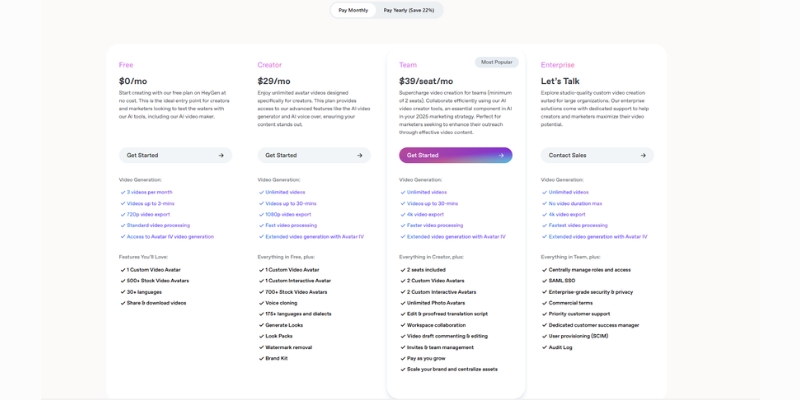
HeyGen Pricing Explained (2025): Plans, Credits & Hidden Costs

HeyGen Pricing Explained (2025): Plans, Credits & Hidden Costs

HeyGen Pricing Explained (2025): Plans, Credits & Hidden Costs

If you are strictly evaluating heygen pricing to see if it fits your marketing budget, you are in the right place. As experts who test dozens of AI Avatar Generators monthly, we know that pricing pages can often be confusing.

Most marketers and creators get stuck trying to calculate the “true cost” of video production. You need to know exactly what you get for your money, especially regarding the credit system.

In this battle-tested guide, we will dissect the HeyGen cost structure, explain the difference between Avatar IV and standard avatars, and compare it directly to competitors like Synthesia.

Table of Contents

The Short Answer: Is HeyGen Worth the Investment?

In our experience testing AI video tools, HeyGen offers the most value for money because of its scalability. While other tools strictly cap your minutes per month, HeyGen provides a path to Unlimited Video Generation for standard avatars.

For serious creators, the entry price of $24/month (paid annually) is a small investment for the ability to generate content without “meter anxiety.” The key differentiator is unlimited standard video creation plus premium Avatar IV minutes included monthly.

Verdict: If you need to produce daily social media content or personalized sales videos at scale, HeyGen is the ROI leader.

Who is this for?
Creators, Freelancers, and Marketers needing high volume.

Key Benefit:
Unlimited standard video creation with 10 Avatar IV minutes included monthly.

Try HeyGen for Free

(Disclosure: If you purchase through links on this page, we may earn a small commission at no extra cost to you. This helps us maintain our “battle-tested” reviews.)

Deep Dive: The Creator Plan ($29/mo) – Best for Solopreneurs

The Creator Plan is the “Sweet Spot” for most of our readers. It unlocks the core features needed for professional use without the high cost of enterprise tiers. This is where the real work happens.

While the monthly cost is $29/month, paying yearly drops this to $24/month. This saving of $60 annually is significant for freelancers budgeting for a long-term tool stack.

1 User Seat:
This plan is strictly for one person. You cannot share login credentials easily without flagging security protocols.

1 Custom Video Avatar:
You get access to clone yourself with 1 Custom Video Avatar. This feature allows you to upload a 2-5 minute footage of yourself and create a digital twin that speaks in your exact voice and style.

1 Custom LiveAvatar:
In addition to video avatars, you get 1 Custom LiveAvatar for interactive streaming applications, expanding your content options for webinars and live presentations.

No Watermark:
All videos exported on this plan are free of HeyGen branding, making them ready for professional use on YouTube, LinkedIn, or paid advertising campaigns.

10 Avatar IV Minutes Per Month:
You receive 10 minutes of HeyGen’s most advanced Avatar IV model monthly. This is their highest-quality rendering engine with the most realistic movements and expressions.

Unlimited Standard Video Creation:
Beyond your Avatar IV allocation, you can create unlimited videos using standard avatars and other features—no hard cap on production volume.

1080p Resolution:
All videos export at full HD 1080p quality, suitable for professional marketing content and social media platforms.

Auto-captions & Voice Cloning:
Automatically generate subtitles for your videos and clone your voice for different languages, saving you from using external tools like CapCut or Descript.

HeyGen Creator Plan pricing features showing 10 Avatar IV minutes and custom video avatar access.
The Creator Plan removes watermarks and unlocks 1 Custom Video Avatar plus 10 Avatar IV minutes monthly.

Deep Dive: The Team Plan ($39/seat) – Best for Agencies

If you run a marketing agency or a small content team, the Creator Plan won’t suffice. The Team Plan is designed for collaboration and higher production quality.

The pricing model shifts to a “Per Seat” basis here. At $39/seat/mo (billed monthly) or $30/seat/mo (billed annually), you must calculate the total cost carefully. If you have 3 team members, your annual cost is 3 × $30 = $90/month, saving $27/month compared to monthly billing.

4K Resolution:
This is a major upgrade. The Creator plan is capped at 1080p. The Team plan unlocks 4K resolution, which is critical for premium brand commercials and high-end production work.

Team Collaboration Workspace:
You get a shared workspace where team members can edit the same projects, share assets, manage brand templates centrally, and maintain consistent brand voice across all content.

Priority Processing:
Your videos jump to the front of the rendering queue. In our tests, rendering times were 30-40% faster on the Team plan compared to the Creator plan during peak hours.

2 Custom Video Avatars:
Instead of just one, you can create up to 2 Custom Video Avatars. This is perfect if your agency has multiple spokespersons or client-facing team members.

2 Custom LiveAvatars:
Similarly, you get 2 Custom LiveAvatars for interactive streaming needs across your team.

Unlimited Photo Avatars:
The Team plan adds unlimited Photo Avatar creation, allowing you to generate avatars from still images—ideal for client testimonials or historical figure recreations.

120 Video Translation Minutes:
Translate your content into multiple languages with 120 minutes of video translation included monthly, essential for global marketing campaigns.

The “Hidden” Credit System: Avatar IV vs. Standard Avatars

This is the most critical section of our HeyGen Review. Most pricing pages confuse users about “Credits.” We need to clarify the HeyGen credit system so you don’t feel cheated.

HeyGen differentiates between Avatar IV (premium, uses minutes/credits) and Standard Avatars (unlimited usage on paid plans). This nuance is why many creators choose HeyGen over competitors.

What is Avatar IV?
Avatar IV is HeyGen’s most advanced AI model, launched in June 2025. It produces hyper-realistic avatars with the most natural movements, expressions, and gestures. This is the “premium” tier that consumes your monthly allocation.

How Credits Work:
Avatar IV uses a credit system where 1 minute of Avatar IV = 30 credits. The Creator and Team plans include 10 Avatar IV minutes per month, which equals 300 credits.

Buying Additional Credits:
If you need more Avatar IV time, you can purchase Generative Credit Packs:

  • 300 credits (10 Avatar IV minutes) = $15/month
  • 3,600 credits (120 Avatar IV minutes) = $150/year

Video Translation Credits:
Video Translation uses 5 credits per minute, so your 300 monthly credits could translate 60 minutes of content if used exclusively for translation.

Unlimited Standard Video Creation (The Game Changer):
On paid plans, HeyGen allows unlimited video generation using standard avatars and features even after you consume your Avatar IV allocation. This means you can create hundreds of videos monthly without hitting a hard paywall.

Why this matters:
With other tools like Synthesia, once you hit your minute cap (10-15 mins), you are completely blocked. With HeyGen’s architecture, you can continue producing “good enough” social media content indefinitely using standard features.

HeyGen Free Plan Explained: Limits & Watermarks

If you are not ready to commit, the Free Plan serves as a “Sandbox.” We strongly advise against trying to use this for actual business content, but it’s excellent for testing the platform.

3 Videos Per Month:
The Free Plan allows you to create 3 Avatar IV videos per month, each up to 3 minutes long. This gives you 9 minutes of total content monthly to test the platform’s capabilities.

Watermark:
Every video will have a visible HeyGen logo and branding overlay. This immediately signals “amateur” to your audience and is not suitable for professional client work.

Resolution Cap:
Output is limited to 720p. On modern high-resolution mobile screens and 4K displays, this looks noticeably blurry and unprofessional.

30-Second Max Duration:
Each free video is capped at 30 seconds, limiting your ability to create substantial content or tell complete stories.

Use the Free Plan only to test the Lip-sync accuracy, voice quality, and to see if the interface fits your workflow. Do not plan to publish this content for business purposes.

Pricing Comparison: HeyGen vs. Synthesia

The most common question we get is: “How does Synthesia vs HeyGen pricing compare?” Here is the breakdown based on our commercial analysis.

Feature HeyGen (Creator) Synthesia (Starter)
Starting Price $24/mo (Annual)
$29/mo (Monthly)
$18/mo (Annual)
$29/mo (Monthly)
Usage Model 10 mins Avatar IV + Unlimited Standard 10 mins total (strict cap)
Avatar Creation 1 Custom Video Avatar Studio Webcam Avatar
Resolution 1080p (4K on Team) 1080p
Best For High Volume Creators Corporate Training
Check HeyGen Check Synthesia

Flexibility:
HeyGen wins on flexibility. Their model allows creators to scale content production without hitting a hard “paywall” as quickly as Synthesia’s strict minute counting. If you need more than 10 minutes monthly, HeyGen’s unlimited standard creation is invaluable.

Price Advantage:
Synthesia has a slight edge at $18/mo (annual) versus HeyGen’s $24/mo, but HeyGen’s unlimited standard videos make it more cost-effective for high-volume creators.

Enterprise Security:
Synthesia often wins for large enterprises requiring strict SOC2 compliance and corporate-level governance from the entry-level plans.

Verdict:
Choose HeyGen if you are a Creator or SMB Marketer who needs volume. Choose Synthesia if you are a corporate L&D manager needing strict controls and don’t require high monthly output.

Common FAQs About HeyGen Cost

Does HeyGen offer a lifetime deal?
No, HeyGen operates strictly on a SaaS subscription model. There are no legitimate lifetime deals available. Be wary of scams claiming otherwise.

How much is a Custom Video Avatar?
One Custom Video Avatar is included in the Creator Plan. If you need more slots, you typically need to upgrade to the Team plan (which includes 2) or purchase add-ons through enterprise pricing.

Can I buy extra Avatar IV credits?
Yes. If you burn through your allocated 10 Avatar IV minutes, you can purchase Generative Credit Packs: 300 credits (10 mins) for $15/month or 3,600 credits (120 mins) for $150/year.

Is API access included?
No, API Access is not included in the Creator or Team plans. This requires a separate API subscription starting at $99+/mo, with pay-as-you-go pricing for additional usage.

What’s the difference between Video Avatar and Photo Avatar?
Video Avatars are created from 2-5 minutes of video footage, producing highly realistic digital clones. Photo Avatars are created from still images, best for historical figures, testimonials, or when video footage isn’t available. Team plan includes unlimited Photo Avatars.

Can I cancel anytime?
Yes, monthly plans can be cancelled anytime. Annual plans are typically non-refundable after the initial trial period, so test with the free plan first.

Read More From AI Avatar Generator

If you are researching the best tools for video automation, check out our other in-depth comparisons and reviews:

last update : 20/11/2025

A photo of Jun Pham, AI Tools Strategist at Aibrainjet

About the Author

Jun Pham

Jun Pham is an AI tools strategist, a video creator and tech writer passionate about the future of AI in editing video. As the face of a dedicated team of creators and researchers, Jamie leads hands-on testing of the latest AI video tools. Together, they share honest reviews, workflow insights, and practical tips to help creators turn ideas into cinematic videos with minimal effort.

Latest Posts

Onepage Website Builder Review: Features, Pros, Cons, and Use Cases

Onepage Website Builder Review: Features, Pros, Cons, and Use Cases
Jun Pham

SendShort AI Review (2025): The Best AI Clipper for Agencies?

Our SendShort AI review tests its white-label features for agencies. Discover how it automates viral shorts, enhances client perception. Try now!
Jun Pham

Zebracat Review (2025): Is This Hybrid AI Ad Generator Worth It?

Our Zebracat review (2025) assesses this hybrid AI video tool for marketers. Is it worth it for generating ads & repurposing content fast? See it now!
Jun Pham

Vizard Review (2025): Is This Hybrid AI Clipper & Editor Better Than OpusClip?

Our expert vizard review reveals if this AI video clipper & editor beats OpusClip for control. Get superior editing & branding for viral shorts. Try now!
Jun Pham

Klap Review (2025): The Best 4K AI Clipper for High-Quality Shorts?

Klap Review (2025): The Best AI Clipper for High-Quality Shorts? Klap Review (2025): The Best 4K AI Clipper for High-Quality Shorts? I have spent ...
Jun Pham

Submagic Review (2025): Is It The Best AI Tool For Hormozi Captions?

This Submagic review (2025) reveals if it's the ultimate AI tool for "Hormozi-style" viral video captions & B-roll. We battle-tested its features, speed, and ROI!
Jun Pham

How to Use Vidnoz AI: The Ultimate Beginner’s Guide in 2025 (Free Plan Strategy)

How to Use Vidnoz AI: The Ultimate Beginner’s Guide (2025)

How to Use Vidnoz AI: The Ultimate Beginner’s Guide in 2025 (Free Plan Strategy)

Learning how to use Vidnoz is the secret weapon for marketers who need to produce video content at scale without a Hollywood budget. As the demand for video skyrockets, manual production is becoming impossible to sustain.

You are likely looking for a smart way to automate this process using a free AI Avatar Generator. Whether you are a creator, freelancer, or business owner, you need tools that save time, not consume it.

In this battle-tested guide, I will walk you through exactly how to use Vidnoz for free, from creating your first avatar video to using the viral “Face Swap” feature.

Table of Contents

What Is Vidnoz AI & Why It’s a “Must-Try” for Creators?

Vidnoz AI is a specialized, free-focused AI Video Generator designed to remove the friction from content creation. It allows you to generate professional videos using digital avatars, eliminating the need for cameras, microphones, or actors.

When I first tested Vidnoz, I was skeptical about “free” tools. However, unlike many competitors that lock everything behind a paywall, Vidnoz offers a genuine “freemium” experience that lets you actually test the workflow.

For marketers under performance pressure, this tool is a lifesaver. It drastically reduces production time by allowing you to turn a simple text script into a polished video presentation in minutes.

It is not just about saving money; it is about speed. You can create tutorials, social media clips, and explainer videos without ever showing your face or recording your voice.

By using Vidnoz, you automate the most tedious parts of video production, freeing you up to focus on strategy and creativity.

Vidnoz AI homepage interface showing free video creation tools.
Vidnoz positions itself as a beginner-friendly platform for faceless video creation.

Getting Started: Setting Up Your Free Vidnoz Workspace

Getting access to the Vidnoz dashboard is incredibly straightforward. The platform has removed the biggest barrier to entry: the credit card requirement.

To begin, simply navigate to the site and sign up using your Google account. This instant login saves time and gets you straight to the workspace.

Once inside, you will see a clean, intuitive interface. The dashboard displays your available templates, avatars, and your remaining credits from your monthly allocation.

The “Free Plan” provides up to 60 minutes of video generation per month, plus an additional 1 free minute that refreshes daily. This structure allows you to experiment with multiple short clips consistently while the platform manages server costs.

I recommend familiarizing yourself with the left-hand menu. This is where you will find the “Avatar” library and “Templates” section, which are the building blocks of your first video.

Create Your Free Account Now

(Disclosure: If you purchase through links on this page, we may earn a small commission at no extra cost to you. This helps us maintain our “battle-tested” reviews.)

Core Tutorial: How to Create Your First AI Avatar Video

This is the core of how to use Vidnoz effectively. We will turn a blank canvas into a speaking AI avatar video in five simple steps.

Step 1: Select a Template or Canvas
Click on “Create Video” in the top right corner. You must decide between “Landscape” (16:9) for YouTube or “Portrait” (9:16) for TikTok and Reels. Choosing the right ratio now saves editing time later.

Step 2: Choose Your AI Avatar
Browse the avatar library to find a “face” that matches your brand. If you are making a business tutorial, pick a professional avatar in a suit. For lifestyle content, choose a casual avatar.

Step 3: Input Your Script
Paste your text into the script box at the bottom. Vidnoz supports multiple languages. Keep your sentences short to ensure the AI delivers them with natural pacing.

Step 4: Customize Voice & Speed
Click the voice icon above the script. Listen to a few samples and select one that sounds natural. I recommend adjusting the speed to “1.0x” or slightly slower for better clarity.

Step 5: Preview & Generate
Hit the “Generate” button. On the free plan, processing might take a few minutes depending on server load. You will receive an email notification when your video is ready to download.

Vidnoz video editor interface showing where to input text and select voices.
The editor is drag-and-drop simple, making it easy to sync your script with the avatar.

Viral Content Hack: How to Use Vidnoz Face Swap

The Vidnoz Face Swap feature is a favorite among social media creators. It allows you to place any face onto a video or image, perfect for memes or personalized content.

Creators use this to make viral content quickly. It is a fun, high-engagement tool that works differently from the standard avatar generator.

Upload Source Image/Video
Start by uploading the base video or image you want to alter. Movie clips or popular memes work best here. Ensure the file size is within the free limit.

Upload Target Face
Upload the photo of the face you want to swap in. For the best AI mapping results, use a clear, front-facing photo with good lighting. Avoid blurry selfies.

Download Result
Click “Swap Face Now.” This process is usually faster than generating a full avatar video. Download the result and share it directly to TikTok or Instagram.

Bringing Images to Life: How to Use the Talking Photo Feature

Another powerful tool in your arsenal is the Talking Photo feature. Unlike the standard avatars, this lets you animate any static image, such as a historical figure or a mascot.

This is excellent for educational content or unique brand storytelling where a standard human avatar doesn’t fit the narrative. On the free plan, you can generate up to 3 AI Photo Avatar (Talking Photo) creations per day, with the limit resetting automatically.

Upload Photo
Select “Talking Photo” from the dashboard. Upload a high-resolution headshot. The AI needs to clearly see the eyes and mouth to animate them correctly.

Add Script or Audio
You can type a script or, for better realism, upload a real voice recording. Using your own voice with a static photo often creates a more authentic connection.

Generate
The AI will animate the mouth and head movements to match the audio. While not as smooth as the 3D avatars, it is a fantastic tool for short, engaging clips.

Comparison of a static photo versus a Vidnoz Talking Photo animation.
Transform static portraits into speaking characters instantly

Maximizing the Free Plan: Limitations & Workarounds

To truly master how to use Vidnoz, you must understand the credit structure and constraints of the free plan. Transparency here is key to managing your expectations.

Understanding the Credit System
The free tier provides up to 60 minutes of video creation per month, plus an additional 1 free minute that refreshes daily. Your monthly 60-minute allocation doesn’t disappear—you can use it all at once or spread it throughout the month. The bonus 1 minute per day is perfect for quick tests and experiments without depleting your main allocation.

Dealing with the Watermark
Every video generated on the free plan will have a floating watermark. There is no “magic tool” to remove this for free. I suggest using these videos for internal drafts or proof-of-concept. The good news is that Vidnoz allows commercial use even with the watermark, making it viable for budget content creators.

Resolution & Duration Limits
Free exports are limited to 720p resolution, which is perfectly suitable for social media platforms like TikTok, Instagram Reels, and YouTube Shorts. Each individual video can be up to 60 minutes long, but your total monthly allocation (60 minutes + daily 1-minute bonuses) will determine how many videos you can create.

Credit Management
Don’t waste your credits on testing tiny changes. Use the “Preview” mode as much as possible before hitting “Generate.” The daily 1-minute bonus is ideal for quick experiments without touching your main 60-minute monthly pool.

Pro Tip: Use the free plan to validate your content idea. If a watermarked video gets good engagement on TikTok, that is your signal to upgrade and produce a high-quality version.

Vidnoz vs. HeyGen: Which Free Tool Should You Use?

When discussing free AI video tools, the comparison often comes down to Vidnoz vs. HeyGen. Both are powerful, but they serve slightly different needs for free users.

HeyGen is known for incredible lip-sync quality and more polished avatars, but their free plan is more restrictive with only 3 videos per month (3 minutes each).

Vidnoz, on the other hand, positions itself as the “Best Free Alternative.” It offers more flexibility with 60 minutes monthly plus daily 1-minute bonuses, making it better for volume testing and consistent daily practice.

Feature Vidnoz AI (Free) HeyGen (Free)
Free Credits 60 min/mo + 1 min/day 3 videos/mo (3 min each)
Max Video Length 60 minutes per video 3 minutes per video
Watermark Yes (Floating) Yes (Fixed/Floating)
Face Swap Included & Fast Limited/Not Available
Talking Photo Daily Limit 3 generations per day Limited on free plan
Best For Beginners & Volume Testing High-End Enterprise Quality
Action Try Vidnoz Free Check Pricing

My Expert Verdict

If you are a beginner with zero budget looking to learn how to use Vidnoz for social media, Vidnoz is the superior starting point. Its generous monthly allocation (60 minutes) plus daily bonuses (1 minute) allow you to learn by doing consistently, whereas HeyGen’s 3-video monthly limit can stop your learning process too early. For high-volume testing and daily practice, Vidnoz wins.

Start Creating for Free

Frequently Asked Questions About Using Vidnoz

Is Vidnoz completely free?
Vidnoz operates on a “Freemium” model. The free plan provides up to 60 minutes per month plus 1 additional minute per day, allowing you to create multiple videos consistently. You can use basic features and generate videos for free forever with watermarks, but advanced features and watermark removal require a paid subscription.

How to remove the Vidnoz watermark?
The only official way to remove the watermark is to upgrade to a Pro plan. Cropping the video is a workaround, but it often ruins the framing of your avatar.

Can I use Vidnoz videos for YouTube monetization?
Yes, Vidnoz allows commercial use even on the free plan, but videos will include a watermark. For professional monetized content without watermarks, a paid commercial license is recommended for better presentation quality.

Is Vidnoz safe to use?
Yes, Vidnoz is a legitimate AI platform. They comply with standard data privacy regulations. However, always be cautious about uploading sensitive personal photos to any AI cloud service.

Read More From AI Avatar Generator

Deep dive into our battle-tested comparisons and reviews to find the perfect tool for your specific needs.

last update : 20/11/2025

A photo of Jun Pham, AI Tools Strategist at Aibrainjet

About the Author

Jun Pham

Jun Pham is an AI tools strategist, a video creator and tech writer passionate about the future of AI in editing video. As the face of a dedicated team of creators and researchers, Jamie leads hands-on testing of the latest AI video tools. Together, they share honest reviews, workflow insights, and practical tips to help creators turn ideas into cinematic videos with minimal effort.

Latest Posts

Onepage Website Builder Review: Features, Pros, Cons, and Use Cases

Onepage Website Builder Review: Features, Pros, Cons, and Use Cases
Jun Pham

SendShort AI Review (2025): The Best AI Clipper for Agencies?

Our SendShort AI review tests its white-label features for agencies. Discover how it automates viral shorts, enhances client perception. Try now!
Jun Pham

Zebracat Review (2025): Is This Hybrid AI Ad Generator Worth It?

Our Zebracat review (2025) assesses this hybrid AI video tool for marketers. Is it worth it for generating ads & repurposing content fast? See it now!
Jun Pham

Vizard Review (2025): Is This Hybrid AI Clipper & Editor Better Than OpusClip?

Our expert vizard review reveals if this AI video clipper & editor beats OpusClip for control. Get superior editing & branding for viral shorts. Try now!
Jun Pham

Klap Review (2025): The Best 4K AI Clipper for High-Quality Shorts?

Klap Review (2025): The Best AI Clipper for High-Quality Shorts? Klap Review (2025): The Best 4K AI Clipper for High-Quality Shorts? I have spent ...
Jun Pham

Submagic Review (2025): Is It The Best AI Tool For Hormozi Captions?

This Submagic review (2025) reveals if it's the ultimate AI tool for "Hormozi-style" viral video captions & B-roll. We battle-tested its features, speed, and ROI!
Jun Pham

How to Use ElevenLabs: The Ultimate Step-by-Step Guide for Beginners (2025)

How to Use ElevenLabs: The Ultimate Step-by-Step Guide for Beginners (2025)

How to Use ElevenLabs: The Ultimate Step-by-Step Guide for Beginners (2025)

If you are looking for how to use ElevenLabs to transform your content creation workflow, you have landed on the right guide. In the rapidly evolving world of audio synthesis and AI Avatar Generator tools, getting started can often feel overwhelming.

I have spent hundreds of hours testing this tool for my own projects. I know exactly where the hidden settings are and how to avoid common mistakes that lead to robotic-sounding audio.

In this elevenlabs tutorial, we will cover everything from basic Text-to-Speech (TTS) to advanced Voice Cloning. By the end, you will be able to Master the Voice Lab, generate professional voiceovers, and understand the ElevenLabs Pricing structure.

Table of Contents

What Is ElevenLabs? Understanding the Industry-Leading AI Voice Tool

ElevenLabs is a browser-based AI audio research platform capable of generating the most realistic speech, laughter, and emotion. It uses advanced Deep Learning to understand the context of text, not just read it.

In our detailed ElevenLabs review, we found that it consistently outperforms competitors like Murf AI in emotional nuance. It does not just speak; it acts.

The primary use cases for this tool include Video Voiceovers, Audiobooks, and Game Development. It is the engine behind many viral videos you see on TikTok and YouTube today.

Its core value proposition is simple: It solves the “robotic voice” problem. Marketers and Creators can now produce high-quality audio without expensive recording equipment or hiring voice actors.

ElevenLabs dashboard interface showing Speech Synthesis and Voice Lab options.
The clean and intuitive interface of ElevenLabs allows for quick access to TTS and Cloning features.

How to Use Text-to-Speech (Speech Synthesis) in ElevenLabs

For most users, the journey begins with Speech Synthesis. This is the core feature where you turn written text into lifelike audio. Here is the step-by-step guide to ElevenLabs TTS workflow.

Step 1: Select Your Voice
Click on the voice dropdown menu. You will see a library of “Pre-made Voices.” I recommend picking a voice based on the tone you need. Use “Adam” for deep narration or “Bella” for a casual, conversational style.

Step 2: Configure Voice Settings
This is the technical core. Click “Voice Settings.” You will see a “Stability” slider. High stability makes the voice consistent but monotone. Low stability is expressive but can be unstable.

Pro Tip for Beginners:
Start with Stability at 50% and Clarity at 75%. This offers the best balance for general video voiceovers.

Step 3: Choose the Model
Ensure you select the correct AI model. Use “Eleven English v1” for speed, but switch to Eleven Multilingual v2 if you want the highest quality and better accent handling across 29 languages.

Step 4: Input Text & Generate
Paste your script into the text box. Pay attention to the character limit per generation (usually 2,500 to 5,000 characters depending on your plan). Click “Generate” and wait a few seconds.

Step 5: Download
Once the audio plays, check the bottom right corner for the download icon. You can also find all previous generations in the “History” tab if you forget to save immediately.

Adjusting Stability and Clarity settings in ElevenLabs Speech Synthesis
Fine-tuning Stability and Clarity is the secret to getting a natural, non-robotic performance.

Master the Voice Lab: How to Use ElevenLabs Voice Cloning

The feature that made this tool famous is Voice Cloning. However, you must understand the difference between the two types available in the Voice Lab.

Instant Cloning works with just 10-30 seconds of audio (or 1-5 minutes max for best results). Professional Cloning requires 1-3 hours of studio-quality audio for hyper-realistic results, perfect for creating authentic digital twins.

Accessing the Voice Lab
Navigate to the “Voice Lab” tab in the top menu. This is your command center for managing custom voices.

Add a New Voice
Click the large “+” button (Add Generative or Cloned Voice). From the options, select “Instant Voice Cloning” for quick results.

Uploading Samples
Upload your audio files here. Pro Tip: Upload clear audio without background music or noise. Even 10-30 seconds of high-quality audio is sufficient for impressive Instant Cloning results, though 1-5 minutes provides better quality.

Legal & Verification
You will see a checkbox requiring you to confirm you have the rights to the voice. This is a critical safety measure. Do not clone voices without permission.

Using the Cloned Voice
Once verified, click “Use Voice.” It will immediately appear in your Speech Synthesis dropdown menu, ready for text input.

ElevenLabs Voice Lab options for Instant and Professional Voice Cloning.
Choose “Instant Voice Cloning” for speed or “Professional” for the highest fidelity.

How to Use “Projects” for Long-Form Content (Audiobooks)

If you are creating long YouTube videos or audiobooks, the standard window is too limiting. You need to use Projects.

I use this feature constantly because it allows for workflow management rather than just single-clip generation.

Creating a Project
Go to “Projects” and click “Create New Project.” You can import a URL (like a blog post) or upload a document (EPUB, PDF, txt). The AI will automatically layout the text.

Assigning Speakers
Highlight specific paragraphs and assign different voices to them. This is incredible for creating dialogue between characters in a story without exporting multiple files.

Regenerating Fragments
This is a huge time-saver. You can regenerate just one sentence inside a Project without re-doing the whole file. This saves your character credits and your time.

We use this feature to convert blog posts into full podcast episodes in minutes. It streamlines the entire production pipeline.

How to Use the AI Dubbing Studio for Video Localization

For creators looking to expand globally, the Dubbing Studio is a game-changer. It allows you to translate your content into 29 languages while preserving the original speaker’s voice.

Create a New Dub
Select the “Dubbing” tab from the main dashboard. Click “Create New Dub.”

Select Source & Target Languages
Choose your original language (e.g., English) and your target audience’s language from the 29 available options (e.g., Spanish, German, Japanese).

Upload Video/Link
You can upload an MP4/MOV file directly or paste a YouTube, TikTok, or X (Twitter) link. The system handles the download automatically.

Review & Edit
The AI detects speakers and timestamps. While it is accurate, always verify the translation. You can edit the translated script to correct any context errors.

This is the fastest way for creators to repurpose content for international audiences without hiring expensive voice actors.

ElevenLabs Pricing: Which Plan Is Right for You?

Before you commit, it is vital to check ElevenLabs Pricing to ensure you get the right ROI. Here is a breakdown of the plans.

Free Plan
Great for testing. You get 10,000 credits per month (approximately 20,000 characters for text-to-speech), but you must attribute ElevenLabs and you do not get commercial rights.

Starter Plan ($5/month)
The entry point for creators. You get 30,000 characters and Instant Voice Cloning. Ideal for hobbyists starting out.

Creator Plan ($11/month with 50% off first month)
This is the “Sweet Spot.” It includes 100,000 characters, Professional Voice Cloning, and higher quality audio output (192kbps). This is what most YouTubers use.

Plan Cost Characters Best Feature Action
Free $0/mo 10,000 credits (~20,000 chars) Testing API Try Free
Starter $5/mo 30,000 Commercial Rights Get Starter
Creator $11/mo (50% off 1st month) 100,000 Pro Voice Cloning Get Creator

ROI Comparison:
Hiring a freelance voice actor on Fiverr can cost $100 per minute. With the Creator plan at $11/month (with 50% off first month), you pay significantly less for roughly 2 hours of audio. The savings are massive.

(Disclosure: If you purchase through links on this page, we may earn a small commission at no extra cost to you. This helps us maintain our “battle-tested” reviews.)

Final Verdict: Is ElevenLabs Worth It?

After using ElevenLabs extensively, I can confidently say it is the best AI voice generator on the market for realism. If you need emotional depth and “human” pauses, this is the tool to use.

For beginners, the learning curve is low. For professionals, the API and Voice Lab offer deep customization. It is an essential tool for any modern content creator.

Start Using ElevenLabs Now

(Disclosure: If you purchase through links on this page, we may earn a small commission at no extra cost to you. This helps us maintain our “battle-tested” reviews.)

Frequently Asked Questions About Using ElevenLabs

Can I use ElevenLabs for free?
Yes, the Free plan gives you 10,000 credits per month (approximately 20,000 characters for text-to-speech). However, you must credit ElevenLabs in your content, and you cannot use the audio for commercial purposes.

Do I own the commercial rights?
You own the commercial rights to any audio generated on a paid plan (Starter and above). This allows you to monetize YouTube videos and run ads.

Is ElevenLabs safe to use?
Yes. ElevenLabs has implemented strict safety measures. They require voice verification (captcha or text reading) to prevent deepfakes of public figures without permission.

How do I access the ElevenLabs API?
Developers can access the API key by clicking on their profile icon and selecting “Profile + API Key.” This allows you to integrate the TTS engine into your own apps.

How to delete a cloned voice?
Go to the Voice Lab, find the voice you want to remove, click the flask icon or settings detailed view, and select “Delete.” This frees up a slot for a new clone.

Read More From AI Avatar Generator

Explore more guides and comparisons to enhance your AI video production workflow:

last update : 21/11/2025

A photo of Jun Pham, AI Tools Strategist at Aibrainjet

About the Author

Jun Pham

Jun Pham is an AI tools strategist, a video creator and tech writer passionate about the future of AI in editing video. As the face of a dedicated team of creators and researchers, Jamie leads hands-on testing of the latest AI video tools. Together, they share honest reviews, workflow insights, and practical tips to help creators turn ideas into cinematic videos with minimal effort.

Latest Posts

Onepage Website Builder Review: Features, Pros, Cons, and Use Cases

Onepage Website Builder Review: Features, Pros, Cons, and Use Cases
Jun Pham

SendShort AI Review (2025): The Best AI Clipper for Agencies?

Our SendShort AI review tests its white-label features for agencies. Discover how it automates viral shorts, enhances client perception. Try now!
Jun Pham

Zebracat Review (2025): Is This Hybrid AI Ad Generator Worth It?

Our Zebracat review (2025) assesses this hybrid AI video tool for marketers. Is it worth it for generating ads & repurposing content fast? See it now!
Jun Pham

Vizard Review (2025): Is This Hybrid AI Clipper & Editor Better Than OpusClip?

Our expert vizard review reveals if this AI video clipper & editor beats OpusClip for control. Get superior editing & branding for viral shorts. Try now!
Jun Pham

Klap Review (2025): The Best 4K AI Clipper for High-Quality Shorts?

Klap Review (2025): The Best AI Clipper for High-Quality Shorts? Klap Review (2025): The Best 4K AI Clipper for High-Quality Shorts? I have spent ...
Jun Pham

Submagic Review (2025): Is It The Best AI Tool For Hormozi Captions?

This Submagic review (2025) reveals if it's the ultimate AI tool for "Hormozi-style" viral video captions & B-roll. We battle-tested its features, speed, and ROI!
Jun Pham

Synthesia Pricing 2025: Cost Breakdown, Hidden Fees & Plan Analysis

Synthesia Pricing 2025: Plans, Costs & Hidden Fees Explained

Synthesia Pricing 2025: Cost Breakdown, Hidden Fees & Plan Analysis

If you are struggling to understand the exact Synthesia pricing structure before committing your budget, you are not alone. As an AI Avatar Generator expert, I see marketers constantly confused by the difference between “video minutes,” “seats,” and “add-on avatars.”

We have tested every tier of this platform, from the basic personal plans to the complex enterprise contracts. In this guide, I will break down the real costs, expose the hidden fees for custom avatars, and help you decide if the investment is worth your ROI expectations.

Table of Contents

Synthesia Pricing Overview 2025: The Quick Answer & Cost Breakdown

Let’s get straight to the numbers. Synthesia operates on a tiered subscription model that primarily charges based on the number of video minutes generated per month or year. It is not a one-time purchase.

We have analyzed the current pricing structure (updated for 2025), and here is what you can expect to pay. Note that selecting an annual discount billing cycle can save you approximately 25% compared to monthly payments.

Starter Plan (Approx. $18/month):
Best for individuals just starting out. Includes 120 video minutes per year (billed annually). This is the entry-level tier for casual users.

Creator Plan (Approx. $64/month):
Designed for professional creators. Includes 360 video minutes per year and adds custom font uploads and premium built-in avatars.

Enterprise Plan (Custom Quote):
For teams needing scalability. Includes unlimited video minutes (subject to fair use), SSO, and dedicated success managers. Pricing typically starts in the thousands annually.

(Disclosure: If you purchase through links on this page, we may earn a small commission at no extra cost to you. This helps us maintain our “battle-tested” reviews.)

Plan Tier Cost (Annual Billing) Key Limit Action
Starter ~$18 / mo 10 Mins / Mo See Starter Plan
Creator ~$64 / mo 30 Mins / Mo See Creator Plan
Enterprise Contact Sales Unlimited Mins Contact Sales
Synthesia pricing plans table showing Starter, Creator, and Enterprise options.
Current Synthesia pricing tiers as of 2025.>

The “Starter” & “Creator” Plans: Analyzing Costs for Individuals

When we tested the Personal Plan (now split into Starter and Creator), the most critical factor wasn’t the dollar amount, but the utility you get per dollar. Many users sign up for the cheapest option and hit a wall immediately.

Here is our deep dive into the value proposition of these individual tiers, specifically regarding the infamous “Video Minute” cap.

The Price Point:
The Starter plan is accessible at roughly $22/month if paid yearly. However, paying monthly jumps the price to around $29/month. For freelancers on a budget, this is reasonable, but only if your volume is very low.

Video Minute Limitations:
This is the biggest friction point. The Starter plan usually caps you at 10 minutes of video per month. In our experience, if you make one mistake and have to re-render a 5-minute video, you have used up your entire month’s allowance.

Avatar Availability:
You get access to over 160+ stock AI avatars. We found the quality in the Starter plan identical to the Enterprise plan visually. You are not penalized on video quality, only on volume and advanced features.

Audio & Voice Limits:
While you can use the standard voice library, voice cloning capabilities are often restricted or incur extra costs in these lower tiers. If you need a custom brand voice, the Starter plan will likely be insufficient.

Synthesia Enterprise Pricing: Is the Corporate Plan Worth the Investment?

If you are a decision-maker for a corporate L&D department, the Enterprise Plan is likely your only viable option due to compliance and volume needs. While the pricing is “Custom,” we can estimate costs based on industry standards.

Typically, enterprise contracts for AI video tools start in the mid-four figures annually depending on the number of “seats” (users). Here is why companies justify this high Synthesia cost.

Volume & Scalability:
The primary driver for upgrading is the removal of hard caps. Enterprise plans often offer “Unlimited Video Minutes” (within fair use policies). For a company churning out training modules, the cost per minute drops significantly here.

Collaboration Features:
We found the “Team Comments” and “Shared Workspaces” features essential for approval workflows. Without this, your legal team cannot review videos before they are generated, leading to wasted minutes on lower plans.

Security & Compliance:
For corporate clients, features like SSO (Single Sign-On) and SOC2 compliance are non-negotiable. The Enterprise tier is the only one that supports these security standards, along with SCORM export for Learning Management Systems (LMS).

Priority Support:
Having a dedicated Customer Success Manager (CSM) is crucial when you are rolling this out to a team. We noticed that Enterprise tickets are resolved much faster than general support inquiries.

The Real Cost of Custom Avatars: Add-Ons & Hidden Fees Explained

Many users mistakenly believe that a “Digital Twin” is included in the monthly subscription. It is not. Creating a Custom Avatar is usually a paid add-on service that incurs a separate fee.

This is a critical distinction for your budget. There are two main types of custom avatars, and their pricing reflects the complexity of the AI training involved.

Webcam Avatar (Lower Cost):
This allows you to record yourself via webcam. It is often included in the Creator plan or available for a small annual fee. The quality is decent for internal comms but lacks the high-fidelity polish of studio recordings.

Studio Avatar (Premium Cost):
This is the professional grade. You go to a studio (or use green screen footage), and Synthesia trains a perfect replica. We have seen this priced around $1,000 per year per avatar. It is a significant investment for high-end branding.

Cost comparison between Synthesia Webcam Avatar and Studio Avatar.
Custom Studio Avatars often require a separate annual fee on top of your subscription. .>

Synthesia Pricing vs. HeyGen: Comparing ROI & Credit Models

The most common comparison we see is Synthesia pricing vs HeyGen pricing. Both are market leaders, but they use fundamentally different billing logic that affects your bottom line.

Synthesia uses “Time” (minutes), while HeyGen often relies on a “Credit” system. Understanding this difference is key to calculating your ROI.

The Minute vs. Credit System:
In Synthesia, 1 minute of video equals 1 minute deducted. In HeyGen’s credit system, certain premium actions (like 4K resolution or specific avatars) might consume credits faster. For predictable long-form content, we prefer Synthesia’s straightforward time model.

Entry Level Comparison:
HeyGen often has a slightly lower entry barrier or a free trial that is more generous than Synthesia’s limited demo. However, Synthesia’s $22/mo price point is competitive for the visual quality provided.

Avatar Quality per Dollar:
While HeyGen is catching up fast, Synthesia generally offers more consistent lip-syncing at the Enterprise level. If you are paying for premium quality, Synthesia often delivers a slightly better “corporate polish” for the price.

For a deeper technical comparison, read our analysis on Synthesia vs HeyGen.

Understanding the “Video Minute” Economy: How Synthesia Counts Cost

New users often feel cheated when their minutes vanish. It is vital to understand exactly how Synthesia costs are calculated within the app to avoid running out of budget mid-month.

We have clarified the most confusing aspects of the “Video Minute” economy below based on our usage.

Do unused minutes roll over?
Generally, no. On the Starter monthly plan, if you don’t use your 10 minutes, they vanish at the end of the billing cycle. This forces you to “use it or lose it,” which is a downside for sporadic creators.

Does generating a preview cost minutes?
No. You can preview the video to check layout and text without spending credits. Minutes are only deducted when you hit the final “Generate” button to render the video.

Does downloading cost extra?
No. Once a video is generated, you can download it as many times as you want. However, if you fix a typo and re-generate the video, that counts as new minutes.

Final Recommendation: Which Plan Fits Your Budget?

After testing these plans extensively, we have categorized our recommendations based on user personas. Do not overspend on the Enterprise plan if you are just making TikToks, and do not rely on the Starter plan for corporate training.

The Expert Verdict

For Solo Creators & Experimenters:
Stick to the Starter Plan. It is affordable and sufficient for creating a few social media clips or a monthly update video. If you need more volume, move to Creator.

For Agencies & Heavy Content Producers:
The Creator Plan is the minimum viable option. You need the extra minutes and the ability to upload custom fonts to match client branding.

For Corporate L&D Departments:
Go straight to Enterprise. The security features (SSO), team collaboration tools, and unlimited minutes are essential for ROI in a business setting.

Get Started with Synthesia

Frequently Asked Questions About Synthesia Pricing

We track the most common questions users ask about Synthesia plans on Google and Reddit. Here are the direct answers to save you research time.

Is there a Synthesia free lifetime deal?
No. Synthesia does not offer a lifetime deal (LTD). They operate strictly on a recurring subscription model due to the high server costs of AI video rendering.

Can I buy more minutes without upgrading?
Usually, no. If you run out of minutes on the Starter plan, you typically have to wait for the next cycle or upgrade to the next tier. There is no “top-up” feature for individual plans.

Is Synthesia cheaper if I pay annually?
Yes. You typically save around 20-25% by committing to an annual billing cycle. This is highly recommended if you plan to use the tool for at least a few months.

Does the Personal plan include API access?
No. API access for automated video generation is strictly reserved for the Enterprise tier. Developers looking to build apps on top of Synthesia must contact sales.

Read More From AI Avatar Generator

If you are looking for more tools to scale your video production, check out our related guides and comparisons below:

last update : 20/11/2025