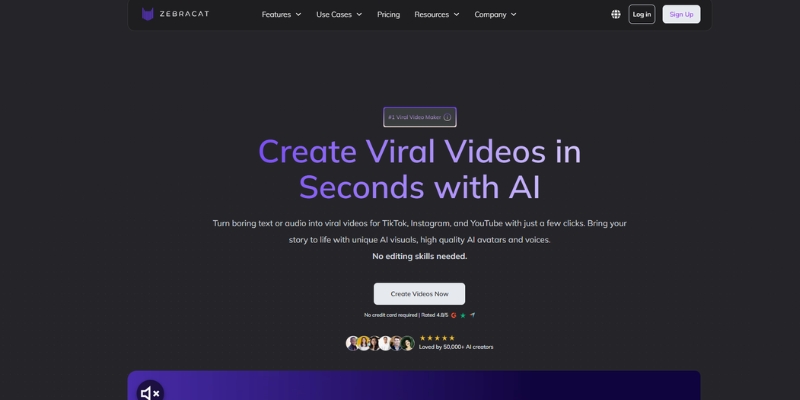
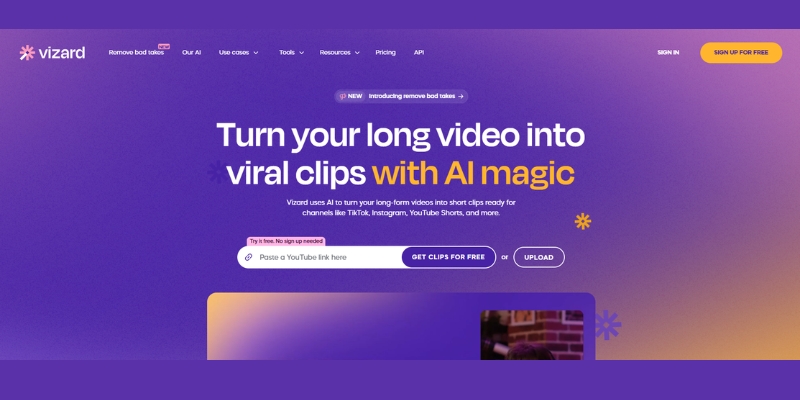
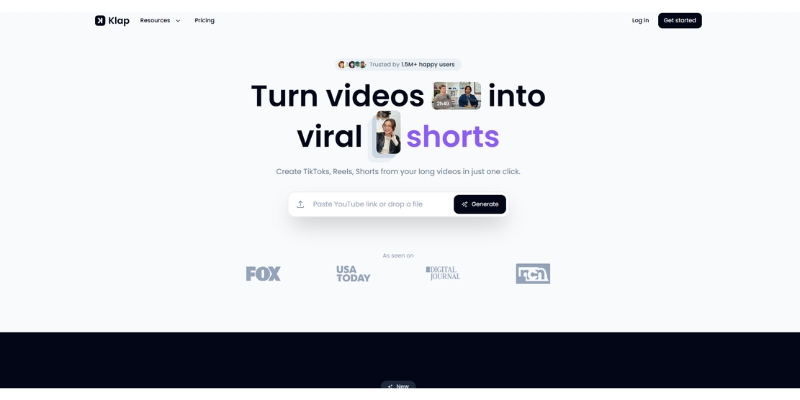
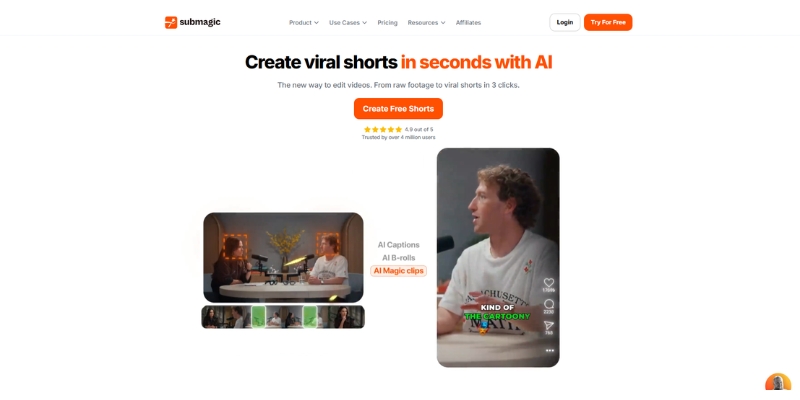
A photo of Jun Pham, AI Tools Strategist at Aibrainjet

About the Author

Jun Pham

Jun Pham is an AI tools strategist, a video creator and tech writer passionate about the future of AI in editing video. As the face of a dedicated team of creators and researchers, Jamie leads hands-on testing of the latest AI video tools. Together, they share honest reviews, workflow insights, and practical tips to help creators turn ideas into cinematic videos with minimal effort.

Latest Posts

Onepage Website Builder Review: Features, Pros, Cons, and Use Cases

Onepage Website Builder Review: Features, Pros, Cons, and Use Cases
Jun Pham

SendShort AI Review (2025): The Best AI Clipper for Agencies?

Our SendShort AI review tests its white-label features for agencies. Discover how it automates viral shorts, enhances client perception. Try now!
Jun Pham

Zebracat Review (2025): Is This Hybrid AI Ad Generator Worth It?

Our Zebracat review (2025) assesses this hybrid AI video tool for marketers. Is it worth it for generating ads & repurposing content fast? See it now!
Jun Pham

Vizard Review (2025): Is This Hybrid AI Clipper & Editor Better Than OpusClip?

Our expert vizard review reveals if this AI video clipper & editor beats OpusClip for control. Get superior editing & branding for viral shorts. Try now!
Jun Pham

Klap Review (2025): The Best 4K AI Clipper for High-Quality Shorts?

Klap Review (2025): The Best AI Clipper for High-Quality Shorts? Klap Review (2025): The Best 4K AI Clipper for High-Quality Shorts? I have spent ...
Jun Pham

Submagic Review (2025): Is It The Best AI Tool For Hormozi Captions?

This Submagic review (2025) reveals if it's the ultimate AI tool for "Hormozi-style" viral video captions & B-roll. We battle-tested its features, speed, and ROI!
Jun Pham

How to Use Fliki: Step-by-Step Guide for YouTube Automation (2025)

How to Use Fliki: Step-by-Step Guide for YouTube Automation (2025)

How to Use Fliki: Step-by-Step Guide for YouTube Automation (2025)

Fliki transforms text into professional videos using 2000+ AI voices across 80+ languages with automated scene generation from blog URLs or scripts. The platform automates voiceover narration, stock media matching, and timeline editing reducing production time from hours to minutes for YouTube creators and marketers.

This Text-to-Video guide covers November 2025 features including personalized avatar creation with video input (launched Nov 12), voice cloning from 2-minute audio samples, and Editor Copilot for AI-assisted editing.

Table of Contents

Understanding Fliki’s YouTube Automation Capabilities

Fliki functions as cloud-based text-to-video platform specializing in automated content creation for faceless YouTube channels. The system converts written scripts or blog articles into narrated videos eliminating manual voiceover recording and stock footage searching requirements.

The platform addresses creator burnout from daily upload demands through three core automation features: blog-to-video URL parsing extracts article content automatically, 2000+ neural AI voices provide broadcast-quality narration without recording studios, and scene-based editing structure simplifies timeline management versus traditional video editors.

YouTube automation channels benefit from consistent voice branding through voice cloning (2-minute audio sample generates unlimited variations) and multi-language support enabling localized content creation across 80+ languages without translation services or native speakers.

Dashboard Navigation and Scene-Based Workflow Structure

The Fliki dashboard organizes projects through file-based system accessible from left sidebar. New users access creation workflows via “New File” button selecting video, audio, or image format based on output requirements.

Scene-based architecture represents Fliki’s core differentiator from timeline editors. Each scene functions as independent module containing text snippet, corresponding voiceover, and visual asset (image or video clip) enabling granular editing without disrupting entire project timeline.
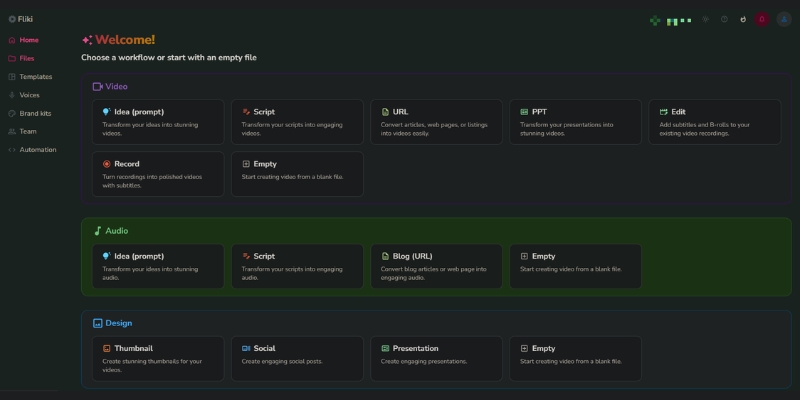
Fliki dashboard interface displaying project files and creation button.
Cloud-based dashboard provides intuitive project management and workflow access.

This modular structure accelerates revision cycles. Modifying single scene’s narration, visual, or text requires editing only that unit versus re-rendering entire video common in Premiere Pro or Final Cut workflows consuming 10+ minutes per revision.

Blog-to-Video Workflow: URL-Based Content Conversion

The blog-to-video feature automates article repurposing converting published web content into narrated videos. This workflow suits content marketers extracting maximum ROI from existing blog libraries through multi-platform distribution.

URL Import and AI Summarization

Access creation workflow:

  • Click “New File” selecting “Video” format
  • Choose “Blog” input method in modal window
  • Paste target article URL into input field
  • Select duration: Short (30-60 sec TikTok), Medium (2-3 min YouTube), Full (5+ min long-form)
  • Submit for AI processing extracting article structure and content

AI summarization algorithm analyzes HTML hierarchy identifying headers, key statistics, and narrative flow. Medium duration setting recommended for optimal pacing balancing information density with viewer retention targeting 60-second average watch time.
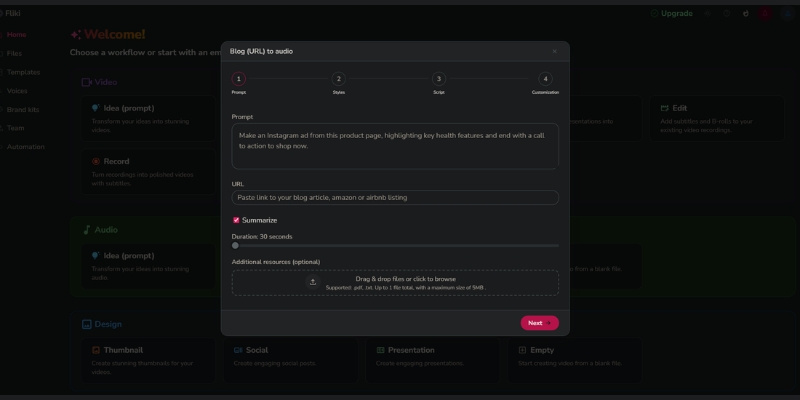
Fliki blog-to-video URL import interface with summarization length selection
URL parsing automates script generation with adjustable content depth.

Scene Review and Script Refinement

Generated scenes appear in left panel for editorial review:

  • Verify AI-extracted sentences capture article core message
  • Edit text directly within scene boxes correcting misinterpreted context
  • Reorder scenes via drag-and-drop adjusting narrative flow
  • Delete redundant scenes streamlining video duration
  • Preview audio playback ensuring natural voiceover pacing

Stock media auto-matching occurs during generation but requires manual verification. AI occasionally misinterprets keywords (e.g., “Apple” generates fruit imagery versus technology visuals) necessitating visual replacement in subsequent customization phase.

Script-to-Video Creation: Custom Content Production

Script-based workflow provides maximum narrative control for original content creation. This method suits creators producing specific YouTube shorts, product demos, or ad creatives requiring precise messaging versus summarized blog conversions.

Input Method Selection

Two script input paths serve different starting points:

  • Idea to Video: Prompt-based generation where AI writes script from brief description (e.g., “5 productivity tips for remote workers”)
  • Script Upload: Direct text paste for complete narrative control with pre-written content

Script upload recommended for professional productions ensuring brand voice consistency. Paste text with double line breaks between sentences forcing individual scene creation providing granular visual control versus paragraph-based grouping.

Format Configuration

Pre-generation settings determine output specifications:

  • 16:9 aspect ratio: YouTube horizontal, website embedding, LinkedIn posts
  • 9:16 aspect ratio: YouTube Shorts, TikTok, Instagram Reels vertical format
  • 1:1 square format: Instagram feed posts, Facebook square videos

Aspect ratio selection affects stock media cropping algorithms. Vertical 9:16 content automatically crops horizontal footage focusing on central subjects maintaining visual composition versus awkward full-frame scaling distorting proportions.
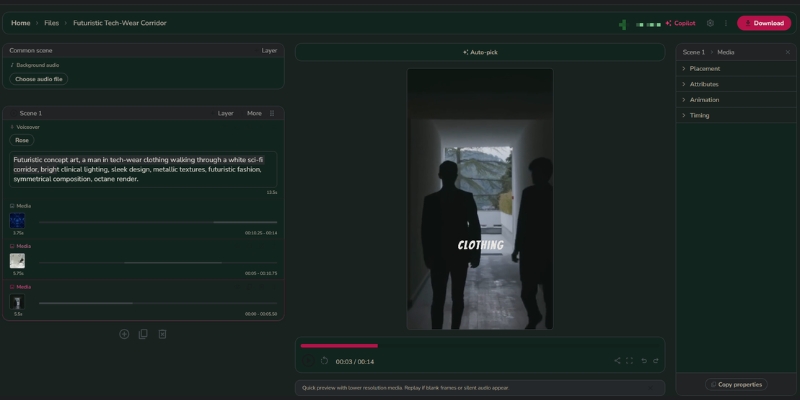
 Fliki script upload editor displaying text area and aspect ratio selection
Line break formatting controls scene separation for optimal visual pacing

AI Voice Selection and Emotional Styling

Voiceover quality determines viewer retention with poor audio driving 40% faster abandonment versus low-resolution visuals. Fliki’s 2000+ neural voices across 80+ languages provide broadcast-quality narration without recording equipment.

Voice Library Navigation

Access voice selection per scene:

  • Click voice name (default “Sarah” or “John”) within scene panel
  • Browse library filtering by language, dialect, gender, and age
  • Preview samples before applying to assess tone compatibility
  • Select ⚡️ lightning icon voices indicating ultra-realistic neural models
  • Apply voice consistently across all scenes or vary per section

Ultra-realistic voices utilize advanced neural networks producing natural breathing, pauses, and intonation patterns indistinguishable from human recordings. Standard voices sound robotic suitable only for testing workflows not professional publishing.

Emotional Voice Styles

Adjust narration tone matching content emotion:

  • Cheerful: Upbeat product demos, celebration announcements
  • Friendly: Tutorial content, how-to guides, educational material
  • Professional: Corporate communications, financial updates
  • Sad: Memorial content, somber announcements
  • Angry: Controversial topics, call-to-action urgency

Voice style modification transforms delivery without changing underlying voice model. Single voice generates multiple emotional variations eliminating need for different voice actors across content types maintaining brand consistency while varying tone.

Voice Cloning Technology

Custom voice cloning (Premium plan feature) creates personalized narration:

  • Record 2 minutes clean audio in quiet environment
  • Upload WAV or MP3 file to voice cloning portal
  • System trains neural model on speech patterns (processing 10-30 minutes)
  • Generated clone produces unlimited narration matching original voice
  • Apply cloned voice across all projects maintaining personal brand

Voice cloning eliminates recording time for creators preferring personal narration over generic AI voices. Two-minute sample generates model replicating tone, accent, and cadence enabling faceless channel operation while maintaining authentic voice presence.

Visual Customization: Stock Media and AI Image Generation

Automated visual matching provides 70-80% accuracy requiring manual refinement. Stock library integration (Storyblocks, Pexels) supplies footage but AI occasionally misinterprets keywords necessitating scene-by-scene visual verification.

Stock Media Replacement

Swap auto-selected visuals:

  • Click image within scene opening media selection panel
  • Search alternative keywords in stock library tab
  • Preview clips before applying ensuring contextual relevance
  • Select video or static image based on scene pacing requirements
  • Adjust scene duration (3-8 seconds recommended) matching narration length

Storyblocks integration provides commercial-use rights for all footage eliminating copyright concerns for YouTube monetization. Premium plan unlocks expanded library access versus Standard tier’s limited catalog.

AI Image Generation

Generate custom visuals for niche topics lacking stock coverage:

  • Select “AI Art” tab within media panel
  • Describe desired image using specific prompts (“photorealistic modern office with diverse team”)
  • System generates unique image in 10-30 seconds
  • Regenerate with modified prompts adjusting style or composition
  • Apply AI-generated images eliminating generic stock dependency

AI art particularly valuable for abstract concepts (e.g., “blockchain technology visualization”) where literal stock footage doesn’t exist. Custom generation creates branded visual identity distinguishing content from competitors using identical stock libraries.

Custom Asset Uploads

Incorporate branded materials:

  • Access “My Library” tab uploading product screenshots
  • Add tutorial screen recordings or demonstration footage
  • Include company logos, infographics, or presentation slides
  • Organize uploaded assets in folders for project reuse

Custom uploads essential for product reviews, software tutorials, or branded content requiring specific visuals unavailable in generic stock libraries. Combined with AI voices and editing tools, Fliki transforms from stock-only platform into comprehensive video editor.

Pricing Tiers

Four subscription tiers target different creator segments from hobbyists to enterprise teams.

Plan Regular Price Key Features
Standard $28/month ($336 annual) 180 credits/month, no watermark, commercial rights, 2000+ voices
Premium $88/month ($1056 annual) 600 credits/month, voice cloning, ultra-realistic voices, advanced features
Enterprise Custom pricing Unlimited credits, priority support, API access, team collaboration

Plan Selection by Use Case

Free tier limitations: 5 monthly credits (approximately 5-minute video) with permanent watermark preventing commercial use. Suitable only for interface testing not YouTube monetization or client work.

Standard plan targets: Solopreneurs producing 15-30 monthly videos requiring watermark removal and commercial rights. 180 monthly credits support consistent upload schedule (3-4 videos weekly) with standard voice quality acceptable for informational content.

Premium plan justification: Professional creators needing ultra-realistic voices and voice cloning. 600 monthly credits enable daily uploads (20-30 videos) with advanced features including personalized avatars and priority rendering queues reducing export wait times.

ROI Calculation

Traditional video production costs breakdown:

  • Professional video editor: $50-100 per video
  • Voice actor: $50-200 per script
  • Stock footage subscription: $200-500 monthly
  • Total monthly cost (10 videos): $1,000-3,000

Fliki Premium ($44/month Black Friday pricing) produces 20-30 videos monthly yielding $4,000-9,000 cost savings versus outsourced production. Single video cost: $1.47-2.20 versus $100-300 traditional production representing 98% cost reduction at scale.

Subscription Recommendation

Standard plan suits casual creators publishing 2-4 weekly videos prioritizing watermark removal over voice quality. Premium plan essential for professional YouTube channels requiring ultra-realistic narration and voice cloning maintaining consistent brand voice across daily uploads.

Start Free Trial

(Disclosure: Purchases through this link may earn a commission at no extra cost to you.)

Common Questions About Fliki Workflow

Does Fliki support mobile video editing?
No. Fliki operates as web-based platform optimized for desktop browsers (Chrome, Firefox, Safari). Mobile access limited to project review not full editing capabilities requiring laptop or desktop computer for complete workflow functionality.

Are Fliki videos monetizable on YouTube?
Yes. Paid plans (Standard, Premium, Enterprise) include commercial-use rights for all stock media, music tracks, and AI voices. Content cleared for YouTube monetization, client deliverables, and paid advertising without additional licensing fees or copyright concerns.

How does voice cloning accuracy compare to original recordings?
Voice cloning neural models replicate 85-95% similarity from 2-minute training audio. Accuracy improves with clean recording environment, consistent speaking pace, and emotional variety in sample. Cloned voices suitable for professional publishing though subtle differences detectable in side-by-side comparison.

What languages support ultra-realistic AI voices?
Ultra-realistic ⚡️ voices available in 20+ major languages including English (US/UK/AU), Spanish, French, German, Portuguese, Italian, Japanese, Korean, Hindi, Arabic. Standard quality voices cover 80+ languages with 100+ dialect variations though lacking neural sophistication of premium models.

Can multiple team members collaborate on projects?
Yes. Enterprise plan includes team workspace collaboration enabling shared project access, role-based permissions, and centralized brand asset libraries. Standard and Premium plans limited to single-user accounts requiring individual subscriptions for team members.

Related Text-to-Video Platform Guides

last update : 07/12/2025
A photo of Jun Pham, AI Tools Strategist at Aibrainjet

About the Author

Jun Pham

Jun Pham is an AI tools strategist, a video creator and tech writer passionate about the future of AI in editing video. As the face of a dedicated team of creators and researchers, Jamie leads hands-on testing of the latest AI video tools. Together, they share honest reviews, workflow insights, and practical tips to help creators turn ideas into cinematic videos with minimal effort.

Latest Posts

Onepage Website Builder Review: Features, Pros, Cons, and Use Cases

Onepage Website Builder Review: Features, Pros, Cons, and Use Cases
Jun Pham

SendShort AI Review (2025): The Best AI Clipper for Agencies?

Our SendShort AI review tests its white-label features for agencies. Discover how it automates viral shorts, enhances client perception. Try now!
Jun Pham

Zebracat Review (2025): Is This Hybrid AI Ad Generator Worth It?

Our Zebracat review (2025) assesses this hybrid AI video tool for marketers. Is it worth it for generating ads & repurposing content fast? See it now!
Jun Pham

Vizard Review (2025): Is This Hybrid AI Clipper & Editor Better Than OpusClip?

Our expert vizard review reveals if this AI video clipper & editor beats OpusClip for control. Get superior editing & branding for viral shorts. Try now!
Jun Pham

Klap Review (2025): The Best 4K AI Clipper for High-Quality Shorts?

Klap Review (2025): The Best AI Clipper for High-Quality Shorts? Klap Review (2025): The Best 4K AI Clipper for High-Quality Shorts? I have spent ...
Jun Pham

Submagic Review (2025): Is It The Best AI Tool For Hormozi Captions?

This Submagic review (2025) reveals if it's the ultimate AI tool for "Hormozi-style" viral video captions & B-roll. We battle-tested its features, speed, and ROI!
Jun Pham

InVideo Pricing 2025: Is the Plus Plan Worth It? (Real Cost Analysis)

InVideo Pricing 2025: Is the Plus Plan Worth It? (Real Cost Analysis)

InVideo Pricing 2025: Is the Plus Plan Worth It? (Real Cost Analysis)

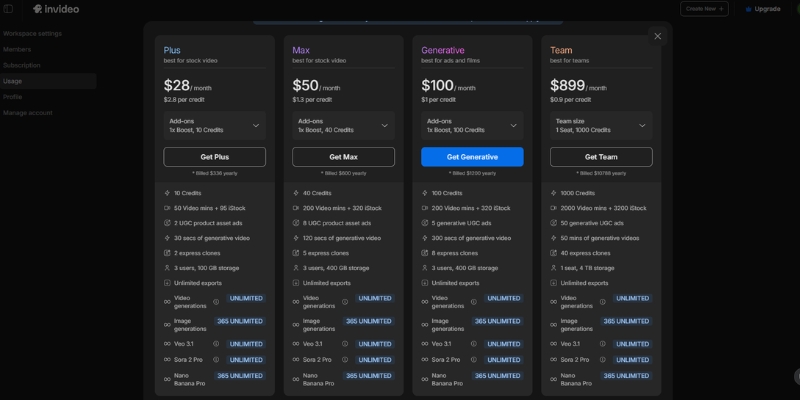
InVideo pricing structures separate into two products: InVideo AI ($20-$60 monthly) for automated text-to-video generation and InVideo Studio ($20-$60 monthly) for template-based timeline editing. The Plus plan costs $20/month annual ($25 monthly) with 50 AI minutes and 80 iStock media credits monthly.

This AI Video Generator cost analysis covers November 2025 updates. The hidden limits on iStock credits and AI generation minutes determine real ROI beyond advertised “unlimited exports.”

Table of Contents

InVideo AI vs Studio Pricing Models November 2025

InVideo operates two distinct subscription products targeting different workflows. InVideo AI automates video creation from text prompts using GPT-4.1, while InVideo Studio provides 4000+ templates with manual timeline editing capabilities.

InVideo AI Pricing costs $25/month ($20 annual) for Plus or $60/month ($48 annual) for Max. The system generates complete videos with visuals, music, and voiceovers automatically consuming 50-200 AI generation minutes monthly depending on plan tier.

InVideo Studio Pricing costs $30/month for Business or $60/month for Unlimited. Users access 4000+ templates with 8M+ iStock library producing 60-unlimited exports monthly with manual customization and timeline editing control.

This guide focuses on InVideo AI pricing for automated text-to-video generation. Users seeking timeline editing should review Pictory vs InVideo Studio comparisons targeting template-based workflows.

(Disclosure: Purchases through this link may earn a commission at no extra cost to you.)

InVideo AI Plans: Free vs Plus vs Max Tier Breakdown

Three subscription tiers offer escalating AI generation limits and iStock media access. Annual billing provides 20% savings compared to monthly payments across all paid plans.

Free Plan Limitations

The free tier includes severe restrictions unsuitable for commercial publishing:

– 10 AI generation minutes weekly (40 minutes monthly maximum) – InVideo watermark on all exports preventing professional use – 4 exports weekly limiting production volume – Standard 3M+ media library only (no premium iStock access)

This plan functions as interface testing environment only. Watermarked videos damage brand credibility prohibiting YouTube monetization or client deliverables.

Plus Plan Features ($20/Month Annual)

The standard tier suits solopreneurs and content creators producing 10-15 videos monthly:

50 AI generation minutest monthly quota – 80 iStock media creditst accessing 8M+ premium stock library – Unlimited exportst at 1080p resolution without watermarks – 2 voice clonest for consistent brand narration – 100GB storaget for custom brand assets and footage – Chat supportt for technical troubleshooting

The 80 iStock credits typically produce 10-15 high-quality videos monthly assuming 5-8 premium clips per project. Exceeding quotas reverts to standard 3M+ library or requires credit top-ups.

Max Plan Features ($48/Month Annual)

The premium tier targets agencies and faceless channel operators producing daily content:

200 AI generation minutest monthly (4x Plus allocation) – 320 iStock media creditst supporting 40-50 premium videos monthly – Unlimited exportst at 1080p resolution – 5 voice clonest for multi-brand management – 400GB storaget for extensive media libraries – Priority chat support with faster response times

The 320 iStock credits eliminate bottlenecks for high-volume production. Users generating 2+ videos daily require Max tier avoiding mid-month quota exhaustion.

Feature Plus ($20/mo) Max ($48/mo)
AI Generation 50 mins/month 200 mins/month
iStock Media 80 credits/month 320 credits/month
Voice Clones 2 clones 5 clones
Storage 100 GB 400 GB
Watermark None None
Action Try Plus Try Max

Hidden Limits: iStock Credits and AI Minutes Consumption

“Unlimited exports” marketing obscures the real production constraints. Two quota systems control actual monthly video output: iStock media credits and AI generation minutes.

iStock Media Credit System

Premium stock footage requires credits separate from export limits. Plus plan provides 80 monthly credits; Max provides 320 credits.

Each premium video clip or image consumes 1 credit. Professional videos typically require 5-8 premium assets per project yielding 10-15 videos (Plus) or 40-50 videos (Max) monthly before quota exhaustion.

Exceeding quotas forces downgrade to standard 3M+ media library lacking professional polish. Alternative options include purchasing credit top-ups at additional cost or waiting for monthly renewal.

AI Generation Minutes Depletion

AI minutes deplete whenever generating or regenerating video content. Creating 3-minute video consumes 3 minutes quota. Regenerating same project twice for revisions consumes additional 6 minutes.

Plus plan allocation (50 minutes) supports approximately 15-20 videos monthly assuming minimal regenerations. Max plan (200 minutes) accommodates 60-80 videos with revision buffer for quality control iterations.

Monitor dashboard usage meters avoiding unexpected quota exhaustion mid-project. Generative credits for custom AI images operate as separate pool from video generation minutes.

InVideo pricing table comparing iStock credits and AI generation minutes between Plus and Max plans.
iStock credit limits determine actual monthly production capacity beyond advertised unlimited exports

InVideo Cost vs Competitors ROI Analysis

Comparative pricing against Pictory and Canva reveals value positioning. InVideo costs $20-$48 monthly versus Pictory $19-$29 or Canva Pro $12.99 with different feature priorities.

vs Pictory Pricing:
Pictory Starter costs $19/month with 2160 minutes/year text-based editing. InVideo Plus costs $20/month with 600 minutes/year AI generation. Pictory suits blog-to-video repurposing; InVideo excels at prompt-to-video creation from scratch.

vs Canva Cost:
Canva Pro costs $12.99/month with basic Magic Media video generation. InVideo provides superior automation using GPT-4.1 versus Canva’s manual drag-and-drop workflow requiring 5+ hours editing time per video.

InVideo ROI calculation: $20 monthly subscription saves 20+ editing hours valued at $50/hour freelance rates yielding $1,000 monthly time savings. The 50:1 cost-benefit ratio justifies subscription for professional content creators producing 10+ videos monthly.

Which InVideo Plan Fits Your Production Volume?

Subscription selection depends on monthly video output and quality requirements. Three user profiles match distinct pricing tiers based on production frequency and iStock dependency.

Choose Plus Plan ($20/mo) If:

  • Producing 10-15 videos monthly for YouTube or social media
  • Solo content creator or small business owner
  • Requiring watermark removal for professional branding
  • Using 80 iStock credits sufficient for weekly video cadence
  • Budget-conscious needing basic voice cloning (2 clones)

Choose Max Plan ($48/mo) If:

  • Agency managing multiple client accounts requiring 40-50 videos monthly
  • Faceless channel operator publishing daily content
  • Needing 320 iStock credits for high-volume production
  • Requiring 5 voice clones for multi-brand management
  • 400GB storage essential for extensive media libraries

Free plan suitable for interface testing only due to watermark restrictions. Upgrade to Plus minimum for commercial publishing rights and professional output quality.

Cost-Effective Strategy

Upgrade to Max if producing 20+ videos monthly and exhausting 80 iStock credits by mid-month. The $28/month cost difference ($48 vs $20) justifies 4x AI minutes and 4x iStock access for high-volume workflows.

Claim Offer Now

Common Questions About InVideo Pricing

Does Plus plan remove watermarks?
Yes. All paid plans (Plus and Max) remove InVideo branding from exports. Free plan maintains watermarks on all videos preventing commercial use and YouTube monetization eligibility.

What happens after exhausting iStock credits?
Videos revert to standard 3M+ media library lacking premium polish. Options include purchasing credit top-ups at additional cost, waiting for monthly renewal, or upgrading to Max tier with 320 monthly credits.

Can subscriptions be canceled anytime?
Yes. Cancel subscriptions retaining access until current billing period ends. Annual plans provide full-year access regardless of cancellation timing without prorated refunds.

Are lifetime deals available?
No. InVideo discontinued AppSumo lifetime deals transitioning to standard SaaS subscription model.

Related Text-to-Video Pricing Guides

last update : 07/12/2025

A photo of Jun Pham, AI Tools Strategist at Aibrainjet

About the Author

Jun Pham

Jun Pham is an AI tools strategist, a video creator and tech writer passionate about the future of AI in editing video. As the face of a dedicated team of creators and researchers, Jamie leads hands-on testing of the latest AI video tools. Together, they share honest reviews, workflow insights, and practical tips to help creators turn ideas into cinematic videos with minimal effort.

Latest Posts

Onepage Website Builder Review: Features, Pros, Cons, and Use Cases

Onepage Website Builder Review: Features, Pros, Cons, and Use Cases
Jun Pham

SendShort AI Review (2025): The Best AI Clipper for Agencies?

Our SendShort AI review tests its white-label features for agencies. Discover how it automates viral shorts, enhances client perception. Try now!
Jun Pham

Zebracat Review (2025): Is This Hybrid AI Ad Generator Worth It?

Our Zebracat review (2025) assesses this hybrid AI video tool for marketers. Is it worth it for generating ads & repurposing content fast? See it now!
Jun Pham

Vizard Review (2025): Is This Hybrid AI Clipper & Editor Better Than OpusClip?

Our expert vizard review reveals if this AI video clipper & editor beats OpusClip for control. Get superior editing & branding for viral shorts. Try now!
Jun Pham

Klap Review (2025): The Best 4K AI Clipper for High-Quality Shorts?

Klap Review (2025): The Best AI Clipper for High-Quality Shorts? Klap Review (2025): The Best 4K AI Clipper for High-Quality Shorts? I have spent ...
Jun Pham

Submagic Review (2025): Is It The Best AI Tool For Hormozi Captions?

This Submagic review (2025) reveals if it's the ultimate AI tool for "Hormozi-style" viral video captions & B-roll. We battle-tested its features, speed, and ROI!
Jun Pham

How to Use InVideo: A Step-by-Step Tutorial for Beginners (2025)

How to Use InVideo: A Step-by-Step Tutorial for Beginners (2025)

How to Use InVideo: A Step-by-Step Tutorial for Beginners (2025)

InVideo combines AI automation with timeline editing to produce professional marketing videos using 4000+ templates and 8M+ iStock media. The platform offers two workflows: InVideo AI for script-to-video generation and InVideo Studio for template customization.

This Text-to-Video guide covers both workflows with November 2025 updates including GPT-4.1 integration. Users create 60-unlimited videos monthly at $20-$60 pricing with voice cloning and automated text-to-speech.

Table of Contents

Understanding InVideo AI vs InVideo Studio Workflows

InVideo operates two distinct platforms targeting different production needs. InVideo AI automates video creation from text prompts using GPT-4.1, while InVideo Studio provides template-based editing with timeline control.

InVideo AI Workflow converts scripts into complete videos with visuals, music, and voiceovers in minutes. The system generates 50-200 minutes of AI content monthly (Plus/Max plans) with 2-5 voice clones and 80-320 iStock images per month.

InVideo Studio Workflow offers 4000+ customizable templates with full timeline editing. Users access 8M+ iStock media library (10-120 clips/month depending on plan) and produce videos up to 40 minutes long with multi-layer composition.

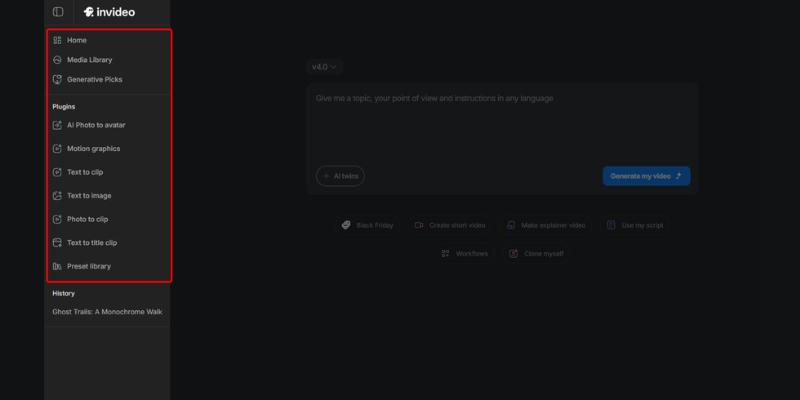
InVideo dashboard displaying AI workflow and Studio template options.
Two workflows target automated generation versus manual template customization

InVideo AI Method: Script-to-Video with GPT-4.1 Generation

The InVideo AI workflow generates complete videos from text prompts using OpenAI GPT-4.1, gpt-image-1 for visuals, and text-to-speech for narration. This method suits content creators producing daily social media posts without editing expertise.

AI Video Generation Steps

Access InVideo AI and select video format:

– **16:9** for YouTube, website embedding, and horizontal distribution – **9:16** for TikTok, Instagram Reels, YouTube Shorts vertical content – **1:1** for Instagram feed posts and Facebook square videos

Enter text prompt describing desired video content. The AI analyzes semantic meaning using GPT-4.1 to generate scripts enriched with research and platform-specific context for TikTok versus YouTube optimization.

Select voice style from OpenAI text-to-speech models covering multiple tones and languages. The system delivers human-like narration automatically synced with generated visuals from gpt-image-1 backgrounds and cutaway scenes.

Customization and Export

Review AI-generated storyboard with matched stock footage from 3M+ standard library. Replace clips using search function or upload custom brand assets to 100-400GB storage (Plus/Max plans).

Edit narration using voice cloning (2 clones Plus, 5 clones Max) for consistent brand voice. The AI maintains tone and pacing across multiple videos without re-recording each project manually.

Export unlimited videos at 1080p resolution (Plus/Max plans remove watermarks). Processing completes in minutes using cloud rendering regardless of local hardware specifications.

Try InVideo AI Free

(Disclosure: Purchases through this link may earn a commission at no extra cost to you.)

InVideo Studio Method: Template-Based Video Creation

InVideo Studio provides 4000+ professional templates with full timeline editing capabilities. This workflow serves marketers creating polished ads requiring precise brand control and custom animations.

Template Selection Process

Search templates by industry (Real Estate, Fitness, E-commerce) or format (YouTube Intro, Instagram Story, Product Demo). Filter results by aspect ratio matching distribution platform requirements.

Preview template animations and text placement before loading into editor. Templates include pre-synced music tracks, transition effects, and placeholder text for rapid customization without starting from blank canvas.

Timeline Editing Workflow

The multi-track timeline functions like desktop video editors with layer-based composition:

– Drag video clips, images, and text overlays onto separate timeline layers – Trim media by dragging clip edges or using split tool for precise cuts – Adjust layer order ensuring text appears above video backgrounds – Sync audio waveforms with visual transitions for professional pacing

Access 8M+ iStock media directly from left sidebar. Premium stock footage elevates production value compared to generic free libraries, with 10-120 monthly downloads depending on subscription tier.

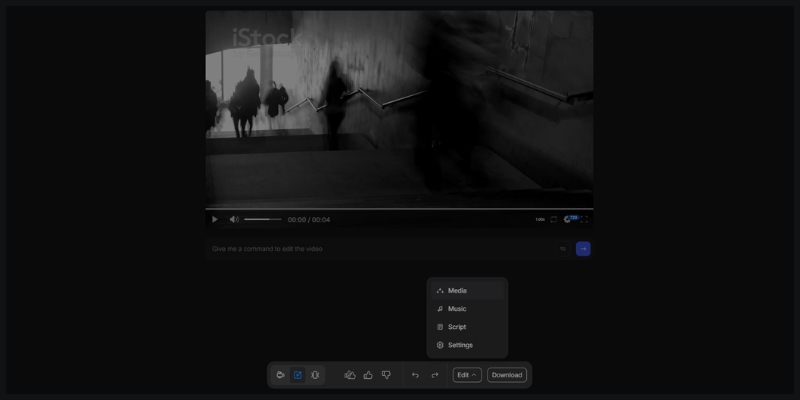
InVideo Studio timeline editor with layered composition and iStock media access.
Multi-track timeline provides granular control over video, audio, and text elements

Brand Customization Tools

Upload brand logos positioning in video corners with adjustable size and opacity. Define color palettes applying corporate colors across entire project with single-click consistency.

Configure custom fonts matching brand guidelines (available on paid plans). Set default intro/outro sequences maintaining visual identity across all video projects and campaigns.

Pricing Tiers Details

InVideo operates two separate pricing structures for AI versus Studio workflows.

Feature Studio Plus AI Plus Max (Both)
Monthly Price $20 ($25 monthly) $25/month $60/month
Video Exports 60/month, 15-min max Unlimited, AI-generated Unlimited, 40-min max
AI Generation No AI features 50 mins/month 200 mins/month
iStock Media 10 downloads/month 80 downloads/month 120-320 downloads/month
Voice Clones N/A 2 clones 5 clones
Storage 10GB 100GB 100-400GB

The free plan allows unlimited editing with watermarked exports and limited media access (1M+ premium assets, 3M+ standard library). Paid plans remove branding and unlock commercial-use rights for client projects.

Common Questions About InVideo Tutorial

What is the difference between InVideo AI and Studio?
InVideo AI automates video creation from text prompts using GPT-4.1 with 50-200 mins generation monthly. InVideo Studio provides 4000+ templates with timeline editing requiring manual customization but offering precise control.

Does InVideo remove watermarks on free plan?
No. Free plan exports include InVideo watermarks on all videos. Paid plans (Studio Plus $20, AI Plus $25, Max $60) remove branding and enable commercial monetization rights.

Can custom brand assets be uploaded?
Yes. Upload logos, video clips, and images to 10-400GB cloud storage depending on plan tier. Custom assets integrate with both AI-generated content and Studio templates maintaining brand consistency.

How does voice cloning work?
AI Plus includes 2 voice clones, Max includes 5 clones. Record 30-second audio sample; the system generates synthetic voice matching tone and accent for automated narration across unlimited videos without re-recording.

Which InVideo Plan Fits Your Needs?

Choose InVideo AI Plus ($25/month) for automated daily social content with 50 minutes AI generation and 2 voice clones. Select Studio Plus ($20/month) for template-based ads requiring timeline editing with 60 exports monthly.

Max plan ($60/month) combines both workflows with 200 minutes AI generation, unlimited Studio exports, and 5 voice clones.

Claim Offer Now

Related Text-to-Video Tutorials and Comparisons

last update : 07/12/2025

A photo of Jun Pham, AI Tools Strategist at Aibrainjet

About the Author

Jun Pham

Jun Pham is an AI tools strategist, a video creator and tech writer passionate about the future of AI in editing video. As the face of a dedicated team of creators and researchers, Jamie leads hands-on testing of the latest AI video tools. Together, they share honest reviews, workflow insights, and practical tips to help creators turn ideas into cinematic videos with minimal effort.

Latest Posts

Onepage Website Builder Review: Features, Pros, Cons, and Use Cases

Onepage Website Builder Review: Features, Pros, Cons, and Use Cases
Jun Pham

SendShort AI Review (2025): The Best AI Clipper for Agencies?

Our SendShort AI review tests its white-label features for agencies. Discover how it automates viral shorts, enhances client perception. Try now!
Jun Pham

Zebracat Review (2025): Is This Hybrid AI Ad Generator Worth It?

Our Zebracat review (2025) assesses this hybrid AI video tool for marketers. Is it worth it for generating ads & repurposing content fast? See it now!
Jun Pham

Vizard Review (2025): Is This Hybrid AI Clipper & Editor Better Than OpusClip?

Our expert vizard review reveals if this AI video clipper & editor beats OpusClip for control. Get superior editing & branding for viral shorts. Try now!
Jun Pham

Klap Review (2025): The Best 4K AI Clipper for High-Quality Shorts?

Klap Review (2025): The Best AI Clipper for High-Quality Shorts? Klap Review (2025): The Best 4K AI Clipper for High-Quality Shorts? I have spent ...
Jun Pham

Submagic Review (2025): Is It The Best AI Tool For Hormozi Captions?

This Submagic review (2025) reveals if it's the ultimate AI tool for "Hormozi-style" viral video captions & B-roll. We battle-tested its features, speed, and ROI!
Jun Pham

Pika Pricing Plans Explained (2025): Hidden Costs & Credit System

Pika Pricing Plans Explained (2025): Hidden Costs & Credit System

Pika Pricing Plans Explained (2025): Hidden Costs & Credit System

Navigating the complex structure of Pika pricing is crucial for any creator looking to automate video production. As the AI video landscape shifts from simple monthly fees to volatile credit economies, knowing the real cost per second is essential.

In this AI Generative Video guide, we break down the hidden costs behind Pika Art’s credit model, comparing it directly to rivals like Luma and Runway. We ensure you don’t burn your budget on a plan that doesn’t fit your workflow.

If you are ready to find out if the Pro Plan is worth the investment or if the Free tier is just a trap, keep reading. We will analyze the Pika cost structure, commercial rights, and credit consumption in detail.

Table of Contents

Pika Pricing at a Glance: Is It Worth the Investment?

The bottom line is simple: Pika has moved aggressively towards a credit-heavy economy with the release of Pika 2.5 in November 2025. If you are serious about content creation, the monthly subscription fee is just your entry ticket; the real game is managing your Pika credits.

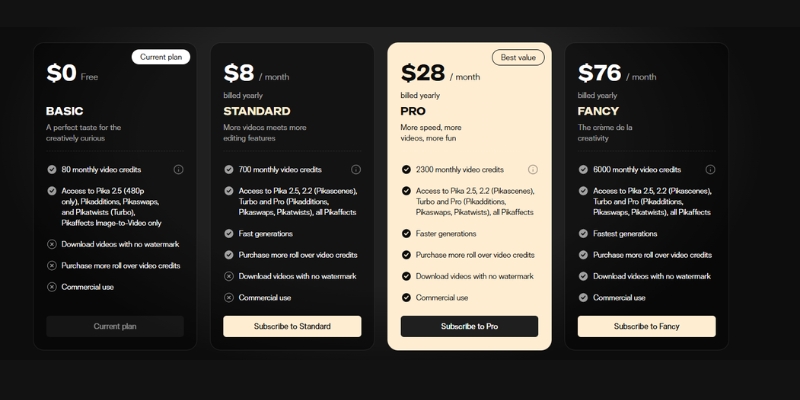
As of November 2025, Pika offers four distinct tiers: Free, Standard, Pro, and Fancy. The critical distinction is that only Pro and Fancy plans grant commercial usage rights, making them the minimum for professional work.

In our testing, the Pro Plan at $35/month is the true “starter” option for anyone needing commercial rights. The Standard plan at $10/month is a “hobbyist trap” that restricts monetization and includes watermarks on all downloads.

Plan Price (Monthly) Credits Commercial Rights Best For
Free $0 80 ❌ No Testing / Fun
Standard $10 700 ❌ No Hobbyists
Pro $35 2,300 ✅ Yes Creators (Minimum)
Fancy $95 6,000 ✅ Yes Agencies

While the Standard plan looks affordable, our comprehensive Pika review shows that the lack of commercial rights and presence of watermarks make it viable only for personal, non-monetized use.

Expert Verdict: Skip the Standard plan if you are a freelancer or content creator monetizing your work. The Pro Plan at $35/month offers the best ROI for clean, commercial-ready video generation with 2,300 monthly credits.

Check Current Prices on Pika.art

(Disclosure: If you purchase through links on this page, we may earn a small commission at no extra cost to you. This helps us maintain our “battle-tested” reviews.)

Understanding the Pika Credit System: The “Real” Cost of Video

Many users misunderstand the Pika subscription cost. You are not paying for “unlimited videos”; you are buying a bucket of credits. Understanding the exchange rate between credits and video seconds is vital for budget planning.

Here is the breakdown of the “Cost per Action” based on our real-world usage with Pika 2.5. These costs are current as of November 2025 and may vary based on model selection.

Standard 5-Second Generation: Creating a basic 5-second clip in 720p quality typically consumes approximately 150 credits. This is your baseline cost unit for planning.

Pika 2.5 Pro Model (1080p): Using the latest Pika 2.5 model at 1080p resolution costs significantly more, consuming around 200-250 credits per 5-second generation due to enhanced realism and physics.

Pikaffects (Special Effects): Applying creative effects like Melt, Squish, or Explode costs additional credits beyond base generation. Budget an extra 50-100 credits per effect application.

Lip Sync Feature: The popular Lip Sync feature that animates characters to match audio is a credit-intensive operation, typically costing 100-150 credits per use on top of base generation.

The Math of Burning Credits:
If you are on the Standard Plan (700 credits), and you generate 4 high-quality 5-second videos (4 × 200 = 800 credits), you have already exceeded your monthly allowance. This doesn’t account for failed generations or iterations.

Critical note: Unused credits on Free and Standard plans do not roll over to the next month. If you don’t use them, they expire at the billing cycle end.

Pika Pricing Tiers Breakdown (Free vs. Paid)

Choosing the right plan depends entirely on your tolerance for limitations and your need for commercial rights. Let’s analyze the best generative video tools pricing model in depth.

Pika pricing plans comparison chart showing Free, Standard, Pro, and Fancy tiers.
A detailed look at Pika’s tiered pricing structure for November 2025.

The Free Plan (The Tech Demo):
This is strictly for testing Pika 2.5’s capabilities. You get 80 monthly credits—enough for roughly 0-1 standard generations. All outputs have prominent watermarks, and you have zero commercial rights. It is useless for professional work but adequate for learning prompting techniques.

The Standard Plan ($10/mo):
This tier is controversial and often misunderstood. While it removes the watermark from some interface displays, all downloaded videos retain watermarks. Most critically, it explicitly denies commercial usage rights. The 700 monthly credits allow approximately 4-5 high-quality generations, suitable only for hobbyist experimentation.

The Pro Plan ($35/mo):
We label this the “Creator’s Minimum”. It unlocks full commercial rights, which is non-negotiable for YouTubers, freelancers, or anyone monetizing content. You get 2,300 credits—enough for approximately 11-15 high-quality videos monthly. It includes guaranteed watermark-free downloads and priority generation queue access.

The Fancy Plan ($95/mo):
This is the agency-tier plan offering 6,000 monthly credits. At this level, you can produce 30-40 high-quality videos monthly. It includes all Pro features plus fastest priority processing speeds, making it ideal for teams running multiple client campaigns simultaneously.

Without commercial rights on Free and Standard tiers, you cannot legally monetize YouTube videos, sell client work, or include outputs in commercial advertising. This is explicitly stated in Pika’s Terms of Service.

Pika vs. Luma Dream Machine & Runway: Cost Comparison

When you compare Pika pricing vs Luma Dream Machine, the differences lie in both credit economics and output specialization. Pika excels at stylized effects while Luma focuses on photorealism.

Pika vs. Luma (Credit Value):
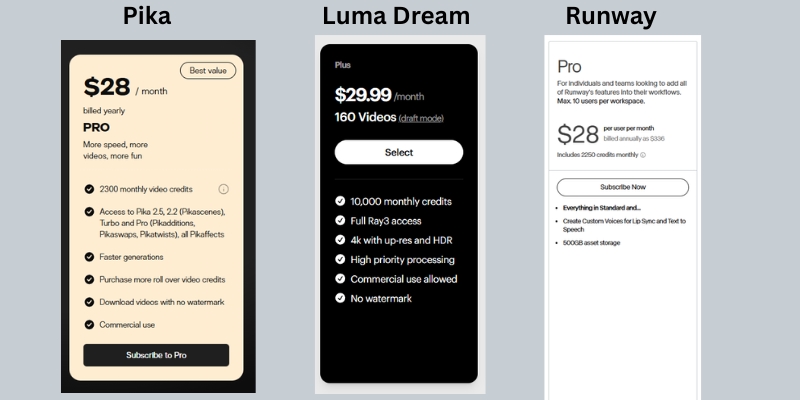
Luma’s Plus plan at $29.99/month offers 10,000 credits—significantly more than Pika’s Pro plan’s 2,300 credits. However, Luma’s credit consumption per video is also higher. For stylized social media content, Pika offers better credit efficiency, while Luma excels at realistic longer-form content.

Pika’s Unique Advantage:
Pika 2.5 excels at specific “Pikaffects” like Inflate, Melt, Squish, and creative transformations. These are computationally unique to Pika and make it the go-to tool for viral social media content and meme-style videos that don’t require photorealism.

Pika vs. Runway Gen-4:
Runway’s Pro plan at $28/month offers 2,250 credits—nearly identical to Pika’s Pro plan credit count. However, Runway focuses on character consistency and cinematic quality, while Pika specializes in rapid stylized generation. Runway is better for narrative filmmaking; Pika wins for social media content creation.

Value Verdict:
If you are making TikTok edits, Instagram Reels, or quick social clips with creative effects, Pika offers the best credit-to-output ratio. If you need photorealistic longer videos or consistent characters across scenes, Luma or Runway justify their higher per-credit costs.

Compare Pika Plans vs Competitors

Hidden Fees & Commercial Rights: Read Before Buying

Before entering your credit card details, you must understand the “Gotchas” that aren’t prominently displayed on the checkout page but can derail your professional workflow.

Commercial Rights Are Pro-Only:
This is the biggest trap. Commercial usage rights are exclusively available on Pro ($35/mo) and Fancy ($95/mo) plans. If you use clips from Free or Standard plans in monetized YouTube videos, sponsored content, or client advertising, you violate Pika’s Terms of Service and risk account termination.

Watermark Removal Requires Pro:
While Standard plan marketing mentions “fewer watermarks,” this is misleading. All Standard plan video downloads include visible watermarks. Only Pro and Fancy plans guarantee completely watermark-free exports suitable for professional delivery.

Credit Costs Vary by Model:
The credit consumption varies dramatically based on which Pika model you select. Pika 2.5 Pro (1080p) costs significantly more per generation than legacy models. Always check the current credit cost before clicking generate to avoid unexpected credit depletion.

No Credit Rollover on Lower Tiers:
Free and Standard plan credits expire monthly. Pro and Fancy plans may offer limited rollover depending on current policy, but this is not guaranteed. Always consume your full allocation before the billing cycle resets to maximize value.

Frequently Asked Questions About Pika Pricing

Is Pika actually free?
Pika operates on a “freemium” model. The Free plan provides 80 monthly credits with watermarks and no commercial rights. It’s a trial for learning the platform, not a sustainable free solution for professional content creation.

Does the Standard Plan remove watermarks?
No. Despite some confusing marketing language, the Standard plan includes watermarks on all downloaded videos. Only Pro and Fancy plans offer watermark-free exports.

Can I use Standard plan videos commercially?
No. Standard plan explicitly denies commercial usage rights. You cannot monetize these videos on YouTube, use them in paid advertising, or deliver them to clients. Pro plan ($35/mo) is the minimum for commercial work.

How many videos can I make with 2,300 credits?
On the Pro plan with 2,300 monthly credits, you can generate approximately 11-15 high-quality 5-second videos using Pika 2.5 Pro model. This assumes standard generation without extensive effect applications or iterations.

Do unused credits roll over?
Generally, no. Free and Standard plan credits expire monthly. Pro and Fancy plans may offer limited rollover, but this varies and is not guaranteed. Always check current terms on the Pika website.

Read More From AI Generative Video

Expand your knowledge on AI video tools and pricing models with our related guides. These articles help you compare features and find the best tool for your budget and workflow.

last update : 06/12/2025

A photo of Jun Pham, AI Tools Strategist at Aibrainjet

About the Author

Jun Pham

Jun Pham is an AI tools strategist, a video creator and tech writer passionate about the future of AI in editing video. As the face of a dedicated team of creators and researchers, Jamie leads hands-on testing of the latest AI video tools. Together, they share honest reviews, workflow insights, and practical tips to help creators turn ideas into cinematic videos with minimal effort.

Latest Posts

Onepage Website Builder Review: Features, Pros, Cons, and Use Cases

Onepage Website Builder Review: Features, Pros, Cons, and Use Cases
Jun Pham

SendShort AI Review (2025): The Best AI Clipper for Agencies?

Our SendShort AI review tests its white-label features for agencies. Discover how it automates viral shorts, enhances client perception. Try now!
Jun Pham

Zebracat Review (2025): Is This Hybrid AI Ad Generator Worth It?

Our Zebracat review (2025) assesses this hybrid AI video tool for marketers. Is it worth it for generating ads & repurposing content fast? See it now!
Jun Pham

Vizard Review (2025): Is This Hybrid AI Clipper & Editor Better Than OpusClip?

Our expert vizard review reveals if this AI video clipper & editor beats OpusClip for control. Get superior editing & branding for viral shorts. Try now!
Jun Pham

Klap Review (2025): The Best 4K AI Clipper for High-Quality Shorts?

Klap Review (2025): The Best AI Clipper for High-Quality Shorts? Klap Review (2025): The Best 4K AI Clipper for High-Quality Shorts? I have spent ...
Jun Pham

Submagic Review (2025): Is It The Best AI Tool For Hormozi Captions?

This Submagic review (2025) reveals if it's the ultimate AI tool for "Hormozi-style" viral video captions & B-roll. We battle-tested its features, speed, and ROI!
Jun Pham

Luma Dream Machine Pricing: Plans, Credits & Hidden Costs (2025)

Luma Dream Machine Pricing: Plans, Credits & Hidden Costs (2025)

Luma Dream Machine Pricing: Plans, Credits & Hidden Costs (2025)

When you investigate Luma Dream Machine pricing, you are not just looking for a number; you are calculating the ROI of your creative time. As an expert in generative AI tools, I know that for marketers and creators, the real cost isn’t just the monthly subscription.

It is about the cost of failed generations, the value of commercial rights, and the speed of your workflow. The industry is under immense performance pressure, and waiting for a render can kill your momentum.

In this battle-tested guide, I will break down the Free Plan, Lite Plan, Plus Plan, and Unlimited Plan to help you decide exactly where to invest your budget.

Table of Contents

Luma Dream Machine Pricing Overview: Is It Worth the Investment?

Luma Dream Machine operates on a freemium model that is becoming the standard in the generative AI space. It uses a credit-based system where every action, from generation to extension, costs credits.

For casual users, the Free tier offers a generous 500 credits monthly to experiment. However, if you are a professional facing tight deadlines, the “Performance Pressure” of watermarks and non-commercial restrictions will quickly push you toward paid tiers.

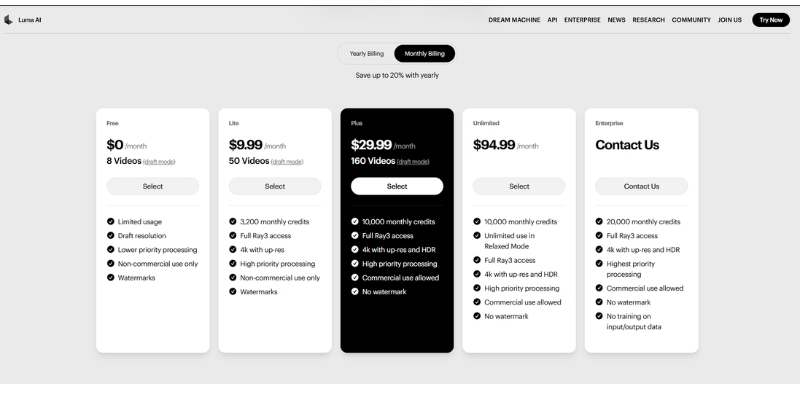
Below is a quick summary of the current pricing structure updated November 2025. Note that these plans are designed to scale with your production volume, from experimental clips to commercial campaigns.

Plan Tier Price (Monthly) Monthly Credits Key Benefit
Free $0 500 Risk-free testing
Lite $9.99 3,200 Priority Processing
Plus $29.99 10,000 Commercial Rights + No Watermark
Unlimited $94.99 10,000 Fast + Unlimited Relaxed High-Volume Production

Lite Plan ($9.99/mo): This entry tier gives you 3,200 credits with high-priority processing. However, it retains watermarks and is for non-commercial use only, limiting professional applications.

Plus Plan ($29.99/mo): This is the sweet spot for professionals. It removes watermarks, grants full commercial rights, and provides 10,000 monthly credits—enough for consistent content creation.

(Note: Prices are accurate as of November 2025 per Luma Labs official pricing page.)

Luma Dream Machine pricing plans comparison chart showing Free, Lite, Plus, and Unlimited tiers.
A snapshot of the current Luma Dream Machine pricing tiers for 2025.

Breakdown of Luma Dream Machine Pricing Plans (2025 Updated)

Choosing a plan is not about the price; it is about the “Cost per Usable Second.” In this section, I will dissect the specific ROI of each plan for Marketers and Creators based on real-world testing.

The Free Plan: Good for Testing, Not for Pros

The Free Plan provides 500 credits monthly—significantly more generous than previous iterations. This allows for substantial experimentation before committing to a paid plan.

Strict Watermarking: Every video you generate will have a prominent Luma watermark. This renders the footage unusable for professional client work or high-end social media channels where brand consistency matters.

Non-Commercial License: You cannot monetize these assets. If you use a free clip in a monetized YouTube video or a client’s ad campaign, you risk copyright violations per Luma’s Terms of Service.

Standard Queue: Free users are placed in the standard processing queue. While not as slow as some competitors, expect longer wait times during peak hours compared to paid tiers.

The Lite Plan: Priority Processing Without Commercial Rights

At $9.99/month, the Lite Plan offers 3,200 credits—a substantial jump from the free tier. This plan targets hobbyists and students who need faster processing but don’t require commercial licensing.

High Priority Processing: Your generations jump ahead of free users in the queue. This dramatically reduces wait times, allowing for a more efficient creative workflow.

Full Ray3 Access: You gain access to Luma’s advanced Ray3 model, which delivers superior lighting, physics simulation, and overall realism compared to basic models.

4K Upscaling: The ability to upscale to 4K resolution makes your outputs suitable for high-resolution displays and presentations, though watermarks remain.

Non-Commercial Restriction: This is the critical limitation. You cannot use Lite plan outputs for any monetized content, client work, or commercial projects. It’s strictly for personal portfolios and learning.

The Plus Plan: The Professional Standard

For $29.99/month, the Plus Plan is where Luma becomes a professional tool. With 10,000 monthly credits and full commercial rights, this plan serves freelancers, content creators, and small agencies.

No Watermark: Your videos export clean and professional. This is non-negotiable for client deliverables and branded content creation.

Commercial Rights Included: You own the output and can monetize it across all platforms—YouTube ads, client campaigns, paid social media, and commercial products.

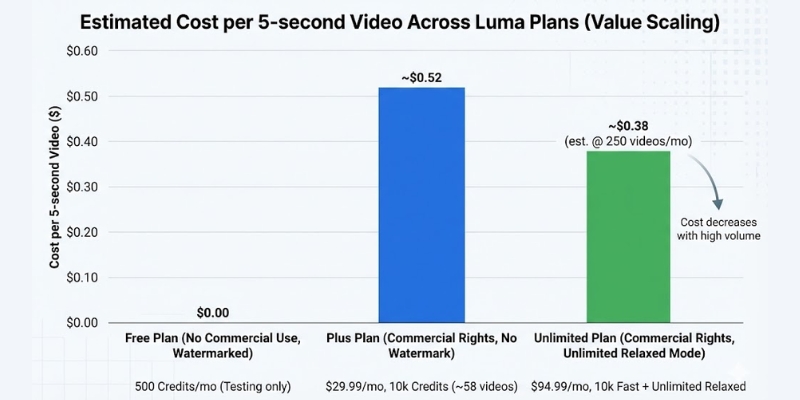
10,000 Credits Strategy: In my testing, 10,000 credits translates to approximately 58 video generations (at 170 credits per 5-second clip). With careful planning, this supports 2-3 substantial projects monthly.

4K + HDR: The Plus plan adds HDR (High Dynamic Range) support, giving your videos that cinematic “pop” with enhanced color depth and contrast.

The Unlimited Plan: For High-Volume Creators

At $94.99/month, the Unlimited Plan targets agencies, production studios, and full-time content creators who generate dozens of videos weekly.

10,000 Fast Credits: You still get 10,000 “fast mode” credits for high-priority processing. These work identically to the Plus plan for urgent projects.

Unlimited Relaxed Mode: This is the game-changer. After exhausting your fast credits, you can continue generating videos in “Relaxed Mode”—slower processing but unlimited quantity.

ROI Analysis: If you generate more than 60 videos monthly, the Unlimited plan becomes cost-effective. The relaxed mode removes the anxiety of credit management entirely.

Bar chart showing Luma Dream Machine cost per video across different pricing tiers.
Higher tiers offer better cost-per-video value, especially with Unlimited’s relaxed mode.

How the Luma Dream Machine Credit System Actually Works

Understanding credit consumption is critical for budget planning. Luma charges credits based on video length and processing features, not a flat per-video rate.

5-Second Generation: A standard 5-second clip costs approximately 170 credits. This is your baseline unit for calculating monthly capacity.

10-Second Generation: A 10-second clip consumes around 340 credits—essentially double the 5-second rate. Longer videos scale proportionally.

4K Upscaling: Upscaling a video to 4K resolution costs additional credits beyond the base generation cost. Always factor this into your budget for high-resolution deliverables.

Top-Up Credits: If you exhaust your monthly allocation, you can purchase top-up credits starting at $4 for 1,200 credits. These are valid for 12 months and automatically apply after monthly credits are consumed.

Budgeting Example: For a campaign requiring 10 scenes at 5 seconds each, assume 3 attempts per scene for perfection. That’s 30 generations × 170 credits = 5,100 credits. The Plus plan (10,000 credits) comfortably accommodates this with room for experimentation.

Commercial Rights & Watermarks: What Marketers Must Know

The legal framework surrounding AI-generated content is evolving. Understanding Luma’s licensing structure protects you from potential copyright issues.

Watermark Policy: Free and Lite plans embed a visible Luma watermark in all outputs. Attempting to crop or edit out this watermark violates Terms of Service and is detectable through metadata.

Commercial License Definition: Plus and Unlimited plans grant full commercial rights, meaning you can use outputs in TV commercials, paid advertising, client deliverables, and resalable digital products.

Non-Commercial Restrictions: Lite plan outputs cannot be monetized—this includes YouTube Partner Program videos, sponsored content, and any form of paid promotion. Violations can result in account termination.

Expert Recommendation: If you deliver video content to clients on platforms like Fiverr or Upwork, the Plus plan is the minimum to ensure legal compliance and professional quality.

Luma Dream Machine vs. Competitors: Pricing Comparison

To contextualize Luma’s value proposition, we must compare it against direct competitors in the AI video generation space.

Luma vs. Runway Gen-4: Runway’s Standard plan costs $12/month with 625 credits, while Pro costs $28/month with 2,250 credits. Luma’s Plus plan ($29.99) offers 10,000 credits—significantly more value if you prioritize generation volume.

Luma vs. Pika Labs: Pika’s Pro plan at $35/month provides 2,300 credits with commercial rights. Luma’s Plus plan is cheaper while offering more than 4x the credits, making it more cost-effective for high-volume creators.

Luma vs. Kling AI: Kling’s Premier plan at $28.88/month offers 8,000 credits. Luma’s Plus plan edges ahead with 10,000 credits at a comparable price point, plus superior physics simulation.

Comparison table of AI video generator pricing: Luma vs Runway vs Pika.
Luma Dream Machine’s Plus plan offers exceptional credit value compared to major competitors.

Final Verdict: Which Plan is Best for You?

After extensive testing across all tiers, I have clear recommendations based on your role in the creative ecosystem.

Our Recommendations

The Hobbyist or Student: Start with the Free Plan. 500 credits monthly provides substantial room for learning prompt engineering and understanding AI motion without financial commitment.

The Content Creator (YouTuber/TikTok): Invest in the Plus Plan. The removal of watermarks and commercial rights are non-negotiable for monetized content. 10,000 credits support consistent posting schedules.

The Agency or Studio: The Unlimited Plan is essential. The relaxed mode eliminates credit anxiety during intensive project phases, and the fast credits ensure priority delivery for time-sensitive client work.

Try Luma Dream Machine Now

(Disclosure: If you purchase through links on this page, we may earn a small commission at no extra cost to you. This helps us maintain our “battle-tested” reviews.)

Frequently Asked Questions About Luma Pricing

Here are the answers to the most common questions we get from creators about the billing and credit specifics.

Do unused credits roll over to the next month? No. Monthly credits reset at the end of each billing cycle and do not carry over. However, purchased top-up credits are valid for 12 months and roll over until used.

Can I cancel my subscription anytime? Yes. You can cancel anytime, and you will retain access to your credits and features until the end of the current billing period.

Is there a student discount? Currently, Luma Labs has not announced a specific educational discount program. However, the Lite plan at $9.99/month serves as an affordable entry point for students.

How much do top-up credits cost? Top-up credit packs start at $4 for 1,200 credits. You can purchase multiple packs, and they remain valid for 12 months. They are automatically consumed after monthly credits are exhausted.

Read More From AI Generative Video

Expand your knowledge with these related guides on getting the most out of your AI video tools.

last update : 06/12/2025

A photo of Jun Pham, AI Tools Strategist at Aibrainjet

About the Author

Jun Pham

Jun Pham is an AI tools strategist, a video creator and tech writer passionate about the future of AI in editing video. As the face of a dedicated team of creators and researchers, Jamie leads hands-on testing of the latest AI video tools. Together, they share honest reviews, workflow insights, and practical tips to help creators turn ideas into cinematic videos with minimal effort.

Latest Posts

Onepage Website Builder Review: Features, Pros, Cons, and Use Cases

Onepage Website Builder Review: Features, Pros, Cons, and Use Cases
Jun Pham

SendShort AI Review (2025): The Best AI Clipper for Agencies?

Our SendShort AI review tests its white-label features for agencies. Discover how it automates viral shorts, enhances client perception. Try now!
Jun Pham

Zebracat Review (2025): Is This Hybrid AI Ad Generator Worth It?

Our Zebracat review (2025) assesses this hybrid AI video tool for marketers. Is it worth it for generating ads & repurposing content fast? See it now!
Jun Pham

Vizard Review (2025): Is This Hybrid AI Clipper & Editor Better Than OpusClip?

Our expert vizard review reveals if this AI video clipper & editor beats OpusClip for control. Get superior editing & branding for viral shorts. Try now!
Jun Pham

Klap Review (2025): The Best 4K AI Clipper for High-Quality Shorts?

Klap Review (2025): The Best AI Clipper for High-Quality Shorts? Klap Review (2025): The Best 4K AI Clipper for High-Quality Shorts? I have spent ...
Jun Pham

Submagic Review (2025): Is It The Best AI Tool For Hormozi Captions?

This Submagic review (2025) reveals if it's the ultimate AI tool for "Hormozi-style" viral video captions & B-roll. We battle-tested its features, speed, and ROI!
Jun Pham

Fliki vs Pika: Which AI Video Tool Is Right For You? (2025 Comparison)

Fliki vs Pika: Which AI Video Tool Is Right For You? (2025 Comparison)

Fliki vs Pika: Which AI Video Tool Is Right For You? (2025 Comparison)

If you are struggling to decide between fliki vs pika, you are likely comparing two completely different types of tools. In the rapidly evolving landscape of AI Generative Video, these two platforms sit on opposite ends of the spectrum.

I have spent hundreds of hours testing both platforms for different marketing campaigns. While both use “AI” to create video, they solve fundamentally different problems for creators.

This comparison will break down the specific use cases, pricing models, and “battle-tested” workflows. I will help you decide if you need a blog-to-video repurposing engine or a creative generative art tool.

Table of Contents

Fliki vs Pika: The Core Difference (Stock Repurposing vs. Generative Video)

The most critical thing to understand is that Fliki and Pika are not direct competitors in function. They serve different stages of the content funnel. We often use them together, but rarely for the same task.

Fliki is an efficiency tool designed to scale content production. Pika is a creative tool designed to generate novel visuals that never existed before. Mixing them up will lead to frustration.

Here is the bottom line up front on how they differ fundamentally:

Fliki – The Content Repurposing Powerhouse:
Fliki is a “Blog-to-Video” tool. It takes your text script or URL and automatically matches it with stock media (images/videos) from libraries like Storyblocks. Its core strength is YouTube Automation and creating educational videos at scale.

Pika – The Creative Generative Engine:
Pika is a “Text-to-Video” generative model. It creates pixels from scratch based on your text prompts. It does not use stock footage. Its core strength is creating high-fidelity, cinematic, or surreal visuals for short creative clips.

In our workflow, if we need to turn a 2,000-word article into a 5-minute video, we use Fliki. If we need a specific 3-second clip of an “astronaut eating pizza on Mars,” we use Pika.

Fliki vs Pika core difference comparison chart.
Fliki relies on stock assets, while Pika generates new pixels from scratch.

Visual Output & Style: Stock Library vs. AI Hallucinations

The visual quality determines where you can use the final video. Your choice depends heavily on whether you need “brand safety” or “creative novelty.”

Fliki’s Visual Approach (Asset-Based):
Fliki produces “safe” and corporate-ready videos. Because it pulls from millions of licensed stock clips (Unsplash, Pixabay, Storyblocks), the visuals are realistic and high quality. You won’t see weird AI morphing or glitches.

We find Fliki ideal for B2B marketing. You can also upload your own assets. The visual consistency makes it perfect for long-form explainer videos where clarity is more important than artistic flair.

Pika’s Visual Approach (Diffusion-Based):
Pika 2.5 creates “experimental” and artistic visuals with enhanced realism. The November 2025 update delivers more realistic motion, sharper details, and smoother expressions. However, it can still suffer from occasional “hallucinations”—where faces might distort slightly.

During our testing with Pika 2.5, we created incredible cinematic shots with improved consistency. The latest model requires fewer re-rolls than previous versions. It is best for music videos, social media hooks, and stylized content.

Expert Verdict: Use Fliki if you need a reliable 10-minute video for YouTube today. Use Pika if you need a 5-10 second viral clip for TikTok that looks like a Pixar movie.

Audio Capabilities: Hyper-Realistic Voices vs. Lip Sync

Audio is half the video experience. This is where Fliki absolutely dominates the comparison, as Pika focuses almost entirely on visuals.

Fliki’s Audio Engine:
Fliki started as a Text-to-Speech tool. It offers over 2,000 neural AI voices that are nearly indistinguishable from humans. It handles pauses, intonation, and emotions perfectly.

For our faceless YouTube channels, Fliki is the go-to choice. We can generate a full 10-minute narration in seconds. It also supports voice cloning, allowing you to narrate videos without recording.

Pika’s Audio Features:
Pika offers Lip Sync and sound effects generation. You can upload an audio file, and Pika will animate a character’s mouth to match. It creates sound effects based on the prompt for enhanced immersion.

However, Pika is not a narration tool. You cannot paste a 1,000-word script and expect a coherent voiceover. It is strictly for short character animations and ambient sounds.

Workflow & Ease of Use: Script-to-Video vs. Prompt Engineering

Marketers under performance pressure need speed. Creators seeking art need control. The workflow of these two tools reflects that divide.

Creating with Fliki (The Editor):
Fliki uses a timeline-based editor. You paste a blog URL, and the “Magic Create” feature summarizes it, picks visuals, and adds voiceovers. You get a full draft in under 2 minutes.

We love the “bulk create” feature. You can produce 50 YouTube Shorts from a CSV file. It is designed for mass production and efficiency.

Creating with Pika 2.5 (The Generator):
Pika operates via a web app at pika.art. You type a prompt with camera directions like “dolly shot, cinematic lighting, slow motion.” Pika 2.5 now supports up to 10-second generations in 1080p resolution.

The workflow is iterative. You generate a 5-10 second clip. If you like it, you can extend it or apply Pikaffects for creative transformations. Stitching a full story requires external editing software like Premiere Pro.

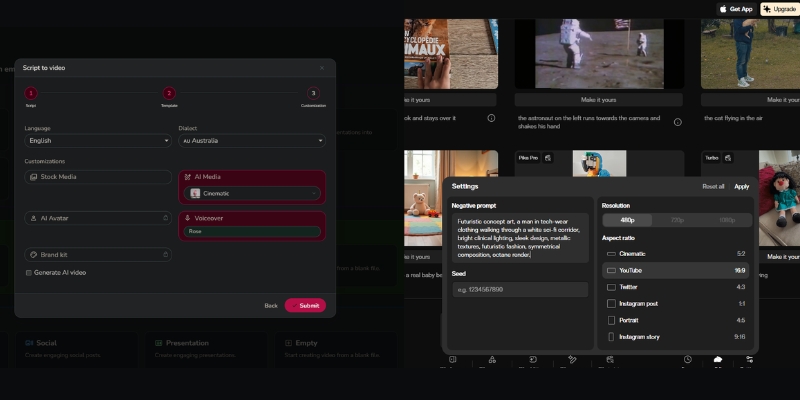
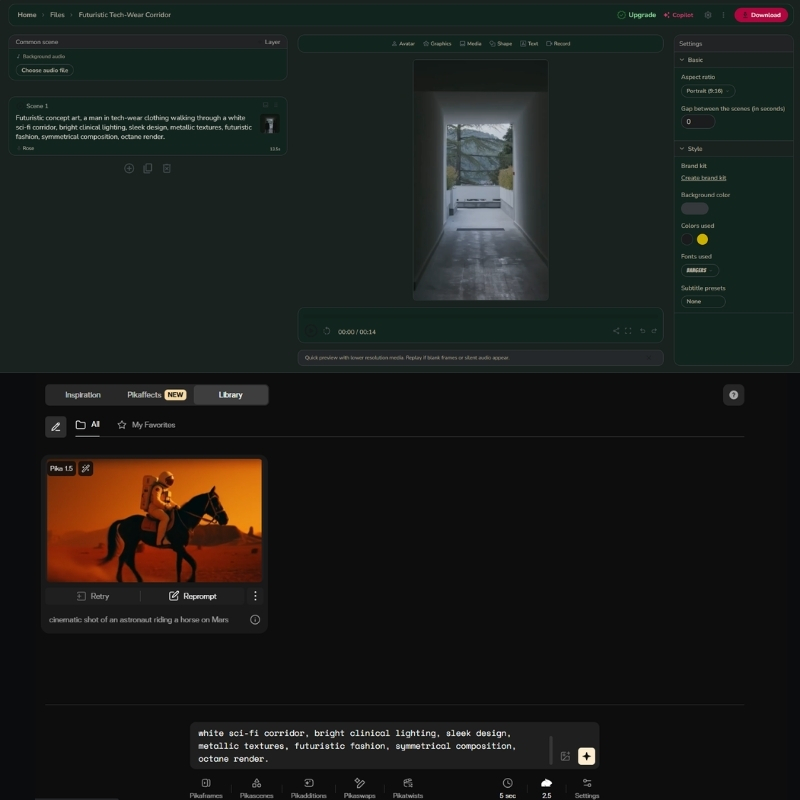
Fliki timeline editor vs Pika 2.5 prompt interface.
Fliki offers a full timeline editor, while Pika uses a prompt-based generation system.

Best Use Cases: When to Choose Fliki or Pika?

Based on our industry data, users often buy the wrong tool because they misunderstand the “Text-to-Video” label. Here is exactly when to use each.

Choose Fliki If:
You are a marketer or business owner. You need to repurpose blog posts into videos for SEO. You run a faceless YouTube automation channel. You need consistent, long-form educational content with professional voiceovers.

Choose Pika If:
You are a creative director or artist. You need specific B-roll that you can’t find on stock sites. You are making a music video, an AI film trailer, or surreal social media shorts with unique visual effects.

The Hybrid Strategy:
Advanced creators use both. We often use Pika to generate a unique character or scene, then import that clip into Fliki to add voiceover and subtitles for a complete video package.

Pricing & Value: Subscription Credits vs. Token Generation

Both tools use a credit system, but they consume credits differently. Understanding this will save you money.

Feature Fliki (Standard) Pika 2.5 (Pro)
Pricing Model Subscription (Minutes) Subscription (Credits)
Free Tier 5 mins/month (Watermarked) 80 credits/month (Watermarked)
Entry Plan $28/mo (180 mins) $10/mo (700 credits)
Pro Plan $88/mo (600 mins) $35/mo (2,300 credits)
Commercial Rights Included in paid plans Pro plan and above
Best Value Try Fliki Free Try Pika Free

Fliki Pricing Model:
Fliki charges based on the duration of the video you export. If you make a 5-minute video, it costs 5 minutes of credits. It is very predictable for budgeting. The Standard plan ($28/mo) gives you 180 minutes of export.

Pika 2.5 Pricing Model:
Pika charges for every generation attempt. If you generate a clip and don’t like it, you still pay. The Pro plan ($35/mo) includes 2,300 credits, commercial rights, and no watermarks. High-quality upscaling and Pikaffects cost extra credits.

(Disclosure: If you purchase through links on this page, we may earn a small commission at no extra cost to you. This helps us maintain our “battle-tested” reviews.)

Final Verdict

If you want to build a business on YouTube, go with Fliki. If you want to create art, go with Pika 2.5.

Frequently Asked Questions About Fliki vs Pika

Can I use Fliki and Pika together?
Yes, absolutely. Generating custom clips in Pika and importing them into Fliki is a powerful workflow. This gives you the best of both worlds: unique visuals and professional voiceovers.

Which tool is better for YouTube Automation?
Fliki is the definitive winner for YouTube Automation. Its ability to turn text into a finished video with voiceovers and captions in minutes is unmatched by Pika.

Do Pika videos have copyright issues?
Copyright for generative AI is still evolving. While Pika grants you commercial rights on Pro plans and above, the legal standing of AI-generated art varies by jurisdiction. Fliki’s stock media is safer for big brands.

Is there a free version for both?
Yes. Fliki allows you to create 5 minutes of video per month for free. Pika gives you 80 credits monthly to generate short clips. Both add watermarks on the free tier.

Read More From AI Generative Video

Dive deeper into our battle-tested reviews and comparisons to find the perfect tool for your creative stack.

last update : 06/12/2025

A photo of Jun Pham, AI Tools Strategist at Aibrainjet

About the Author

Jun Pham

Jun Pham is an AI tools strategist, a video creator and tech writer passionate about the future of AI in editing video. As the face of a dedicated team of creators and researchers, Jamie leads hands-on testing of the latest AI video tools. Together, they share honest reviews, workflow insights, and practical tips to help creators turn ideas into cinematic videos with minimal effort.

Latest Posts

Onepage Website Builder Review: Features, Pros, Cons, and Use Cases

Onepage Website Builder Review: Features, Pros, Cons, and Use Cases
Jun Pham

SendShort AI Review (2025): The Best AI Clipper for Agencies?

Our SendShort AI review tests its white-label features for agencies. Discover how it automates viral shorts, enhances client perception. Try now!
Jun Pham

Zebracat Review (2025): Is This Hybrid AI Ad Generator Worth It?

Our Zebracat review (2025) assesses this hybrid AI video tool for marketers. Is it worth it for generating ads & repurposing content fast? See it now!
Jun Pham

Vizard Review (2025): Is This Hybrid AI Clipper & Editor Better Than OpusClip?

Our expert vizard review reveals if this AI video clipper & editor beats OpusClip for control. Get superior editing & branding for viral shorts. Try now!
Jun Pham

Klap Review (2025): The Best 4K AI Clipper for High-Quality Shorts?

Klap Review (2025): The Best AI Clipper for High-Quality Shorts? Klap Review (2025): The Best 4K AI Clipper for High-Quality Shorts? I have spent ...
Jun Pham

Submagic Review (2025): Is It The Best AI Tool For Hormozi Captions?

This Submagic review (2025) reveals if it's the ultimate AI tool for "Hormozi-style" viral video captions & B-roll. We battle-tested its features, speed, and ROI!
Jun Pham

Fliki vs InVideo: Voice Quality or Visual Templates? (2025 Comparison)

Fliki vs InVideo: Voice Quality or Visual Templates? (2025 Comparison)

Fliki vs InVideo: Voice Quality or Visual Templates? (2025 Comparison)

Choosing between Fliki vs InVideo with November 2025 updates is often battle between audio perfection and visual flexibility. While both are powerful Text-to-Video Tools, they solve different problems for marketers and creators with distinct pricing models ($14-$44 Fliki vs $20-$60 InVideo). I have tested both platforms extensively from generating faceless YouTube channels with 2000+ voices to creating high-conversion social media ads with 4000+ templates.

The right choice depends entirely on your specific workflow and audience goals with voice-first automation (Fliki 2160-7200 mins/year) versus template-first customization (InVideo 60-unlimited exports/month). In this Text-to-Video comparison, we analyze their AI Voice Quality, Stock Media Libraries (InVideo 8M+ iStock vs Fliki millions premium), and Pricing Models to help you decide.

Table of Contents

Fliki vs InVideo: Quick Verdict and Core Differences with 2025 Updates

If you need quick answer with November 2025 capabilities, here is deal: Fliki is “Voice-first Creator” with 2000+ voices (1000+ ultra-realistic), while InVideo is “Template-first Creator” with 4000+ templates and 8M+ iStock access serving completely different workflows.

Fliki excels at turning scripts into videos with hyper-realistic AI voices across 75 languages and 100 dialects. Built for speed and simplicity producing 2160-7200 minutes/year depending on plan, perfect for content where narration carries value with automated scene-by-scene customization.

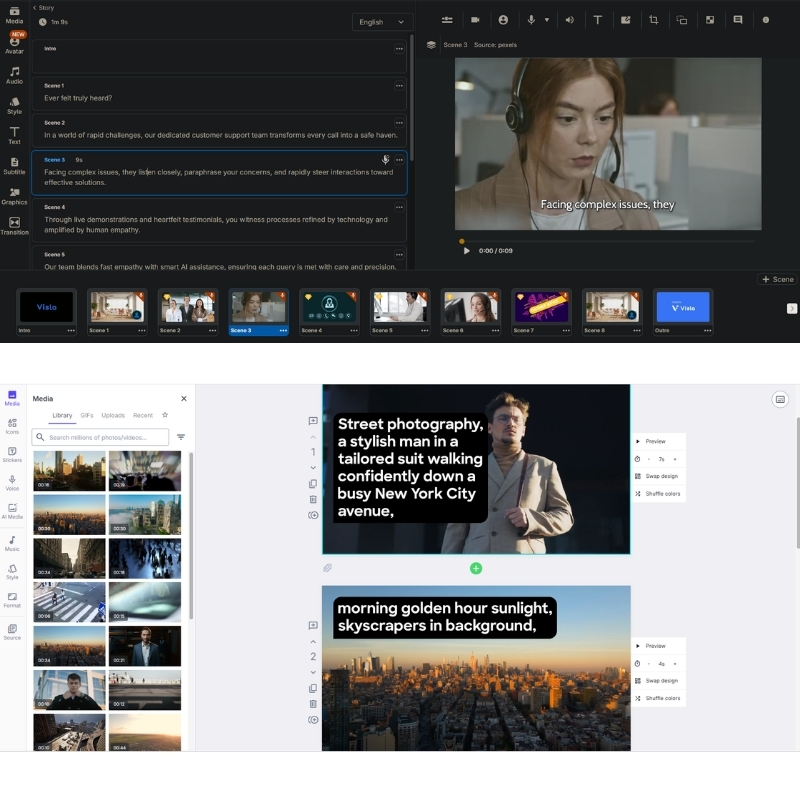
InVideo functions like “Canva of video” boasting massive 8M+ iStock library (Shutterstock integration) and 4000+ templates with full timeline editor for granular control. Superior for visually rich ads producing 60 exports/month (Plus) or unlimited (Max) with layer-based editing.

Feature Fliki InVideo
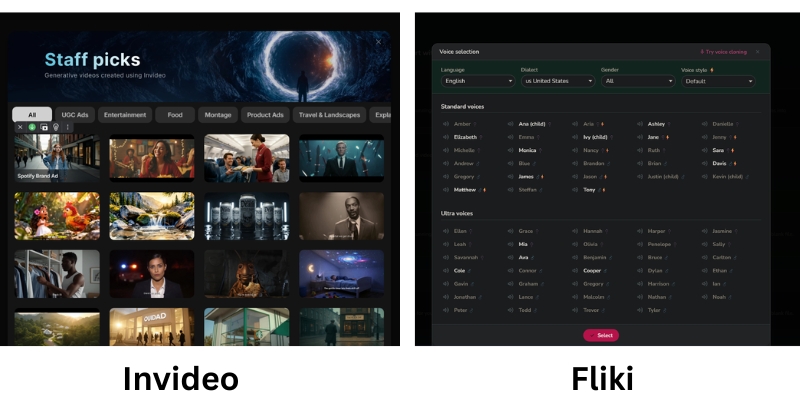
Primary Strength AI Voice Quality (2000+ Neural) Visual Templates (4000+) & 8M+ iStock
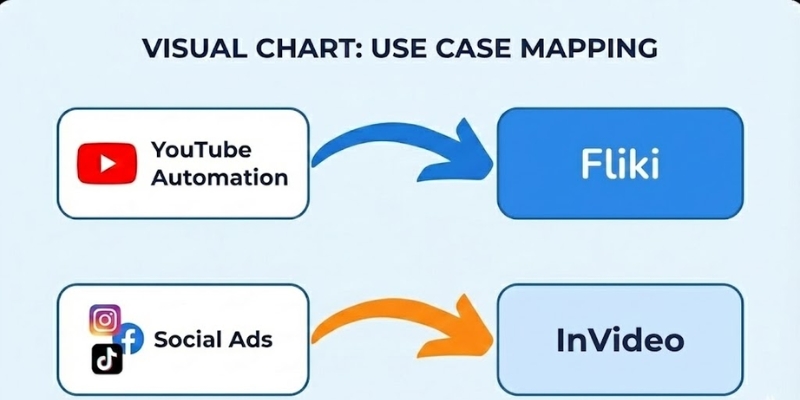
Best For YouTube Automation / Audio-First (2160-7200 mins/year) Social Media Ads / Visual-First (60-unlimited exports)
Learning Curve Very Low (Minutes) – Block-based editor Medium (Timeline Editor) – Layer-based control
Pricing Model Credit-based (Minutes/Year) $14-$44 Black Friday Subscription (Exports/Month) $20-$60

My Verdict: Choose Fliki if you prioritize voiceover quality (2000+ voices, 75 languages) and speed for long-form content producing 180-600 mins/month. Choose InVideo if you prioritize visual customization (4000+ templates) and premium stock footage (8M+ iStock) for ads with 60-unlimited exports/month.

Try Fliki Free Try InVideo Free

(Disclosure: If you purchase through links on this page, we may earn a small commission at no extra cost to you.)

Audio vs. Visuals: Comparing 2000+ Voices Engine vs. 4000+ Templates Library

This is most critical section for your decision with November 2025 capabilities. We must compare “Voice Engine” of Fliki (2000+ voices, 75 languages) against “Visual Engine” of InVideo (4000+ templates, 8M+ iStock) to see which fits your needs.

Fliki AI Voice selection panel vs InVideo Template Library
Fliki focuses on audio nuances, while InVideo focuses on visual variety.

Fliki’s Neural Voices (The Audio Engine):
Fliki’s hyper-realistic AI voices arguably best in market with 2000+ voices (1000+ ultra-realistic, 350+ studio-quality Premium) across 75 languages and 100 dialects. I often use them for “faceless” channels because they sound frighteningly human with emotional tones like “Cheery,” “Sad,” or “Terrified” crucial for storytelling retention on YouTube.

Voice cloning allows creating custom voices (multiple cloning Premium), translating content to 80+ languages instantly for global scaling. For educational content or audio-first videos, bad audio kills retention faster than bad visuals—Fliki solves this with personalized avatars (photo avatars Premium) generating AI video clips.

InVideo’s Stock & Templates (The Visual Engine):
InVideo dominates when you need “eye candy” with integration to 8M+ iStock media giving access to premium footage that usually costs hundreds dollars separately. Unlike Fliki’s standard stock (millions premium assets), InVideo pulls high-resolution clips from Getty/iStock directly inside editor making game-changer for professional ads.

With 4000+ templates covering every social format (Real Estate, Fitness, Tech), you are never starting from scratch with drag-and-drop canvas and layer-based timeline editor. For Instagram Reels or Facebook Ads needing 3 seconds to grab attention, InVideo’s superior visual assets ensure stopping scroll with custom fonts, brand kits, and reseller rights.

Pricing & ROI Comparison 2025: Credit-Based Minutes vs. Export-Based Subscription

Pricing structures with November 2025 updates fundamentally different. Fliki sells “time” (minutes/year credit-based), while InVideo sells “access” (exports/month subscription) serving distinct usage patterns and budget priorities.

Model Fliki (Credit Based) InVideo (User Based)
Standard/Plus $28 ($14 Black Friday) – 2160 mins/year, 1000 voices, 15-min max $20 ($25 monthly) – 60 exports, 4000+ templates, 15-min max
Premium/Max $88 ($44 Black Friday) – 7200 mins/year, 2000+ voices, 40-min max $60 – Unlimited HD, 8M+ iStock access, 40-min max
Hidden Cost Edits consume credits (re-render burns minutes) Premium stock included (saves $hundreds on separate iStock)
Ideal For Fixed output (180-600 mins/month) voice-first content Heavy daily usage / Agencies (60-unlimited exports/month)
Link View Fliki View InVideo

Fliki (Credit-Based System November 2025):
FREE: 5 credits/month, watermark, basic features. Standard: $28/month ($14 Black Friday 50% OFF) – 2160 minutes/year, 1000 voices (150 ultra-realistic), 1080p, 15-min max, millions premium assets, voice cloning, commercial rights.

Premium: $88/month ($44 Black Friday) – 7200 minutes/year, 2000+ voices (1000+ ultra-realistic, 350+ studio-quality), 40-min max, multiple brand kits, all AI avatars, photo avatars, generate AI video clips.

Enterprise: Custom – personalized avatars, API access, professional voice cloning, dedicated account manager.

InVideo (User-Based Subscription November 2025):
Plus: $20/month ($25 monthly, $20 annual) – 60 exports, 4000+ templates, 1M+ images/videos, 15-min max, automated text-to-speech, reseller rights. Max: $60/month – Unlimited HD exports, full 8M+ iStock access, 40-min max, unlimited team members, 24/7 LIVE support.

Real value lies in included iStock media—buying clips separately costs hundreds making subscription steal for agencies or heavy users generating daily content needing premium assets.

ROI Analysis:
Fliki best for creators publishing fixed amount content per month (one video/week = 180 mins Standard). Warning: editing and re-rendering same video often burns through monthly credits quickly.

InVideo operates like traditional SaaS with higher tiers offering “Unlimited” exports huge for agencies producing 60+ videos/month with included iStock media saving $hundreds on separate stock subscriptions justifying $60 premium pricing.

Best Use Cases: YouTube Voice Automation vs. Social Media Visual Ads

To help you decide with November 2025 workflows, I have broken down specific personas that should choose each tool based on extensive testing serving different content strategies and audience engagement patterns.

Best use cases for Fliki vs InVideo
Choose tool that aligns with your primary content platform.

✅ Choose Fliki (Content Creator)

  • Faceless YouTube: Top 10 lists, documentaries, explainers where script is king producing 180-600 mins/month.
  • Podcasts/Audiobooks: Superior text-to-speech (2000+ voices, 75 languages) repurposing written content into high-quality audio.
  • Educational Content: Teachers prefer Fliki because information delivery more important than flashy transitions with voice cloning.
  • Multilingual Scaling: Translate content to 80+ languages instantly with 100+ dialects for global audience reach.

✅ Choose InVideo (Marketer)

  • Social Media Ads: TikToks, Instagram Reels, Facebook Ads needing 3-second attention grab with dynamic movement (4000+ templates).
  • Brand Promos: Videos requiring specific brand colors, logos, custom fonts easier with Brand Kit and 8M+ iStock access.
  • Client Work: Freelancers making videos for local businesses where templates look more “high production” professional.
  • Agency Volume: Unlimited exports (Max $60) perfect for producing 60+ videos/month with full iStock integration.

Frequently Asked Questions About Fliki vs InVideo Comparison

Which tool is better for beginners?
Fliki is faster and easier to learn with block-based editor feeling like PowerPoint (minutes to master). InVideo is more familiar if you have used tools like Canva before but has steeper learning curve with timeline editor requiring understanding layers and transitions.

Can I upload my own voiceover?
Yes, both allow this with audio file uploads. However, only Fliki allows creating Voice Clone of your own voice (multiple cloning Premium) for automation producing consistent brand voice across unlimited videos without recording every time.

Do they have copyright-free music?
Yes, both platforms provide extensive libraries of royalty-free audio tracks to use in your videos without strikes. Fliki includes millions premium music assets (Standard+), InVideo includes automated text-to-speech and background music library with 4000+ templates.

Is the content monetizable on YouTube?
Yes, provided you add value with commercial rights (Fliki Standard+, InVideo Plus+). YouTube may demonetize raw stock footage, so ensure you edit and add unique narration with Fliki’s voice cloning or InVideo’s custom text overlays making content transformative.

Read More From Text-to-Video Comparisons and Platform Reviews

If you are still exploring the best generative video tools, check out our other detailed comparisons and reviews with feature analysis.

last update : 05/12/2025

A photo of Jun Pham, AI Tools Strategist at Aibrainjet

About the Author

Jun Pham

Jun Pham is an AI tools strategist, a video creator and tech writer passionate about the future of AI in editing video. As the face of a dedicated team of creators and researchers, Jamie leads hands-on testing of the latest AI video tools. Together, they share honest reviews, workflow insights, and practical tips to help creators turn ideas into cinematic videos with minimal effort.

Latest Posts

Onepage Website Builder Review: Features, Pros, Cons, and Use Cases

Onepage Website Builder Review: Features, Pros, Cons, and Use Cases
Jun Pham

SendShort AI Review (2025): The Best AI Clipper for Agencies?

Our SendShort AI review tests its white-label features for agencies. Discover how it automates viral shorts, enhances client perception. Try now!
Jun Pham

Zebracat Review (2025): Is This Hybrid AI Ad Generator Worth It?

Our Zebracat review (2025) assesses this hybrid AI video tool for marketers. Is it worth it for generating ads & repurposing content fast? See it now!
Jun Pham

Vizard Review (2025): Is This Hybrid AI Clipper & Editor Better Than OpusClip?

Our expert vizard review reveals if this AI video clipper & editor beats OpusClip for control. Get superior editing & branding for viral shorts. Try now!
Jun Pham

Klap Review (2025): The Best 4K AI Clipper for High-Quality Shorts?

Klap Review (2025): The Best AI Clipper for High-Quality Shorts? Klap Review (2025): The Best 4K AI Clipper for High-Quality Shorts? I have spent ...
Jun Pham

Submagic Review (2025): Is It The Best AI Tool For Hormozi Captions?

This Submagic review (2025) reveals if it's the ultimate AI tool for "Hormozi-style" viral video captions & B-roll. We battle-tested its features, speed, and ROI!
Jun Pham

Visla vs Lumen5 Review: Best AI Video Generator for Teams or Marketing? (2025)

Visla vs Lumen5 Review: Best AI Video Generator for Teams or Marketing? (2025)

Visla vs Lumen5 Review: Best AI Video Generator for Teams or Marketing? (2025)

I have spent the last six weeks heavily testing Visla vs Lumen5 with November 2025 updates to answer a critical question that corporate buyers and marketers are struggling with. Both platforms claim to simplify video creation, but their “DNA” is fundamentally different with distinct pricing models and target workflows. If you are looking for a Text-to-Video tool, choosing the wrong one here will kill your workflow. Visla is an efficiency engine built for teams with screen recording and voice cloning (1,000 credits/month free), while Lumen5 is a polishing machine built for marketers with Shutterstock integration (500M+ stock assets Pro). In this battle-tested comparison, I will break down features, November 2025 pricing ($18-$59 Visla vs $15-$50 annual Lumen5), and real-world results to help you decide which tool belongs in your business tech stack.

Table of Contents

Visla vs Lumen5: The Quick Verdict for Busy Teams in 2025

If you don’t have time to read full analysis, here is immediate breakdown based on my testing with November 2025 features. I have used both for internal training and public social media campaigns serving different masters.

The “If/Then” Decision Matrix:

  • Best for Internal Comms & HR: Visla. If you need to record screen, clone voice for updates (2,000 credits one-time), or replace Zoom meetings with video, Visla wins with text-based editor and auto-remove “ums/ahs”.
  • Best for Content Marketing: Lumen5. If you need to turn blog post into branded LinkedIn video with high-end stock footage (500M+ Shutterstock/Getty) in minutes, Lumen5 superior with URL-to-Video automation.
  • Best for Budget: Visla. Offers generous free tier (1,000 credits/month) and lower entry price ($18/month Pro) compared to Lumen5’s effective business tier ($50/month annual Pro).
Try Visla for Free Try Lumen5 for Free

(Disclosure: If you purchase through links on this page, we may earn a small commission at no extra cost to you.)

The Core Philosophy: “Video Workspace for Teams” (Visla) vs. “Brand-to-Social Engine” (Lumen5)

To understand the Visla vs Lumen5 comparison with November 2025 capabilities, you must look at their core missions solving completely different problems for distinct user personas and workflows.

Visla: The Productivity & Collaboration Hub
Positions itself as “All-in-One Video Workspace” with comprehensive video production solution: capture, create, edit, and collaborate. Goal is to reduce meetings and long emails with Asynchronous Communication tools. You aren’t just generating generic videos; recording yourself, sharing screens, and using AI to edit out mistakes with text-based editor removing filler words automatically.

Lumen5: The Marketing & Repurposing Engine
Purely focused on Brand Awareness and external reach as first major player in “Blog-to-Video” space. Mission is helping marketers without video editing skills create “thumb-stopping” social content with 500M+ stock assets (Shutterstock/Getty Pro). Strips away complex features (screen recording) to focus entirely on polish, speed, and media quality with slide-based storyboard automation.

Pricing & Value Comparison 2025: Credit-Based vs. Subscription Model Analysis

Pricing structures with November 2025 updates reveal completely different monetization philosophies. Visla uses confusing credit system, while Lumen5 uses tiered subscription with 50% annual discounts serving distinct budget priorities.

Feature Visla (Pro) Lumen5 (Starter/Pro)
Monthly Price $18 ($108/year) $30 ($15 annual, 50% OFF)
Mid-Tier Price $59 Business ($468/year) $100 Pro ($50 annual, 50% OFF)
Watermark None on Paid (Free has watermark) Yes Starter (None Pro)
Resolution 1080p (credit-based) 720p Starter / 1080p Pro
Stock Media Premium Stock (credit usage) Shutterstock/Getty 500M+ (Pro)
Key Value Screen recording, voice cloning, text-based editor URL-to-Video, automated branding, 3 brand kits
Link Check Visla Check Lumen5

Visla Pricing (November 2025):
Free: $0 – 1,000 credits/month (reset monthly), watermark, basic features. Pro: $18/month ($108/year) – credit-based system, text-based projects (1 credit/second), voice-based (1.5X), visual-based (3X), 2 custom avatars, voice cloning (2,000 credits one-time). Business: $59/month ($468/year) – 3 custom avatars, team collaboration. Enterprise: Custom – unlimited avatars, flexible credits.

Lumen5 Pricing (November 2025):
Free: $0 – 5 videos/month, 2-min max, 2 min AI voiceover, watermark. Starter: $30/month ($15 annual, 50% OFF) – 10-min videos, no watermark, 1080p, brand colors. Pro: $100/month ($50 annual, 50% OFF) – 150 min AI voiceover, 500M+ stock assets (Shutterstock/Getty), 3 brand kits, Chat to Video AI co-pilot, custom fonts. Team: Custom – collaboration, multiple users.

ROI Analysis:
Visla value proposition at $18/month incredibly affordable but confusing credit system (1 credit/second text-based, 3X visual-based) means monitoring usage required. Users complain running out premium credits faster than expected. Lumen5 $15 annual Starter limited (720p watermark), need $50 annual Pro ($600/year) to unlock real power with 500M+ stock assets, custom fonts, and 1080p making it premium tool for serious marketing teams prioritizing brand polish over internal collaboration features.

Feature Deep Dive: Screen Recording & Voice Cloning vs. URL-to-Video & Stock Library

Workflow is where differences become stark with November 2025 capabilities. I tested both tools creating “Product Announcement” video to see how features stacked up for team collaboration versus marketing polish.

Visla vs Lumen5 editor interface comparison showing text editing vs drag and drop slides.
Visla uses document-style editor (top), while Lumen5 uses slide-based storyboard (bottom).

Input Methods: Screen Recording vs. URL Scraping
Lumen5 is king of URL-to-Video with intelligent scraping of headers and images building storyboard automatically. Pasted link to blog post, it parsed content intelligently for long-form repurposing. Visla shines with “Idea-to-Video” and Screen Recording letting me record screen and camera simultaneously then generates transcript with text-based editor. Lumen5 has zero recording capabilities focusing solely on assembling existing media assets with slide-based interface.

Editing & Stock Quality Comparison
Visla uses “Text-Based Editor” editing video by deleting text in transcript (similar to Descript) with killer feature automatically removing “ums” and “ahs” from recording. Relies on standard libraries (Storyblocks/Pexels) but AI often picks irrelevant B-roll requiring manual swaps. Lumen5 uses drag-and-drop slide-based interface feeling exactly like PowerPoint with partnership to Shutterstock and Getty Images 500M+ giving access to millions premium cinematic clips. AI much better at matching “mood” footage to abstract concepts making it undisputed winner for stock quality and brand polish.

Final Verdict: When to Choose Visla vs Lumen5 Based on Team Role?

After extensively testing both with November 2025 features, here is my final decisive advice for your specific situation based on job title and primary workflow needs.

✅ Choose Visla If

  • HR & L&D Manager: Need onboarding video series for new hires and weekly CEO updates at $18-$59/month.
  • Internal Comms: Screen recording, voice cloning (2,000 credits), text-based editor removing filler words.
  • Budget-Conscious: Generous free tier (1,000 credits/month) and lower entry price than Lumen5 Pro.
  • Team Collaboration: Workspace features, role-based permissions, feedback sharing for async communication.

✅ Choose Lumen5 If

  • Content Marketer: Turn 50 blog posts into LinkedIn videos driving traffic at $15-$50 annual (50% OFF).
  • Brand Awareness: URL-to-Video engine unmatched with 500M+ Shutterstock/Getty stock assets (Pro).
  • Social Media: Slide-based storyboard producing “thumb-stopping” content 3x faster than timeline editing.
  • Marketing Teams: 3 brand kits, custom fonts, Chat to Video AI co-pilot for consistent brand polish.

Frequently Asked Questions About Visla vs Lumen5 Comparison

Does Lumen5 have screen recording?
No. Lumen5 is strictly for assembling existing media assets with URL-to-Video and slide-based storyboard. If you need to record screen for tutorials, must use Visla with screen recording and text-based editor or tool like Loom for separate recording.

Is Visla free to use?
Yes, Visla has generous free plan including 1,000 credits/month (reset monthly) with unlimited recording and 50 minutes video publishing, though with watermarks and limited export resolution requiring Pro ($18/month) for full 1080p and no branding.

Which is better for YouTube Automation?
Visla generally better for YouTube with script-to-video capabilities and text-based editor suiting long-form narrative content better than Lumen5’s slide format prioritizing short-form social media like LinkedIn, Instagram, TikTok with 10-min max videos.

Can I upload my own voiceover to Lumen5?
Yes, upload own audio files with 2-150 min AI voiceover depending on plan tier, but Lumen5 does not offer “Voice Cloning” feature that Visla provides (2,000 credits one-time) for generating AI voiceovers sounding like you for authentic CEO updates.

Read More From Text-to Video Comparisons and Platform Reviews

If you are exploring other AI video tools for your business, check out our related deep-dive reviews and tutorials with detailed feature analysis.

last update : 05/12/2025

A photo of Jun Pham, AI Tools Strategist at Aibrainjet

About the Author

Jun Pham

Jun Pham is an AI tools strategist, a video creator and tech writer passionate about the future of AI in editing video. As the face of a dedicated team of creators and researchers, Jamie leads hands-on testing of the latest AI video tools. Together, they share honest reviews, workflow insights, and practical tips to help creators turn ideas into cinematic videos with minimal effort.

Latest Posts

Onepage Website Builder Review: Features, Pros, Cons, and Use Cases

Onepage Website Builder Review: Features, Pros, Cons, and Use Cases
Jun Pham

SendShort AI Review (2025): The Best AI Clipper for Agencies?

Our SendShort AI review tests its white-label features for agencies. Discover how it automates viral shorts, enhances client perception. Try now!
Jun Pham

Zebracat Review (2025): Is This Hybrid AI Ad Generator Worth It?

Our Zebracat review (2025) assesses this hybrid AI video tool for marketers. Is it worth it for generating ads & repurposing content fast? See it now!
Jun Pham

Vizard Review (2025): Is This Hybrid AI Clipper & Editor Better Than OpusClip?

Our expert vizard review reveals if this AI video clipper & editor beats OpusClip for control. Get superior editing & branding for viral shorts. Try now!
Jun Pham

Klap Review (2025): The Best 4K AI Clipper for High-Quality Shorts?

Klap Review (2025): The Best AI Clipper for High-Quality Shorts? Klap Review (2025): The Best 4K AI Clipper for High-Quality Shorts? I have spent ...
Jun Pham

Submagic Review (2025): Is It The Best AI Tool For Hormozi Captions?

This Submagic review (2025) reveals if it's the ultimate AI tool for "Hormozi-style" viral video captions & B-roll. We battle-tested its features, speed, and ROI!
Jun Pham

InVideo vs Renderforest: Which Tool Wins for Video & Branding in 2025?

InVideo vs Renderforest: Which Tool Wins for Video & Branding in 2025?

InVideo vs Renderforest: Which Tool Wins for Video & Branding in 2025?

Choosing between InVideo vs Renderforest is a defining moment for any small business or freelance creator with November 2025 pricing updates. I’ve tested both platforms extensively, and the difference is far starker than just “template quantity” with fundamentally different philosophies. While both are leaders in the Text-to-Video category serving 8M+ videos/month (InVideo) versus 5M+ stock library (Renderforest), they serve fundamentally different needs. One is a powerhouse for ongoing video production with 4000+ templates and iStock integration, while the other is a holistic branding suite with logo maker, website builder, and mockups. In this guide, we will dissect their features, November 2025 pricing ($20-$60 InVideo vs $9-$69 Renderforest), and ROI comparisons to help you decide exactly which tool deserves your budget.

Table of Contents

The Core Difference: Video-First Timeline Editor vs. All-in-One Branding Suite

In my experience with November 2025 features, the confusion starts because both tools offer “video templates.” However, their DNA is completely different. I view InVideo as specialist and Renderforest as generalist serving distinct workflows.

InVideo Architecture:
“Video-First” platform functioning as cloud-based Premiere Pro Lite. Focuses heavily on stock media access via 8M+ iStock assets and offers full timeline editor for granular control with 60 exports/month (Plus) or unlimited (Max). Created 8M+ videos monthly across 190 countries with AI script generator and text-to-video automation.

Renderforest Architecture:
“All-in-One Branding Platform” going far beyond video to offer Logo Maker, Website Builder, and Mockup Generator all under one roof. Provides 5M+ stock footage, music, and photos with unlimited HD1080/4K exports depending on plan. Focuses on scene-based editor prioritizing ease over flexibility with 400-2000 AI credits/month.

InVideo vs Renderforest core difference infographic showing video focus vs branding focus.
InVideo specializes in deep video editing, while Renderforest covers entire branding spectrum

Pricing Comparison 2025: Timeline Flexibility vs. Branding Bundle Value

For freelancers and small businesses, every dollar counts with November 2025 updates. Here is how pricing models stack up to help you calculate potential Return on Investment (ROI) based on usage patterns.

(Disclosure: If you purchase through links on this page, we may earn a small commission at no extra cost to you.)

Feature InVideo (Plus) Renderforest (Pro)
Monthly Price $20 ($25 monthly, $20 annual) $19 ($39 monthly, 50% OFF first year)
Video Exports 60/month, 15-min max Unlimited HD1080, no watermark
Stock Media 8M+ iStock Integration (Huge Value) 5M+ stock footage, music, photos
Extra Tools AI Script Generator, Text-to-Video Logo, Website, Mockups, 100 min TTS
Best For Frequent Video Creators (60+/month) Branding & One-off Videos
Action Try InVideo Try Renderforest

InVideo Pricing (November 2025):
Plus: $20/month ($25 monthly, $20 annual) – 60 exports, 4000+ templates, 1M+ stock images/videos, 15-min max, automated text-to-speech, reseller rights. Max: $48/month ($60 monthly) – Unlimited HD exports, full 8M+ iStock access, 40-min max videos, unlimited team members, 24/7 LIVE support.

Renderforest Pricing (November 2025):
Lite: $9/month ($14 monthly) – 5 HD720 videos, 200 AI credits, 50 min TTS. Pro: $19/month ($39 monthly, 50% OFF first year) – Unlimited HD1080, 400 AI credits, 100 min TTS, 5M+ stock library, commercial use, priority rendering. Business: $49/month ($69 monthly, 30% OFF) – Unlimited 4K, 2000 AI credits, 300 min TTS, reseller license, team management, 50GB storage.

ROI Analysis:
InVideo “Business” plan incredible deal if you use stock footage. Buying just one clip from iStock normally costs more than month of InVideo subscription with 8M+ assets. If you make 60+ videos/month, InVideo offers better ROI with unlimited timeline editing. Renderforest “All-in-One” model great if you use all tools (Logo + Website + Mockups + Videos). If you only need video, paying for website builder and logo maker you won’t use. Worth it only if you leverage full suite for startup branding at $19/month first year.

Feature Showdown: 4000+ Templates vs. 5M+ Stock Library & Logo Maker

Let’s compare these two head-to-head on features that actually impact your daily output with November 2025 capabilities. This analysis drives “Commercial” intent of your decision based on workflow priorities.

Template Quantity vs. Quality:
InVideo wins on volume with 4000+ templates covering every social format (TikTok, Instagram Reels, YouTube) with full timeline editing. Renderforest wins on high-end 3D animation packs looking like they cost thousands to produce with scene-based editor prioritizing consistency.

AI Capabilities & Editing Flexibility:
InVideo’s AI Video Generator fantastic for turning text scripts into b-roll videos with drag-and-drop canvas where elements move anywhere on timeline. Renderforest’s AI shines in Logo Maker generating brand guidelines based on company description with “scene-based” linear approach restricting to designer’s layout but ensuring consistency.

Final Verdict: When to Choose InVideo vs Renderforest Based on Business Model?

After extensively testing both with November 2025 features, here is my final decisive advice for your specific situation based on primary output goals and budget constraints.

Choose InVideo If:
You are social media manager, YouTuber, or marketer producing 60+ videos/month at $20-$48. Need full timeline control over editing, access to 8M+ iStock premium stock footage, and high-frequency video production capabilities with AI script generator and text-to-video automation for scalable content creation.

Get InVideo Free

Choose Renderforest If:
You are startup founder or freelancer starting from scratch needing unlimited HD1080/4K exports at $19-$49. Need “business-in-a-box” solution giving Logo Maker, Website Builder, Mockup Generator, and simple promo videos in one package with 5M+ stock library and 100-300 min text-to-speech for complete branding suite.

Get Renderforest Free

Frequently Asked Questions About InVideo vs Renderforest Comparison

Does Renderforest have a video editor like InVideo?
No, Renderforest uses scene-based editor excellent for assembling pre-made animations but lacks multi-layer timeline control that InVideo offers with 4000+ templates and drag-and-drop canvas allowing elements to move anywhere.

Can I create a logo in InVideo?
No, InVideo is strictly for video creation with 8M+ iStock access. If you need logo, use Renderforest’s Logo Maker generating brand guidelines, Canva, or dedicated design tool for static branding assets.

Which is better for YouTube videos?
InVideo is superior for YouTube with timeline editing allowing long-form content, precise cuts, and B-roll insertion up to 40-min max (Max plan). Renderforest better suited for short intros with scene-based workflow prioritizing ease over flexibility.

Are the free plans worth it?
Only for testing interface. Watermarks on both platforms make free exports unusable for professional commercial or client work. InVideo allows editing freely but prevents exporting without watermark. Renderforest exports watermarked and low quality (720p max).

Read More From Text-to Video Comparisons and Platform Reviews

Looking for more tools to automate your video production? Check out our other in-depth comparisons and reviews in this category with detailed feature analysis.

last update : 05/12/2025

A photo of Jun Pham, AI Tools Strategist at Aibrainjet

About the Author

Jun Pham

Jun Pham is an AI tools strategist, a video creator and tech writer passionate about the future of AI in editing video. As the face of a dedicated team of creators and researchers, Jamie leads hands-on testing of the latest AI video tools. Together, they share honest reviews, workflow insights, and practical tips to help creators turn ideas into cinematic videos with minimal effort.

Latest Posts

Onepage Website Builder Review: Features, Pros, Cons, and Use Cases

Onepage Website Builder Review: Features, Pros, Cons, and Use Cases
Jun Pham

SendShort AI Review (2025): The Best AI Clipper for Agencies?

Our SendShort AI review tests its white-label features for agencies. Discover how it automates viral shorts, enhances client perception. Try now!
Jun Pham

Zebracat Review (2025): Is This Hybrid AI Ad Generator Worth It?

Our Zebracat review (2025) assesses this hybrid AI video tool for marketers. Is it worth it for generating ads & repurposing content fast? See it now!
Jun Pham

Vizard Review (2025): Is This Hybrid AI Clipper & Editor Better Than OpusClip?

Our expert vizard review reveals if this AI video clipper & editor beats OpusClip for control. Get superior editing & branding for viral shorts. Try now!
Jun Pham

Klap Review (2025): The Best 4K AI Clipper for High-Quality Shorts?

Klap Review (2025): The Best AI Clipper for High-Quality Shorts? Klap Review (2025): The Best 4K AI Clipper for High-Quality Shorts? I have spent ...
Jun Pham

Submagic Review (2025): Is It The Best AI Tool For Hormozi Captions?

This Submagic review (2025) reveals if it's the ultimate AI tool for "Hormozi-style" viral video captions & B-roll. We battle-tested its features, speed, and ROI!
Jun Pham

Pictory vs Steve AI: Which Text-to-Video Tool is Best in 2025?

Pictory vs Steve AI: Which Text-to-Video Tool is Best in 2025?

Pictory vs Steve AI: Which Text-to-Video Tool is Best in 2025?

Choosing between pictory vs steve ai is the biggest dilemma for creators looking to automate video production in the Text-to-Video category with November 2025 pricing updates. As an experienced content creator, I know that making the wrong choice here can waste hours of rendering time and budget on the wrong output style. While both are marketed as powerful AI Video Generators, they serve two completely different purposes with Pictory’s Storyblocks integration versus Steve AI’s 300+ animated characters. This guide cuts through marketing noise to compare their output style, asset libraries (Pictory: unlimited Storyblocks vs Steve AI: 800-3200 AI images/month), and real-world ROI with accurate November 2025 cost analysis.

Table of Contents

The Core Difference: Live-Action Stock Footage (Pictory) vs. Text-to-Animation (Steve AI)

The fundamental battle of pictory vs steve ai boils down to one simple question: Do you want stock footage or cartoons? This distinction defines your entire video strategy with completely different content workflows and target audiences.

Pictory Architecture:
Specializes in Live-Action/Stock Footage with unlimited Storyblocks access (Starter plan up). When we tested its “Text-to-Video” feature, AI immediately matched script with real-world clips of people and business environments with text-based editing that trims by deleting transcript words. Acts like high-speed editor for corporate content with 30-90 videos/month ($19-$99 annual).

Pictory vs Steve AI visual style comparison showing stock footage versus animation
Pictory (Top) focuses on realism, while Steve AI (Bottom) focuses on animated storytelling.

Steve AI Architecture:
Positions itself primarily as Text-to-Animation tool with 300+ animated characters. While it claims to handle live-action, engine defaults to creating animated avatars and colorful, cartoon-style explainer videos with 100-400 mins AI videos/month ($29-Custom). Feels like modern version of Vyond with 90-100% human-like voices depending on plan tier.

Pricing & Plans Comparison 2025: Subscription Models & Cost-Per-Video Analysis

Pricing structures with November 2025 updates reveal completely different value propositions. We need to calculate “value per video” to understand real ROI based on your output volume and content type preferences.

Feature Pictory AI Steve AI
Starter Plan $25/mo ($19 annual, 50% OFF) $29/mo – 100 mins AI videos
Pro/Professional $49/mo ($29 annual) – 60 videos $59/mo – 300 mins AI videos
Primary Asset Storyblocks (Unlimited stock footage) Animation (800-3200 AI images/month)
Resolution 1080p (Starter), 1080p (Pro) 720p (Starter), 2K (Pro), 4K (Enterprise)
Characters/Voices 34+ voices (Starter), expanded (Pro) 300+ characters, 90-100% human-like voices
Action Try Pictory Free Try Steve AI Free

(Disclosure: If you purchase through links on this page, we may earn a small commission at no extra cost to you.)

Pictory Pricing (November 2025):
Starter: $25/month ($19 annual, 50% savings) – 30 videos/month, 10-min max, 34 AI voices, Storyblocks unlimited, 600 transcription minutes. Professional: $49/month ($29 annual) – 60 videos/month, 20-min max, expanded voices, 1200 transcription minutes, brand kits, text-based editing. Teams: $119/month ($99 annual) – 90 videos/month, collaboration, 3600 transcription minutes.

Steve AI Pricing (November 2025):
Starter: $29/month – 100 mins AI videos, 800 AI images, 720p, 90% human-like voices, 300+ characters. Pro: $59/month – 300 mins AI videos, 2400 AI images, 2K resolution, 95% human-like voices, unlimited exports, 3 custom avatars. Enterprise: Custom – 400 mins, 3200 AI images, 4K resolution, 100% human-like voices, team collaboration, reseller rights.

Feature Deep Dive: Blog-to-Video Summarization vs. Script-to-Animation Logic

How well does AI actually read your text? We ran same 500-word blog post through both tools with November 2025 AI improvements to test their processing logic and content understanding capabilities.

Blog Repurposing (Pictory Strength):
Pictory is undisputed king of Summarization. Paste URL, it automatically highlights “golden sentences” with NLP understanding context. Turns long article into punchy video script in seconds making it ideal for Content Repurposing with text-based editing that trims by deleting transcript words eliminating timeline scrubbing.

Script-to-Animation (Steve AI Strength):
Steve AI parses scripts differently looking for “actions” with 300+ animated characters. If script says “The teacher walks into the room,” Steve AI attempts to animate character walking with lip-sync to voiceover (90-100% human-like depending on plan). This Text-to-Animation logic creates narrative flow that Pictory cannot match for storytelling content.

Workflow comparison of Pictory vs Steve AI for video creation.
Pictory excels at summarizing text, while Steve AI excels at visualizing actions.

Final Verdict: When to Choose Pictory vs Steve AI Based on Content Strategy?

After extensively testing both with November 2025 features, the winner depends entirely on your target audience and content type. There is no single “best” tool, only right tool for specific job and workflow requirements.

Choose Pictory If:
You are Marketer, Blogger, or run Faceless YouTube Channel producing 30-90 videos/month at $19-$99 annual. Need to turn text into professional, realistic videos quickly with unlimited Storyblocks access and text-based editing. Blog-to-Video feature makes it unbeatable for business with Pictory AI specializing in content repurposing.

Get Started with Pictory

Choose Steve AI If:
You are Educator, HR Manager, or creating Storytime Videos producing 100-400 mins/month at $29-Custom. Need 300+ animated characters to act out scenarios or explain complex concepts with 90-100% human-like voices and lip-sync. Best tool for engagement through storytelling with Steve AI excelling at animation workflows.

Try Steve AI for Animation

Frequently Asked Questions About Pictory vs Steve AI Comparison

Which is better for YouTube?
For informational or “Top 10” channels, Pictory is better due to realistic stock footage with 30-90 videos/month and unlimited Storyblocks access. For storytelling or kids’ channels, Steve AI’s 300+ animated characters with lip-sync (90-100% human-like voices) are superior.

Can Steve AI create realistic videos?
Yes, Steve AI has live-action mode, but library and matching logic not as robust as Pictory’s integration with Storyblocks unlimited and text-based editing capabilities that revolutionize content repurposing workflows.

Does Pictory have animated characters?
No, Pictory focuses exclusively on stock footage, images, and text overlays with 34+ voices (Starter) and expanded options (Pro). Does not support character animation or avatars like Steve AI’s 300+ animated characters.

Is there a free alternative to both?
Tools like Canva offer basic video creation, but lack AI automation of Pictory (URL-to-video, text-based editing) or Steve AI (script-to-animation, lip-sync). For serious creators, paid features pay for themselves in time saved.

Read More From Text-to-Video Comparisons and Reviews

Explore more comparisons and reviews to find the perfect AI video generation stack for your business with detailed feature analysis.

last update : 04/12/2025