A photo of Jun Pham, AI Tools Strategist at Aibrainjet

About the Author

Jun Pham

Jun Pham is an AI tools strategist, a video creator and tech writer passionate about the future of AI in editing video. As the face of a dedicated team of creators and researchers, Jamie leads hands-on testing of the latest AI video tools. Together, they share honest reviews, workflow insights, and practical tips to help creators turn ideas into cinematic videos with minimal effort.

Latest Posts

Onepage Website Builder Review: Features, Pros, Cons, and Use Cases

Onepage Website Builder Review: Features, Pros, Cons, and Use Cases
Jun Pham

SendShort AI Review (2025): The Best AI Clipper for Agencies?

Our SendShort AI review tests its white-label features for agencies. Discover how it automates viral shorts, enhances client perception. Try now!
Jun Pham

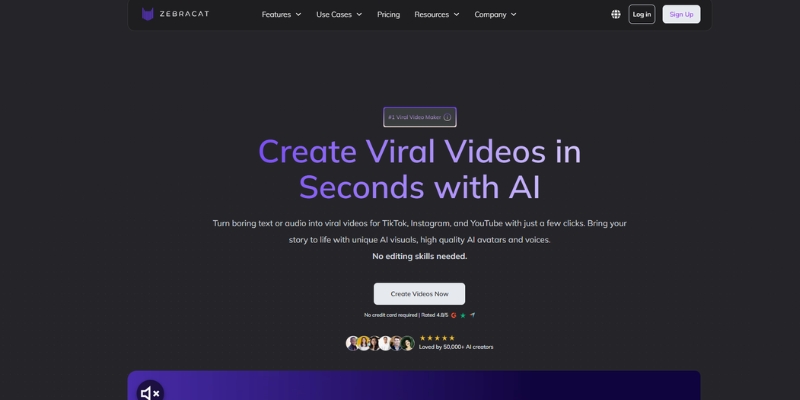
Zebracat Review (2025): Is This Hybrid AI Ad Generator Worth It?

Our Zebracat review (2025) assesses this hybrid AI video tool for marketers. Is it worth it for generating ads & repurposing content fast? See it now!
Jun Pham

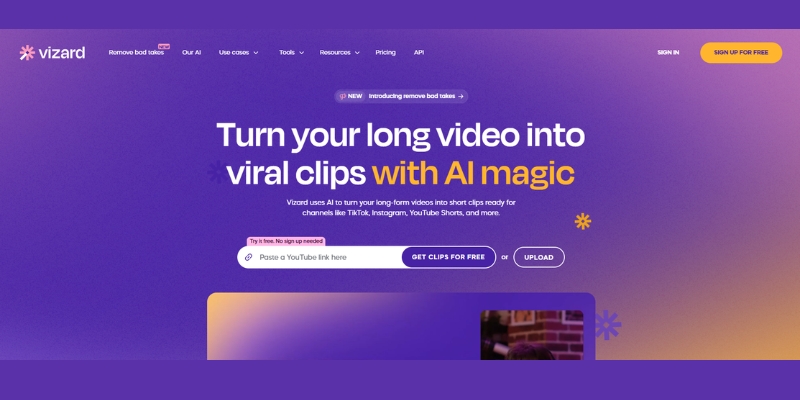
Vizard Review (2025): Is This Hybrid AI Clipper & Editor Better Than OpusClip?

Our expert vizard review reveals if this AI video clipper & editor beats OpusClip for control. Get superior editing & branding for viral shorts. Try now!
Jun Pham

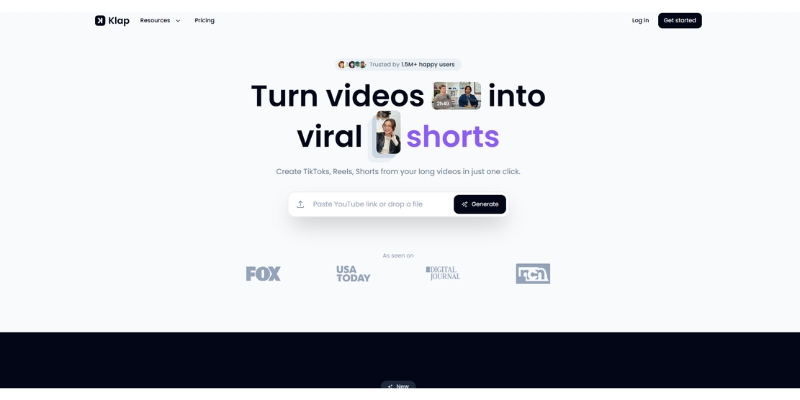
Klap Review (2025): The Best 4K AI Clipper for High-Quality Shorts?

Klap Review (2025): The Best AI Clipper for High-Quality Shorts? Klap Review (2025): The Best 4K AI Clipper for High-Quality Shorts? I have spent ...
Jun Pham

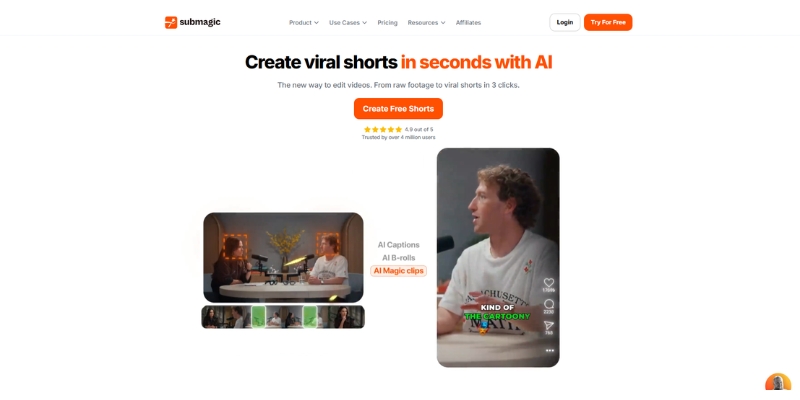
Submagic Review (2025): Is It The Best AI Tool For Hormozi Captions?

This Submagic review (2025) reveals if it's the ultimate AI tool for "Hormozi-style" viral video captions & B-roll. We battle-tested its features, speed, and ROI!
Jun Pham

Creatify AI vs VideoGen: Which Tool Creates Better E-commerce Ads?

Creatify AI vs VideoGen (2025): Which Tool Creates Better E-commerce Ads?

Creatify AI vs VideoGen (2025): Which Tool Creates Better E-commerce Ads?

I have spent years testing tools in the crowded AI Video Generator market to find what actually works for sales. Today, we aren’t discussing generic video creation. We are analyzing a specific battle: creatify ai vs videogen for e-commerce performance with November 2025 pricing and features. Marketers and dropshippers are under immense pressure to produce viral ad creatives daily with URL-to-video automation versus template-based workflows. In this Text-to-Video comparison, I will break down which tool saves you time and which one drains your budget with accurate cost-per-ad analysis. You will discover which platform is the true “Product URL-to-Video” expert with 1000+ AI avatars and which relies on 150+ voice templates.

Table of Contents

Creatify AI vs. VideoGen: The Core Difference (URL-to-Video vs. Template Workflow)

At a glance, these tools serve different masters with November 2025 updates. I have found that their fundamental operations create a massive divide in who should use them based on e-commerce workflow needs.

Creatify AI Architecture:
Automated “Scraper” that pulls data directly from product link (Shopify/Amazon). I pasted a Shopify URL, and AI extracted images, prices, and descriptions instantly with 16+ AI models (Kling 2.1, Seedance 1.0, Nano Banana). It prioritizes Speed and direct Automation for physical products with 100+ avatars (Basic) or 1000+ avatars (Premium) creating UGC-style ads.

VideoGen Architecture:
Creative “Assembler” that stitches stock footage together based on text with 150+ voices across 40+ languages. VideoGen works differently, relying on you providing script or topic. AI then matches your text to massive stock library with unlimited creation (Pro $16/month yearly). It offers more Creative Control but requires more manual input for specific product visuals.

Feature Creatify AI VideoGen
Primary Input Product URL (Shopify/Amazon) Text Script or Topic
Asset Source Scraped Product Images + 16+ AI models Stock Footage + 150+ Voices
AI Avatars 100+ Basic, 1000+ Premium, 3 Custom (Pro) Voice-only (no avatars)
Best For Specific Product UGC Ads General Marketing Videos

Workflow Speed Battle-Test: Which Generates Shopify Ads Faster for Dropshipping?

I tested both platforms with live Shopify product to measure friction. Time is money in dropshipping with testing multiple products daily requiring rapid ad creation for A/B testing campaigns.

Creatify AI Workflow (2 Minutes):
Process incredibly streamlined. Pasted product URL and selected 9:16 aspect ratio. AI analyzed content immediately with 16+ AI models (Kling 2.1, Seedance 1.0). Generated script and video in one click automatically using product images with 100+ avatars creating UGC-style review. Avatar held product with outfit/background customization (Pro plan).

VideoGen Workflow (10 Minutes):
Required more steps. Input script first selecting visual style. AI matched stock footage of generic water bottles with 150+ voices. Had to manually upload specific product images to timeline with 50GB storage (Pro). While VideoGen offers unlimited video creation at $16/month yearly, the manual asset replacement adds significant time overhead.
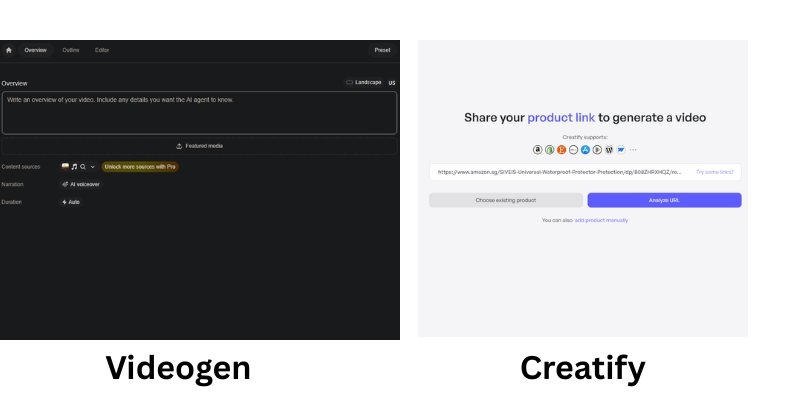
Creatify AI URL input versus VideoGen script editor interface for e-commerce ads
Creatify starts with URL scraping, while VideoGen starts with manual script input.

Pricing & ROI Comparison 2025: Credit-Based vs. Unlimited Model Analysis

Both tools use different pricing philosophies with November 2025 updates. We need to calculate “value per video” to understand real ROI based on your specific volume needs and production workflow.

Plan Type Creatify AI VideoGen
Free Plan 10 credits (2 video ads), watermarked Basic creation test, watermarked
Starter/Pro $39/mo ($19 annual) – 100 credits, 100+ avatars $16/mo yearly ($24 monthly) – Unlimited videos, 150+ voices
Pro/Scale $99/mo – 200 credits, 1000+ avatars, Meta/TikTok ads $66/mo – 300+ voice mins, 200GB storage
Enterprise/Business Custom – 1200 credits/year, AdMax, API, bulk $220/mo – API, branded templates, 1000GB
Focus High Volume Product Ads (UGC-style) General Content Creation (Template-based)
Link View Creatify View VideoGen

Creatify AI Pricing (November 2025):
Starter: $39/month ($19 annual, 50% savings) – 100 credits/month, remove watermark, 16+ AI models, 100+ avatars, 100+ voices, 29 languages, 2-min max. Pro: $99/month – 200 credits/month, 1000+ avatars, 3 custom avatars, Meta/TikTok ads, 22+ AI models (Sora 2 pro, Veo 3.1), avatar holding product, 10-min max. Enterprise: Custom – 1200 credits/year, AdMax (research/optimization/analytics), bulk creation, API, multiple seats.

VideoGen Pricing (November 2025):
Pro: $16/month yearly ($24 monthly) – Unlimited video creation, 150+ voices, 50GB storage, pro templates. Scale: $66/month – 300+ voice minutes, 200GB storage, priority support. Business: $220/month – API access, branded templates, 1000GB+ storage, team management.

ROI Analysis:
If you need 20+ ads/month for dropshipping testing, Creatify offers better ROI despite higher upfront cost. URL scraping saves 8 minutes per video (2 min vs 10 min) = 2.6 hours saved on 20 videos. At $50/hour value, that’s $130 saved justifying the price difference. VideoGen wins for general content creators needing unlimited exports at $16/month but adds manual labor time costs.

(Disclosure: If you purchase through links on this page, we may earn a small commission at no extra cost to you.)

Final Verdict: When to Choose Creatify AI vs. VideoGen Based on Business Model?

After testing both extensively with November 2025 features, I have clear recommendation. Your choice depends entirely on your business model and whether you prioritize automation speed or creative flexibility.

The “Winner” for E-commerce: For specific intent of selling physical products via URL scraping, Creatify AI is the specialist with 1000+ avatars and UGC-style ads. VideoGen is capable generalist with unlimited creation at $16/month but lacks direct product integration requiring manual asset uploads.

✅ Choose Creatify AI If

  • Shopify/Amazon Business: 50 products to promote with zero time for manual editing.
  • UGC-Style Ads: Want “talking head” reviews with 1000+ avatars that look like real customers.
  • URL Scraping: Hate writing scripts manually; prefer automated product data extraction.
  • Meta/TikTok Ads: Launch ads directly to platforms from dashboard (Pro plan).

✅ Choose VideoGen If

  • General Marketer/Agency: Need to turn blog posts into videos with unlimited creation.
  • Budget-Conscious: $16/month yearly (vs $19 annual Creatify) with unlimited exports.
  • Stock Footage Control: Want high-quality stock footage with timeline control over assets.
  • 150+ Voices: Need multilingual content (40+ languages) without avatar requirement.

Frequently Asked Questions About Creatify AI vs VideoGen for E-commerce

Can I use Creatify AI for dropshipping ads?
Yes, it is practically built for it. URL-to-video feature with 16+ AI models allows testing multiple products quickly without manually editing footage with 100-1000+ avatars creating UGC-style reviews. 90% cost reduction reported versus traditional advertising methods.

Does VideoGen have a free plan?
VideoGen offers free trial that lets you test platform with basic creation. However, cannot export watermark-free videos without subscription ($16/month yearly). Good for getting feel for workflow before committing to unlimited creation model.

Which tool creates better viral TikTok ads?
Creatify AI has edge here due to 1000+ AI avatars with avatar holding product feature (Pro plan). “Talking head” UGC-style performs very well on TikTok compared to generic stock footage often used by VideoGen requiring manual product uploads.

Are the AI avatars copyright-free for commercial use?
Generally yes if on paid plan. Both platforms provide commercial rights for ads generated. Creatify offers 3 custom avatars (Pro) and basic/premium libraries (100+/1000+). Always check specific terms of service for assets used.

Read More From Text-to Video Comparisons and E-commerce Tools

Explore more tools to automate your video marketing strategy with our expert guides for dropshipping and product ads.

last update : 04/12/2025
A photo of Jun Pham, AI Tools Strategist at Aibrainjet

About the Author

Jun Pham

Jun Pham is an AI tools strategist, a video creator and tech writer passionate about the future of AI in editing video. As the face of a dedicated team of creators and researchers, Jamie leads hands-on testing of the latest AI video tools. Together, they share honest reviews, workflow insights, and practical tips to help creators turn ideas into cinematic videos with minimal effort.

Latest Posts

Onepage Website Builder Review: Features, Pros, Cons, and Use Cases

Onepage Website Builder Review: Features, Pros, Cons, and Use Cases
Jun Pham

SendShort AI Review (2025): The Best AI Clipper for Agencies?

Our SendShort AI review tests its white-label features for agencies. Discover how it automates viral shorts, enhances client perception. Try now!
Jun Pham

Zebracat Review (2025): Is This Hybrid AI Ad Generator Worth It?

Our Zebracat review (2025) assesses this hybrid AI video tool for marketers. Is it worth it for generating ads & repurposing content fast? See it now!
Jun Pham

Vizard Review (2025): Is This Hybrid AI Clipper & Editor Better Than OpusClip?

Our expert vizard review reveals if this AI video clipper & editor beats OpusClip for control. Get superior editing & branding for viral shorts. Try now!
Jun Pham

Klap Review (2025): The Best 4K AI Clipper for High-Quality Shorts?

Klap Review (2025): The Best AI Clipper for High-Quality Shorts? Klap Review (2025): The Best 4K AI Clipper for High-Quality Shorts? I have spent ...
Jun Pham

Submagic Review (2025): Is It The Best AI Tool For Hormozi Captions?

This Submagic review (2025) reveals if it's the ultimate AI tool for "Hormozi-style" viral video captions & B-roll. We battle-tested its features, speed, and ROI!
Jun Pham

How to Use Runway ML (2025): Your Expert Guide to AI Video Creation & Editing

How to Use Runway ML: The Complete Studio Guide for Creators (2025)

How to Use Runway ML: The Complete Studio Guide for Creators (2025)

If you have been struggling to integrate AI video into your workflow, learning how to use runway ml is your turning point. This is not just about generating random clips; it is about taking control of a full production studio.

In the current landscape of AI Generative Video, we see creators facing immense performance pressure to produce more content, faster. Runway ML stands out because it combines powerful generation models (Gen-3, Gen-4) with a suite of professional editing tools.

Whether you are a filmmaker needing generative VFX or a marketer looking for automated assets, this guide covers it all. We will walk you through everything from text-to-video generation to advanced camera controls and timeline editing.

Table of Contents

What Is Runway ML? A Quick-Start Guide to The AI Studio

Runway ML is often misunderstood as just another “text-to-video” generator. In reality, it is a comprehensive AI Video Production Studio designed to solve the workflow bottlenecks that professional creators face daily.

At its core, the platform now features multiple generation models including Gen-3 Alpha, Gen-3 Turbo, and Gen-4 alongside a suite of “AI Magic Tools.” This means you do not just generate footage; you can edit, refine, and composite it all within the same browser-based interface.

The system operates entirely on the cloud. You input text, images, or video clips, and Runway’s servers handle the heavy rendering. This allows you to create high-fidelity VFX without needing a $5,000 workstation.

For filmmakers and marketers, the learning curve is medium. It is more complex than simple tools like Pika, but that complexity offers the control required for professional output. It is built for those who value precision over randomness.

Getting Started: The Runway ML Interface & Dashboard

When you first log in, the dashboard can feel overwhelming. Unlike consumer apps, Runway is built like professional software. We will skip the sign-up basics and focus on the navigation that matters for speed.

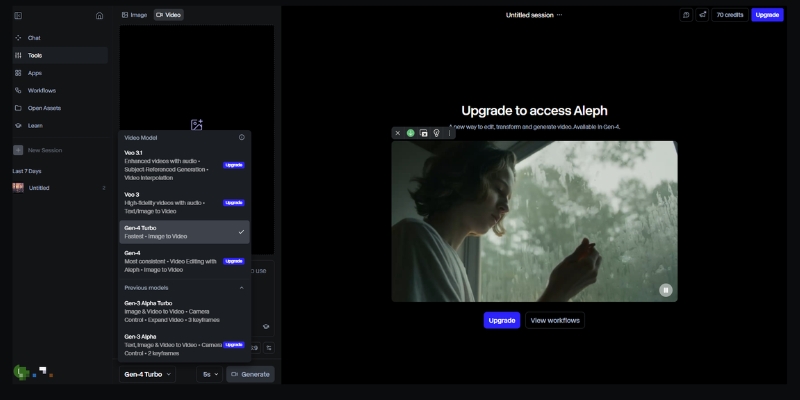
The Left Sidebar: This is your command center. Here you can toggle between generation models (Gen-3, Gen-4) and “Video Editing” for post-production. It also houses your “Assets” folder, which is crucial for organization.

Model Selection: You will see dropdowns for Gen-3 Alpha, Gen-3 Turbo, and Gen-4. For character consistency work, choose Gen-4. For faster iterations, Gen-3 Turbo is adequate. Each model has different credit costs.

Recent Projects: Located in the center, this area saves your workspace states. In our experience, naming your projects immediately is vital, as AI generates dozens of clips that can easily get lost.

Assets Management: Before you generate anything, upload your brand assets here. Having your logos and reference images ready in the cloud speeds up the generative video workflow significantly.

Runway ML dashboard interface showing model selection and creation tools.
The Runway Studio Dashboard features multiple generation models including Gen-3 and Gen-4.

How to Use Runway for Text-to-Video Creation

This is the feature most users come for. Generating video from scratch using Runway’s generation models requires a shift in how you write prompts. Unlike static images, video requires you to describe motion and camera behavior.

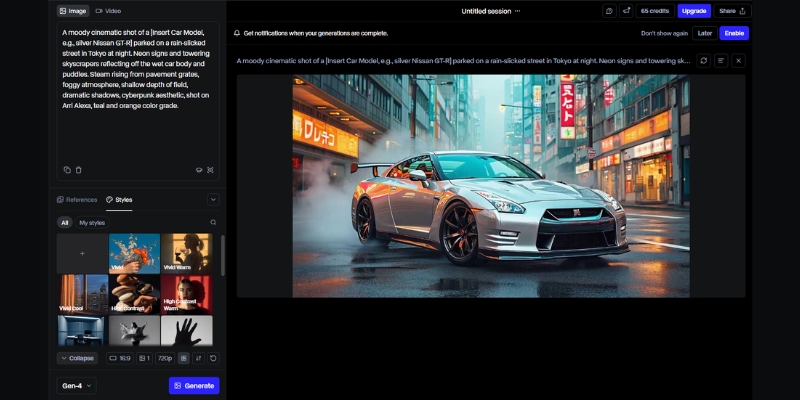
Step 1: Select Your Model: From the dashboard, choose between Gen-3 Alpha (higher quality), Gen-3 Turbo (faster), or Gen-4 (character consistency). Gen-4 is recommended for projects requiring the same character across multiple shots.

Step 2: Input Your Text Prompt: Be specific. Instead of “a car driving,” write “Cinematic shot, a red sports car driving on a coastal highway, drone view, sunset lighting.” Mention the camera angle (drone, eye-level) and lighting.

Step 3: Adjust Settings: Click the “Settings” icon. Select your desired duration (typically 5-10 seconds). We recommend starting with shorter clips to test your prompt structure before committing credits to longer generations.

Step 4: Generate & Preview: Hit the “Generate” button. Runway typically takes 60-120 seconds depending on the model. Once done, review the clip. If motion isn’t right, refine your prompt rather than regenerating immediately.

Step 5: Upscaling: Once you are happy with the movement, use the upscale option to increase the resolution. This makes the footage usable for social media or client presentations.

Runway text-to-video interface with a prompt for a cinematic car shot
Writing detailed prompts with camera directions is key to high-quality outputs.

Mastering Image-to-Video: Animating Static Assets

For marketers, Image-to-Video is often superior to text-to-video. It allows you to maintain brand consistency by using a specific product shot or character image as the anchor for the generation.

Upload Reference Image: Drag and drop your high-resolution image into the image slot. We find that Midjourney images or professional product photography work best as base layers. Higher resolution inputs yield better results.

Describe the Motion: Even with an image, you must add a text prompt. If you uploaded a coffee cup, your prompt should be “steam rising from cup, subtle camera push in.” This guides the animation direction.

Gen-4 Character References: If using Gen-4, upload a character reference image. The model will maintain that character’s appearance across multiple generations, solving the “random character morphing” problem that plagued earlier AI video tools.

Consistent Branding: By using the same character or product image across multiple generations, you can create a cohesive storyboard. This is essential for brand campaigns requiring visual consistency.

Advanced Camera Controls & Director Mode

To stop your videos from having that nauseating “floating camera” look, you must master the Camera Motion controls. This gives you director-level control over the virtual lens.

Zoom and Pan: Instead of relying solely on text prompts, use the dedicated camera control sliders. Set “Zoom” to create a “dolly in” effect. Use “Pan” to track a subject horizontally across the frame.

Camera Movement Vocabulary: Runway understands professional cinematography terms. Use prompts like “crane up,” “orbit shot,” “rack focus,” or “steadicam follow” for specific camera behaviors that mimic real film techniques.

Using Seed Numbers: Every AI generation has a “Seed” number. If you generate a clip you like but want to change the camera move, copy the seed number. Paste it into the settings for the next run to keep the visual style consistent.

Upscale for Delivery: The native resolution varies by model. Always use the “Upscale” feature before downloading. In our tests, this significantly reduces artifacts and makes the footage ready for YouTube or social platforms.

Using the Runway Timeline for Video Editing

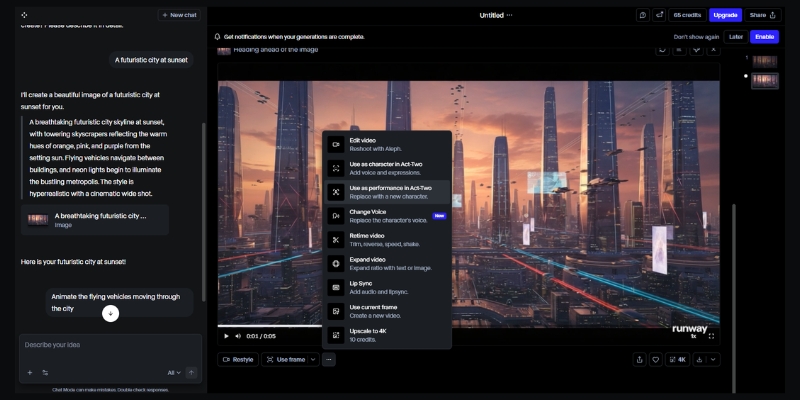
Runway is not just a generator; it is a fully functional non-linear editor. The Timeline UI resembles tools like Premiere Pro or CapCut, making it familiar for most editors to pick up.

Multi-Track Editing: You can drag your generated clips onto multiple video and audio tracks. This is essential for combining different shots into a cohesive narrative with background music and voiceover layers.

Green Screen (Remove Background): This is a massive time-saver. Click a clip, select “Green Screen,” and click on the subject. Runway automatically masks the person, allowing you to place them in any generated environment.

Inpainting (Remove Objects): If a generated video has an unwanted artifact, use the Inpainting tool. Simply brush over the object, and the AI will erase it and fill the background intelligently, frame by frame.

Act-One Motion Capture: This feature allows you to use webcam footage to drive character animations. Record yourself performing an action, and Runway transfers that motion to your generated character for realistic movement.

Runway ML video editing timeline
The Timeline allows you to composite generated clips and use AI tools like Green Screen removal instantly.

Runway ML Pricing & ROI: Is It Worth It?

Understanding the credit system is vital for commercial viability. Runway operates on a credit basis, where each second of video generation consumes credits. The cost varies by model chosen. For professionals, the free trial is only for testing.

Plan Price Credits/Month Best For
Free Basic $0/mo 125 (one-time) Testing interface
Standard $12/mo 625 credits Individual creators
Pro $28/mo 2,250 credits Freelancers
Unlimited $76/mo Unlimited (Explore) Agencies & Studios

Verdict on ROI: If you are an agency or a freelancer producing content regularly, the Unlimited Plan is the only logical choice. The cost of hiring a VFX artist for a single shot exceeds the monthly subscription, making the ROI incredibly high.

💡 Expert Verdict

We recommend the Pro Plan for individual creators who need access to Gen-4 for character consistency. However, if you rely on “trial and error” to get the perfect shot, the Unlimited Plan prevents “credit anxiety” and lets you iterate freely.

Try Runway ML for Free

(Disclosure: If you purchase through links on this page, we may earn a small commission at no extra cost to you. This helps us maintain our “battle-tested” reviews.)

Frequently Asked Questions About Using Runway ML

Is Runway ML free to use?
Runway offers a free tier with 125 one-time credits. This is enough to generate about 25-30 seconds of video using Gen-3 Turbo to test the capabilities, but you cannot export without watermarks on the free plan.

Can I use Runway ML videos commercially?
Yes, if you are on a paid plan (Standard or higher). You own the copyright to the assets you generate. However, free plan users do not have full commercial rights per the Terms of Service.

How does Runway compare to Pika Labs?
Runway offers significantly more control via camera settings and timeline editing tools. Pika is often easier for beginners but lacks the deep “Studio” features for precise editing. Read our full Pika vs Runway ML comparison.

What are the system requirements for Runway ML?
Since it is cloud-based, you do not need a powerful GPU. You just need a stable internet connection (minimum 10 Mbps recommended) and a modern browser like Chrome or Edge. It runs smoothly even on standard laptops.

Read More From AI Generative Video

Explore more guides and comparisons to enhance your AI video production workflow. Check out these related articles:

last update : 04/12/2025

A photo of Jun Pham, AI Tools Strategist at Aibrainjet

About the Author

Jun Pham

Jun Pham is an AI tools strategist, a video creator and tech writer passionate about the future of AI in editing video. As the face of a dedicated team of creators and researchers, Jamie leads hands-on testing of the latest AI video tools. Together, they share honest reviews, workflow insights, and practical tips to help creators turn ideas into cinematic videos with minimal effort.

Latest Posts

Onepage Website Builder Review: Features, Pros, Cons, and Use Cases

Onepage Website Builder Review: Features, Pros, Cons, and Use Cases
Jun Pham

SendShort AI Review (2025): The Best AI Clipper for Agencies?

Our SendShort AI review tests its white-label features for agencies. Discover how it automates viral shorts, enhances client perception. Try now!
Jun Pham

Zebracat Review (2025): Is This Hybrid AI Ad Generator Worth It?

Our Zebracat review (2025) assesses this hybrid AI video tool for marketers. Is it worth it for generating ads & repurposing content fast? See it now!
Jun Pham

Vizard Review (2025): Is This Hybrid AI Clipper & Editor Better Than OpusClip?

Our expert vizard review reveals if this AI video clipper & editor beats OpusClip for control. Get superior editing & branding for viral shorts. Try now!
Jun Pham

Klap Review (2025): The Best 4K AI Clipper for High-Quality Shorts?

Klap Review (2025): The Best AI Clipper for High-Quality Shorts? Klap Review (2025): The Best 4K AI Clipper for High-Quality Shorts? I have spent ...
Jun Pham

Submagic Review (2025): Is It The Best AI Tool For Hormozi Captions?

This Submagic review (2025) reveals if it's the ultimate AI tool for "Hormozi-style" viral video captions & B-roll. We battle-tested its features, speed, and ROI!
Jun Pham

How to Use Pika (2025 Guide): Master Pika 2.5 Features

How to Use Pika 2.5: The Ultimate Guide to AI Video (2025 Update)

How to Use Pika 2.5: The Ultimate Guide to AI Video (2025 Update)

Creating professional animations has reached a new milestone with Pika 2.5. In this comprehensive guide on how to use Pika, we show you exactly how to generate ultra-realistic AI videos with the latest model released in November 2025.

As part of the rapidly evolving generative AI tools landscape, Pika 2.5 introduces enhanced physics, improved prompt adherence, and cinema-grade realism. Whether you are animating static images or creating talking avatars, this version represents a significant leap forward.

This article focuses on the battle-tested Pika 2.5 web interface. We will cover everything from your first prompt to mastering Lip Sync, Pikaframes, and the revolutionary Pikadditions feature.

Table of Contents

What is Pika 2.5 & What’s New in November 2025?

Pika 2.5 is the latest evolution of the Generative AI Video Platform, released in November 2025 after significant development. Unlike previous versions, Pika 2.5 specializes in ultra-realistic generations with dramatically improved physics and temporal consistency.

According to the official release, Pika 2.5 delivers three breakthrough improvements: enhanced physics simulation for natural movement, unmatched prompt adherence for complex multi-part prompts, and cinema-grade camera controls that treat direction as a first-class feature.

Its primary strength lies in Image-to-Video capability combined with extended duration support. You can now generate videos up to 25 seconds in crisp 1080p resolution, with seamless keyframe transitions using Pikaframes.

Compared to competitors like Luma Dream Machine and Runway Gen-4, Pika 2.5 offers unique features such as Pikadditions (add objects/characters to existing videos), Pikaswaps (replace elements within videos), and Lip Sync (automated mouth movements).

Getting Started: Pika.art Web Interface Walkthrough

The Pika.art web interface is the official and most powerful way to use Pika 2.5. The platform has evolved significantly from its early Discord-only days, now offering a professional-grade dashboard.

Accessing the Platform: Navigate to pika.art and sign in using your Google or Discord account. The homepage presents a clean interface with your generation history on the left and the creation panel in the center.

Understanding the Dashboard: The main creation area features a large prompt box, image upload button, and generation settings panel. On the right side, you will find quick access to Pikaframes, Pikadditions, and PikaEffects.

Model Selection: Pika 2.5 is now the default model, but you can still access legacy models (1.5, 2.2) via the settings dropdown. For best results, always use Model 2.5 Pro for 1080p quality.

How to Use Pika 2.5 to Create Your First AI Video (Step-by-Step)

Mastering the Pika 2.5 workflow requires understanding the new parameter structure. Follow these updated steps to generate your first clip with the latest model.

Step 1: Choose Your Generation Mode
Select between Text-to-Video, Image-to-Video, or Pikaframes (keyframe animation). For consistent characters, we strongly recommend Image-to-Video mode. Upload your base image by clicking the attachment icon.

Step 2: Craft an Effective Prompt
Pika 2.5 has dramatically improved prompt adherence. Use the structure: [Subject] + [Action] + [Camera Movement] + [Environment] + [Style]. Example: “Young woman smiling, slow zoom in, golden hour lighting, cinematic depth of field.”

Step 3: Configure Video Parameters
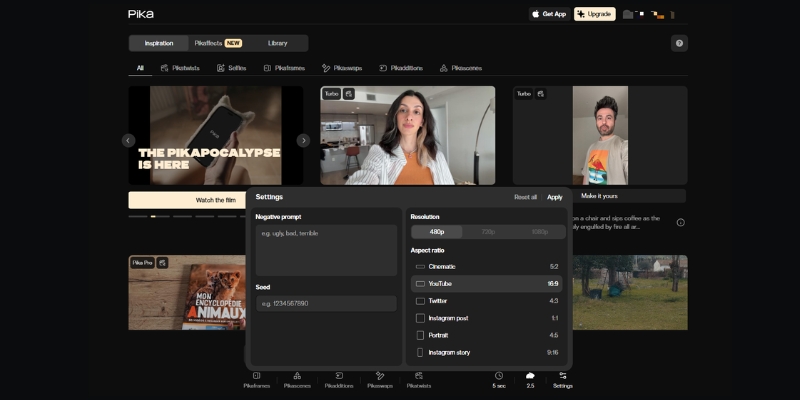
Click the settings gear icon. Set your aspect ratio (16:9 for YouTube, 9:16 for TikTok). Choose video length (5s, 10s, 15s, 20s, or 25s). Select Model 2.5 Pro for 1080p output. Adjust motion intensity slider (2-3 recommended).

Step 4: Generate & Review
Click the “Generate” button. Pika 2.5 typically takes 60-90 seconds to render depending on length. Once complete, review the output in your Library tab. Use the Extend feature to lengthen clips beyond initial duration.

Pro Tip: Leave the prompt empty when using Image-to-Video to let Pika 2.5’s AI decide natural movement, or add simple camera directions like “slow pan right” for subtle control.

Pika 2.5 web interface showing updated dashboard and generation controls.
The redesigned Pika 2.5 dashboard with enhanced controls and model selector.

Mastering Pika 2.5’s Advanced Features: Pikaframes, Pikadditions & Lip Sync

This is where Pika 2.5 truly dominates. The platform now offers professional-grade post-processing tools that were previously only available in expensive VFX software.

Pikaframes: Keyframe Animation System
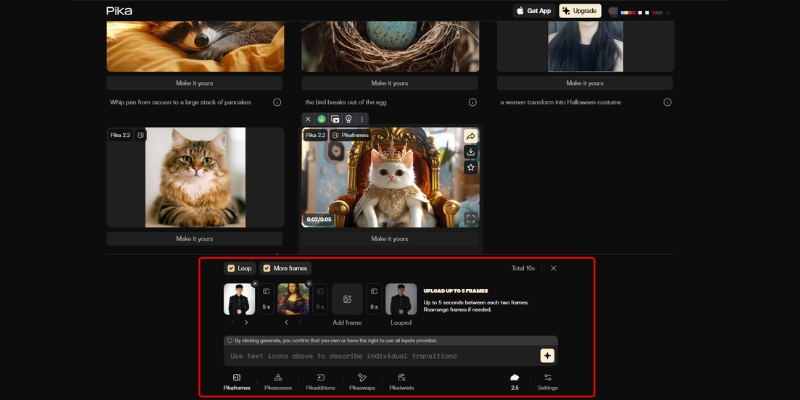
This revolutionary feature lets you define a start frame and end frame, then Pika generates the smooth transition between them. Upload two images, set duration (1-10 seconds), and let the AI create cinematic morphing animations. Perfect for product reveals and character transformations.

Pikadditions: Scene Element Insertion
Add characters, objects, or creatures to existing videos with automatic color and lighting matching. Click “Pikadditions,” upload your video, then upload the element you want to insert. Pika 2.5 seamlessly integrates it with realistic shadows and perspective.

Pikaswaps: Element Replacement
Replace specific elements in your video without regenerating the entire clip. Select the object you want to swap, describe the replacement, and Pika intelligently replaces it while maintaining scene consistency.

Lip Sync: Automated Talking Avatars
Turn any static character into a talking head. Select your generated video, click “Lip Sync,” upload your audio file (or generate speech from text using integrated ElevenLabs voices). Pika automatically matches mouth movements to audio with surprising accuracy.

PikaEffects: Creative Transformations
Apply physics-based effects like Squish, Melt, Inflate, Explode, Crush, or Cake-ify to any image. These effects are now enhanced in 2.5 with more realistic simulations and better integration with the base footage.

Pikaframes feature demonstrating keyframe animation setup in Pika 2.2.
The Pikaframes interface allows precise control over start and end states for seamless animations.

Pika 2.5 Prompt Engineering: Writing Prompts That Actually Work

Pika 2.5’s enhanced prompt understanding means your prompting strategy should evolve. The model now handles complex, multi-element prompts with high accuracy.

Use this advanced formula: [Subject Details] + [Primary Action] + [Secondary Actions] + [Camera Movement] + [Lighting] + [Environment] + [Style Reference].

Here are production-ready prompt examples optimized for Pika 2.5:

  • Cinematic Realistic: “Professional businesswoman, mid-30s, walking confidently through modern office, slow dolly forward, natural window lighting, depth of field f/2.8, corporate commercial style, 1080p.”
  • Anime Style: “Anime girl with blue hair, tears forming in eyes, slight head tilt down, gentle wind effect, sakura petals falling, studio lighting, Studio Ghibli aesthetic, vibrant colors.”
  • Product Showcase: “Luxury smartwatch rotating 360 degrees, chrome finish reflecting studio lights, clean white background, slow zoom in on display, Apple commercial style, 4k quality.”

Using Negative Prompts
In the advanced settings, add negative prompts to avoid common AI artifacts: “no morphing, no extra limbs, no blurry faces, no text overlays, no watermarks, no unnatural movements.”

Camera Control Language
Pika 2.5 treats camera as first-class. Use specific cinematography terms: “crane up,” “dutch angle,” “whip pan,” “rack focus,” “orbit shot,” “steadicam follow.” The model understands and executes these professional camera movements.

Pika 2.5 Pricing & Plans: Complete Credit Breakdown

Pika has restructured its pricing for the 2.5 release. Understanding the credit cost per video length is essential for budget planning.

Free Plan ($0/month): 80 credits monthly. Videos include watermarks. No commercial use rights. Ideal for testing and personal experimentation only.

Standard Plan ($10/month): 700 credits monthly. Access to all models including 2.5 Pro. Faster generation queue. Note: Still includes watermarks and NO commercial rights. Best for hobbyists.

Pro Plan ($35/month): 2,300 credits monthly. Watermark-free downloads. Full commercial use rights. Priority generation. This is the minimum for professional work.

Fancy Plan ($95/month): 6,000 credits monthly. Fastest generation speeds. All Pro benefits plus rollover credits option. For high-volume content creators.

Credit Costs (Model 2.5 Pro 1080p):

  • 5 seconds: 40 credits
  • 10 seconds: 80 credits
  • 15 seconds: 120 credits
  • 20 seconds: 160 credits
  • 25 seconds: 200 credits
Feature Free Standard ($10) Pro ($35) Fancy ($95)
Monthly Credits 80 700 2,300 6,000
Watermark Yes Yes No No
Commercial Use No No Yes Yes
Model Access 1.5 + Turbo All Models All Models All Models
Action Try Standard Get Pro Get Fancy

(Disclosure: If you purchase through links on this page, we may earn a small commission at no extra cost to you. This helps us maintain our “battle-tested” reviews.)

Our Recommendation: If you need commercial rights for client work, go directly to Pro ($35/month). The Standard plan’s lack of commercial licensing makes it unsuitable for freelancers or agencies.

Our Pika 2.5 Verdict

Pika 2.5 represents a significant evolution in AI video generation. The enhanced physics and prompt adherence bring it much closer to competing with tools like Veo 3 and Runway Gen-4. While cinematic realism still lags behind Luma Dream Machine in some scenarios, the unique features like Pikadditions and Pikaframes make it an essential tool for professional creators.

Try Pika 2.5 for Free

Frequently Asked Questions About Pika 2.5

Can I use Pika 2.5 videos for commercial purposes?
Yes, but only if you subscribe to the Pro plan ($35/month) or higher. The Free and Standard plans explicitly do not grant commercial use rights.

How long can Pika 2.5 videos be?
The base generation supports 5, 10, 15, 20, or 25 seconds. You can use the Extend feature to add additional segments, though temporal consistency may decrease after 30-40 seconds total.

Is Pika 2.5 better than previous versions?
Significantly. The physics simulation, prompt adherence, and motion quality are vastly improved over Pika 2.2. However, some users report that cinematic realism still needs work compared to competitors.

Does Pika 2.5 support Lip Sync?
Yes. Lip Sync remains one of Pika’s signature features. Upload any video and audio file, and Pika automatically syncs mouth movements. It works best with front-facing subjects.

What happened to Modify Region?
The feature has been evolved into Pikaswaps and Pikadditions, which offer more precise control for element replacement and insertion rather than general inpainting.

Read More From AI Generative Video

Expand your knowledge on AI video creation with our related guides and comparisons. These articles dive deeper into the competitive landscape of AI video generation.

last update : 03/12/2025

A photo of Jun Pham, AI Tools Strategist at Aibrainjet

About the Author

Jun Pham

Jun Pham is an AI tools strategist, a video creator and tech writer passionate about the future of AI in editing video. As the face of a dedicated team of creators and researchers, Jamie leads hands-on testing of the latest AI video tools. Together, they share honest reviews, workflow insights, and practical tips to help creators turn ideas into cinematic videos with minimal effort.

Latest Posts

Onepage Website Builder Review: Features, Pros, Cons, and Use Cases

Onepage Website Builder Review: Features, Pros, Cons, and Use Cases
Jun Pham

SendShort AI Review (2025): The Best AI Clipper for Agencies?

Our SendShort AI review tests its white-label features for agencies. Discover how it automates viral shorts, enhances client perception. Try now!
Jun Pham

Zebracat Review (2025): Is This Hybrid AI Ad Generator Worth It?

Our Zebracat review (2025) assesses this hybrid AI video tool for marketers. Is it worth it for generating ads & repurposing content fast? See it now!
Jun Pham

Vizard Review (2025): Is This Hybrid AI Clipper & Editor Better Than OpusClip?

Our expert vizard review reveals if this AI video clipper & editor beats OpusClip for control. Get superior editing & branding for viral shorts. Try now!
Jun Pham

Klap Review (2025): The Best 4K AI Clipper for High-Quality Shorts?

Klap Review (2025): The Best AI Clipper for High-Quality Shorts? Klap Review (2025): The Best 4K AI Clipper for High-Quality Shorts? I have spent ...
Jun Pham

Submagic Review (2025): Is It The Best AI Tool For Hormozi Captions?

This Submagic review (2025) reveals if it's the ultimate AI tool for "Hormozi-style" viral video captions & B-roll. We battle-tested its features, speed, and ROI!
Jun Pham

Luma Dream Machine vs Runway ML: Which AI Video Generator is Better? (2025 Review)

Luma Dream Machine vs Runway ML: Which AI Video Tool Is Best? (2025 Comparison)

Luma Dream Machine vs Runway ML: Which AI Video Tool Is Best? (2025 Comparison)

If you are deciding between Luma Dream Machine vs Runway ML, you are likely torn between two distinct needs: raw video quality versus creative control. I have spent hundreds of credits testing both platforms to give you a definitive answer.

Luma Dream Machine has rapidly positioned itself as a specialist in hyper-realistic generation, challenging the status quo. Meanwhile, Runway ML remains the “Adobe of AI,” offering a comprehensive editing suite that goes far beyond simple text-to-video prompts.

In this AI Video Generators comparison, we strip away the marketing hype. We analyze specific use cases, pricing models, and feature sets to help you decide which tool deserves your marketing budget.

Table of Contents

Luma Dream Machine vs. Runway ML: The Core Differences

This comparison isn’t about which tool is “better” in a vacuum; it is about which tool fits your specific workflow. We are comparing a specialized High-Quality Generator (Luma) against a broad Full Creative Studio (Runway).

The “One-Line” Verdict:
Luma Dream Machine is the go-to for hyper-realistic raw generation and simple prompts. Runway ML is the superior choice for controlled editing and a full creative suite.

Positioning Luma Dream Machine:
We define Luma as the “New Standard for Quality.” In our tests, it excels at physics and Scene Consistency. If you need a “one-shot” cinematic clip that looks real immediately, this is your tool.

Positioning Runway ML:
Runway acts as the “Adobe of AI Video.” It is not just about the video generation models; it offers an AI Video Editing Suite. Features like Green Screen and advanced editing make it an All-in-one platform for pros.

Target Audience Fit:
Stop reading and choose Luma if you want quick, perfect clips for social media. Choose Runway if you are a video editor needing granular control over motion and composition.

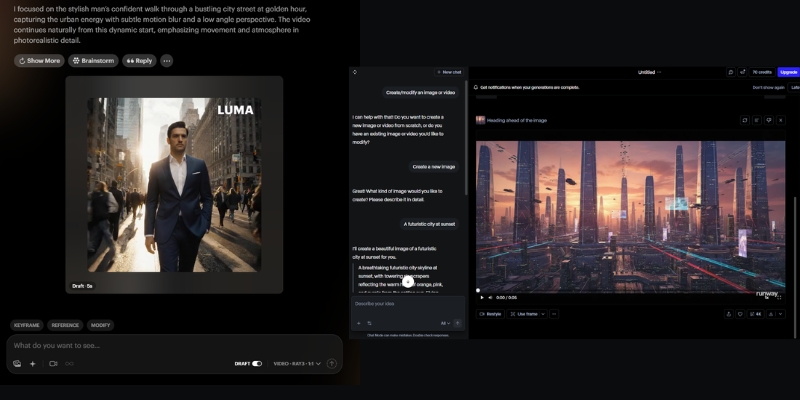
Luma Dream Machine vs Runway ML Interface Comparison
Luma focuses on raw output quality, while Runway offers a comprehensive editing suite.

Video Generation Quality: Hyper-Realism vs. Stylized Art

For marketers, text-to-video quality is the primary metric. We ran identical prompts through both systems to test their limits. The difference in how they handle reality versus style is stark.

Realism and Texture:
Luma Dream Machine dominates in hyper-realistic textures. When we generated close-ups of human skin, Luma retained pore details and lighting physics better than Runway ML, which occasionally smoothed over details.

Motion and Consistency:
This is Luma’s “killer feature.” It maintains coherent scenes where the subject doesn’t morph into something else mid-video. Runway sometimes struggles with “temporal flickering,” where objects shift shape across different generation models.

Stylization Capabilities:
Runway hits back hard here. While Luma aims for reality, Runway excels at abstract and artistic styles. If you are making a stylized music video or anime-style ad, Runway’s aesthetic flexibility is superior.

Prompt Adherence:
Luma seems to understand complex physics better. When we prompted “a coffee cup spilling in slow motion,” Luma simulated the liquid dynamics accurately. Runway required several rerolls to get the physics right.

Creative Control & Features: Advanced Editing vs. Simple Generation

The biggest difference between these platforms lies in their philosophy. Luma is built for speed and quality, while Runway is built for control and flexibility.

Runway’s Editing Arsenal:
Runway offers a complete video editing suite. You can generate a clip, remove the background, adjust timing, and apply effects without leaving the platform. This integrated workflow is powerful for professionals who need to iterate quickly.

Camera Controls:
Runway offers a “Director Mode” where you can set specific zooms and pans. Luma supports camera prompts, but they are less granular than the dedicated UI controls found in the Runway dashboard.

Editing Ecosystem:
Runway is a full editor. You can trim clips, extend footage, and slow down segments all within the same interface. Luma is strictly a “generate and download” workflow, forcing you to use external software for post-production edits.

Image-to-Video Performance:
Both tools animate images well. Runway gives you timeline controls to adjust animation speed and intensity. Luma animates the whole scene based on its internal logic, which is high quality but offers less granular control.

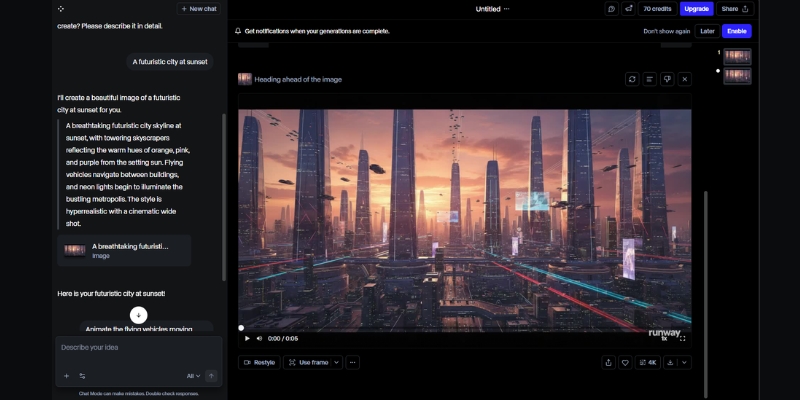
Runway ML Editing Interface
Runway’s comprehensive editing suite allows for precise control over generated footage.

Workflow Speed & Ease of Use for Marketers

Time is money for freelancers. We measured the “Time-to-Value”—how fast you can go from a blank screen to a usable video asset for your campaign.

The Learning Curve:
Luma is “Pick up and play.” The interface is minimalist—just a text box and a generate button. Runway has a steeper learning curve because it mimics professional software like After Effects.

Generation Time:
In our current tests, Luma creates 5-second clips relatively quickly, often beating Runway’s generation times during peak hours. Runway’s queue system can sometimes slow down your workflow.

Web Interface Experience:
Luma feels like a modern SaaS app—clean and focused. Runway feels like a workstation. If you just need a clip for TikTok, Luma’s simplicity prevents “feature fatigue.”

Mobile Experience:
Luma’s simple interface works surprisingly well on mobile browsers for quick generations on the go. Runway’s complex timeline is really meant for a desktop environment.

Pricing & ROI: Which Tool Saves You Money?

Both platforms utilize a credit-based system. However, the ROI depends on your “trash rate”—how many generations you have to throw away before getting a good one.

Credit Systems Explained:
You aren’t just paying for access; you pay for seconds of video. Efficiency matters. If you have to reroll a video 5 times to get it right, the “cheaper” tool becomes expensive.

Luma Dream Machine Pricing:
Luma offers a generous Free Plan with daily limits (and watermarks). Their paid tiers are straightforward, focusing purely on generation credits. It is cost-effective if you need high-quality raw footage.

Runway ML Pricing:
Runway’s subscription covers the entire suite, including storage and editing tools. If you already pay for Premiere Pro or other tools, Runway might allow you to consolidate your software stack.

ROI Analysis:
Luma: Better ROI for “One-Shot” users. Because the quality is higher per generation, you waste fewer credits rerolling bad clips.
Runway: Better ROI for “Power Users” who utilize the editing tools, saving money on external software subscriptions.

Feature Luma Dream Machine Runway ML
Core Strength Hyper-Realism & Physics Control & Editing Suite
Free Plan Yes (Daily Limit + Watermark) Yes (125 credits one-time)
Pricing Model Credit Subscription Suite Subscription
Best For Quick, High-End B-Roll Complex Creative Projects
Action Try Luma Free Try Runway Free

(Disclosure: If you purchase through links on this page, we may earn a small commission at no extra cost to you. This helps us maintain our “battle-tested” reviews.)

Final Verdict: When to Choose Luma vs. Runway

After extensive testing, the choice comes down to whether you need a Video Generator or a Video Studio. Here is our decisive advice for your next project.

Choose Luma Dream Machine If:
You need the highest possible Hyper-realism for your output.
You want coherent, cinematic shots for B-roll without complex prompting.
You prefer a simple text-prompt workflow and don’t need to edit inside the tool.

Choose Runway ML If:
You need an all-in-one editing platform with timeline controls.
You require background removal, speed adjustments, and other post-production tools.
You are a professional editor who needs to direct and refine generated content.

The Hybrid Approach:
For the ultimate workflow, we often generate the base video in Luma Dream Machine for its superior physics, and then import that footage into Runway ML to apply advanced edits and effects.

Ready to Start Creating?

Both tools offer free tiers, so you can test the quality yourself. Don’t rely on theory—generate your first clip today.

Try Luma Dream Machine Try Runway ML

FAQs About Luma Dream Machine and Runway ML

Is Luma Dream Machine free?
Yes, Luma offers a free tier that allows for a limited number of generations per day. However, these videos come with a watermark and cannot be used for commercial purposes.

Can Runway ML edit videos generated in Luma?
Absolutely. You can download your MP4 file from Luma and upload it into Runway’s editor. This is a powerful workflow to combine Luma’s quality with Runway’s editing tools.

Which tool is better for AI avatars?
Neither tool specializes in lip-syncing talking heads. For that, you should look at tools like HeyGen or Synthesia. Luma and Runway are for cinematic scene generation.

Does Runway ML have more control than Luma?
Yes. Runway offers timeline editing, background removal, and various adjustment tools. Luma focuses purely on generation quality with minimal post-processing options.

Read More From AI Video Generators

Dive deeper into our battle-tested comparisons and reviews to build the perfect AI video stack for your business.

last update : 03/12/2025

A photo of Jun Pham, AI Tools Strategist at Aibrainjet

About the Author

Jun Pham

Jun Pham is an AI tools strategist, a video creator and tech writer passionate about the future of AI in editing video. As the face of a dedicated team of creators and researchers, Jamie leads hands-on testing of the latest AI video tools. Together, they share honest reviews, workflow insights, and practical tips to help creators turn ideas into cinematic videos with minimal effort.

Latest Posts

Onepage Website Builder Review: Features, Pros, Cons, and Use Cases

Onepage Website Builder Review: Features, Pros, Cons, and Use Cases
Jun Pham

SendShort AI Review (2025): The Best AI Clipper for Agencies?

Our SendShort AI review tests its white-label features for agencies. Discover how it automates viral shorts, enhances client perception. Try now!
Jun Pham

Zebracat Review (2025): Is This Hybrid AI Ad Generator Worth It?

Our Zebracat review (2025) assesses this hybrid AI video tool for marketers. Is it worth it for generating ads & repurposing content fast? See it now!
Jun Pham

Vizard Review (2025): Is This Hybrid AI Clipper & Editor Better Than OpusClip?

Our expert vizard review reveals if this AI video clipper & editor beats OpusClip for control. Get superior editing & branding for viral shorts. Try now!
Jun Pham

Klap Review (2025): The Best 4K AI Clipper for High-Quality Shorts?

Klap Review (2025): The Best AI Clipper for High-Quality Shorts? Klap Review (2025): The Best 4K AI Clipper for High-Quality Shorts? I have spent ...
Jun Pham

Submagic Review (2025): Is It The Best AI Tool For Hormozi Captions?

This Submagic review (2025) reveals if it's the ultimate AI tool for "Hormozi-style" viral video captions & B-roll. We battle-tested its features, speed, and ROI!
Jun Pham

Steve AI vs Renderforest: Which Tool Wins for Marketers in 2025?

Steve AI vs Renderforest: Which Tool Wins for Marketers in 2025?

Steve AI vs Renderforest: Which Tool Wins for Marketers in 2025?

If you are deciding between Steve AI vs Renderforest, you are likely torn between speed and style. As a marketer who has tested dozens of video tools with November 2025 updates, I know that choosing the wrong platform can cost hours of production time. This comparison is not just about features; it is about finding the right fit for your workflow in the competitive text-to-video category with accurate pricing and feature analysis. We will analyze which tool delivers the best ROI for creating animated explainers, social media ads, and brand assets. By the end of this guide, you will know exactly whether to choose the AI-first automation of Steve AI with 300+ animated characters or the polished branding suite of Renderforest with 5M+ stock footage.

Table of Contents

Steve AI vs Renderforest: The Short Answer for Busy Marketers in 2025

I will get straight to the point. This is a battle between an AI-first tool (Steve AI) with 300+ animated characters and a Template-first platform (Renderforest) with comprehensive branding suite. Your choice depends entirely on whether you value automation speed or granular design control with November 2025 pricing considerations.

Choose Steve AI if:
You need to convert blog posts or scripts into animated cartoon videos instantly (100-400 mins/month) without manual scene selection. Perfect for quick social media content and explainers where volume matters more than pixel-perfect custom branding. Pricing: $29-$59/month with 300+ characters and 95-100% human-like voices.

Choose Renderforest if:
You need a cohesive branding suite including high-quality 3D animation, logos, and mockups with 5M+ stock footage library. Better for polished, professional corporate presentations where you need to control exact look of every scene manually. Pricing: $19-$49/month with unlimited HD1080/4K exports and reseller license.

Try Steve AI Free Try Renderforest Free

(Disclosure: If you purchase through links on this page, we may earn a small commission at no extra cost to you.)

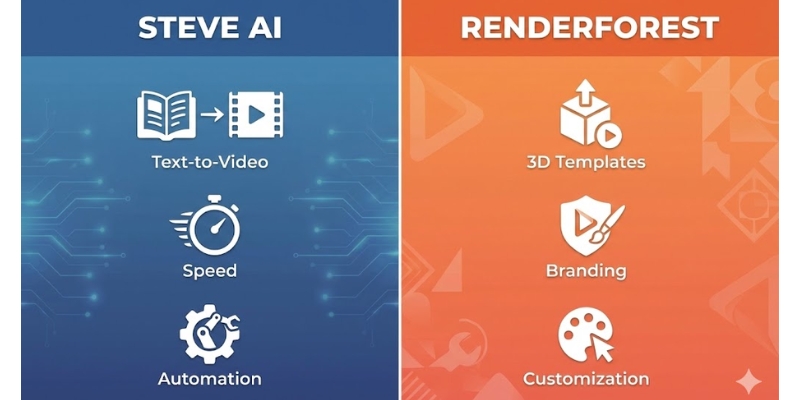
Steve AI vs Renderforest comparison infographic showing core features.
Quick snapshot of core differences between Steve AI’s automation and Renderforest’s branding suite.

Core Architecture: AI Text-to-Animation vs. Template Library Ecosystem

To understand the performance difference, we must look at underlying technology. These two tools approach video creation from completely opposite directions in the software architecture spectrum.

Steve AI Architecture:
Functions as true Text-to-Animation engine utilizing Natural Language Processing (NLP) to read your script, understand context (e.g., “dog running”), and automatically fetch relevant assets from library with 300+ animated characters to build scenes. Steve AI 2.0 introduces text animations, advanced video editing, transitions, and music visualizers for enhanced production quality.

Renderforest Architecture:
Operates as massive Template Library with 5M+ stock footage, music, and photos. It does not “generate” video from text the same way. Instead, relies on “scene-selection” workflow where you manually pick pre-designed blocks to construct narrative with AI assistant helping suggest templates based on text input.

This creates classic “Speed vs. Control” trade-off. Steve AI automates scene creation significantly reducing production time (100-400 mins/month depending on plan). Renderforest provides manual customization ensuring visual style remains consistent with high-end templates reaching unlimited HD1080 or 4K exports.

Pricing Comparison 2025: AI Credits vs. Unlimited Exports Model

Both platforms use subscription Pricing Models with November 2025 updates, but the value proposition differs enormously. We need to calculate the “value per video” to understand real ROI for your specific workflow.

Feature Steve AI (Pro) Renderforest (Pro)
Monthly Price $59/month $19/month ($39 monthly, 50% OFF first year)
Video Exports 300 mins AI videos/month, 2K resolution Unlimited HD1080, 400 AI credits/month
Key Features 300+ characters, 95% human-like voices, 2400 AI images 5M+ stock library, 100 min TTS, AI assistant, priority rendering
Resolution Up to 2K (4K Enterprise) Up to HD1080 (4K Business $49)
Best For High-volume AI animation All-in-one branding suite
Action View Steve AI View Renderforest

Steve AI Pricing (November 2025):
Starter: $29/month – 100 mins AI videos, 800 AI images, 720p, 90% human-like voices, 300+ characters. Pro: $59/month – 300 mins AI videos, 2400 AI images, 2K resolution, 95% human-like voices, unlimited exports. Enterprise: Custom – 400 mins AI videos, 3200 AI images, 4K resolution, 100% human-like voices, team collaboration, reseller rights.

Renderforest Pricing (November 2025):
Lite: $9/month ($14 monthly) – 5 HD720 videos, 200 AI credits, 50 min TTS. Pro: $19/month ($39 monthly, 50% OFF first year) – Unlimited HD1080, 400 AI credits, 100 min TTS, 5M+ stock library, commercial use. Pro AI: $38/month ($59 monthly) – 2000 AI credits. Business: $49/month ($69 monthly, 30% OFF first year) – Unlimited 4K, 2000 AI credits, 300 min TTS, reseller license, team management.

ROI Analysis:
Steve AI cost justified if you are high-volume creator producing 10+ social media videos monthly where automation saves hours of salary costs. Renderforest uses “One subscription for everything” model incredible if you also need logos, mockups, and graphics. If you only want video, might feel like paying for features you don’t use.

Head-to-Head Comparison: Performance & Output Quality Analysis

Now, let’s put them against each other in “Battle-Tested” comparison. I measured both tools against key Marketer KPIs to see which one performs better in real-world crunch time scenarios.

✅ Steve AI Strengths

  • Ease of Use: Learning curve nearly zero with Text-to-GenAI automation.
  • Rendering Speed: 1-minute video rendered in under 2 minutes in tests.
  • Volume Production: 100-400 mins/month perfect for content factories.
  • 300+ Characters: Diverse library ensures videos don’t look repetitive.

✅ Renderforest Strengths

  • Animation Fluidity: Pre-baked professional templates with flawless movement.
  • 3D Quality: Broadcast-quality 3D explainer toolkits with professional lighting.
  • Branding Suite: Logo maker, mockups, website builder all-in-one dashboard.
  • 5M+ Stock Library: Comprehensive footage/music/photos collection.

Ideal Use Cases: When to Choose Steve AI vs Renderforest Based on Workflow?

Based on data and testing with November 2025 features, here is my final recommendation on which tool fits your specific User Persona. Choosing the right one depends on your end goal and production volume needs.

For Content Creators (TikTok/Shorts):
Steve AI is your winner. You need volume and speed with 300+ characters producing 100-400 mins/month. Ability to turn trending news article into video in minutes is crucial for keeping up with algorithms.

For Freelancers & Agencies:
Renderforest is superior choice. Clients pay for “polish” with 3D animations and 5M+ stock library. Being able to deliver full brand package (Logo + Intro Video + Website + Mockups) allows charging higher ticket prices with reseller license.

For Educators/Trainers:
Recommend Steve AI. Educators often have long text lessons. Steve AI converts text-heavy documents into digestible animated lessons (100-400 mins depending on plan) much faster than building scene-by-scene in Renderforest.

Frequently Asked Questions About Steve AI vs Renderforest Comparison

Is Steve AI completely free?
No. Steve AI has free tier but places watermark on your videos and limits video quality to 720p. To download 1080p/2K videos without branding, must upgrade to paid plan ($29-$59/month).

Can Renderforest create AI-generated videos from text?
Not exactly. Renderforest has AI assistant that suggests templates based on text, but it is primarily template-based builder. It does not “generate” animation from scratch like Steve AI; it suggests pre-designed scenes for manual arrangement.

Which tool is better for YouTube automation?
Steve AI is better for YouTube automation (faceless channels) because it can mass-produce content from scripts quickly with 300+ characters producing 100-400 mins/month. Renderforest is too slow for high-volume daily upload strategy requiring manual scene selection.

Does Renderforest have a watermark?
Yes, free version of Renderforest imposes large watermark. However, subscription plans ($9-$49/month) are quite affordable for removing it with unlimited HD1080/4K exports compared to hiring professional animator.

Read More From Text-to Video Comparisons and Reviews

If you found this comparison helpful, check out our other battle-tested reviews and lists in AI video generation category to refine your toolkit.

last update : 03/12/2025

A photo of Jun Pham, AI Tools Strategist at Aibrainjet

About the Author

Jun Pham

Jun Pham is an AI tools strategist, a video creator and tech writer passionate about the future of AI in editing video. As the face of a dedicated team of creators and researchers, Jamie leads hands-on testing of the latest AI video tools. Together, they share honest reviews, workflow insights, and practical tips to help creators turn ideas into cinematic videos with minimal effort.

Latest Posts

Onepage Website Builder Review: Features, Pros, Cons, and Use Cases

Onepage Website Builder Review: Features, Pros, Cons, and Use Cases
Jun Pham

SendShort AI Review (2025): The Best AI Clipper for Agencies?

Our SendShort AI review tests its white-label features for agencies. Discover how it automates viral shorts, enhances client perception. Try now!
Jun Pham

Zebracat Review (2025): Is This Hybrid AI Ad Generator Worth It?

Our Zebracat review (2025) assesses this hybrid AI video tool for marketers. Is it worth it for generating ads & repurposing content fast? See it now!
Jun Pham

Vizard Review (2025): Is This Hybrid AI Clipper & Editor Better Than OpusClip?

Our expert vizard review reveals if this AI video clipper & editor beats OpusClip for control. Get superior editing & branding for viral shorts. Try now!
Jun Pham

Klap Review (2025): The Best 4K AI Clipper for High-Quality Shorts?

Klap Review (2025): The Best AI Clipper for High-Quality Shorts? Klap Review (2025): The Best 4K AI Clipper for High-Quality Shorts? I have spent ...
Jun Pham

Submagic Review (2025): Is It The Best AI Tool For Hormozi Captions?

This Submagic review (2025) reveals if it's the ultimate AI tool for "Hormozi-style" viral video captions & B-roll. We battle-tested its features, speed, and ROI!
Jun Pham

InVideo vs Wave.video: Which All-in-One Platform Wins in 2025?

InVideo vs Wave.video: Which All-in-One Platform Wins in 2025?

InVideo vs Wave.video: Which All-in-One Platform Wins in 2025?

The battle of invideo vs wave.video is more than just comparing features; it is about choosing the right engine to power your content strategy. Marketers today face immense performance pressure to produce more videos in less time. As an expert who has tested dozens of Text-to Video tools with November 2025 updates, I know that picking the wrong platform can drain your budget and hours. This isn’t just about editing software; it’s about finding a partner for your growth with accurate pricing and feature comparisons. In this battle-tested comparison, I will break down the price, hosting capabilities, and editing power of both platforms to help you decide exactly which one deserves your subscription.

Table of Contents

InVideo vs. Wave.video: The Quick Verdict for Busy Marketers in 2025

I understand that many of you need an answer immediately. Both platforms claim to be “all-in-one” solutions, but after years of using them with 2025 feature updates, I have found they serve two very different masters with distinct philosophies.

InVideo is what I call a “Content Factory” built entirely for speed and volume. Its primary goal is helping creators generate high-quality social media videos rapidly using massive library of 4000+ pre-made templates with 8M+ stock assets from Shutterstock and Storyblocks integration.

Wave.video acts more like a “Marketing Command Center.” While it can edit video, its true strength lies in Video Hosting (400M+ assets) and Live Streaming. It replaces tools like Vimeo and StreamYard, not just Adobe Premiere, offering complete video marketing infrastructure.

Choose InVideo if: You need to churn out social media ads, TikToks, or YouTube Shorts rapidly using Text-to-Video with 4000+ templates and premium stock footage. You want a “Canva for Video” experience with 60 exports/month at $20.

Choose Wave.video if: You need a place to host your videos without ads (replacing Vimeo at $30/month), want to live stream to multiple platforms simultaneously, or need a video marketing platform that goes beyond just editing.

Try InVideo for Free or Try Wave.video for Free

(Disclosure: If you purchase through links on this page, we may earn a small commission at no extra cost to you.)

Core Editing Features: 4000+ Templates vs. Granular Timeline Control

When comparing the Video Editor capabilities with November 2025 updates, the philosophy of each tool becomes clear. This is where the rubber meets the road for your daily workflow and content production speed.

Template Library Showdown:
InVideo dominates with over 4000+ templates covering every niche from real estate to fitness. Wave.video has decent library but lacks the sheer volume and trend-focused variety of InVideo’s constantly updated template marketplace optimized for social media conversion.

InVideo template library showing 4000+ pre-made video templates across multiple niches.
InVideo offers massive library of 4000+ templates optimized for social media conversion.

Text-to-Video & Interface:
Both tools offer this feature, but InVideo’s AI is more aggressive at automating the process, quickly matching scenes with 8M+ stock footage from Shutterstock/Storyblocks. InVideo feels incredibly intuitive like using Canva with drag-and-drop. Wave.video uses more traditional timeline approach giving control but can feel “clunky” for beginners requiring more familiarity with video editing concepts.

Stock Media Libraries: 8M+ Assets vs. 400M+ Comprehensive Collection

One of biggest hidden costs in video production is paying for stock footage. Single clip from Shutterstock can cost $60+. This is where the InVideo vs Wave.video value comparison shifts heavily based on your volume needs.

InVideo’s Stock Power:
Direct integration with 8M+ stock videos and images through partnerships with Shutterstock and Storyblocks. Even on Plus plan ($20/month), you get access to 1M+ premium clips instantly elevating your video from “amateur” to “professional agency” quality with iStock-level footage.

Wave.video’s Massive Library:
Wave offers enormous 400M+ stock library (200M+ videos, images, audio tracks) with AI-powered search helping find exactly what you need. The platform offers more unique footage that doesn’t look like typical stock content, though it may lack some premium iStock branding polish.

Beyond Editing: Hosting and Live Streaming (Wave.video’s Exclusive Advantage)

This section highlights the rare attributes of Wave.video. If InVideo makes videos, Wave.video makes, hosts, and distributes them. InVideo has zero hosting capabilities; you must export and upload elsewhere to YouTube or social platforms.

Video Hosting Infrastructure:
Wave.video allows you to host ad-free videos with customizable player embedded on landing pages or blog posts. This feature alone replaces a $20-30/month Vimeo subscription while maintaining professional branding with password protection and domain whitelisting.

Wave.video hosting dashboard with customizable video player and ad-free hosting features.
Wave.video allows you to host videos ad-free and customize the player to match your brand colors.

Live Streaming & Marketing Tools:
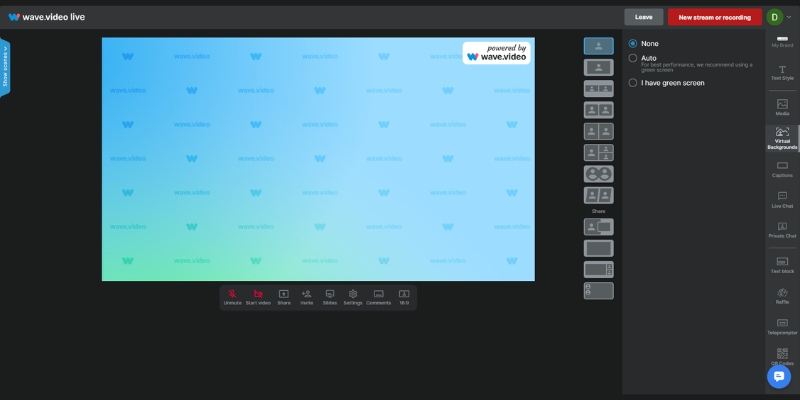
Massive differentiator: Wave.video lets you stream directly to Facebook, YouTube, and LinkedIn simultaneously (multistreaming). You can invite guests, share screen, and brand your stream similar to StreamYard. Wave goes further by generating instant video landing pages for businesses to send prospects branded video links without needing developers.

Pricing Comparison 2025: Which Tool Offers Better ROI for Your Workflow?

Price is often the deciding factor, but we need to look at the Return on Investment (ROI) with accurate November 2025 pricing. Are you paying for features you don’t use, or are you saving money on other subscriptions through consolidation?

Feature InVideo (Plus) Wave.video (Creator)
Monthly Price $20 ($25 monthly) $30 ($24 annual)
Video Exports 60/month (15-min max) Unlimited (30-min max)
Stock Library 8M+ (Shutterstock/Storyblocks) 400M+ comprehensive collection
Video Hosting No (Export only) Yes (Ad-free, 150GB bandwidth)
Live Streaming No Yes (Multistreaming)
Best For Social Media Content Creation Complete Video Marketing
Link Check InVideo Check Wave

InVideo Pricing (November 2025):
Plus: $20/month ($25 monthly, $20 annual) – 60 exports, 4000+ templates, 1M+ stock access, 15-min max, automated text-to-speech. Max: $48/month ($60 monthly) – Unlimited exports, full premium stock access, 40-min max videos.

Wave.video Pricing (November 2025):
Streamer: $20/month – 5-min edit limit, basic streaming. Creator: $30/month ($24 annual) – 30-min max, no watermark, 150GB bandwidth, background removal. Business: $60/month ($48 annual) – 2-hour max, 500GB bandwidth, team collaboration.

ROI Analysis:
InVideo value is in assets. If you were to buy stock footage separately, it would cost hundreds. Subscription pays for itself creating just two videos monthly using premium clips. Wave.video value is in bundling. By using Wave, cancel Vimeo hosting ($20/mo) and StreamYard subscription ($25/mo), consolidating marketing stack into one $30-60 bill saving $15-45 monthly.

Final Verdict: When to Choose InVideo vs Wave.video Based on Workflow?

We have analyzed the features, the assets, and the costs with 2025 updates. Now, let’s make a final decision based on who you are and your daily tasks.

✅ Choose InVideo For

  • Social Media Managers: Need speed turning blog post into video in 10 minutes with 4000+ templates.
  • Content Creators: 60 exports/month at $20 with 8M+ stock access beats separate subscriptions.
  • Freelancers: Editing ads for clients faster with premium iStock-level footage looking expensive.
  • Template Lovers: “Canva for Video” experience with drag-and-drop simplicity for beginners.

✅ Choose Wave.video For

  • Business Owners: Need to host tutorials, embed videos on site, run weekly webinars without YouTube ads.
  • Course Creators: Video hosting infrastructure with password protection and domain whitelisting.
  • Live Streamers: Multistreaming to Facebook, YouTube, LinkedIn simultaneously replaces StreamYard.
  • Agencies: Managing entire client video strategy including hosting offers more billable services.

Frequently Asked Questions About InVideo vs Wave.video Comparison

Does InVideo have video hosting?
No, InVideo is purely a video creation tool. You must download your final video and upload it to platforms like YouTube, Facebook, or your own website using separate hosting services.

Is Wave.video good for beginners?
It has steeper learning curve than InVideo’s drag-and-drop. While not overly complex, the timeline editor and hosting features require more time to master than InVideo’s intuitive Canva-like interface designed for beginners.

Can I livestream with InVideo?
No, this is a Wave.video exclusive feature. InVideo does not support live streaming functionality. Wave.video allows multistreaming to multiple platforms simultaneously from browser without OBS setup.

Which tool is better for YouTube?
Use InVideo for creating and editing the video itself due to superior 8M+ stock assets and 4000+ templates. Use Wave.video if you plan to live stream directly to YouTube or need to host private videos with ad-free player.

Read More From Text-to Video Comparisons and Reviews

If you are still exploring the world of AI video generation, check out our other battle-tested reviews and comparisons to find the perfect tool for your stack.

last update : 03/12/2025

A photo of Jun Pham, AI Tools Strategist at Aibrainjet

About the Author

Jun Pham

Jun Pham is an AI tools strategist, a video creator and tech writer passionate about the future of AI in editing video. As the face of a dedicated team of creators and researchers, Jamie leads hands-on testing of the latest AI video tools. Together, they share honest reviews, workflow insights, and practical tips to help creators turn ideas into cinematic videos with minimal effort.

Latest Posts

Onepage Website Builder Review: Features, Pros, Cons, and Use Cases

Onepage Website Builder Review: Features, Pros, Cons, and Use Cases
Jun Pham

SendShort AI Review (2025): The Best AI Clipper for Agencies?

Our SendShort AI review tests its white-label features for agencies. Discover how it automates viral shorts, enhances client perception. Try now!
Jun Pham

Zebracat Review (2025): Is This Hybrid AI Ad Generator Worth It?

Our Zebracat review (2025) assesses this hybrid AI video tool for marketers. Is it worth it for generating ads & repurposing content fast? See it now!
Jun Pham

Vizard Review (2025): Is This Hybrid AI Clipper & Editor Better Than OpusClip?

Our expert vizard review reveals if this AI video clipper & editor beats OpusClip for control. Get superior editing & branding for viral shorts. Try now!
Jun Pham

Klap Review (2025): The Best 4K AI Clipper for High-Quality Shorts?

Klap Review (2025): The Best AI Clipper for High-Quality Shorts? Klap Review (2025): The Best 4K AI Clipper for High-Quality Shorts? I have spent ...
Jun Pham

Submagic Review (2025): Is It The Best AI Tool For Hormozi Captions?

This Submagic review (2025) reveals if it's the ultimate AI tool for "Hormozi-style" viral video captions & B-roll. We battle-tested its features, speed, and ROI!
Jun Pham

Fliki vs Pictory: Which AI Video Generator Wins for YouTube? (2025 Review)

Fliki vs Pictory: Which AI Video Generator Wins for YouTube? (2025 Review)

Fliki vs Pictory: Which AI Video Generator Wins for YouTube? (2025 Review)

If you are a faceless YouTuber or marketer stuck in the decision phase, the battle of Fliki vs Pictory is likely your biggest headache. You aren’t just looking for a tool; you need a system that churns out high-retention content without burning through your budget. In the crowded text-to-video tools category, these two giants dominate but solve different problems. One is a powerhouse for realistic narration with 2000+ voices across 75+ languages, while the other is a speed-demon for visual repurposing with Storyblocks integration. After testing both platforms for over 50 hours on real channels with November 2025 updates, I’m breaking down the battle-tested comparison you need to know exactly which tool fits your ROI goals.

Table of Contents

Fliki vs Pictory: The Short Verdict (Who Wins for YouTube Automation?)

If you are in a rush to make a decision, here is the bottom line. I have used both extensively, and the choice depends entirely on whether you prioritize audio quality or video workflow speed with accurate November 2025 pricing.

Fliki is a voice-first platform with 2000+ voices (1000+ ultra-realistic) across 75+ languages and 100+ dialects. It is built for creators who need hyper-realistic AI voices with voice cloning (2-minute audio) and 65+ AI avatars. It treats video as a canvas for voice with emotional tone adjustments and pitch control.

Pictory is a video-first platform excelling at taking long content (blogs, Zoom calls) and summarizing into short clips with B-roll. It includes unlimited Storyblocks access (millions premium clips) and text-based editing that trims videos by deleting transcript words, eliminating timeline scrubbing.

Feature Fliki (Voice Powerhouse) Pictory (Speed King)
Primary Strength 2000+ Voices, Voice Cloning, 65+ Avatars Storyblocks Unlimited, Text-Based Editing
Best Use Case Storytelling, Explainers, Multilingual (75+ langs) News, Listicles, Blog Repurposing, Webinar Cuts
Stock Media Standard + 65+ AI Avatars Storyblocks Premium (Unlimited)
Voice Quality ⭐⭐⭐⭐⭐ (Native 1000+ Ultra-Realistic) ⭐⭐⭐⭐ (Integrated 34+ voices)
Verdict Try Fliki Free Try Pictory Free

(Disclosure: If you purchase through links on this page, we may earn a small commission at no extra cost to you.)

Key Difference #1: AI Voice Quality & Text-to-Speech Realism Comparison

This is the deal-breaker for most YouTubers. In the Fliki vs Pictory debate, Fliki is the clear winner for native audio performance with 2000+ voices (1000+ ultra-realistic) across 75+ languages and 100+ dialects. Fliki’s entire architecture is built around its neural voice engine with emotional tone controls.

Neural Voices & Voice Cloning:
When I use Fliki, the intonation is almost indistinguishable from human with breath pauses and context-based tone changes. It feels like an ElevenLabs alternative built directly into a video editor. Fliki allows voice cloning with just 2 minutes of audio, massive for building personal brand without recording every script manually.

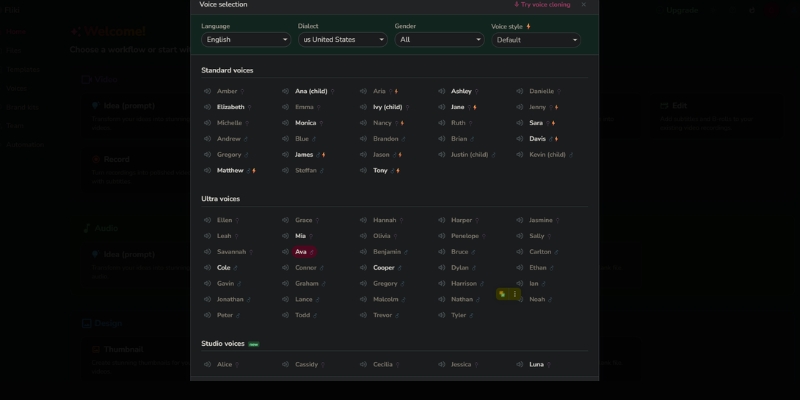
Fliki AI voice selection panel showing 2000+ hyper-realistic neural voice options across 75+ languages.
Fliki offers granular control over voice pitch, speed, and emotion unlike standard TTS tools.

Pictory has improved by integrating third-party voice partners (34 AI voices on Starter, expanded on Pro), but its standard voices can still sound slightly robotic compared to Fliki’s native library. If your content relies on “selling” a story—horror channel, history documentary, meditation guide—Fliki’s voice cloning and emotion controls are non-negotiable.

Key Difference #2: Blog-to-Video Workflow & Summarization Speed for Content Repurposing

While Fliki wins on voice, Pictory destroys competition when it comes to workflow speed, specifically for blog-to-video ai tasks with text-based editing that revolutionizes content repurposing. Pictory’s AI engine is designed to “read” your content and visualize it automatically.

The Pictory Process:
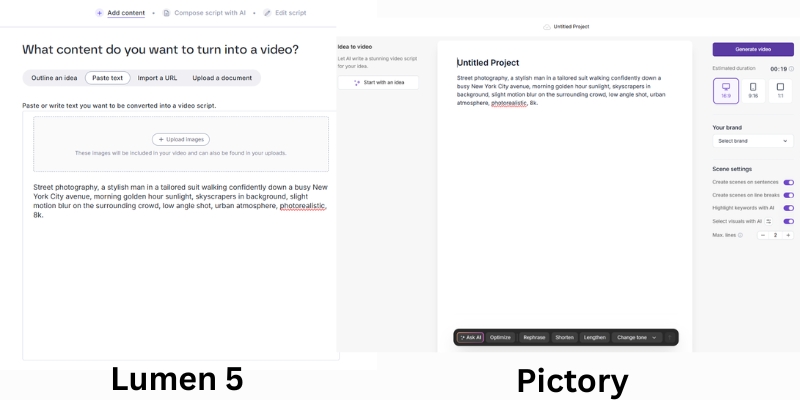
Paste a URL. Pictory scrapes text, uses NLP to identify “Golden Sentences” (key summaries), and automatically pulls B-roll from Storyblocks unlimited to match those sentences. Takes about 2 minutes. Edit Video Using Text feature uploads video (Zoom recording), generates transcript, and you delete text from transcript to cut that video portion—no timeline scrubbing needed.

Fliki can import from URL but its “summarization” often requires more manual tweaking. I spend more time swapping visuals in Fliki because its auto-match logic isn’t as context-aware as Pictory’s semantic understanding. If you have blog with 500 articles and want YouTube cash cow channel fast, Pictory’s ai summarization is superior tool for volume content production.

Pricing Comparison 2025: Credits System (Fliki) vs. Output-Based Plans (Pictory)

This is where the Fliki vs Pictory pricing comparison gets tricky with November 2025 updates. They use fundamentally different models, and picking wrong one can cost you money on subscription overhead.

Feature Fliki Standard ($28/mo) Pictory Professional ($29 annual)
Monthly Limit 180 credits (2160 annual) 60 videos/month, 1200 transcription mins
Voices 1000+ voices, 150 ultra-realistic Expanded voices (Pro tier)
Stock Assets Standard library + 65+ AI avatars Storyblocks Unlimited access
Export Quality Full HD 1080p, no watermark Full HD 1080p, no watermark
Sign Up Check Fliki Check Pictory

Fliki Pricing (November 2025):
Free: $0 (5 min credits/month, watermark). Standard: $28/month or $21/month annually (180 credits monthly = 2160/year, 1000+ voices, 150 ultra-realistic, commercial rights). Premium: $88/month or $66/month annually (600 credits monthly = 7200/year, 2000+ voices, 1000+ ultra-realistic, 30-min max videos). Enterprise: Custom (API access, personalized avatars, dedicated account manager).

Pictory Pricing (November 2025):
Starter: $25 ($19 annual) – 30 videos/month, 10-min max, 34 AI voices, Storyblocks unlimited. Professional: $49 ($29 annual) – 60 videos/month, 20-min max, expanded voices, 1200 transcription minutes, brand kits, text-based editing. Teams: $119 ($99 annual) – 90 videos/month, collaboration, 3600 transcription minutes.

Hidden Cost Warning:
With Fliki, if you are picky and regenerate scenes constantly, you might burn credits faster (credit-based consumption). Pictory is more forgiving for iterative editing with output-based limits (videos/month) rather than minute-by-minute credit consumption.

Which Tool is Best for Faceless YouTube Automation Workflows?

So, which tool powers the best youtube automation tools strategy? I categorize this by channel type based on extensive testing with real monetized channels.

✅ Choose Fliki For

  • How-To & Educational: Voice is everything; robotic kills authority. Voice cloning builds brand.
  • Storytelling Channels: Horror, history, meditation need emotion; Fliki’s 1000+ ultra-realistic voices deliver.
  • Multilingual Content: 75+ languages, 100+ dialects for global audience reach.
  • AI Avatars: 65+ avatars for talking-head style without filming talent.

✅ Choose Pictory For

  • Top 10 & News: Speed and volume; trending article to video in 30 minutes.
  • Blog Repurposing: 500 articles to YouTube cash cow channel; text-based editing saves hours.
  • Webinar Cuts: Long Zoom recordings into shorts by deleting transcript words.
  • Premium B-Roll: Storyblocks unlimited access saves $30/month separate subscription.

Frequently Asked Questions About Fliki vs Pictory for YouTube

Can I monetize videos made with Fliki and Pictory?
Yes. Both platforms provide commercial rights to videos and stock media created on paid plans. However, ensure your content adds value to avoid YouTube’s “Reused Content” policy affecting monetization eligibility.

Which tool is easier for beginners?
Fliki has slightly lower learning curve feeling like PowerPoint slides. Pictory is also easy but has more advanced timeline features closer to traditional editor, better for those with prior editing experience.

Do they support other languages?
Fliki is king of multilingual video supporting 75+ languages with 100+ local dialects. Pictory supports roughly 13-29 languages but offers fewer dialect variations, making Fliki superior for global content strategies.

Is there better alternative than these two?
For pure avatar-based videos, try HeyGen or Synthesia. For traditional editing with AI, try Descript or InVideo. For voice focus, Fliki wins; for speed focus, Pictory wins.

Read More From Text-to Video Comparisons and Tools

Explore more in-depth reviews and comparisons to perfect your AI video creation stack with detailed feature analysis.

last update : 03/12/2025

A photo of Jun Pham, AI Tools Strategist at Aibrainjet

About the Author

Jun Pham

Jun Pham is an AI tools strategist, a video creator and tech writer passionate about the future of AI in editing video. As the face of a dedicated team of creators and researchers, Jamie leads hands-on testing of the latest AI video tools. Together, they share honest reviews, workflow insights, and practical tips to help creators turn ideas into cinematic videos with minimal effort.

Latest Posts

Onepage Website Builder Review: Features, Pros, Cons, and Use Cases

Onepage Website Builder Review: Features, Pros, Cons, and Use Cases
Jun Pham

SendShort AI Review (2025): The Best AI Clipper for Agencies?

Our SendShort AI review tests its white-label features for agencies. Discover how it automates viral shorts, enhances client perception. Try now!
Jun Pham

Zebracat Review (2025): Is This Hybrid AI Ad Generator Worth It?

Our Zebracat review (2025) assesses this hybrid AI video tool for marketers. Is it worth it for generating ads & repurposing content fast? See it now!
Jun Pham

Vizard Review (2025): Is This Hybrid AI Clipper & Editor Better Than OpusClip?

Our expert vizard review reveals if this AI video clipper & editor beats OpusClip for control. Get superior editing & branding for viral shorts. Try now!
Jun Pham

Klap Review (2025): The Best 4K AI Clipper for High-Quality Shorts?

Klap Review (2025): The Best AI Clipper for High-Quality Shorts? Klap Review (2025): The Best 4K AI Clipper for High-Quality Shorts? I have spent ...
Jun Pham

Submagic Review (2025): Is It The Best AI Tool For Hormozi Captions?

This Submagic review (2025) reveals if it's the ultimate AI tool for "Hormozi-style" viral video captions & B-roll. We battle-tested its features, speed, and ROI!
Jun Pham

Lumen5 vs Pictory: Which Blog-to-Video AI Tool Wins in 2025?

Lumen5 vs Pictory: Which Blog-to-Video AI Tool Wins in 2025?

Lumen5 vs Pictory: Which Blog-to-Video AI Tool Wins in 2025?

Choosing between lumen5 vs pictory is often the first real hurdle for any marketer trying to automate video production. These two tools are the “Original Gangsters” (OGs) of the Text-to-Video category, but they have evolved in completely different directions with distinct philosophies. I have used both platforms extensively for client projects. While Lumen5 focuses on corporate polish with Chat to Video AI co-pilot for enterprise teams, Pictory has become the aggressive “Swiss Army Knife” for creators and volume-focused marketers with text-based editing capabilities. In this battle-tested comparison, I will break down the AI summarization quality, pricing with November 2025 updates, and realistic workflow speed so you can decide which tool deserves your budget.

Table of Contents

The Quick Verdict: Lumen5 or Pictory? (Decision Framework for 2025)

If you are in a rush and need an immediate decision, here is the bottom line based on my testing of lumen5 vs pictory for blog repurposing with the latest 2025 feature updates.

Lumen5 is the “Premium Brand Guardian”:
Best for Marketing Directors and Enterprise teams prioritizing strict brand consistency (fonts, colors, logos, Chat to Video AI co-pilot) for “safe,” polished videos on LinkedIn or corporate presentations. It feels like a high-end PowerPoint-to-Video tool with 500M+ stock assets and 150 minutes AI voiceover (Pro plan).

Pictory is the “Versatile Content Engine”:
Best for Creators, YouTubers, and Agencies needing speed, volume, and features like Edit Video Using Text (transcript-based editing) or long-form summarization. It offers better ROI with premium Storyblocks unlimited access at lower entry price ($19/month vs $30/month).

My Expert Pick: For 90% of users reading this, Pictory is the better choice in 2025 due to rapid feature development, generous Storyblocks library, and text-based editing that saves hours of timeline scrubbing.

Try Pictory AI Free Try Lumen5 Free

(Disclosure: If you purchase through links on this page, we may earn a small commission at no extra cost to you.)

Blog-to-Video Workflow: Which AI Summarization Engine is Smarter?

The core promise of these tools is AI Summarization: turning a URL into a video script. I tested the same 2,000-word blog post on both platforms to see which NLP (Natural Language Processing) engine understood context better with their 2025 AI improvements.

Lumen5 vs Pictory script editor comparison showing AI summarization highlights.
Lumen5 uses slide-based approach with Chat to Video, while Pictory uses sentence-highlighting storyboard.

Lumen5’s Approach (Slide-based with Chat to Video):
Lumen5 treats your blog like a presentation enhanced by 2025 Chat to Video feature that interprets creative intent. It pulls sentences fitting slides, though often grabs first paragraph sentences regardless of context. You will spend time drag-and-dropping text for logical flow. Great for punchy marketing ads, struggles with long narratives despite AI Recommendations proactive review system.

Pictory’s Approach (Narrative-based with Text Editing):
Pictory’s AI understands “hooks” better, highlighting key sentences on the left side for click-to-add/remove on storyboard. Handles long-form content (3,000-word guides) much faster with text-based editing that lets you trim videos by deleting transcript words, eliminating timeline scrubbing.

AI Brain Test Results:
Pictory required fewer manual edits for coherent stories. Lumen5 created videos feeling disjointed, requiring slide text rewrites for brevity. For pure article-to-video efficiency, Pictory wins on speed despite Lumen5’s Chat to Video improvements.

Pricing & Value Comparison: Is Lumen5’s Enterprise Cost Justified in 2025?

The lumen5 vs pictory pricing comparison with November 2025 updates reveals target audiences. One built for corporate budgets with 50% annual discounts; the other for efficiency with generous feature inclusions.

Feature Lumen5 (Starter) Pictory (Starter)
Monthly Price $30 ($15 annual) $25 ($19 annual)
Video Exports User-based, unlimited 30/month (60 Pro)
Stock Library 15M (500M+ Pro/Enterprise) Storyblocks Unlimited
AI Voices Standard (150 min Pro) 34 voices (expanded Pro)
Video Duration 10 min max 10 min (20 min Pro)
Key Feature Chat to Video, 4000+ templates Text-based editing, webinar cuts
Best For Enterprise/Teams Creators/Solopreneurs
Action View Lumen5 View Pictory

Lumen5 Pricing (November 2025):
Community (Free): 5 videos, 2 min max, watermarked. Starter $30 ($15 annual): 10-min videos, no watermark, 1080p, 15M stock. Pro $100 ($50 annual): 150 min AI voice, 500M+ stock, 3 brand kits, Chat to Video, AI Recommendations. Team (Custom): Multiple users, collaboration, branded templates.

Pictory Pricing (November 2025):
Starter $25 ($19 annual): 30 videos/month, 10-min max, 34 AI voices, Storyblocks unlimited, 600 transcription minutes. Professional $49 ($29 annual): 60 videos/month, 20-min max, expanded voices, 1200 transcription minutes, brand kits, text-based editing. Teams $119 ($99 annual): 90 videos/month, collaboration, 3600 transcription minutes.

ROI Verdict:
Pictory wins value for money with Storyblocks inclusion saving $30/month separate subscription and text-based editing saving hours. Lumen5 wins enterprise security, SSO (Single Sign-On), Chat to Video creative co-pilot for large organizations prioritizing brand control over cost.

Visual Quality & Templates: “Corporate Polish” vs. “Creator Speed” Philosophy

Visual quality is subjective, but “utility” is not. When comparing Lumen5 vs Pictory aesthetics, you are comparing “Brand Kit” focus with 4000+ templates against “Stock Library” focus with unlimited Storyblocks access.

Lumen5’s Aesthetic (The Corporate Safe Zone):
Excels at professionalism with rigid, clean, modern templates designed so you cannot make ugly videos. 4000+ templates for LinkedIn, Instagram Reels, YouTube Shorts. Real-Time Waveform audio visualization adds rhythm. If you are B2B marketer needing correct font size and corner logo, Lumen5 is your safety net.

Pictory’s Aesthetic (The Creator’s Toolbox):
Templates feel looser, more “YouTuber” style requiring design eye for premium look. Massive advantage: Storyblocks integration unlimited even on Starter tier. Access millions premium clips saving $30/month separate subscription. Text-based editing trims by deleting transcript words, no timeline scrubbing needed.

Media Library Value Comparison:
To get same quality stock footage in Lumen5, upgrade to Pro ($100/month) or Enterprise. Pictory includes high-quality Storyblocks assets on Starter ($19 annual), making it best blog-to-video AI 2025 for budget-conscious creators producing high-volume content.

Final Recommendation: Who Should Use Lumen5 vs Pictory Based on Workflow?

After testing both tools extensively for ai content repurposing with 2025 feature updates, here is my final breakdown based on specific needs and use cases.

✅ Choose Lumen5 If

  • B2B Marketing: Corporate teams need strict brand guidelines (colors, fonts).
  • Chat to Video: AI co-pilot interprets creative intent for faster ideation.
  • Enterprise Features: SSO, Teams collaboration, branded templates at scale.
  • Social Templates: 4000+ pre-designed layouts for LinkedIn, Instagram, TikTok.

✅ Choose Pictory If

  • Volume Creators: YouTubers, Agencies need 30-90 videos/month output.
  • Text-Based Editing: Trim videos by deleting transcript words, no timeline.
  • Webinar Repurposing: Long-form summarization cuts webinars into shorts.
  • Budget ROI: Storyblocks unlimited at $19 annual saves $30/month.

Frequently Asked Questions About Lumen5 vs Pictory Comparison

Which tool is better for YouTube Automation in 2025?
Pictory is significantly better with 16:9 native support, better Storyblocks footage matching, realistic voiceovers crucial for retention, and text-based editing for rapid content production without timeline scrubbing.

Do they have free plans?
Lumen5 has permanent Free plan with massive watermark, low resolution, 5 videos/month. Pictory offers 7-day free trial (3 videos) with full features to test quality before buying, no watermark during trial.

Can I upload my own voiceover?
Yes, both allow audio file uploads. Pictory excels by automatically syncing uploaded voice to video scenes using AI, eliminating manual timing adjustments required in Lumen5.

Which is faster for bulk processing?
Pictory is faster with AI selection requiring less manual tweaking and text-based editing that cuts by deleting transcript words. Lumen5 often requires manual text placement adjustments on slides despite Chat to Video improvements.

Read More From Text-to Video Comparisons

Explore more comparisons and reviews to find the perfect AI video tools for your workflow with detailed pricing and feature analysis.

last update : 03/12/2025

A photo of Jun Pham, AI Tools Strategist at Aibrainjet

About the Author

Jun Pham

Jun Pham is an AI tools strategist, a video creator and tech writer passionate about the future of AI in editing video. As the face of a dedicated team of creators and researchers, Jamie leads hands-on testing of the latest AI video tools. Together, they share honest reviews, workflow insights, and practical tips to help creators turn ideas into cinematic videos with minimal effort.

Latest Posts

Onepage Website Builder Review: Features, Pros, Cons, and Use Cases

Onepage Website Builder Review: Features, Pros, Cons, and Use Cases
Jun Pham

SendShort AI Review (2025): The Best AI Clipper for Agencies?

Our SendShort AI review tests its white-label features for agencies. Discover how it automates viral shorts, enhances client perception. Try now!
Jun Pham

Zebracat Review (2025): Is This Hybrid AI Ad Generator Worth It?

Our Zebracat review (2025) assesses this hybrid AI video tool for marketers. Is it worth it for generating ads & repurposing content fast? See it now!
Jun Pham

Vizard Review (2025): Is This Hybrid AI Clipper & Editor Better Than OpusClip?

Our expert vizard review reveals if this AI video clipper & editor beats OpusClip for control. Get superior editing & branding for viral shorts. Try now!
Jun Pham

Klap Review (2025): The Best 4K AI Clipper for High-Quality Shorts?

Klap Review (2025): The Best AI Clipper for High-Quality Shorts? Klap Review (2025): The Best 4K AI Clipper for High-Quality Shorts? I have spent ...
Jun Pham

Submagic Review (2025): Is It The Best AI Tool For Hormozi Captions?

This Submagic review (2025) reveals if it's the ultimate AI tool for "Hormozi-style" viral video captions & B-roll. We battle-tested its features, speed, and ROI!
Jun Pham

Pictory vs InVideo Review (2025): Which AI Video Generator Wins?

Pictory vs InVideo Review (2025): Which AI Video Generator Wins?

Pictory vs InVideo Review (2025): Which AI Video Generator Wins?

The battle of Pictory vs InVideo is the defining choice for modern content creators. These tools are not just video editors; they are the engines behind scalable content marketing.

As a seasoned marketer, I understand the pressure to produce high-volume video content without sacrificing quality. In the crowded Text-to-Video category, choosing the wrong tool can cost you hours of frustration.

This battle-tested review compares ROI, speed, and quality. I will reveal which tool delivers the fastest workflow for bloggers and which offers the best aesthetics for brand marketers.

Table of Contents

Pictory vs InVideo: The Quick Verdict for Creators

After testing both tools for 50+ hours on real campaigns, the winner depends entirely on your specific “pain point.” Are you chasing volume or visual perfection?

Pictory is the undisputed winner for YouTube Automation and Blog-to-Video repurposing. Its AI logic prioritizes speed, automatically matching stock footage to your script with uncanny accuracy.

InVideo takes the crown for polished Social Media Ads and promo videos. If you need granular control over Templates, text animations, and visual hierarchy, InVideo is the superior design tool.

At a Glance: The Primary Strength
Pictory: Best for “Efficiency.” Turns long text into video in minutes. Ideal for bulk creation.
InVideo: Best for “Creativity.” Offers 5000+ templates for a custom, branded look.

(Disclosure: If you purchase through links on this page, we may earn a small commission at no extra cost to you. This helps us maintain our “battle-tested” reviews.)

Try Pictory for Speed Try InVideo for Design

Core Differences: AI Summarization vs. Creative Control

To understand the Pictory vs InVideo debate, you must look at their core philosophy. They solve the same problem—video creation—but approach it from opposite ends of the spectrum.

Pictory operates as an “Editor-free” platform powered by NLP (Natural Language Processing). It reads your text, understands the context, and fetches matching footage. It is function-over-form, designed to minimize human clicks.

InVideo functions as a “Canvas-based” creator. It prioritizes visual layout, layers, and 5000+ Templates. It assumes you want to design the video, not just generate it. It is form-over-function.

Pictory automates the editing process completely. InVideo enhances your visual storytelling capabilities. If you want a hands-off experience, Pictory wins. If you want a hands-on design experience, InVideo wins.

Pictory script editor vs InVideo timeline editor interface comparison.
Pictory focuses on text-based editing, while InVideo offers a traditional timeline for granular control.

Feature Deep Dive: Stock Media, Voices, and AI Capabilities

Let’s strip away the marketing jargon and compare the raw specs. Here is how the critical features stack up for Text-to-Video production.

Stock Media Library:
Pictory integrates with Storyblocks. This provides millions of high-quality, royalty-free clips perfect for general B-roll. It is included in the standard subscription.

InVideo integrates with iStock (Getty Images). This is premium, cinema-grade footage. However, heavy usage often requires higher-tier plans or credits, making it costlier for bulk creators.

AI Text-to-Video Engine:
Pictory excels at AI Summarization. It can ingest a 2000-word blog URL and extract the key “Gold Nuggets” to create a short video. InVideo relies more on you providing a finished script.

AI Voices:
Both tools offer standard Text-to-Speech voices. However, InVideo has recently integrated ultra-realistic voice options in its higher tiers. Pictory’s voices are solid but functional.

Templates:
InVideo dominates here with over 5,000 templates covering every niche from real estate to fitness. Pictory’s templates are simpler, focusing mainly on caption styles and font placement.

User Experience: Workflow Speed & Editor Flexibility

For a beginner, the “Ease of Use” factor is often the dealbreaker. I tested how quickly I could go from “Zero to Published” on both platforms.

Pictory Workflow:
The “Script-to-Video” wizard is linear and incredibly fast. You paste text, and it builds the scene. The Edit Video Using Text feature lets you cut video clips by simply deleting words from the transcript.

InVideo Workflow:
The interface resembles Canva for video. You have a timeline, layers, and drag-and-drop assets. It has a steeper learning curve but offers significantly more control over animations and transitions.

Performance Pressure:
If your boss demands 5 videos a day, Pictory is your savior. Its bulk creation workflow is unmatched. If your client demands a specific brand font and hex code, InVideo is essential.

Best Use Cases: Who Should Choose What?

Don’t choose the “best” tool; choose the right tool for your specific role. Here is my breakdown based on user intent and daily tasks.

For Bloggers & SEOs:
Pictory is the choice. Its ability to turn URLs into videos helps increase dwell time on your articles. The AI summarization is a massive time-saver for repurposing existing content.

For Faceless YouTube Channels:
Pictory wins again. When volume is the key to growth, Pictory’s automated B-roll selection allows you to churn out 2-3 videos daily without burnout.

For Social Media Marketers (Instagram/TikTok):
InVideo is superior. Its vertical templates are trendy, high-energy, and designed to stop the scroll. Pictory’s designs can feel a bit too static for TikTok.

For Agencies:
InVideo is safer. You can adhere strictly to client branding guidelines, upload custom fonts, and fine-tune every transition to look professional.

Pricing Comparison: Which Tool Offers Better ROI?

Price is meaningless without context. We need to analyze the Return on Investment (ROI) based on your output volume.

Feature Pictory (Standard) InVideo (Business)
Starting Price ~$19/month (Annual) ~$15/month (Annual)
Watermark None (Paid Plans) None (Paid Plans)
Stock Media Storyblocks (Unlimited) iStock (Limited Credits)
Video Duration 10 mins (Standard) 40 mins (Business)
Best ROI For High Volume Creators High Quality Ads
Action Check Pictory Check InVideo

Pictory Pricing:
The “Standard” plan is great for starters, but heavy users will need “Premium” for longer video durations and more transcription hours. It is priced per user.

InVideo Pricing:
The “Free Plan” is generous but watermarked. The “Business” plan is affordable, but be careful with iStock usage—premium clips can cost extra if you exceed your quota.

Verdict on ROI:
If your goal is mass production for YouTube ad revenue, Pictory offers better ROI. If you are creating high-converting ads where one sale covers the cost, InVideo is the winner.

Top Alternatives If Neither Fits Your Needs

If you have read this far and neither tool clicks, you might have a different intent. Here are strong competitors for specific niche needs.

Fliki:
Choose Fliki if you prioritize AI Voice quality above all else. Its voice engine is often superior to the standard tiers of both Pictory and InVideo.

Canva:
If you already pay for Canva Pro, check their video features. It is not true AI creation, but it is “free” if you already have the subscription.

OpusClip:
This is the king of Long-to-Short repurposing. If your only goal is to slice podcasts into Shorts, OpusClip is more specialized than Pictory.

Frequently Asked Questions About Pictory vs InVideo

Here are the answers to the most common questions I get from creators deciding between these two giants.

Does Pictory have a free plan?
No, Pictory offers a Free Trial that lets you create 3 videos. After that, you must upgrade. InVideo offers a permanently free plan with watermarks.

Which is better for YouTube Shorts?
InVideo has better templates for vertical Shorts. However, Pictory is faster at cutting long videos into short snippets using auto-captions.

Can I use my own voice?
Yes, both platforms allow you to record a voiceover directly in the app or upload a pre-recorded audio file to sync with the video.

Is the footage copyright-free?
Yes. Pictory’s Storyblocks library and InVideo’s standard/iStock libraries come with commercial rights, provided you have an active subscription.

Read More From Text-to Video

Explore more in-depth comparisons and reviews to build your perfect AI video stack. These articles dive deeper into pricing and alternatives.

last update : 03/12/2025

A photo of Jun Pham, AI Tools Strategist at Aibrainjet

About the Author

Jun Pham

Jun Pham is an AI tools strategist, a video creator and tech writer passionate about the future of AI in editing video. As the face of a dedicated team of creators and researchers, Jamie leads hands-on testing of the latest AI video tools. Together, they share honest reviews, workflow insights, and practical tips to help creators turn ideas into cinematic videos with minimal effort.

Latest Posts

Onepage Website Builder Review: Features, Pros, Cons, and Use Cases

Onepage Website Builder Review: Features, Pros, Cons, and Use Cases
Jun Pham

SendShort AI Review (2025): The Best AI Clipper for Agencies?

Our SendShort AI review tests its white-label features for agencies. Discover how it automates viral shorts, enhances client perception. Try now!
Jun Pham

Zebracat Review (2025): Is This Hybrid AI Ad Generator Worth It?

Our Zebracat review (2025) assesses this hybrid AI video tool for marketers. Is it worth it for generating ads & repurposing content fast? See it now!
Jun Pham

Vizard Review (2025): Is This Hybrid AI Clipper & Editor Better Than OpusClip?

Our expert vizard review reveals if this AI video clipper & editor beats OpusClip for control. Get superior editing & branding for viral shorts. Try now!
Jun Pham

Klap Review (2025): The Best 4K AI Clipper for High-Quality Shorts?

Klap Review (2025): The Best AI Clipper for High-Quality Shorts? Klap Review (2025): The Best 4K AI Clipper for High-Quality Shorts? I have spent ...
Jun Pham

Submagic Review (2025): Is It The Best AI Tool For Hormozi Captions?

This Submagic review (2025) reveals if it's the ultimate AI tool for "Hormozi-style" viral video captions & B-roll. We battle-tested its features, speed, and ROI!
Jun Pham

Kling AI vs Vidu: Which Chinese “Sora Killer” is Best? (2025 Review)

Kling AI vs Vidu Review: Which Chinese “Sora Killer” Is Best? (2025)

Kling AI vs Vidu: Which Chinese “Sora Killer” Is Best for Creators?

If you are looking for the best kling ai vs vidu comparison to replace OpenAI’s Sora, you have come to the right place. While the world waits for Sora’s full public release, these two Chinese powerhouses are already redefining the AI Generative Video landscape.

I have battle-tested both tools extensively. In this guide, we dive deep into the kling ai vs vidu ai comparison to help you decide which one fits your creative workflow. Whether you need hyper-realistic physics or cinematic anime styles, I will break down the differences that matter.

By the end of this article, you will know exactly which sora competitor delivers the best ROI for your projects. We compare video quality, motion consistency, and pricing models directly.

Table of Contents

Kling AI vs Vidu: The Battle of the Chinese “Sora Killers”

The race for the top chinese ai video generator comparison is fierce. Kling AI, developed by the tech giant Kuaishou, has quickly gained fame for its ability to simulate real-world physics. It feels like a serious tool for VFX artists.

On the other hand, Vidu, created by ShengShu Technology, positions itself as an agile storyteller. It excels in single-shot cinematic aesthetics and anime styles. While Kling aims for reality, Vidu aims for “style” and emotional resonance.

Too Long; Didn’t Read (TL;DR): If you need realistic movement and complex object interactions (like pouring water), choose Kling AI. If you want stylish, anime-quality clips or dramatic camera angles, Vidu is your winner.

Feature Kling AI Vidu AI
Developer Kuaishou ShengShu Technology
Core Strength Physics & Realism Cinematic & Anime
Max Duration Up to 2-3 minutes (Pro) Up to 16 seconds
Best For VFX, Realistic Stock Storytelling, Ads

Video Quality and Realism: Which Tool Generates Better Footage?

When it comes to text-to-video quality, both tools output stunning 1080p clips. However, the texture quality differs. I noticed Kling generates incredibly sharp skin textures and fabric details that look authentic even in close-ups.

Motion Consistency is where Kling truly shines. In my tests, characters maintained their identity perfectly over long clips. It doesn’t suffer from the “morphing” effect as much as other tools like Luma Dream Machine.

Kling’s Strength: It handles complex sequences effortlessly. The famous “eating noodles” demo wasn’t a fluke. I generated a clip of a cat jumping over a fence, and the landing weight felt physically correct.

Vidu’s Strength: Vidu focuses on the “look.” The lighting often looks professionally graded straight out of the generation. It creates dramatic shadows and “movie-ready” compositions that require less color correction in post-production.

Kling AI vs Vidu video quality comparison showing realistic skin texture versus cinematic anime lighting.
Kling excels in photorealism, while Vidu dominates in stylized and cinematic lighting.

Feature Face-Off: Physics Simulation vs. Cinematic Storytelling

Kling’s Physics Simulation: This is the killer feature. Kling understands how liquids flow and how gravity works. I prompted a “glass shattering on the floor,” and the debris scattered logically. This Physics Simulation capability makes it a top Generative AI Tool.

Vidu’s Camera Control: Vidu listens to camera terminology very well. Prompts like “drone shot,” “pan right,” or “dolly zoom” are executed with high precision. It feels like you are directing a virtual camera operator.

The “Anime” Factor: Vidu is hands-down the best for anime content. Its model seems fine-tuned on stylized data, producing vibrant 2D and 2.5D animations that Kling often struggles to replicate with the same soul.

Reference Handling: Vidu’s new multi-reference feature allows you to upload up to 7 images to define a character. This creates consistent actors across different scenes, a massive win for storytellers.

Prompt Adherence and Control: How Well Do They Listen?

I tested the “brain” of both models. Kling AI is a strict follower. If you ask for a “red car in the rain,” you get exactly that. However, it sometimes ignores subtle emotional cues in the text.

Text-to-Video Capabilities: Vidu tends to be more creative. It might add a neon sign to that “rainy street” to enhance the vibe. This can be great for inspiration but frustrating if you need specific control.

Image-to-Video Control: Both tools offer “First Frame” control. I found Vidu to be slightly better at animating static images without warping the original face. Kling sometimes tries too hard to move the subject, causing distortion.

Creator Perspective: For professional client work, I lean towards Kling because the output is predictable. For my personal art channels, I prefer Vidu’s happy accidents and stylistic flair.

User interface comparison of Kling AI vs Vidu showing prompt controls and camera settings.
Vidu offers intuitive camera controls, while Kling provides granular prompt settings.

Accessibility and Pricing: Can You Actually Use Them?

The biggest hurdle for chinese ai video tools used to be access. That has changed. Both are now available globally via web interfaces, removing the need for Chinese phone numbers.

Kling AI Access: You can sign up easily at klingai.com. They use a daily free credit system (approx. 66 credits), which is generous for testing. Subscription plans start around $10/month for watermark removal.

Vidu Access: Vidu is accessible at vidu.com. It also offers a free tier, but the watermark is quite prominent. Their starter plan is around $10/month, making it a budget-friendly option.

Cost Efficiency: If you are a heavy user, Kling’s “Pro” tiers offer better cost-per-second value. You get longer generation times (up to 2-3 minutes), which means you burn fewer credits trying to stitch short clips together.

Final Verdict: Who Wins the AI Video Race?

My Recommendation: The winner depends entirely on your project goals. Don’t look for a single “best” tool, but rather the right tool for the job.

Choose Kling AI If: You need hyper-realism, complex physics (water, fire, crashes), or long-duration clips. It is the closest thing we have to a virtual reality engine. It is ideal for VFX artists and realistic stock footage.

Choose Vidu If: You are an anime creator or need cinematic storytelling with precise camera moves. Its character consistency features are superior for narrative work. It is perfect for music videos and social media ads.

The Sora Comparison: While Sora remains the benchmark, it is often gated or expensive. Kling and Vidu are usable today. They are the practical choices for creators who need to ship content now.

Try Kling AI for Free Try Vidu AI for Free

(Disclosure: If you purchase through links on this page, we may earn a small commission at no extra cost to you. This helps us maintain our “battle-tested” reviews.)

Frequently Asked Questions About Kling AI and Vidu

Is Kling AI available outside of China?
Yes, Kling AI has released a global web version accessible via email registration. You no longer need a Chinese phone number to access its powerful features.

Is Vidu AI free to use?
Vidu offers a free tier that grants daily credits. However, free videos come with a watermark and have limited duration compared to the premium plans.

Which is better, Kling or Sora?
Sora is theoretically more powerful, but Kling is publicly available now. Kling offers comparable realism for most use cases, making it the better choice for immediate production needs.

Can I use Kling AI for commercial projects?
Yes, if you subscribe to their paid plans (Standard or Pro), you generally get commercial rights to the videos you generate. Always check the latest Terms of Service.

Does Vidu support image-to-video?
Absolutely. Vidu excels at image-to-video, especially for anime characters. It can animate a static drawing while maintaining the original art style perfectly.

Read More From AI Generative Video

Stay ahead of the curve with our latest comparisons and deep dives into the world of AI video generation tools.

last update : 02/12/2025